

If your Apple Watch emergency SOS keeps going off unexpectedly, you’re not alone. Thousands of users report their watches triggering emergency alerts during sleep, workouts, or routine activities—no actual emergency involved. These false alarms can lead to automatic 911 calls, repeated messages to emergency contacts, and even continuous location-sharing that lasts up to 24 hours. The issue affects multiple Apple Watch models, including Series 4 through Ultra, across various watchOS versions, impacting both new and out-of-warranty devices.
The root cause varies: accidental button presses, overly sensitive fall detection, software bugs, or even hardware malfunctions. Some users report the problem starting just days after their warranty expires—raising concerns about potential design flaws. Worse, many don’t realize they must manually stop location sharing on the watch itself, leading to hours of unwanted notifications sent to loved ones. But there are proven steps you can take to stop the false alarms and regain control. In this guide, you’ll learn how to immediately cancel SOS alerts, disable auto-dial features, troubleshoot software glitches, inspect for hardware issues, and prevent future triggers—without sacrificing real emergency protection.
Immediate SOS Cancellation Steps
When your Apple Watch emergency SOS keeps going off, act fast to stop the call and prevent further alerts.
Stop Active SOS Countdown
If your watch suddenly starts vibrating and counting down with a loud siren:
– Tap Cancel or I’m OK on the screen.
– Alternatively, press and hold the Digital Crown to silence the alarm and cancel the call.
This stops the emergency dial, but does not end location sharing—a critical detail many users miss. Even after canceling, your iPhone and Apple Watch may continue sending your location to emergency contacts every few hours.
Halt Location Sharing After SOS
To fully stop the alert chain:
– On your Apple Watch, swipe down from the clock face to open the Notification Center.
– Look for a notification from the SOS app labeled “Stop Sharing Location.”
– Tap Stop Sharing immediately.
⚠️ Critical Tip: This notification appears only on the watch, not the iPhone. If you ignore it, Apple sends location updates every 4 hours for up to 24 hours. Many users only discover the alert the next day—after their contacts have received multiple messages.
Disable Auto-Call Features

Prevent your Apple Watch emergency SOS from activating automatically with these key settings.
Turn Off Hold-to-Dial
The most common trigger? Accidentally holding the side button while sleeping, driving, or making gestures.
- Open the Watch app on your iPhone.
- Go to My Watch > Emergency SOS.
- Toggle off Hold Side Button to Dial (also labeled “Hold to Auto Call”).
✅ You can still manually trigger SOS by holding the button until the slider appears, then swiping. This change stops 80% of false activations while keeping emergency access available.
Disable or Adjust Fall Detection
Fall Detection uses motion sensors to call 911 if it detects a hard fall and you don’t respond within 20 seconds. But vigorous movements can fool it.
- In Watch app > My Watch > Emergency SOS, toggle off Fall Detection.
- Or set it to Only During Workouts to limit triggers at night.
📌 Models affected: Apple Watch Series 4 and later.
Common false triggers include:
– Locking a car seat back
– Clapping hard
– Sudden arm swings during sleep
– Smacking a surface (like a wall or steering wheel)
Turn Off Crash Detection (If Applicable)
Available on Apple Watch Ultra, Series 8, and newer models, Crash Detection uses advanced sensors to detect severe car accidents.
- In Emergency SOS settings, toggle off Call After Severe Crash.
- Re-enable only when driving long distances.
⚠️ Known to trigger on roller coasters, off-road biking, or bumpy rides.
Troubleshoot Software Glitches
If your Apple Watch emergency SOS keeps going off without any button press, it may be a software bug.
Restart Your Apple Watch
Clear temporary glitches with a simple reboot.
- Press and hold the Digital Crown + Side Button for 10–15 seconds.
- Release when the white Apple logo appears.
✅ Do this even if SOS is active—ignore the countdown and force the restart.
Force Restart (If Frozen or Looping)
If the watch is stuck in an SOS loop:
– Press and hold Digital Crown + Side Button until the Apple logo shows (may take 20+ seconds).
– Let it boot normally.
This often breaks the cycle of repeated emergency alerts.
Unpair and Re-pair Apple Watch
Resets the connection between your iPhone and watch, clearing corrupted sync data.
- Open Watch app > My Watch > General > Reset > Unpair Apple Watch.
- Back up your data when prompted.
- Re-pair and restore from backup.
🔁 User result: “Fixed it for a few weeks, but came back.” – Col
While not permanent, this can buy time while you assess hardware issues.
Factory Reset as Last Resort
If nothing stops the SOS from going off:
– On your Apple Watch, go to Settings > General > Reset > Erase All Content and Settings.
– Set up as new or restore from backup.
❌ Some users report: “Factory reset didn’t help.” – enyc1 — indicating possible hardware failure.
Check for Hardware Problems
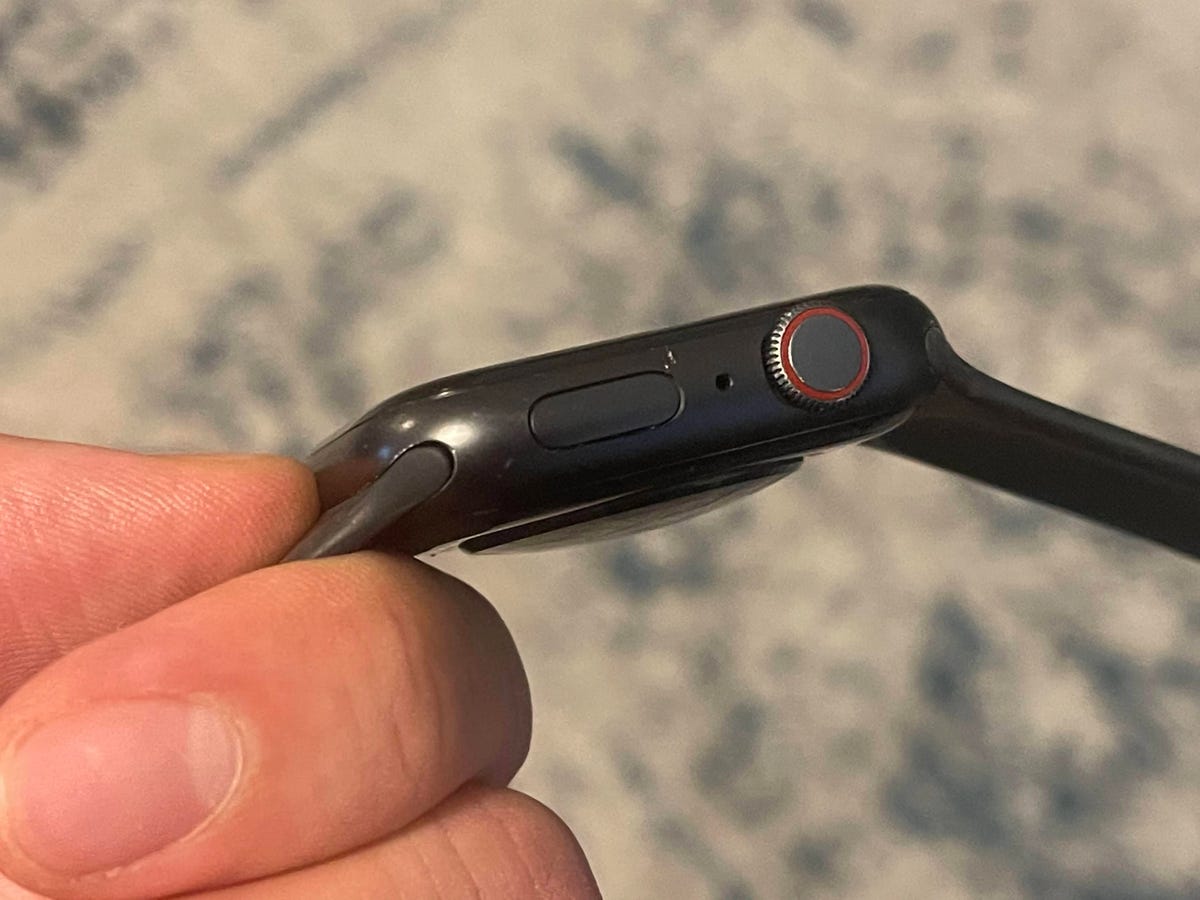
When software fixes fail, the issue may be physical.
Inspect the Side Button
A stuck or overly sensitive side button is a top hardware culprit.
- Press the button—does it click smoothly?
- Does it feel loose, stiff, or recessed?
- Clean around the button with a dry, soft cloth.
- Remove any case or screen protector that might press the button.
🧼 Pro Tip: Sweat, dirt, or a third-party case can keep the button slightly engaged, tricking the system into thinking it’s being held.
Watch for Overheating Triggers
Some users report SOS activation after intense workouts in hot environments.
- Heat may affect internal circuits or sensors.
- Combine heat with sweat, and the side button area can short temporarily.
🏃 User report: “After a long run in summer heat, my watch started auto-dialing SOS.” – Tosketman
Let your watch cool down and monitor if the issue repeats.
Freezer Method (Use With Caution)
A controversial but reported fix: placing the Apple Watch in the freezer for 1–2 hours.
- Theory: Cold causes metal components to contract, possibly freeing a stuck mechanism.
- Wrap the watch in a dry cloth—never seal in plastic (traps moisture).
- Leave in freezer for 60–120 minutes, then power on.
⚠️ Warning: If your watch has any moisture inside, freezing can worsen damage.
🚫 User warning: “Tried after swimming—watch won’t turn on now.” – McTibbersquib
Only attempt if:
– The watch is completely dry
– All other fixes failed
– You accept the risk of permanent damage
Prevent Future SOS Triggers
Stop your Apple Watch emergency SOS from going off again with these proactive steps.
Wear Watch Correctly
A loose band increases the chance of accidental button presses.
- Tighten the band so the watch stays in place.
- Wear on your non-dominant wrist (e.g., left if you’re right-handed).
- Adjust Watch Orientation in settings:
- Watch app > General > Watch Orientation
- Select correct wrist and button position
This reduces unintended interactions during daily use.
Use Airplane Mode Strategically
Disable emergency calling during high-risk activities:
– Concerts (clapping, crowd movement)
– Driving (hitting the horn)
– Amusement parks (roller coasters)
– Gaming or exercise with aggressive gestures
- Swipe up on watch face → Tap Airplane Mode
- Re-enable when needed
✅ Emergency SOS requires cellular or Wi-Fi—Airplane Mode disables both.
Power Down When Necessary
For extended events or risky situations:
– Press and hold Side Button → Slide to Power Off
– Turn back on when safe
This is the only way to guarantee no accidental SOS activation.
Keep Software Updated
Apple frequently patches bugs in watchOS that affect SOS and sensor accuracy.
- On iPhone: Settings > General > Software Update
- On Watch: Watch app > General > Software Update
Ensure both devices are on the latest version.
🔄 Updates have resolved SOS glitches in past releases (e.g., watchOS 8.3, 9.2).
When to Seek Apple Repair
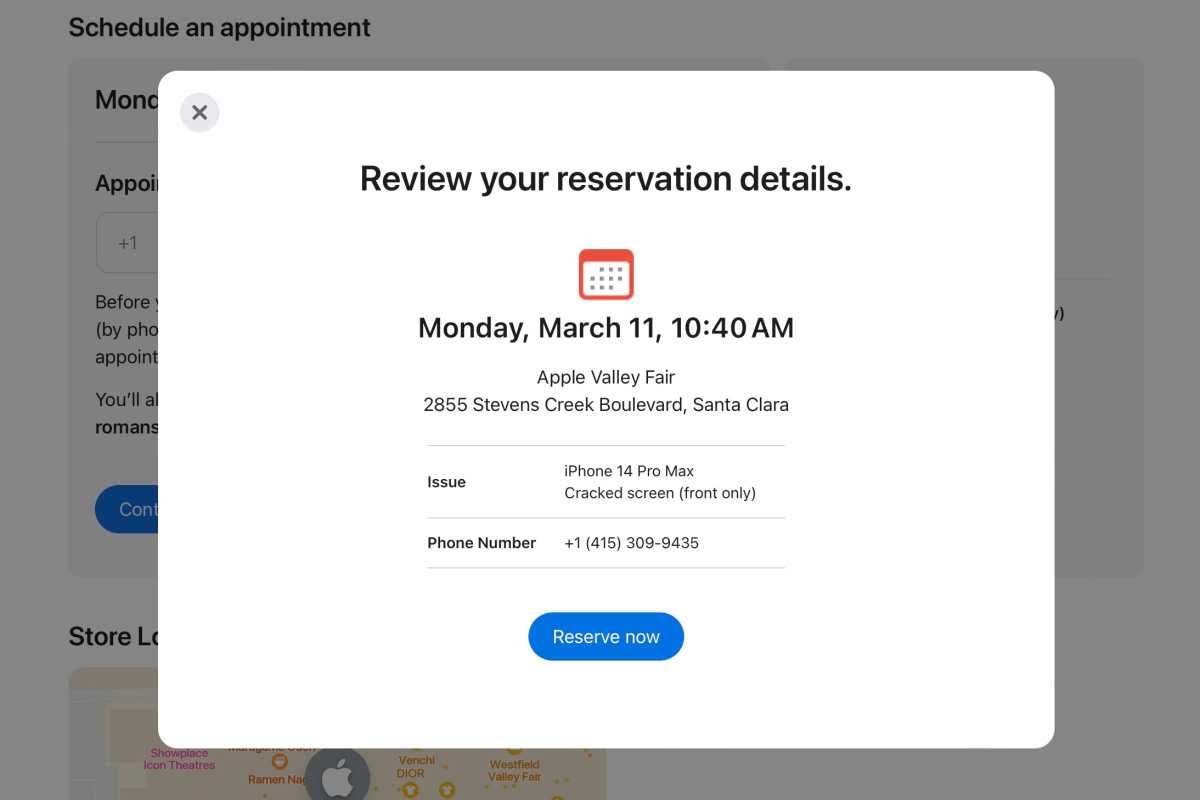
If your Apple Watch emergency SOS keeps going off despite all fixes, it may need professional service.
Signs of Hardware Failure
- SOS triggers while watch is idle or charging
- Button feels stuck or unresponsive
- Problem returns immediately after factory reset
- Occurs shortly after warranty ends (common user report)
📉 Multiple users note: “Happened 5 days after warranty expired.” – Francesip
This pattern suggests a potential design or component flaw.
Repair Options
- Genius Bar: Schedule a diagnostic at an Apple Store.
- Apple Support: Call or chat online to describe symptoms.
- Authorized Service Provider: For out-of-warranty repairs.
💸 Cost alert: Out-of-warranty repairs can exceed $380, more than a new entry-level Apple Watch.
Ask about:
– Whether the side button mechanism is covered
– If Apple acknowledges the issue as widespread
– Possibility of a courtesy replacement (rare but possible)
User Feedback & Apple’s Response
Despite widespread complaints, Apple has not issued an official statement on the recurring SOS issue.
Common User Frustrations
- “Stop Sharing” alert doesn’t appear on iPhone—only on watch.
- Emergency contacts get duplicate location updates all day.
- No clear way to disable SOS completely without losing safety features.
- Some users get no warning before SOS activates.
🗣️ “It’s frustrating to read this thread without any response from Apple.” – Kolletbarkhouse
Report the Issue to Apple
Help push for a fix by submitting feedback:
- Visit Apple Feedback
- Select Apple Watch > Software > Emergency SOS
- Describe your experience in detail
More reports increase the chance of a future software patch or design update.
Summary: Stop SOS From Going Off Unexpectedly
| Problem | Solution |
|---|---|
| Watch calls 911 during sleep | Disable Hold Side Button to Dial |
| False fall detection | Set Fall Detection to “Only During Workouts” |
| Emergency contacts get repeated alerts | Tap Stop Sharing in Watch Notification Center |
| SOS won’t stop looping | Force restart (Hold Crown + Side Button) |
| Keeps happening after reset | Unpair and re-pair or factory reset |
| Suspect broken button | Clean around button, remove case, visit Apple |
| Post-warranty failure | Contact Apple for repair options or replacement |
| High-risk activity | Use Airplane Mode or power off watch |
Final Note: The Apple Watch emergency SOS feature saves lives—but it shouldn’t become a source of stress. By adjusting settings, staying updated, and knowing when to seek repair, you can keep the protection without the false alarms. If software fixes fail and hardware is faulty, consider upgrading—especially if repair costs exceed the value of your current model. Your safety matters, but so does peace of mind.





