Your Apple Watch is completely unresponsive. No red lightning bolt. No green charge symbol. No flicker of life. You plug it in, wait a few minutes, and still—nothing. If your Apple Watch isn’t charging after being dead, you’re not alone. This is a surprisingly common issue, especially if the device was left unused for days or weeks. But don’t panic. A blank screen doesn’t mean your watch is beyond repair. In fact, most cases of a completely drained Apple Watch can be revived with the right steps.
Lithium-ion batteries, like the one in your Apple Watch, can enter a deep sleep when fully discharged. They may take time—or a stronger power source—to wake up. Sometimes, software glitches, dirty contacts, or incompatible chargers compound the problem. The good news? There are proven, step-by-step fixes that can bring your device back to life. From extended charging to force restarts and hardware checks, this guide covers everything you need to know to get your Apple Watch charging again—and how to prevent it from happening in the future.
Let’s walk through the most effective solutions.
Charge for 30 Minutes to 48 Hours
When your Apple Watch has been completely drained, the first and most critical step is patience. A deeply discharged battery may not respond immediately.
Wait at Least 30 Minutes Before Reacting
Don’t assume the worst after just a few minutes. Plug your watch into a known-working charger and leave it undisturbed for at least 30 minutes. Lithium-ion batteries need time to stabilize before they can display any charging indicators.
- Use a reliable Apple charger and power adapter.
- Place the watch on a flat, stable surface.
- Avoid checking it every few minutes—this interrupts the charging process.
If you still see no sign of life, leave it connected for 8 to 10 hours. In extreme cases, some users report needing up to two full days of continuous charging before their watch responded.
User Experience:
“I had to charge it for at least two straight days when this happened.” – smarjorie, Reddit user
The key is consistency. Unplugging too soon can prevent the battery from initializing.
Know What the Screen Should Show
| Display | Meaning |
|---|---|
| Red lightning bolt | Battery too low to power on — normal |
| Green lightning bolt | Actively charging |
| Red ring with lightning | Needs more power; not yet charging |
| Blank screen | May still be charging — wait longer |
Even a blank screen doesn’t mean failure. The internal system may still be drawing power silently.
Use a 20W+ USB-C Charger
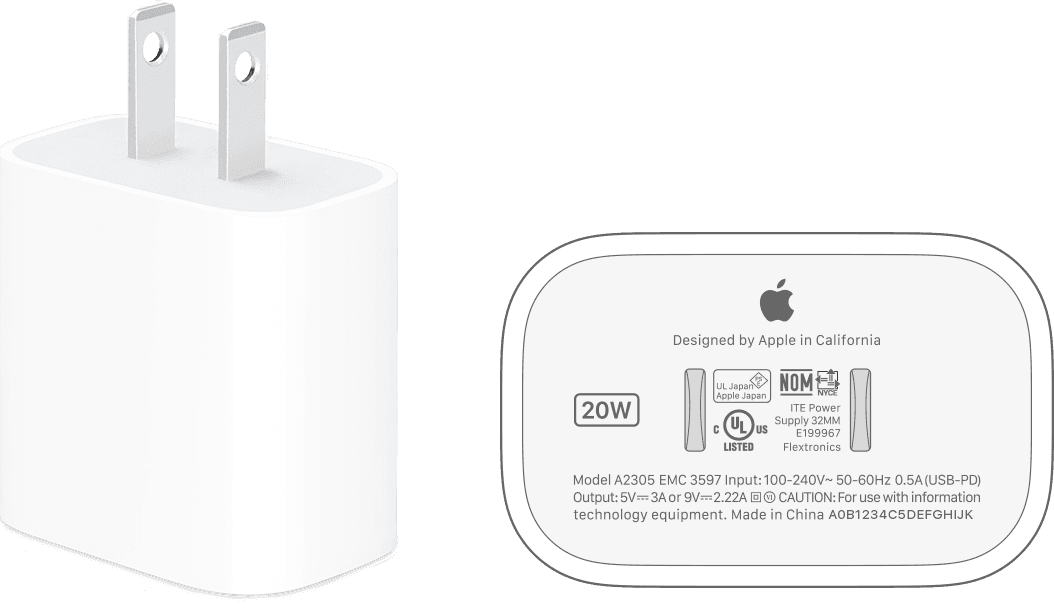
Many users unknowingly use low-power chargers that can’t revive a dead Apple Watch.
Choose High-Power Charging Sources
Use a 20-watt or higher USB-C power adapter, such as the one that comes with the iPhone 15 or iPad. These deliver enough current to “wake up” a deeply drained battery.
Avoid:
– Laptop USB-A ports
– USB hubs
– Older 5W chargers
– Low-output power banks
Larger models like the Apple Watch Ultra, 44 mm, 45 mm, or 49 mm require more power and precise magnetic alignment. A weak charger may not provide enough juice to initiate charging.
Stick to Genuine Apple Cables
Use:
– Apple Magnetic Charging Cable
– USB-C Magnetic Fast Charging Cable
Third-party cables may lack proper voltage regulation or magnetic strength, leading to unreliable connections.
Pro Tip:
Larger Apple Watch models need exact alignment—genuine Apple chargers ensure optimal contact.
Perform a Force Restart
Even if the screen is blank, a software crash may be preventing the watch from powering on or recognizing the charger.
Standard Hard Reset (10 Seconds)
- Press and hold both the Digital Crown and the side button.
- Hold for at least 10 seconds.
- Release when the Apple logo appears.
This clears temporary software glitches that might block startup or charging detection.
Extended Reset (30–40 Seconds)
If the standard reset fails:
- Keep the watch connected to the charger.
- Press and hold both buttons for 30 to 40 seconds.
- Wait for the Apple logo.
This deeper reset can resolve stubborn system hangs.
Expert Note:
After restarting, wait 2 minutes before reconnecting to the charger to let the system stabilize.
Align Magnets Correctly

Misalignment is a surprisingly common cause of charging failure—even with genuine Apple chargers.
Snap the Charger Into Place
- Place the concave side of the magnetic puck against the back of the watch.
- Listen for the magnetic snap—this confirms secure contact.
- Ensure the charger is centered and flush.
For Apple Watch Ultra or larger models, try removing the band first. Thick bands can tilt the watch and break the connection.
Adjust Charging Docks
If using a third-party dock or MagSafe Duo:
– Lay the dock flat.
– Reposition the watch for full contact.
– Avoid angled stands that reduce surface area.
Official Guidance:
On larger models, improper positioning on docks may block reliable charging.
Clean Charging Contacts
Dirt, sweat, oils, or moisture can create a barrier between the charger and watch.
Wipe Contacts with Dry Cloth
- Power off the watch if possible.
- Use a soft, lint-free, dry microfiber cloth.
- Gently wipe:
– The back of the Apple Watch
– The magnetic charging puck - Do not use liquids, alcohol, or compressed air.
Check for plastic film on new chargers—this is often overlooked.
User Note:
One user confirmed cleaning resolved their issue after suspecting debris interference.
Remove Cases and Protectors
Thick cases or screen protectors can interfere with magnetic attachment.
Test Without Accessories
- Remove the case and screen protector.
- Charge the bare watch directly.
- If it starts charging, replace accessories with Apple-certified or thin, non-metallic versions.
Avoid third-party magnetic mounts or wallets—they may disrupt the charging field.
Test with Different Charger and Cable
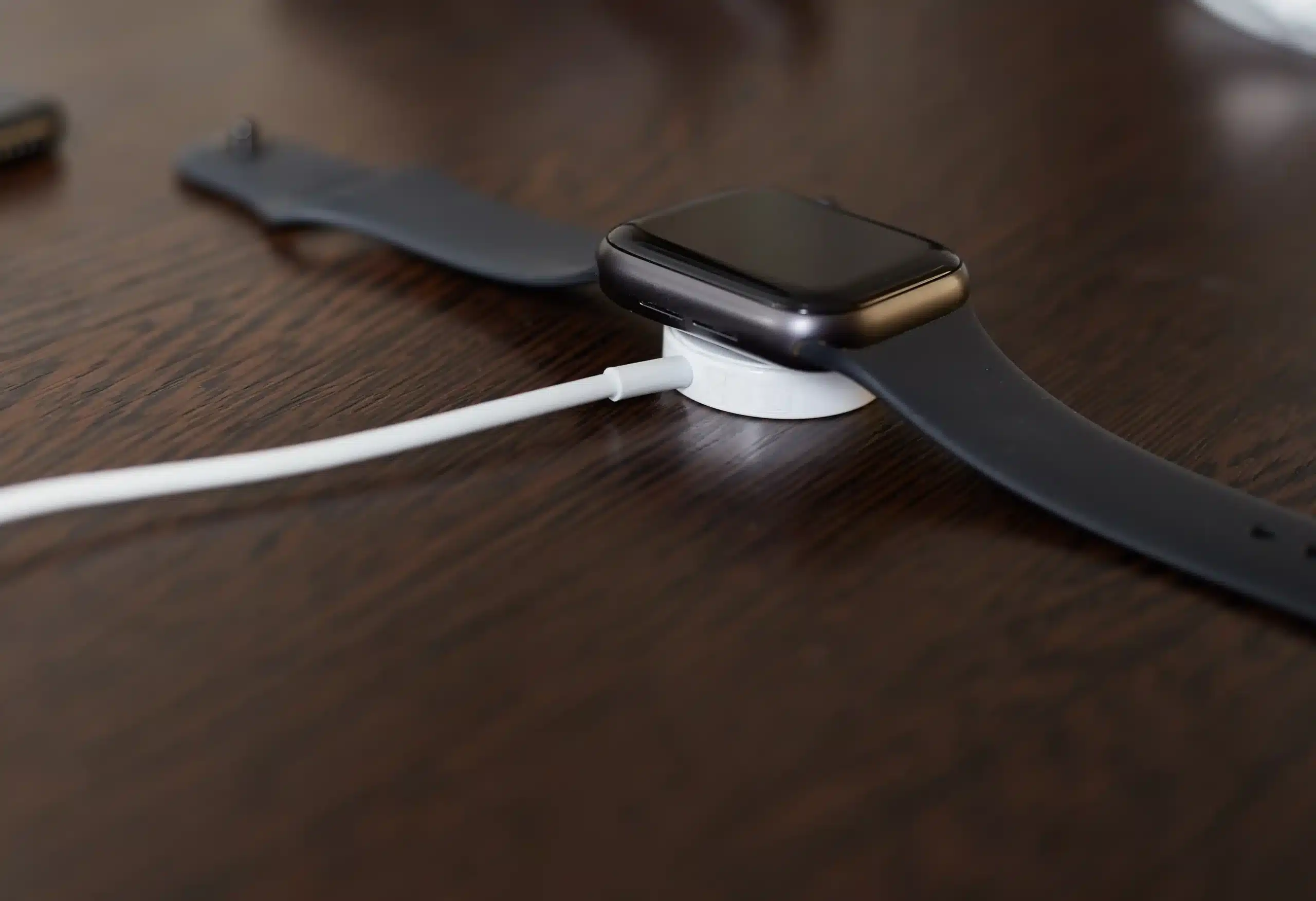
Faulty hardware is a frequent culprit. Isolate the issue by testing components.
Swap and Verify
| Step | Action |
|---|---|
| 1 | Try a different Apple-certified cable |
| 2 | Use a different power adapter (e.g., 12W or 20W) |
| 3 | Test your charger with AirPods or iPhone |
| 4 | Borrow a friend’s Apple Watch charger and test your device |
| 5 | Use your charger with a friend’s Apple Watch |
If your charger works with other devices but not your watch, the issue is likely the watch. If it fails on other devices, replace the cable or adapter.
User Experience:
“I just put it on the other room, which had the USB-C charger, and left it alone.” – Troxz_179
Try Charging from Computer USB Port
When wall outlets fail, a powered computer port can sometimes revive a dead watch.
Connect Directly to Computer
- Use a USB 2.0 or USB 3.0 port directly on the computer (not a hub).
- Ensure the computer is awake and not in sleep mode.
- Keep it powered on during charging.
Note: Charging may be slower, but it can provide just enough power to initiate recovery.
Avoid using MacBooks with low battery—some limit USB output when power is low.
Re-seat Internal Connectors
Over time, internal flex cables can loosen due to temperature changes or minor impacts.
Apply Gentle Pressure
- Remove the watch from your wrist.
- Press firmly but gently with your thumb on:
– The center of the front glass
– The back of the watch (center area) - This may re-establish contact between internal components.
Then:
– Reconnect to the charger.
– Perform a force restart.
This non-invasive method has helped users revive seemingly dead devices.
Try the Freezer Trick (Last Resort)
Based on thermal contraction, this controversial method may reset internal circuits.
Follow Safe Procedure
- Do not remove the band.
- Place the entire Apple Watch (with band) in a sealed plastic bag.
- Put it in the freezer for exactly 20 minutes.
- Remove and immediately perform a force restart.
Warnings:
– Risk of condensation if not sealed.
– Not endorsed by Apple.
– Use only if all other steps fail.
This trick has worked for some users with no hardware damage.
Check for Regional Charger Issues
Some chargers are restricted to specific countries due to wireless power transfer (WPT) regulations.
Identify WPT-Compliant Chargers
- These are sold in China and Indonesia only.
- Using them elsewhere triggers:
“Unable to charge. This is a country-specific charger. It is incompatible with this Apple Watch.”
Fix: Use Global Chargers
Replace with a standard Apple Magnetic Charging Cable or USB-C Fast Charging Cable designed for international use.
Always verify charger compatibility if traveling or buying secondhand.
Update Software After Recovery
Once your Apple Watch powers on, outdated firmware may still cause instability.
Install Latest Updates
- On iPhone, open the Watch app.
- Go to General > Software Update.
- Download and install any pending updates.
Apple frequently releases patches for:
– Battery calibration
– Charging bugs
– Bluetooth reconnection issues
Note: Updating may fix intermittent charging problems even after revival.
Recognize Hardware Failure Signs
If all else fails, the issue may be physical.
Common Hardware Problems
- Failing battery: Especially after 2+ years of use or long-term discharge.
- Damaged charging contacts: Corrosion, dents, or discoloration on the back.
- Internal flex cable damage: From drops or water exposure.
- Moisture intrusion: Even water-resistant models can corrode internally.
Red Flags of Permanent Damage
- No response after 48+ hours on a known-good charger.
- Charger works with other devices but not your watch.
- Swelling, discoloration, or strange odors from the device.
These indicate professional repair or replacement is needed.
Contact Apple Support
When DIY fixes don’t work, get expert help.
Start at Apple Support Website
Visit: https://getsupport.apple.com
Enter your Apple Watch serial number to:
– Check warranty status
– Verify AppleCare+ coverage
– Schedule a Genius Bar appointment
– Request mail-in service
Repair Options
- Battery replacement: Available for out-of-warranty devices (fee applies).
- Full unit replacement: If internal damage is confirmed.
- Free diagnostics: At Apple Stores or Authorized Service Providers.
Final Tip:
If your watch is over two years old and out of warranty, compare repair cost vs. upgrading to a newer model.
Prevent Future Charging Failures
Avoid this issue by adopting best practices.
Maintain Battery Health
- Charge regularly—don’t let it die completely.
- Store in a cool, dry place.
- Use genuine Apple or MFi-certified accessories.
- Clean charging contacts monthly with a dry cloth.
Optimize Settings
- Disable Always-On Display if battery drains fast.
- Turn off Background App Refresh for non-essential apps.
- Enable Power Saving Mode during low-battery events.
- Avoid extreme temperatures—heat and cold degrade batteries.
Quick Fix Checklist (All Steps)
| Step | Action | Purpose |
|---|---|---|
| 1 | Charge 30 min–48 hrs | Wake deeply drained battery |
| 2 | Use 20W+ USB-C charger | Deliver sufficient power |
| 3 | Force restart (10–40 sec) | Clear software lock |
| 4 | Clean contacts | Remove debris blocking connection |
| 5 | Remove case/protector | Eliminate magnetic interference |
| 6 | Test alternate charger | Isolate faulty equipment |
| 7 | Try computer USB port | Use alternative power source |
| 8 | Re-seat connectors | Restore internal contact |
| 9 | Try freezer trick | Thermal reset (last resort) |
| 10 | Contact Apple Support | Professional diagnosis |
Final Note: Most Apple Watches that appear dead can be revived with patience and the right approach. Start with high-power charging and a force restart. Work through each step methodically. Use genuine Apple accessories. If nothing works, seek professional service. With proper care, your Apple Watch can last years—even after a complete battery drain.
Leave a Reply