You glance at your Apple Watch, only to see a red lightning bolt on a black screen—no animation, no response, just time and that ominous red symbol. Your heart sinks. Is it broken? Bricked? The truth is, your Apple Watch is not dead. That red lightning bolt means your device has entered Power Reserve mode, a last-ditch effort to stay alive when the battery drops below 10%. It’s designed to preserve just enough power to restart once charging begins.
But if you’ve plugged it in and nothing changes after hours—no green ring, no Apple logo—you’re not alone. Many users face this exact issue, especially after leaving their watch unused for days or experiencing sudden shutdowns at high battery percentages. The good news? In over 90% of cases, the problem is fixable without professional repair.
This guide delivers step-by-step solutions to revive your Apple Watch, whether you own a Series 9, Ultra 2, or an older model. You’ll learn how to diagnose the real cause, bypass common charging traps, and get your watch back on your wrist—fast.
Why the Red Lightning Bolt Appears (And What It Really Means)
Power Reserve Mode: Your Watch’s Emergency Survival State
The red lightning bolt isn’t a hardware failure—it’s a built-in safety feature. When your Apple Watch battery dips below a critical threshold, it shuts down everything except the time and the red symbol. This Power Reserve mode conserves minimal energy so the watch can reboot once it receives power.
You cannot interact with the watch in this state. No button press, swipe, or force restart will wake it—because there’s simply not enough juice. The device must charge to a certain level before it can power on.
Red vs. Green Lightning: What the Symbols Tell You
Understanding the difference between red and green lightning bolts is crucial:
- Red lightning bolt (static): Battery is too low to power on.
- Red lightning inside a ring: Charging has started, but the watch still lacks power to restart.
- Green lightning inside a ring: Charging is active and progressing normally.
- Apple logo appears: The watch has enough power to reboot.
If you see no symbol at all, the charger isn’t making a connection—likely due to dirt, misalignment, or a faulty cable.
When the Red Bolt Won’t Go Away
A red lightning bolt that stays stuck for hours usually points to one of four issues:
- Poor connection – Misaligned charger or dirty contacts
- Weak power source – Underpowered USB port or faulty adapter
- Battery degradation – Health below 80% after 2+ years of use
- Hardware failure – Rare, but possible after drops or water exposure
Don’t jump to conclusions—start with the most common fixes first.
Fix Charging Connection Issues

Align the Magnetic Charger Perfectly
Even a slight tilt can break the connection, especially on larger models like the Apple Watch Ultra, Series 9 (45mm/49mm), or older 44mm versions. The magnetic puck must sit flush against the back of the watch.
How to fix it:
– Place the charger on a flat, stable surface.
– Gently lower the watch—don’t force it into place.
– Remove thick bands, metal cases, or third-party accessories that push the watch away from the charger.
For best results, try charging without the band. This reduces leverage and ensures direct contact.
Clean the Charging Contacts Safely
Sweat, oils, and dust build up on the back of the watch and charger contacts, blocking electrical flow. This is one of the most overlooked causes of charging failure.
Safe cleaning steps:
1. Unplug both devices.
2. Dampen a microfiber cloth with 70% isopropyl alcohol or high-alcohol aftershave (never spray liquid directly).
3. Gently wipe the metal contacts on the watch back and the magnetic puck.
4. Let everything dry completely before reconnecting.
Avoid paper towels or abrasive cleaners—they can scratch the finish.
Remove Interfering Accessories
Third-party cases, magnetic docks, or metal watch bands can disrupt the magnetic seal. Even Apple’s MagSafe Duo Charger may struggle with bulky setups.
Pro tip: Try charging with the watch naked—no case, no band. If it starts charging, the issue was interference.
Test and Upgrade Your Power Source

Use a Wall Charger, Not a Laptop USB Port
Many users plug their Apple Watch into a laptop USB port, not realizing these often deliver only 0.5A–0.9A—too weak to revive a deeply drained battery. A wall adapter (5W or higher) provides consistent, stronger power.
Best options:
– Apple USB power adapter (5W)
– 20W or 30W USB-C PD charger (e.g., Anker 20W or 30W IQ)
User reports confirm faster recovery with higher-wattage chargers, especially after 3–4 days of non-use.
Inspect Your Cable and Ports
Check both ends of your charging cable:
– USB end: Look for bent pins or debris. Clean with a soft brush or compressed air.
– Magnetic puck: Check for fraying, kinks, or discoloration.
If the cable feels loose or shows damage, replace it immediately.
Try Different Combinations
Test all variations to isolate the faulty component:
– Same cable, different wall adapter
– Same adapter, different USB cable
– Different USB port on your computer
If one combo works, you’ve found the culprit.
Give It Time—Even Overnight
Be Patient After Deep Discharge
Apple says to wait 10–30 minutes before expecting a response. But if your watch has been dead for days or weeks, it may take several hours to show signs of life.
Real-world success stories:
– One user revived a Series 7 after 8 hours on a MacBook USB port.
– Another recovered an Ultra 2 only after switching to a 30W Anker IQ charger and leaving it overnight.
Even watches with 94% battery health can get “stuck” if drained completely in Low Power Mode.
Look for Hidden Signs of Charging
If the screen stays black, check:
– Is the charger slightly warm? (Indicates power flow)
– Does the charging ring appear when you tilt the watch?
No visible symbol doesn’t always mean no charging—sometimes the display can’t light up yet.
Force Restart and Reboot Correctly
Perform a Hard Reset (When It Finally Has Power)
If the watch remains unresponsive after 30+ minutes of charging, try a force restart:
- Press and hold the side button and the Digital Crown at the same time.
- Hold for at least 10 seconds.
- Release when the Apple logo appears.
This clears software glitches without erasing data.
⚠️ Warning: If the Apple logo doesn’t appear, the battery is still too low. Keep charging and retry in 30–60 minutes.
Restart from Power Reserve (Not While Charging)
Once the watch has some charge:
1. Remove it from the charger.
2. Press and hold the side button until the Apple logo appears.
3. Wait for the home screen.
Trying to restart while connected often fails—Apple recommends removing the watch first.
Update Software and Check Battery Health
Install the Latest watchOS Version
Outdated software can cause charging bugs. To update:
1. Open the Watch app on your iPhone.
2. Tap General > Software Update.
3. Install any pending updates.
Ensure your watch has at least 50% charge or is connected to power.
Check Battery Health
Battery degrades over time. To check:
– On Apple Watch: Settings > Battery > Battery Health
– Look for Maximum Capacity:
– 100%–80%: Normal
– Below 80%: Battery is degraded—consider replacement
If your watch shuts down at 70–80% or won’t hold a charge, low health is likely the cause.
Disable Optimized Charging Temporarily
This feature delays full charging to extend battery life, but can confuse users when the watch stops at 80%.
To test:
– Go to Settings > Battery > Battery Health
– Turn off Optimized Battery Charging
Re-enable it later for long-term care.
Model-Specific Tips and Charger Warnings
Larger Models Need Better Alignment
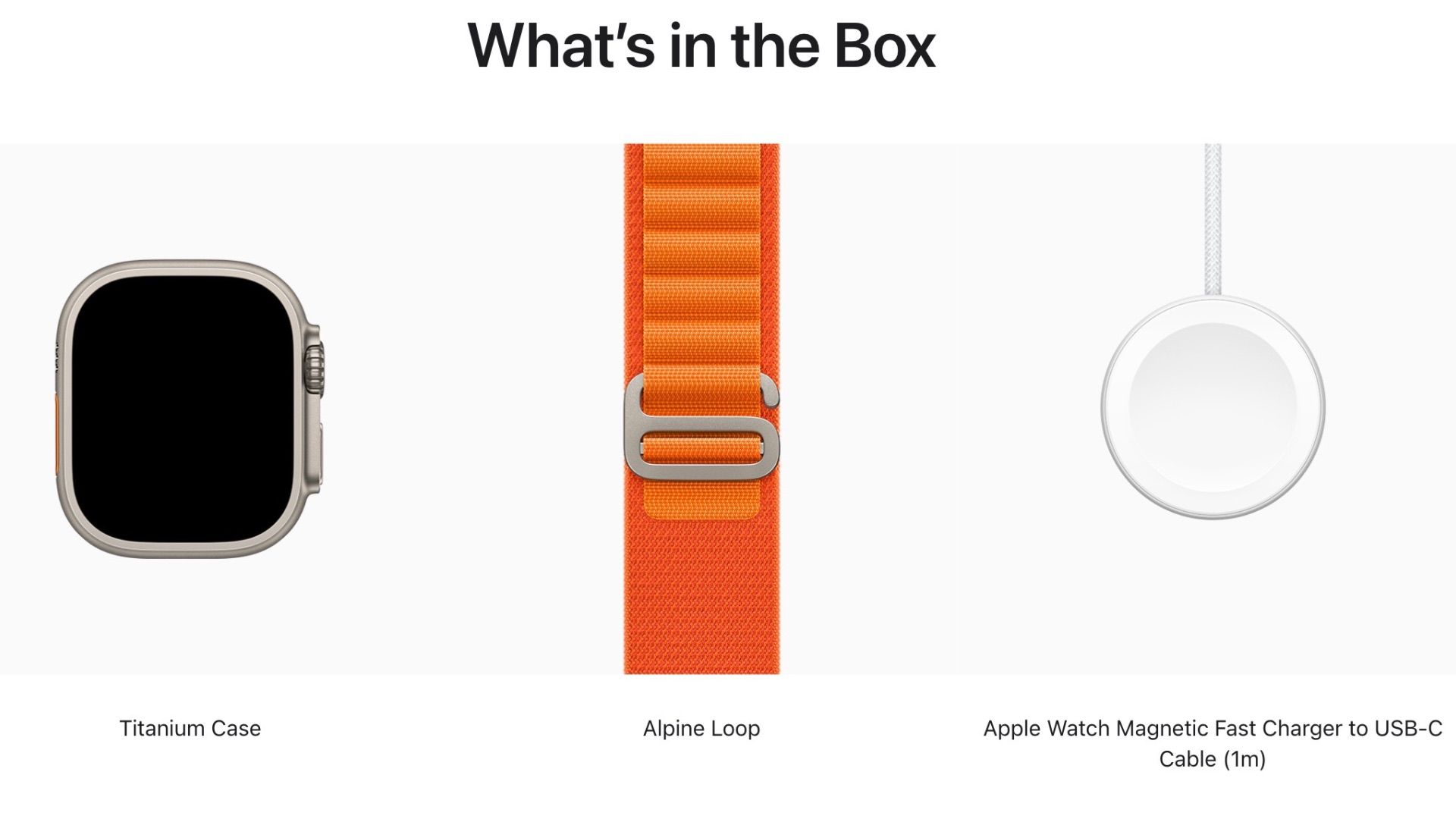
Apple Watch Ultra and 45mm/49mm models are more prone to misalignment. Use the Apple Magnetic Charging Dock or MagSafe Duo Charger on a flat surface. Remove the band for better contact.
Avoid Country-Specific Chargers
Some chargers sold in China or Indonesia are WPT-compliant and region-locked. If you see:
“Unable to charge. This is a country-specific charger.”
…use only chargers approved for your region.
Use Only Certified Charging Accessories
Stick to Apple or MFi-Certified Gear
Non-certified cables often deliver incorrect voltage, causing slow or failed charging.
Recommended:
– Apple USB-C Magnetic Fast Charging Cable
– Anker MagGo 3-in-1 Dock (15W fast charge)
– Belkin Boost Charge Pro 3-in-1 (with cooling)
Avoid generic Qi pads—use only Qi-2 or MFi-certified wireless options.
When to Seek Professional Help
Signs of Hardware Failure
- No charging symbol with genuine Apple gear
- Charger gets hot or smells like burning
- Watch has been dead for months
- Battery health below 80% and drains fast
Get Apple Support
- Apple Support app (online help)
- Genius Bar appointment
- Authorized Service Provider
If under AppleCare+ or warranty and battery health is below 80%, free battery service may be available.
Prevent Future Charging Issues
- Clean contacts weekly with a microfiber cloth
- Charge nightly—avoid full drains
- Keep between 20%–80% for daily use
- Avoid extreme temperatures (<0°C or >35°C)
- Keep dry—moisture triggers a green snake icon
Final Note: The red lightning bolt is not doom—it’s a lifeline. Most Apple Watch charging problems are solved with clean contacts, proper alignment, and a strong wall charger. Be patient, follow these steps, and your watch will likely come back to life. If not, battery replacement is often the fix. With proper care, your Apple Watch can last for years.
Leave a Reply