
You raise your wrist to answer a call, say “Hey Siri,” or dictate a quick message—only to hear silence on the other end. The Apple Watch Series 8 microphone not working issue is more than just a minor annoyance—it’s a widespread, recurring problem that’s left thousands of users frustrated and ignored by Apple’s silence. Reports flood Apple Support forums, Reddit, and MacRumors: Siri doesn’t respond, callers can’t hear you, and even Voice Memos captures nothing. And while a restart might fix it temporarily, the silence often returns within minutes.
This isn’t isolated to one user or a fluke. Apple has quietly begun replacing affected Apple Watch Series 8 and Ultra units under warranty, a strong signal that they recognize the issue—yet no official fix or public statement has been issued. Is it a bug in watchOS 9+? A hardware flaw in certain production batches? Or just a clogged mic port? The truth likely lies in a mix of all three. The good news: you can diagnose and fix it yourself—before wasting hours at the Genius Bar.
This guide delivers step-by-step troubleshooting, from simple cleaning to full re-pairing, plus how to get a free replacement if software fixes fail. If your Apple Watch mic has gone silent, here’s exactly what to do—and when to demand a new watch.
Clean the Microphone Port to Remove Blockages

Locate the Microphone on Your Apple Watch
The microphone is a tiny pinhole on the right side of the Apple Watch, positioned just below the Digital Crown and adjacent to the side button. This area is high-contact—pressed against your wrist, covered by sleeves, and exposed to sweat, lint, and dust. Even a speck of debris can block sound input, rendering the mic useless.
Before assuming software failure, inspect this port closely under bright light. If it looks dark or clogged, cleaning may be all you need.
Use Safe, Non-Damaging Cleaning Methods
Never use sharp tools or compressed air—these can puncture the delicate microphone diaphragm or push debris deeper. Instead:
- Soft-bristled toothbrush or electronics brush: Gently scrub around the port to loosen lint and dust
- SIM eject tool (plastic end): Carefully nudge out stubborn fibers—do not insert deeply
- Lint-free microfiber cloth: Wipe the area after cleaning to remove residue
Apple officially recommends a soft brush for cleaning the speaker and mic on Series 10 and later—this method works perfectly for Series 8 too.
⚠️ Do not use metal objects, pins, or high-pressure air. These can permanently damage the mic.
Rinse and Dry After Water or Sweat Exposure
If your watch has been swimming, sweating, or caught in the rain, moisture may be trapped in the port. Water resistance doesn’t mean immunity.
- Rinse under lightly running warm fresh water (Series 2 and later are water-resistant up to 50 meters)
- Dry with a clean microfiber cloth
- Place the watch speaker/mic side down on a towel and let it air dry overnight
- Avoid heat sources like hairdryers—they can warp seals
After water exposure, use Water Lock (turn the Digital Crown) and tap the screen to expel water from the speaker and mic. Residual moisture can muffle or completely block audio—don’t skip drying.
Restart or Force Restart to Clear Software Glitches
Perform a Standard Restart
A soft reboot clears temporary system errors that may disable the microphone:
- Press and hold the side button
- Swipe the Power Off slider
- Wait for the screen to go black
- Press and hold the side button again until the Apple logo appears
This simple step fixes the mic for many users—at least temporarily.
Force Restart for Unresponsive or Frozen Devices
If your watch is sluggish or the mic fails after every update, a force restart resets core system processes:
- Press and hold both the Digital Crown and side button
- Keep holding until the Apple logo appears (about 10 seconds)
- Release and wait for the watch to reboot
This often resets audio drivers and restores mic functionality instantly.
Many users report the microphone works immediately after a force restart, confirming a software-level bug—not hardware failure.
Update watchOS and iOS to Patch Known Bugs
Install the Latest watchOS Version
An outdated OS may lack critical microphone driver fixes:
- Open Settings on your Apple Watch
- Tap General > Software Update
- Download and install any available update over Wi-Fi
Ensure your watch has at least 50% battery and is connected to its charger.
Update Your iPhone to the Latest iOS
Apple often rolls out cross-device fixes—a new iOS version may include a patch for your watch:
- On iPhone: Settings > General > Software Update
- Install the latest version
- Re-pair if prompted
WatchOS 9.6 and later include stability improvements, but the mic bug still affects many users.
Disable Silent and Focus Modes That Block Microphone Access
Check Control Center for Mute Settings
Silent or Focus modes can interfere with voice input—even if they don’t mute the speaker:
- Press the side button to open Control Center
- Look for:
– Bell icon with slash → Silent Mode is on (tap to disable)
– Purple moon icon → Focus Mode active (tap to turn off)
Some Focus filters block Siri and dictation. Disable all active modes before testing.
Test Mic Immediately After Disabling
Say “Hey Siri” or make a quick call. If it works now, a Focus setting was likely blocking access.
Adjust Sound and Siri Settings for Optimal Mic Performance
Increase Alert Volume and Disable Auto-Adjust
Low volume doesn’t affect mic input—but misconfigured audio settings can:
- Settings > Sounds & Haptics
- Tap Level under Automatically Adjust Volume
- Select Louder or turn off auto-adjust
Use the Digital Crown to test volume in real time.
Enable All Siri Activation Methods
Ensure the mic is primed to listen:
- Settings > Siri
- Set Listen for to “Siri” or “Hey Siri”
- Turn on:
– Raise to Speak
– Press Digital Crown
If Siri won’t activate, the mic isn’t being triggered. These settings fix that.
Verify Microphone Permissions in Privacy Settings
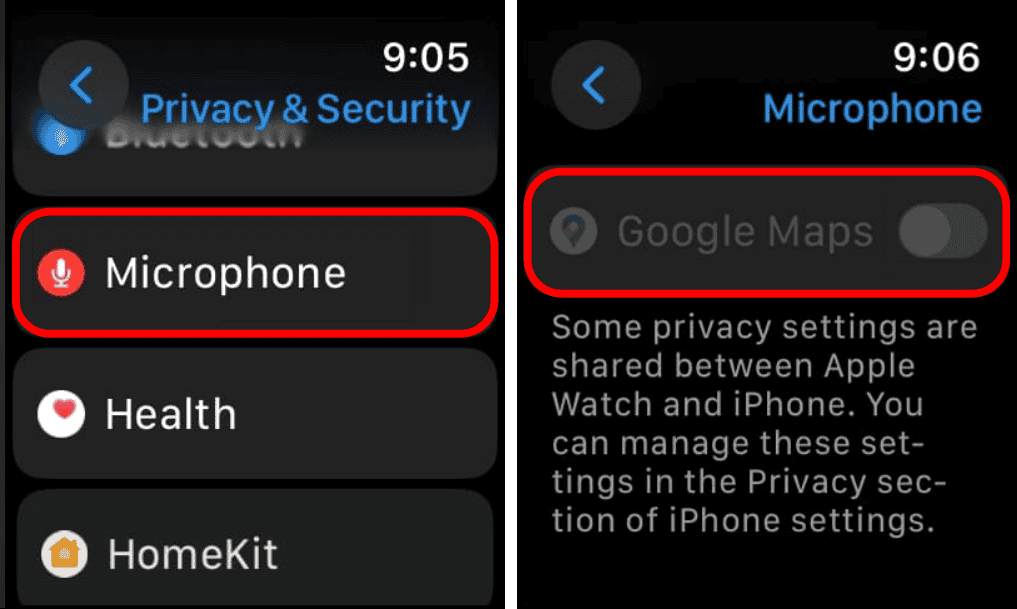
Grant Access to Critical Apps
After updates, apps can lose mic permissions:
- Settings > Privacy & Security > Microphone
- Confirm these apps have access:
– Phone
– Siri
– Voice Memos
– Walkie-Talkie
– Messages (for dictation)
If an app is missing, reinstall or test functionality directly.
Apps without mic access fail silently—no warning appears during dictation.
Reset All Settings to Clear Corrupted Audio Profiles

Perform a Soft Factory Reset
This clears system settings without deleting data:
- Settings > General > Reset
- Tap Reset All Settings
- Confirm and wait for reboot
Afterward:
– Re-enable Siri, sound settings, and Focus modes
– Test the microphone immediately
This often resolves corrupted audio drivers or misconfigured firmware.
Factory Reset and Re-Pair to Eliminate Deep Software Issues
Erase All Content and Settings
If the mic still fails:
- Settings > General > Reset
- Tap Erase All Content and Settings
- Enter passcode and confirm
Back up health data first via iPhone’s Watch app.
Re-Pair the Watch from Scratch
- On iPhone: Open Watch app
- Tap Start Pairing
- Use camera or tap Set Up Apple Watch
- Choose Restore from Backup or Set Up as New
During setup:
– Test Siri and dictation early
– If mic works now, the issue was software corruption
Unpair and Re-Pair to Fix Bluetooth and Sync Glitches
Break the Connection Completely
Sometimes, firmware sync errors disable hardware:
- On iPhone: Open Watch app
- Tap All Watches
- Tap (i) next to your watch
- Select Unpair Apple Watch
- Confirm—this erases the watch
Pair Again as New
Follow setup steps:
– Ensure both devices are updated
– Stay close during pairing
– Test mic functions before restoring apps
This fixes firmware handshake errors that can mute the microphone.
Test the Microphone Across Multiple Apps
Use These Apps to Verify Function
Don’t rely on one test. Confirm mic works in:
- Siri: “Hey Siri, what’s the weather?”
- Phone Call: Call a friend or voicemail
- Voice Memos: Record and playback
- FaceTime Audio: Make a test call
- Walkie-Talkie: Send a message
- Messages App: Use dictation to type a note
Signs of Success
- Siri responds immediately
- Call recipient hears you clearly
- Voice Memos shows a visible waveform
- Dictation converts speech accurately
If one app works but others don’t, it’s a permissions issue. If none work, it’s system-wide—likely hardware.
When to Demand a Replacement from Apple

Signs of Hardware Failure
The mic is likely defective if:
– It fails after factory reset and re-pair
– No sound is detected in any app
– You’ve cleaned, updated, and restarted multiple times
– You must shout 5 inches from the mic to be heard
Apple has replaced Series 8 and Ultra units under warranty—even with no visible damage.
Contact Apple Support and Escalate
- Open Apple Support app
- Select Apple Watch > Sound or Microphone Issues
- Choose Chat or Schedule Repair
- Say: “Mic stopped working after update. Tried all fixes. Needs replacement.”
Bring a video showing the mic failing—this speeds up approval.
Why This Happens: Software Bug or Hardware Defect?
Software Bug in watchOS 9+
Evidence:
– Mic works after restart, fails later
– Affects Series 5–8 and Ultra
– Apple preparing a software patch (per MacRumors)
– Reset fixes it temporarily
Likely a microphone driver timeout or power management bug.
Possible Hardware Defect
Why hardware may be involved:
– Apple issuing free replacements
– Some users report weak mic sensitivity
– May affect units with diaphragm flaws or poor soldering
This suggests a hybrid issue: a software bug exposing a hardware weakness.
Prevent Future Mic Issues
Keep the Port Clean
- Weekly check with a soft brush
- Avoid dusty or sandy environments
- Wipe after sweaty workouts
Avoid Water Damage
- Use Water Lock after swimming
- Rinse with fresh water if needed
- Tap screen to expel water
- Dry completely before charging
Update Promptly
Install watchOS updates immediately—they may contain mic fixes.
Final Fix: Demand a Replacement
If nothing works, you’re not out of options.
Apple is already replacing affected watches. Don’t accept “try again” from support.
How to Get a New Watch
- Document every fix you’ve tried
- Record a video of the mic failing
-
Contact Apple Support and say:
“My Apple Watch Series 8 microphone doesn’t work. I’ve reset, cleaned, and re-paired it. Others are getting replacements. I want a warranty replacement.” -
Be persistent—escalate if needed
Most users succeed within 1–2 calls.
Final Note: The Apple Watch Series 8 microphone issue is real, widespread, and often requires a hardware fix. Start with cleaning and software resets—but if the mic fails after a full re-pair, get a replacement. Apple is already doing it. You should too.





