
If your Apple Watch isn’t receiving calls—even when your iPhone is nearby or powered off—you’re not imagining things. This frustrating issue affects users across all models, especially those relying on cellular connectivity for workouts, commutes, or hands-free convenience. The good news? In most cases, the problem isn’t a broken device—it’s a settings glitch, connectivity hiccup, or carrier misconfiguration that you can fix in minutes. Whether your watch stays silent during incoming calls, fails to ring when your phone is off, or only works sporadically, this guide covers every proven solution, from quick toggles to deep resets. By the end, you’ll know exactly how to restore seamless call functionality so your Apple Watch works the way it should.
Disable Do Not Disturb and Active Focus Modes
One of the most common reasons your Apple Watch stays silent during calls is Do Not Disturb (DND) or an active Focus mode. These features are designed to silence alerts, but they often linger longer than intended—especially Sleep or Work Focuses.
Turn Off Do Not Disturb Immediately
- On your Apple Watch, swipe up from the watch face to open the Control Center.
- Look for the crescent moon icon. If it’s highlighted, tap it to disable DND.
- Once disabled, your watch should resume normal call alerts.
Pro Tip: If you use Sleep Focus, check whether it’s still active after waking. Go to Settings > Focus > Sleep and manually turn it off if needed.
Check for Active Focus Modes
- Swipe down from the watch face to view your current Focus status.
- Look for icons like a bed, briefcase, or person—each indicates an active Focus mode.
- Open Settings > Focus and disable any mode that restricts notifications.
Verification: Ask someone to call your number. Your Apple Watch should now display the call, ring, and vibrate—just like your iPhone.
Exit Theater and Silent Modes
Even with DND turned off, Theater Mode or Silent Mode can prevent your Apple Watch from alerting you to incoming calls.
Disable Theater Mode
- Open Control Center and tap the two theater masks icon.
- This stops the screen from staying dark and re-enables sound.
- Without this, your watch won’t wake when you raise your wrist—so you’ll miss call notifications unless you tap the screen.
Turn Off Silent Mode
- In Control Center, find the crossed-out bell icon.
- Tap it to re-enable sound alerts.
- Then go to Settings > Sounds & Haptics and ensure:
- Haptic alerts are turned on
- Haptic Strength is set to medium or high for better vibration feedback
Result: After disabling both modes, your watch will ring and vibrate normally for calls.
Fix Phone Notification Settings on iPhone
If your iPhone rings but the Apple Watch stays silent, the issue likely lies in notification permissions.
Enable Phone Notifications on Apple Watch
- On your iPhone, open the Watch app.
- Tap My Watch > Notifications.
- Scroll down and select Phone.
- Choose either:
- Show on Apple Watch
- Or Show on Apple Watch and on Lock Screen
Quick Reset: Toggle this setting off, wait 5 seconds, then turn it back on. This forces a sync and often resolves notification delays.
Verify iPhone-Level Phone Alerts
- On your iPhone, go to Settings > Notifications > Phone.
- Confirm the following are enabled:
- Allow Notifications: ON
- Sound: Enabled
- Show on Lock Screen: ON
- Badge App Icon: ON
Important: Disable Silence Unknown Callers under Settings > Phone if enabled—some users report this setting blocks call routing to the watch.
Adjust Alert Volume and Haptic Strength

Low volume or weak vibrations can make it seem like no call came through—even if the notification appeared.
Increase Alert Volume
- On the Apple Watch, go to Settings > Sounds & Haptics.
- Drag the Alert Volume slider to the right—aim for at least 75%.
- During a test call, use the side buttons to adjust volume in real time.
Boost Vibration Intensity
- In the same menu, increase Haptic Strength.
- Set it to middle or maximum so you feel strong taps on your wrist.
Test It: Call your number from another phone. You should hear a clear ring and feel a strong vibration.
Restore Bluetooth Connection
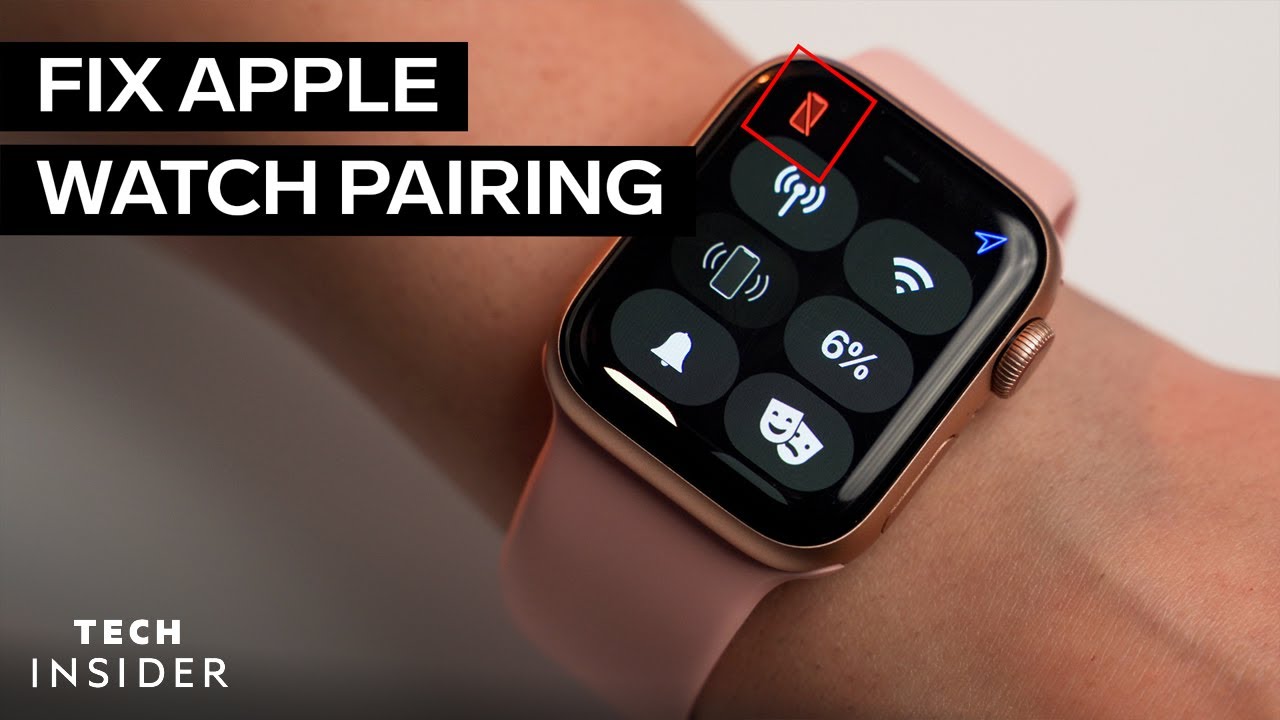
When your iPhone is nearby but the watch doesn’t ring, Bluetooth may be disconnected.
Check Bluetooth Status
- On your iPhone, open Settings > Bluetooth.
- Look for your Apple Watch under My Devices.
- If it says “Not Connected,” tap the “i” icon and select Connect.
Force Reconnection
- Turn Bluetooth off on the iPhone, wait 5 seconds, then turn it back on.
- Keep both devices within 3 feet of each other.
- Restart the iPhone first, then the Apple Watch to ensure clean re-pairing.
Visual Cue: A disconnected Bluetooth link appears gray in the Apple Watch Control Center.
Reconnect to Wi-Fi
Wi-Fi helps maintain connection handoff when Bluetooth signal weakens.
Confirm Same Network
- On Apple Watch, go to Settings > Wi-Fi—verify it’s connected.
- On iPhone, ensure Auto-Join is enabled for your network.
- Both devices must be on the same Wi-Fi network for seamless call routing.
Fix Tip: If Wi-Fi drops often, go to Watch app > My Watch > Wi-Fi, forget the network, and reconnect.
Activate and Reset Cellular (Cellular Models)
If calls fail when the iPhone is off, your cellular service may not be active.
Turn On Cellular
- On Apple Watch: Settings > Cellular
- Ensure Cellular is ON
- If off, toggle it on and wait up to 2 minutes for activation
Restart Cellular Service
- Turn Cellular Off, wait 10 seconds, then turn it Back On
- This forces a fresh handshake with your carrier
Note: After resetting, allow 30–60 minutes for full service sync.
Update iOS and watchOS
Outdated software is a frequent culprit behind call routing bugs.
Update iPhone
- Settings > General > Software Update
- Install any available iOS update
Update Apple Watch
- Open Settings > General > Software Update on the watch
- Ensure it’s charged and on Wi-Fi
- Download and install the latest watchOS version
Requirement: Both devices must run compatible, up-to-date OS versions for reliable call handoff.
Restart Both Devices
A simple restart clears temporary glitches.
Restart Apple Watch
- Press and hold the side button until the power slider appears
- Slide to power off, wait 10 seconds, then restart
Restart iPhone
- iPhone 8 and later: Press Volume Up, then Volume Down, then hold Side Button
- iPhone 7: Hold Side + Volume Down
- iPhone 6s and earlier: Hold Home + Side Button
Best Practice: Restart the iPhone first, then the Apple Watch for optimal Bluetooth re-pairing.
Reset Cellular Plan (Verizon & AT&T Users)
Verizon users commonly face call failures due to eSIM sync issues.
Remove and Re-add Plan
- On iPhone, open Watch app > Cellular
- Tap Remove Cellular Plan
- Wait 10 seconds, then tap Add Cellular Plan
- Follow prompts to reactivate
User Confirmed: “30–60 minutes later, it worked—calls now come through with iPhone off.”
Contact Carrier for Reprovisioning
If cellular calls still fail, your line may need reprovisioning.
Request eSIM Re-sync
- Call Verizon, AT&T, or T-Mobile
- Ask: “Please reprovision my Apple Watch eSIM and sync it with my iPhone number.”
- Mention IMEI registration if they claim the device isn’t recognized
User Report: “AT&T re-provisioned my line—calls work again after hours of no fix.”
Unpair and Re-pair Apple Watch
Corrupted pairing data is a top cause of call routing failure.
How to Unpair
- On iPhone, open Watch app
- Tap All Watches > (i) next to your watch
- Select Unpair Apple Watch
- Confirm with Apple ID password
Re-pair the Watch
- Set up as new or Restore from Backup
- Wait for full sync (5–10 minutes)
- Re-enable Cellular and Notifications
Result: Clears deep software conflicts and restores clean connectivity.
Test Call Functionality
After applying fixes, verify everything works.
Run a Test Call
- Use another phone to call your number
- Confirm:
- iPhone rings
- Apple Watch displays and alerts
- You can answer and hang up from the watch
Try Cellular-Only Mode
- Power off your iPhone
- Ask someone to call
- Watch should ring via cellular using the same number
Expected Behavior: The watch should auto-switch to cellular—no manual steps needed.
Try Bluetooth-Off Workaround (Cellular Models)
If calls still fail when iPhone is off, try this user-verified fix.
Turn Off Bluetooth on Watch
- On Apple Watch: Settings > Bluetooth > Off
- Wait 30 seconds
- Test an incoming call
User Confirmed: “Turning off Bluetooth forces the watch to use cellular—calls now ring with iPhone off.”
Note: This is a temporary workaround. The system should switch automatically—contact Apple if it doesn’t.
Contact Apple Support
If nothing works, seek professional help.
Get Remote Help
- Open Apple Support app on iPhone
- Search “Apple Watch not receiving calls”
- Start a chat or schedule a call
Visit Apple Store
- Book a Genius Bar appointment
- Bring both iPhone and Apple Watch
- Ask for Bluetooth, cellular, and pairing diagnostics
Final Tip: If hardware is faulty, Apple may replace the watch under warranty or AppleCare+.
Summary: Fast Fixes by Priority
| Fix | Time | Success Rate |
|---|---|---|
| Disable DND/Focus | <1 min | ⭐⭐⭐⭐⭐ |
| Restart both devices | 2–3 min | ⭐⭐⭐⭐⭐ |
| Check notification settings | 2 min | ⭐⭐⭐⭐☆ |
| Reset cellular plan (Verizon) | 10–60 min | ⭐⭐⭐⭐☆ |
| Unpair and re-pair watch | 10–15 min | ⭐⭐⭐⭐⭐ |
| Update iOS & watchOS | 10–20 min | ⭐⭐⭐⭐☆ |
| Carrier reprovisioning | 30+ min | ⭐⭐⭐☆☆ |
| Turn off Bluetooth (workaround) | <1 min | ⭐⭐⭐☆☆ |
Final Advice:
Your Apple Watch should receive calls on the same number as your iPhone—no extra steps needed. If it doesn’t, the fix is usually a setting, update, or carrier sync issue. Start with the quick toggles, then escalate to resets and carrier support. Most users regain full functionality within an hour. Keep your software updated and avoid third-party call blockers to prevent future issues.





