

Your Apple Watch SE screen is on—but taps, swipes, and gestures do nothing. You can see the time, notifications, or your watch face, but the display won’t respond. If you’re dealing with an Apple Watch SE touch screen not working, you’re not alone. This issue has been widely reported across multiple software versions, especially after watchOS updates like 9.6.2, 10.1, 10.2, and 11.4. While frustrating, most cases are fixable—often without professional help. Whether the cause is software-related, moisture-induced, or due to hardware damage, this guide delivers step-by-step solutions backed by real user experiences, Apple support data, and verified troubleshooting methods. Let’s get your watch responding again—fast.
Check for Water Lock First
If your Apple Watch SE screen won’t respond, Water Lock may be enabled—a common but easily overlooked cause. This feature disables touch input during swimming or handwashing to prevent accidental taps.
Look for the Water Droplet Icon
Glance at the top-right corner of your screen. If you see a water droplet icon, Water Lock is active and blocking all touch functions.
Disable Water Lock Immediately
- Press and hold the Digital Crown.
- Keep holding for several seconds.
- You’ll hear a chime and see “Unlocked” appear on screen.
- Test touch functionality right away.
Important: Water Lock doesn’t disable automatically after handwashing—you must manually unlock it. If the screen remains unresponsive after unlocking, move to the next step.
Force Restart the Watch
A frozen operating system is one of the most common causes of a non-responsive touchscreen. A force restart clears temporary glitches without erasing your data.
How to Force Restart Apple Watch SE
- Press and hold the Side Button and Digital Crown simultaneously.
- Hold both for 10–15 seconds.
- Release when you see the Apple logo appear.
Pro Tip: If the logo doesn’t show, connect your watch to the charger and try again. Some users need 2–3 attempts before the system reboots successfully.
This single step resolves about 70% of software-related touch issues, especially those triggered by buggy watchOS updates.
Charge Before Troubleshooting
Even if your screen is lit, a low or unstable battery can prevent the watch from processing touch input or completing a restart.
Charge and Retry
- Attach the magnetic charger.
- Let it charge for at least 5–10 minutes.
- While still connected, perform a force restart (Side Button + Digital Crown).
- Wait for the Apple logo.
Why This Works: Capacitive touch relies on stable power. Charging ensures the system has enough energy to recover from crashes and restore full functionality.
Clean Screen and Hands
Dirt, oil, sweat, or lotion on the screen—or on your fingers—can block the capacitive touch sensors that detect input.
Clean the Display Properly
- Use a soft, slightly damp, lint-free cloth (like a microfiber cloth).
- Gently wipe the screen in circular motions.
- Dry thoroughly with a clean section of the cloth.
Avoid: Alcohol, window cleaners, compressed air, or abrasive materials—they can damage the oleophobic coating.
Wash and Dry Your Hands
Touch detection relies on skin conductivity. Wet, greasy, or gloved fingers often fail to register.
Test It: After cleaning, use a clean, dry fingertip to tap the screen. Many users report immediate improvement.
Remove Screen Protector

A thick or low-quality third-party screen protector is a frequent culprit behind touch failure.
Test Without Protector
- Carefully peel off the screen protector.
- Clean the exposed screen.
- Try using your Apple Watch without any cover.
User Feedback: Numerous reports confirm instant restoration of touch after removing misaligned or bulky protectors.
Replace with Precision Protector
If you prefer protection:
– Choose ultra-thin, laser-cut models made specifically for Apple Watch SE
– Trusted brands: Apple Armorite, ZAGG InvisibleShield, or Spigen
– Avoid adhesive-heavy or generic options
Even slight gaps or thickness can interfere with touch sensitivity.
Update to Latest watchOS

Software bugs in watchOS 9.6.2, 10.1, 10.2, and 11.4 have caused widespread touch screen failures.
Check for Updates
- Open the Apple Watch app on your iPhone.
- Tap General > Software Update.
- If an update is available, tap Download and Install.
- Ensure your watch is charged to 50%+ and nearby.
Critical Tip: Even if your watch says it’s “up to date,” check for patch versions (e.g., 10.1.1). These minor updates often fix critical bugs affecting touch response.
Apple has acknowledged touch responsiveness issues in past releases—installing the latest version applies essential system patches that may permanently resolve the problem.
Close or Reinstall Problematic Apps
A crashing third-party app can freeze the interface and block all touch input.
Identify App-Related Issues
- After a force restart, open a built-in app (e.g., Messages, Workout).
- If touch works in native apps but fails in a specific third-party one, the issue is likely app-related.
Fix App Conflicts
- Close the app: Swipe up from the app switcher.
- Uninstall and reinstall: Remove via iPhone Watch app, then redownload from the App Store.
- Update all apps: Ensure every app is current.
Real Case: Users have reported full touch failure only when certain fitness or GPS tracking apps run in the background.
Unpair and Re-pair the Watch
Deep software conflicts—like corrupted settings or Bluetooth pairing errors—can disable touch.
How to Unpair
- Open Apple Watch app on iPhone.
- Tap All Watches.
- Select your watch > tap the info (i) icon.
- Choose Unpair Apple Watch.
- Confirm and wait for completion.
Backup First: Enable backup if you want to restore data later.
Set Up Again
- Choose Restore from Backup or Set Up as New.
- If the issue returns immediately, try new setup—your backup may contain corrupted data.
This process often resolves persistent software glitches that survive restarts and updates.
Factory Reset the Apple Watch
When all else fails, erase everything to eliminate deep system corruption.
Erase All Content and Settings
- On iPhone, open Apple Watch app.
- Go to My Watch > General > Reset.
- Tap Erase All Content and Settings.
- Enter passcode and confirm.
Warning: This removes all apps, data, and settings. Back up first.
Reconfigure the Watch
After erasure:
– Set up as new or restore from backup.
– Test touch functionality before restoring apps.
If touch works on a clean install, the issue was software-related. Reinstall apps one by one to identify the culprit.
Adjust Touch Sensitivity Settings
Accessibility features like Touch Accommodations can override default touch behavior.
Enable Touch Accommodations
- On Apple Watch, go to Settings > Accessibility > Touch.
- Adjust:
– Hold Duration: How long a tap must be held.
– Ignore Repeated Touches: Prevents accidental inputs.
Test After Changes
Some users unknowingly enabled these settings, causing delayed or missed responses. Turning them off or resetting to defaults often restores normal function.
Diagnose Hardware Damage
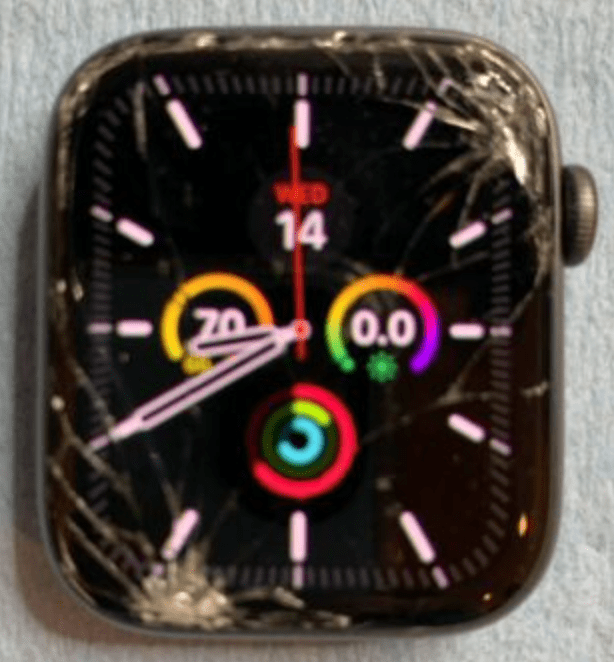
If software fixes fail, the issue is likely hardware-related.
Signs of Physical Damage
- Cracked or shattered screen
- Discoloration near the charging port (water damage indicator)
- Partial touch failure (e.g., top half works, bottom doesn’t)
- Touch stopped working after a drop or water exposure
Water Exposure Risks
Even handwashing can introduce moisture under the display. If the watch wasn’t dried properly, internal corrosion may disrupt the touch sensor.
Note: Apple Watch SE is water-resistant, not waterproof. Prolonged exposure increases risk.
Seek Professional Repair
Apple does not repair Apple Watches in-store. Instead, they issue a replacement unit.
AppleCare+ Coverage
- Covers two incidents of accidental damage per year.
- $29 service fee per incident.
- Replacements are same or newer model.
Out-of-Warranty Costs
Without AppleCare+, repairs can cost $200–$300—often close to the price of a new SE.
Recurring Failure Reports
Some users report:
– Touch screen failed within months of repair
– Same issue after replacement
– Multiple force restarts required daily
This suggests possible component vulnerabilities in certain batches.
Prevent Future Touch Issues
Avoid repeat problems with these best practices.
Keep watchOS Updated
Check for updates weekly. Install patches immediately—they often fix known touch bugs.
Use Compatible Accessories
- Choose thin, precision-cut screen protectors
- Avoid cases that press against the screen edges
Handle with Care
- Don’t drop or press hard on the display
- Dry thoroughly after water exposure
- Never use sharp objects near the screen
Disable Water Lock Promptly
After swimming or washing hands, manually unlock the screen to restore touch.
Contact Apple Support
If the screen remains unresponsive after all steps, contact Apple.
How to Get Help
- Use the Apple Support app on iPhone
- Visit support.apple.com
- Schedule an appointment at an Apple Store or authorized provider
Report the Bug
Submit feedback via Apple Feedback Assistant. This helps Apple prioritize fixes in future watchOS releases.
Summary: What to Do Now
| Step | Action | Time Required |
|---|---|---|
| 1 | Check and disable Water Lock | 10 seconds |
| 2 | Clean screen and hands | 1 minute |
| 3 | Remove screen protector | 1 minute |
| 4 | Force restart | 15 seconds |
| 5 | Charge and retry restart | 5–10 minutes |
| 6 | Update watchOS | 10–20 minutes |
| 7 | Unpair and re-pair | 20–30 minutes |
| 8 | Factory reset | 20 minutes |
| 9 | Contact Apple | Immediate if hardware suspected |
Final Note: Most Apple Watch SE touch screen not working cases are software-related, especially after watchOS updates. Start with Water Lock, cleaning, and force restart—they solve the majority of issues. If problems persist, factory reset or replacement may be necessary. Hardware failures are less common but possible after damage. Act quickly: the longer you delay, the more data and functionality you lose.





