
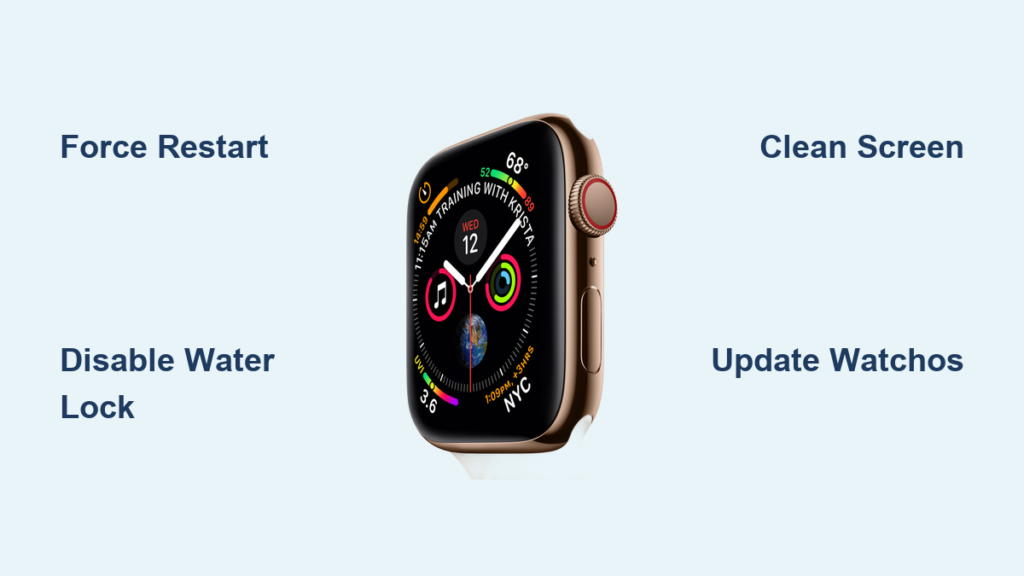
Your Apple Watch Series 4 lights up, shows notifications, and even vibrates when you get a message—but no matter how hard you tap or swipe, the screen won’t respond. You’re not imagining it. “Apple Watch Series 4 touch screen not working” is a widespread issue affecting users for various reasons: software bugs, water exposure, accidental drops, or even after DIY repairs. The good news? In most cases, you can fix it without replacing the device.
This guide delivers step-by-step solutions—from simple resets to advanced diagnostics—so you can determine whether your problem is temporary, software-related, or requires professional repair. Whether you’ve just updated your watch or dropped it in the sink, we’ll help you restore touch functionality fast.
Force Restart Your Apple Watch
A frozen operating system often mimics hardware failure. A force restart clears temporary glitches and reloads the touch interface.
Perform a Hard Reset
- Press and hold the side button and the Digital Crown at the same time.
- Keep holding for 10–15 seconds, even if the screen goes black.
- Release when you see the Apple logo appear.
- Wait for the watch to fully reboot before testing touch response.
Important Note: Some users report the Apple logo doesn’t appear, yet the screen begins working again. This suggests internal recovery—so let it sit for up to a minute after releasing the buttons.
✅ Pro Tip: If the watch face flickers or briefly displays your apps, don’t panic. Let it complete its boot cycle silently. Many touch issues resolve this way after an update-related freeze.
Check for Water Lock Activation
After swimming, showering, or handwashing, your Apple Watch may automatically disable touch input to prevent accidental taps.
Disable Water Lock Mode
- Look for a water droplet icon in the top-right corner of the screen.
- If visible:
1. Turn the Digital Crown clockwise until “Unlocked” appears.
2. Swipe up to confirm.
Water Lock is enabled automatically during water exposure. Forgetting to disable it is one of the most common causes of reported touch screen failure—especially right after workouts or pool time.
⏱️ This fix takes less than 10 seconds and solves the problem instantly in many cases.
Clean Screen and Hands
Apple Watch uses a capacitive touch screen, which relies on electrical conductivity from your fingers. Dirt, sweat, hand lotion, or moisture can block signal transmission.
Restore Touch Sensitivity
- Wipe the screen with a dry, lint-free microfiber cloth.
- Avoid using alcohol or cleaners unless lightly dampened—never spray directly on the device.
- Wash and dry your hands thoroughly, especially after applying moisturizer or exercising.
- Remove any condensation or water droplets from the display.
Many users report immediate improvement after cleaning. Greasy films from oils or wet fingers are frequent culprits behind unresponsive screens.
Remove or Replace Screen Protector

Low-quality or thick screen protectors interfere with touch sensitivity, especially on the Series 4’s sensitive OLED display.
Test Without Protector
- Carefully peel off any third-party screen protector.
- Try using the watch without it.
- If touch works, replace it with a thin, Series 4-compatible, high-quality protector.
❌ Avoid cheap plastic films—they reduce responsiveness, peel at the edges, and trap debris that further disrupts touch input.
Update to Latest watchOS Version
Software bugs introduced in updates like watchOS 8.5.1 or 9.6.2 have been linked to touch screen failures—even on older models like the Series 4.
Install Pending Updates
- Open the Watch app on your iPhone.
- Go to General > Software Update.
- Download and install any available update.
- Keep both devices charged and close during installation.
Multiple user reports confirm that touch functionality returned after installing minor patches, even when the watch already showed “up to date.”
Reinstall watchOS if Already Updated
Even if no new version appears:
– Check for incremental updates (e.g., 8.5.1 after 8.5).
– These often include driver fixes for known touch responsiveness bugs.
Unpair and Re-pair Your Watch
Corrupted pairing data between your Apple Watch and iPhone can cause input lag or complete touch failure.
Reset Connection to iPhone
- On your iPhone: Open the Watch app → All Watches.
- Tap the “i” icon next to your Apple Watch.
- Select Unpair Apple Watch.
- Confirm and wait for the process to complete.
- Re-pair your watch as new or restore from a backup.
⏱️ Time required: 10–15 minutes
🔁 Benefit: Clears deep software conflicts that standard resets can’t fix
Factory Reset as Last Resort
If all else fails, erasing all content can eliminate system corruption causing touch failure.
Erase Directly on Watch
- Go to Settings > General > Reset > Erase All Content and Settings.
- Enter your passcode.
- Confirm deletion.
If the screen is completely unresponsive, unpairing from the iPhone will trigger a remote erase, allowing you to set it up fresh.
Restore from Backup via iPhone
During re-pairing:
– Choose Restore from Backup.
– Select a recent, working backup.
– Let the watch reload your apps and settings.
⚠️ Warning: A corrupted backup may reintroduce the issue. Consider setting up as new first to test touch function before restoring.
Diagnose Hardware Damage
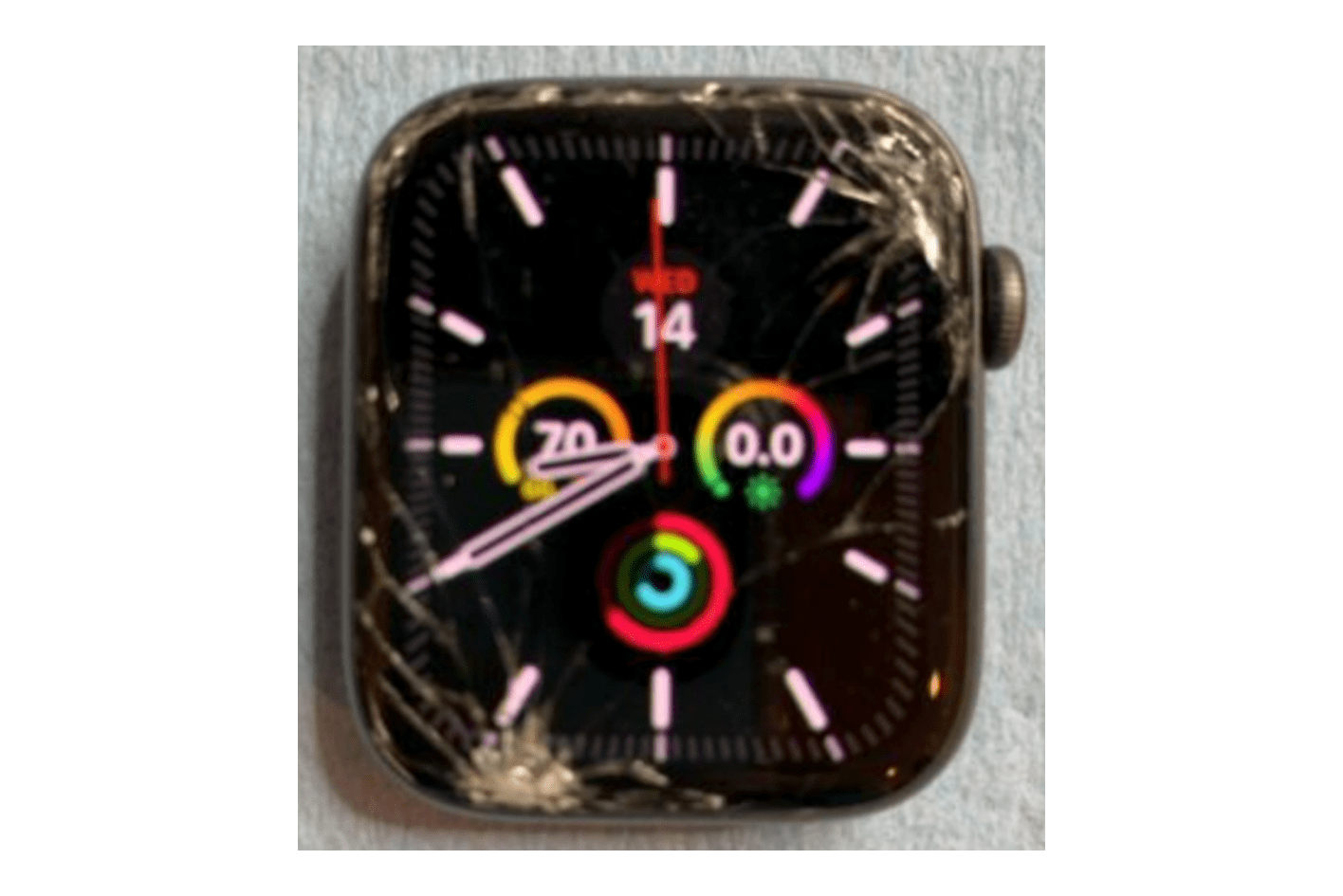
If software fixes fail, inspect for physical damage—especially if the watch was dropped or previously repaired.
Signs of Physical Screen Damage
- Visible cracks or spiderweb patterns on the glass
- Discoloration, flickering, or dark spots
- Only partial touch response (e.g., edges work, center doesn’t)
- Screen displays UI but ignores all input
The Series 4 uses a fused OLED-digitizer assembly. Damage to the outer glass often means internal touch layer damage, even if the screen appears intact.
Avoid DIY Glass-Only Repairs
Replacing just the glass on a Series 4 is extremely risky and frequently causes touch failure.
Why DIY Repairs Fail
- Glue overflow: Adhesives like Loctite can seep onto internal connectors.
- Non-conductive blockage: Even non-electrically conductive glue insulates micro-contacts.
- Digitizer misalignment: Poor installation breaks signal transmission.
Documented case: A user replaced the glass with a digitizer-equipped part—but touch failed due to glue contamination on connectors.
Recommended Fix
🔧 Replace the entire OLED screen assembly instead of just the glass.
🛠️ Requires precision tools, clean environment, and resealing expertise.
Expert advice: “I’d suggest doing a complete OLED screen replacement. It’s a lot easier unless you have tons of experience and expensive equipment.”
Clean Internal Connectors (Advanced)
If you’ve opened the device and suspect glue or debris:
Safe Cleaning Method
- Power off the watch completely.
- Use 90%+ isopropyl alcohol and a soft brush or cotton swab.
- Gently clean connectors between the digitizer and logic board.
- Let dry fully before reassembly.
Do not use water or household cleaners. Only high-purity alcohol is safe for internal components.
Investigate Accessibility Settings
An accidentally enabled accessibility feature can mimic touch screen failure.
Check for Switch Control or Touch Accommodations
- On iPhone: Open Watch app → Accessibility > Touch.
- Look for:
– Switch Control
– Tap Assistance (Double Tap)
– Hold Duration adjustments
Symptoms include:
– White border around buttons
– Need to tap twice to activate
– Swiping disabled
If any are enabled, disable them and retest touch functionality.
Verify Post-Update Bug Patterns
Touch issues often spike after specific watchOS releases—even on older models.
Known Affected Models and Versions
| Model | watchOS Version | Reported Issues |
|---|---|---|
| Series 6 | 8.5.1 | Blank screen, touch dead, haptics active |
| Series 7 | 9.6.2 | Intermittent touch, daily restarts needed |
| Ultra 2 | 11.4 | Inconsistent swipe detection |
| SE (2nd gen) | 26 | Touch works 10%, heart rate fails |
| Series 10 | 26.0.2 | Double-tap required, swipe disabled |
While these are newer models, similar driver bugs can affect Series 4 during cross-compatible updates.
If the issue started after an update, contact Apple Support—they may prioritize your case or be aware of a pending fix.
Seek Professional Repair
When all else fails, it’s time for expert diagnosis.
Contact Apple Support
- Visit: https://support.apple.com
- Describe symptoms, troubleshooting steps, and update history.
- Request remote diagnostics or a service appointment.
Visit Apple Store or Authorized Provider
Technicians use internal tools to test:
– Digitizer signal strength
– Connector integrity
– Logic board communication
– Power delivery stability
They can distinguish between software glitches and true hardware failure—and may offer out-of-warranty repair options.
Check Warranty and Service Options
The Apple Watch Series 4 launched in 2018, so it’s beyond standard warranty.
Still Covered If:
- You purchased AppleCare+ and it’s active.
- You’re in a region with extended consumer protection laws.
Out-of-Warranty Repair
Apple still offers paid repairs:
– Screen replacement: ~$200–$300 USD (varies by country)
– Diagnostic fee may apply if the issue isn’t screen-related
Note: No official Service Program for Touch Issues exists for Series 4—but Apple may offer goodwill repair in rare cases.
Prevent Future Touch Issues
Avoid repeat problems with these best practices.
Use Genuine Accessories
- Stick to Apple-branded or MFi-certified screen protectors.
- Avoid thick, bubbly, or poorly cut films.
Keep Software Updated
- Enable automatic updates in Watch app > General > Software Update.
- Updates patch touch bugs and security flaws.
Handle with Care
- Don’t attempt glass-only repairs without proper tools.
- Avoid exposing internal connectors to moisture or adhesives.
Clean Regularly
- Wipe screen daily with a dry microfiber cloth.
- Remove sweat, oils, and dirt before bedtime.
Final Note: Most Apple Watch Series 4 touch screen problems are software-related and resolve with a force restart, update, or re-pair. Environmental factors like Water Lock or dirty screens are common but easily fixed. Hardware issues—especially after DIY repairs—require professional attention. By following this guide in order, you’ll maximize your chances of restoring full touch function without unnecessary cost or replacement.





