
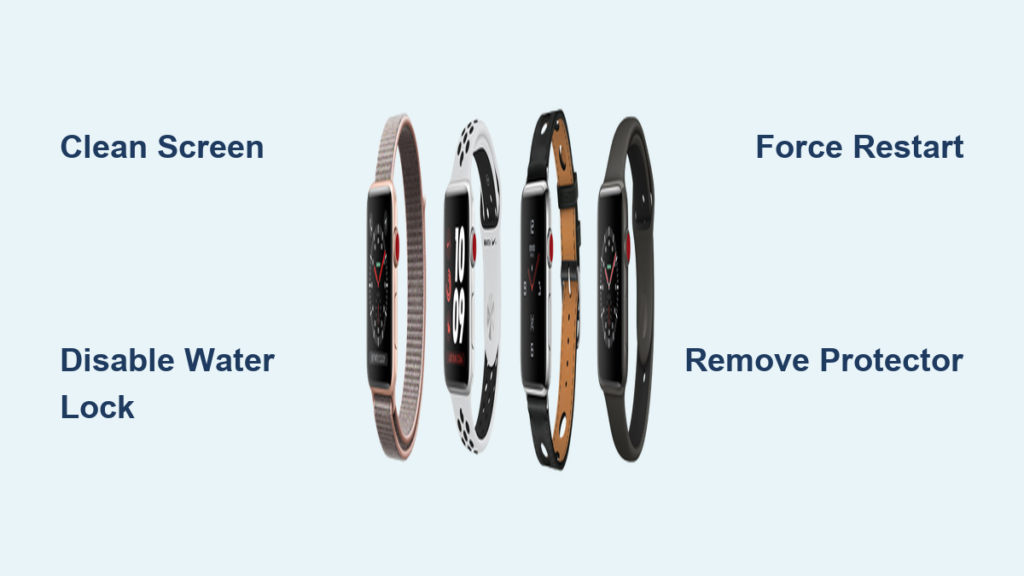
If your Apple Watch Series 3 touch screen isn’t working, you’re facing one of the most frustrating yet common issues reported by long-term users. The screen might still light up, show the time, and respond to wrist raises — but tapping, swiping, or selecting apps does nothing. Even worse, the watch may vibrate, play sounds, or receive notifications, making it clear the device is on, but the touch input is completely dead.
This isn’t necessarily a sign of permanent failure. Thousands of users have successfully restored functionality using simple, step-by-step fixes — often without opening the device or spending a dime. Whether the cause is a software glitch, water lock, dirty screen, or hardware defect, this guide delivers proven, fast solutions in order of likelihood and effectiveness. You’ll learn how to diagnose the root cause and get your Apple Watch back in working order — many fixes take less than five minutes.
Clean the Screen and Your Hands First
Before assuming hardware failure, rule out the simplest and most overlooked cause: physical interference.
The Apple Watch Series 3 uses a capacitive touch screen, which relies on the electrical conductivity of your skin. Oils, sweat, moisture, or dirt on the screen — or on your fingers — can block touch detection, making the display appear unresponsive.
How to Clean the Screen Properly
- Power off the watch if possible (press and hold the side button, then swipe to power off).
- Use a lint-free microfiber cloth — the kind used for eyeglasses or camera lenses.
- Gently wipe the entire screen in circular motions.
- If the screen is especially grimy, lightly dampen the cloth with water — never spray liquid directly onto the watch.
- Dry thoroughly before turning it back on.
Pro Tip: Also wash and dry your hands. Using the watch with wet, oily, or gloved fingers will prevent touch registration. Test responsiveness with clean, dry fingers.
Disable Water Lock Immediately

After swimming, showering, or even getting caught in the rain, your Apple Watch may activate Water Lock — a safety feature designed to prevent accidental taps when wet.
While active, touch input is completely disabled. Many users panic, thinking the screen is broken, when it’s simply locked.
How to Exit Water Lock
- Look for the water droplet icon in the top-right corner of the screen.
- Press and hold the Digital Crown.
- Wait for a series of rapid vibrations and a high-pitched water expulsion sound.
- Release when “Unlocked” appears on screen.
- Test touch response immediately.
Important: Always disable Water Lock after exposure to moisture. Skipping this step is one of the top reasons users believe their touch screen has failed.
Force Restart to Fix Software Freezes
A frozen operating system can make the touch screen appear dead while core functions (alarms, vibrations, timers) still work.
A force restart clears temporary system glitches and often restores touch responsiveness instantly.
How to Force Restart Your Apple Watch Series 3
- Press and hold both the side button and the Digital Crown at the same time.
- Keep holding for 10 to 15 seconds.
- Release when the Apple logo appears on screen.
Note: Some users report the screen stays black even after a successful restart. Wait up to two minutes — if the watch vibrates or responds to voice commands, it may have rebooted successfully.
User Verified: Multiple reports confirm this fix resolves sudden touch failure after app crashes or failed updates.
Remove or Replace the Screen Protector
A surprisingly common cause of touch failure is a low-quality or misaligned screen protector.
These can create air gaps, press on screen edges, or reduce sensitivity to the point where taps aren’t registered.
Test Without the Protector
- Carefully peel off the current screen protector.
- Clean the screen with a microfiber cloth.
- Try using the watch without any cover.
If touch works now, the protector was the culprit.
Choose the Right Replacement
When reapplying:
– Use only Apple-certified or precision-cut protectors designed for Series 3.
– Opt for thin, anti-static films — avoid thick tempered glass, which can interfere with touch sensitivity.
– Ensure no air bubbles or debris are trapped underneath.
Update or Reinstall watchOS

Outdated or corrupted software can disable touch functionality — especially after problematic updates like watchOS 8.5.1 or 26.x series.
Check for Software Updates
- Open the Watch app on your iPhone.
- Go to General > Software Update.
- If an update is available, install it.
- Ensure your watch has at least 50% battery and is connected to Wi-Fi.
User Success: Doriano M. (Dec 3, 2024) reported touch restored after updating post-repair, suggesting firmware issues can persist even with new hardware.
Reinstall watchOS If No Update Appears
If the issue remains:
1. Unpair the watch (see next section).
2. Re-pair — this triggers a fresh OS download and installation.
This replaces any corrupted system files that may be affecting the touch driver.
Unpair and Re-pair to Reset System Settings
Deep software conflicts — especially after failed updates — may require a full reset of Bluetooth pairing and sync data.
How to Unpair Your Apple Watch
- Open the Watch app on your iPhone.
- Tap All Watches.
- Tap the “i” icon next to your Series 3.
- Select Unpair Apple Watch.
- Confirm — your iPhone will back up the watch data automatically.
Re-pair From Scratch
- Follow the on-screen setup prompts on your watch.
- Choose Restore from Backup — but pick one made before the touch issue began.
- Avoid restoring from a backup created during or after the problem.
Expert Note: Some users needed to repeat this process twice to fully clear corrupted settings.
Factory Reset as a Last Resort
If all else fails and you’re okay with losing data, a full factory reset can wipe out deep software conflicts.
Reset via iPhone
- Open Watch app > My Watch > General > Reset.
- Tap Erase All Content and Settings.
- Enter your passcode.
- Wait for the process to complete.
- Re-pair and restore.
Reset on the Watch (If Touch Works Intermittently)
- Open Settings > General > Reset.
- Tap Erase All Content and Settings.
- Confirm.
This ensures a clean system state and is often effective when software corruption is suspected.
Reseat the Digitizer Cable (For Post-Repair Cases)
If you recently replaced the screen and touch doesn’t work, the digitizer cable may not be fully connected.
The touch function depends on a tiny flex cable linking the display to the logic board. If it’s:
– Not inserted fully
– Latch not closed
– Damaged during installation
…touch will fail, even if the screen lights up normally.
How to Fix
- Open the watch (requires a pentalobe screwdriver and prying tools).
- Locate the digitizer cable connector near the charging pins.
- Gently disconnect and reseat the cable.
- Ensure the latch clicks shut.
- Reassemble and test.
User Confirmed:
– Blake Russell: “I can’t believe it was that simple — reseating the cable fixed it.”
– Meet Soni: “The digitizer wasn’t fully connected. After reseating, touch came back.”
Check for Signs of Hardware Failure
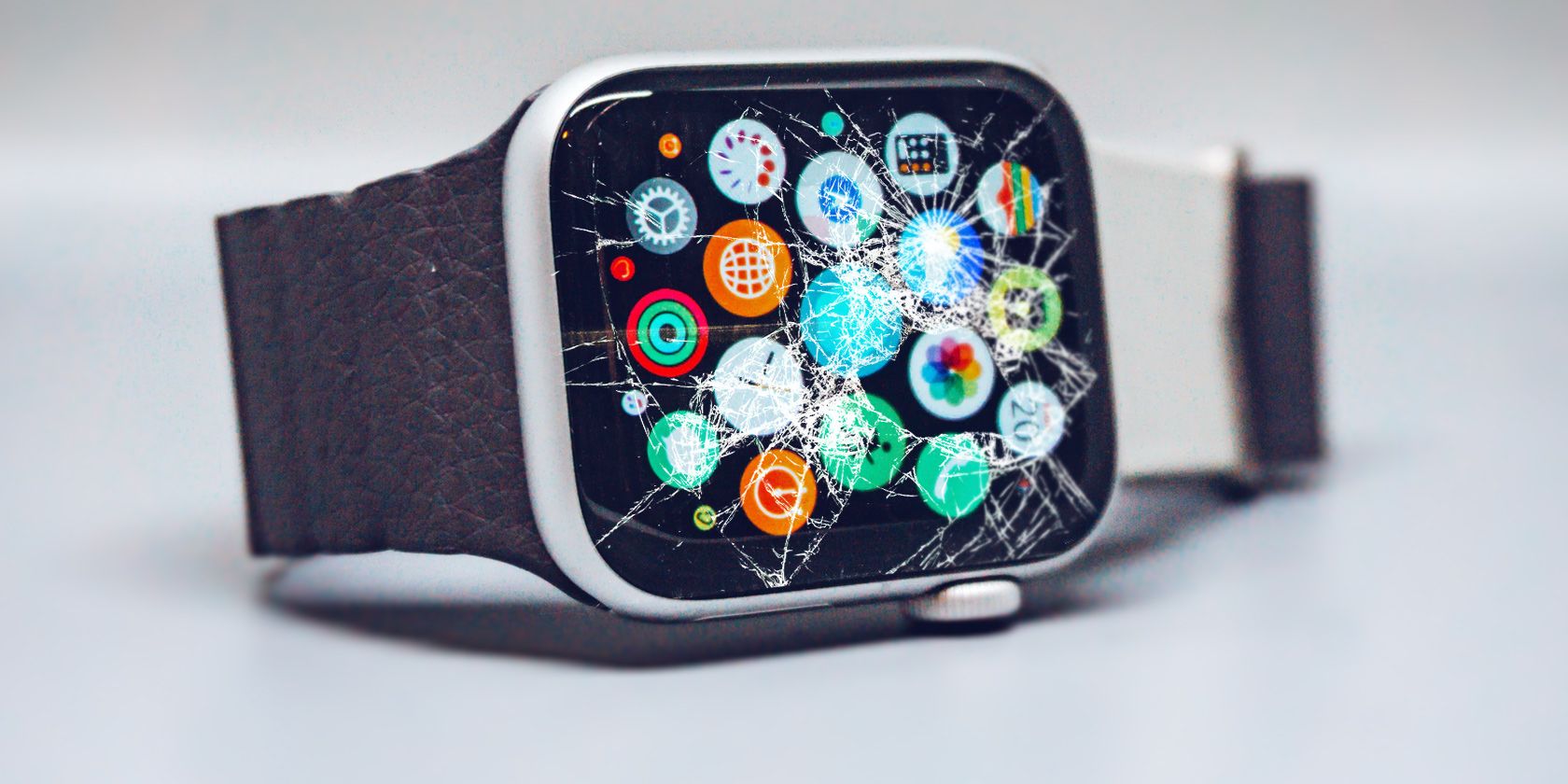
When software fixes fail, the issue may be physical damage.
Look for These Red Flags
- Cracked or spider-webbed glass — even small cracks can disable the digitizer.
- Black spots, flickering, or discoloration — signs of internal display damage.
- Water damage indicators (pink or red dots) near the charging port.
- Buttons work but screen ignores touch — suggests digitizer or controller failure.
Power-Related Clues
Some users report:
– Screen turns on only when placed on charger.
– Watch vibrates and plays sounds, but display stays dark.
Example: Michael Maeda (Apr 7, 2022) found his watch functional despite a black screen — indicating intermittent power delivery or loose connection.
Seek Professional Repair
If all troubleshooting fails, it’s likely a hardware defect.
Visit Apple Support
Apple can run internal diagnostics not available to users.
Options:
– Apple Store Genius Bar
– Apple Authorized Service Provider
– Mail-in repair
Bring proof of purchase. While there’s no official service program for Series 3 touch failure (unlike Series 6’s Blank Screen Program), Apple may offer discounted repair for legacy devices.
Choose Reputable Third-Party Shops
Look for repair centers that:
– Use OEM or high-quality replacement displays
– Have micro-soldering experience
– Offer warranty on parts and labor
Avoid cheap replacements — many third-party screens have faulty digitizers that never work properly.
Consider Upgrading Instead of Repairing
The Apple Watch Series 3 launched in 2017. As of 2025, it’s end-of-life hardware.
Limitations of Aging Devices
- No watchOS updates beyond version 9 — missing critical security and performance fixes.
- Battery degradation is common — may not hold charge well.
- Component wear — capacitors, connectors, and sensors degrade over time.
Repair vs. Upgrade Comparison
| Factor | Repair | Upgrade |
|---|---|---|
| Cost | $100–$180 | $199+ (Series 9 SE) |
| Longevity | 6–12 months likely | 3–5 years support |
| Features | Limited by old OS | GPS, ECG, fall detection, faster processor |
Recommendation: If repair cost exceeds 60% of a new entry-level model, upgrade.
Prevent Future Touch Issues
Keep your Apple Watch responsive with simple habits.
Weekly Maintenance
- Wipe screen with a microfiber cloth.
- Remove screen protector monthly to check for bubbles or debris.
- Avoid exposure to soaps, lotions, or chlorine.
Software Hygiene
- Restart weekly via force restart to clear memory.
- Delete unused apps to reduce system load.
- Update immediately when available (within supported range).
Use Compatible Accessories
- Only use Apple-certified cases and protectors.
- Avoid thick cases that press on screen edges — can cause false touches or disable input.
Enable Touch Accommodations (If Available)
On supported models:
1. Go to Settings > Accessibility > Touch.
2. Adjust touch duration or enable ignore repeat touches.
Note: Series 3 has limited accessibility options due to older watchOS versions.
Quick Fix Flowchart: What to Do First
- Is the screen wet or dirty? → Clean it.
- See a water droplet icon? → Hold Digital Crown to unlock.
- Screen unresponsive? → Force restart.
- Using a screen protector? → Remove and test.
- Software outdated? → Update via iPhone.
- Still not working? → Unpair and re-pair.
- Post-repair issue? → Reseat digitizer cable.
- None work? → Factory reset → Professional repair or upgrade.
By following this structured approach, most users can restore touch functionality — fast. Don’t assume it’s broken. Start with the simplest fixes — they work most of the time.





