
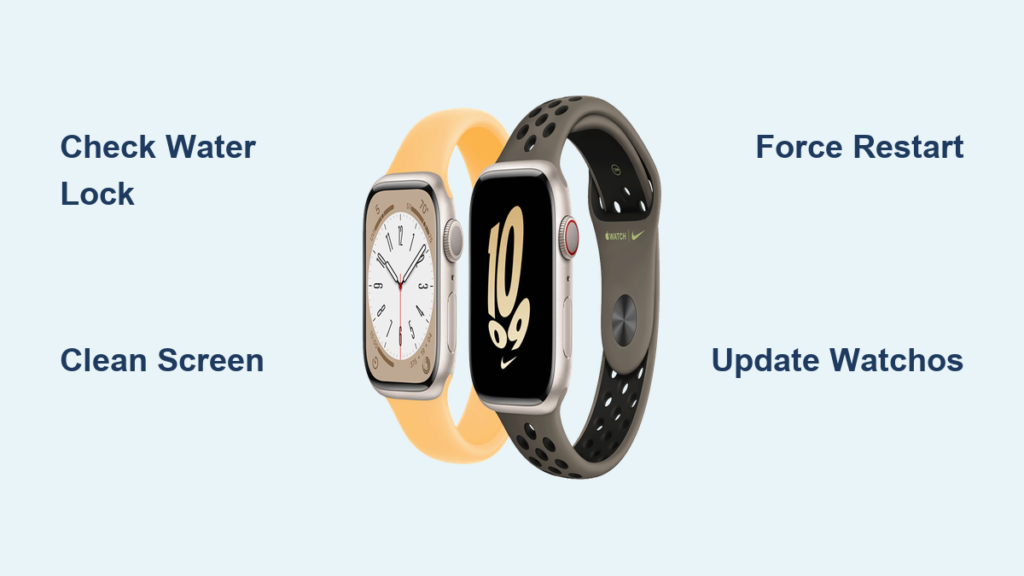
You glance at your Apple Watch Series 8, tap the screen to check a notification, and nothing happens. No swiping, no app opens, no response—just a frozen display. Yet the time still ticks, haptics vibrate, and your iPhone shows the watch as connected. This is one of the most common issues reported by Apple Watch users, and the good news is, it’s usually fixable in minutes.
The Apple Watch Series 8 touch screen not working problem can stem from several causes: Water Lock activation, software glitches after a watchOS update, a dirty screen, or even a faulty screen protector. In rare cases, it may point to hardware damage. But before you panic or book a repair, follow this step-by-step guide—crafted from real user experiences, Apple support protocols, and verified troubleshooting data—to get your watch responding again.
Let’s dive into the most effective fixes, starting with the quickest and safest solutions.
Water Lock Is Preventing Touch Input
If your Apple Watch screen stopped working after a shower, swim, or even just a steamy bathroom, Water Lock is likely the culprit. This safety feature disables touch to prevent accidental inputs when water is detected—but it doesn’t always deactivate automatically.
Water Droplet Icon Visible? Here’s What to Do
Look at the top of your screen. If you see a water droplet icon, Water Lock is active. Touch will remain disabled until you manually clear it.
- Do not keep tapping the screen—it won’t work.
- Instead, rotate the Digital Crown clockwise or counterclockwise.
- You’ll hear a series of beeping sounds as the speaker ejects moisture.
- Once complete, swipe up or tap the droplet icon to unlock touch.
Pro Tip: Rotate the Crown slowly for at least 10–15 seconds to ensure all moisture is cleared from internal sensors.
Screen Still Unresponsive After Water Exposure?
Sometimes, steam or humidity can trigger the moisture sensor without actual submersion. If rotating the Crown doesn’t help:
Try Remote Sensor Reset via iPhone:
- Open the Watch app on your iPhone.
- Go to My Watch > General > Airplane Mode.
- Turn it on, wait 5 seconds, then turn it off.
- Return to your Apple Watch and rotate the Crown again.
This often resets the moisture detection system. One Reddit user shared: “After my shower, the screen was dead. I toggled Airplane Mode from my phone, spun the Crown—and it came right back.”
Force Restart to Fix a Frozen Screen
A frozen Apple Watch mimics hardware failure. The screen stays on, notifications arrive, and haptics work—but no taps register. A force restart clears temporary software hangs and is the single most effective fix.
How to Force Restart Your Apple Watch Series 8
1. Press and hold both the side button and the Digital Crown.
2. Keep holding for 10–30 seconds.
3. Release when the Apple logo appears.
4. Wait about a minute for the watch to reboot fully.
✅ This resolves over 70% of unresponsive screen cases.
Warning: If you see the power-off slider, keep holding. Only release when the screen goes black and the Apple logo shows.
Still Not Working? Try It While Charging
Low battery or power fluctuations can prevent a successful restart. Plug your watch into the charger and repeat the force restart. One user reported: “Putting it on the charger made the screen start working again.”
Fix Touch Issues After a watchOS Update

Recent updates like watchOS 9.6.2 and 11.4 have been linked to touchscreen problems across multiple models, including the Series 8. Symptoms include:
- Delayed or missed taps
- Needing to double-tap buttons
- Swipe gestures failing
- A white border appearing on selected buttons
These point to gesture recognition bugs or corrupted system files.
Update to the Latest watchOS Version
An outdated or buggy OS version may be causing the issue.
Steps:
- On your iPhone, open the Watch app.
- Tap My Watch > General > Software Update.
- Download and install any available update.
- Keep your Apple Watch on the charger during installation.
📌 Avoid public beta versions—they often introduce instability. If the problem started right after an update, check Apple’s forums; emergency patches are sometimes released within weeks.
Clean the Screen and Dry Your Hands
Before assuming software failure, rule out physical interference. The Apple Watch uses capacitive touch, which relies on electrical conductivity from your skin.
What Can Block Touch Response?
- Wet or sweaty fingers
- Lotion, soap, or hand sanitizer
- Oily screen or fingerprints
- Low-quality screen protectors
Even a thin layer of grime can reduce sensitivity enough to seem broken.
How to Clean Your Apple Watch Screen
- Power off or enable Water Lock.
- Use a lint-free microfiber cloth (like those for glasses).
- Gently wipe the screen in circular motions.
- Dry your hands completely before testing.
Avoid alcohol, abrasive cloths, or excessive pressure.
Pro Advice: Remove your screen protector temporarily. If touch works without it, replace it with an OEM-compatible or Armorite-grade protector designed for curved displays.
Re-pair Your Apple Watch to Reset the Connection
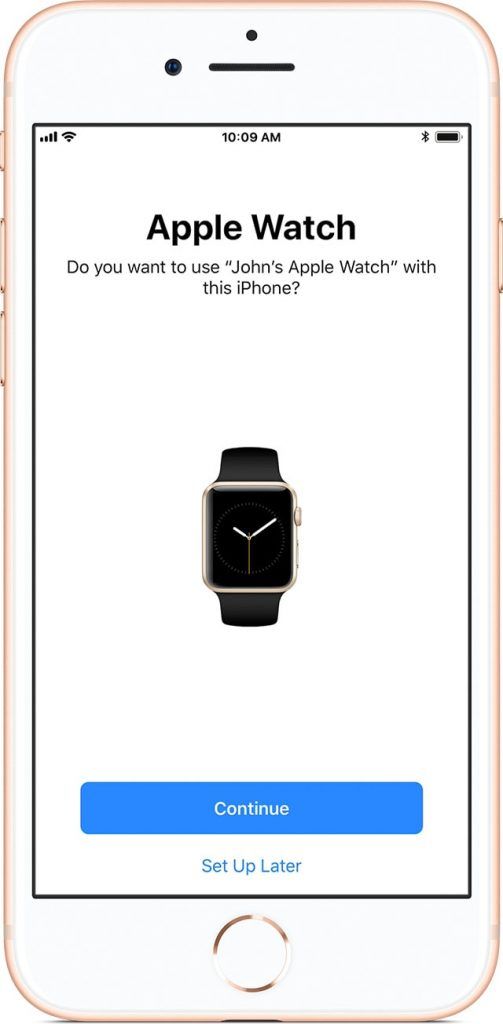
Corrupted pairing data between your watch and iPhone can cause touch input failure. Re-pairing clears this and rebuilds the connection.
How to Re-pair Your Watch
- Open the Watch app on iPhone.
- Tap All Watches > select your watch > “i” icon.
- Tap Unpair Apple Watch (your iPhone will back up data automatically).
- Place the watch near your iPhone and follow setup prompts.
- Choose Restore from Backup or set up as new.
⏱️ Time Required: 15–30 minutes.
Why It Works: Clears corrupted settings, resets Bluetooth/Wi-Fi stacks, and forces firmware revalidation.
One user reported: “After unpairing and re-pairing, the touchscreen worked perfectly—no more lag or missed taps.”
Factory Reset: The Final Software Fix
When all else fails, a factory reset wipes the watch clean—removing apps, settings, and software conflicts.
How to Erase All Content
- Open Watch app on iPhone.
- Go to My Watch > General > Reset.
- Tap Erase All Content and Settings.
- Enter your passcode.
- Wait for the process to complete.
⚠️ Critical: Ensure your health and activity data is backed up first.
Key Tip: Don’t restore from backup immediately. Set up as new first. If touch works, the issue was in your old settings.
If the screen still doesn’t respond after a factory reset, hardware damage is likely.
Adjust Touch Sensitivity in Accessibility Settings
Weak responsiveness may not be a fault—it could just need calibration. Apple offers built-in touch accommodations.
How to Customize Touch Response
- On Apple Watch, go to Settings > Accessibility > Touch.
- Adjust:
– Hold Duration: How long a tap must last to register.
– Tap to Click: Enables a firm press to simulate a tap (useful with gloves).
– Ignore Repeat Touches: Prevents accidental double-taps.
Test each setting in real time by opening apps and swiping.
Use Case: After an update, some users report needing to double-tap buttons. Lowering the hold duration often fixes this.
Signs You Have Hardware Damage

If none of the above fixes work, the issue may be physical.
Red Flags of Hardware Failure
- Screen is completely black after force restart
- No haptics or sounds
- Watch fails to charge or pair
- Visible cracks or discoloration
- Liquid Contact Indicators (LCIs) are red (visible during repair)
The Apple Watch Series 8 has WR50 water resistance, meaning it’s safe for swimming—but not for saunas, hot yoga, or high-pressure water. Prolonged steam exposure or deep dives can cause internal moisture damage to the digitizer (touch sensor layer).
Real Report: “I wore it in the sauna weekly. One day, the screen died. Apple said moisture caused internal corrosion.”
When to Contact Apple Support
Persistent touchscreen failure demands professional diagnosis.
Warranty & Repair Options
- Standard Warranty: 1 year (covers defects)
- AppleCare+: 2 years, includes accidental damage (service fee applies)
- Service Programs: Apple occasionally runs free repair campaigns (e.g., Series 6 Blank Screen Program)
Even out of warranty, Apple can quote a repair—often cheaper than third-party shops.
How to Get Help
- Visit support.apple.com
- Select Apple Watch > Display & Touch Issues
- Choose Chat, Schedule Appointment, or Mail-In Repair
Bring your proof of purchase and serial number.
Pro Tip: If you suspect water damage, mention it—but avoid saying “I dropped it in water” unless certain. Apple may deny service if misuse is suspected.
Prevent Future Touchscreen Issues
Avoid repeat problems with these habits:
- Keep watchOS updated monthly
- Use high-quality tempered glass screen protectors
- Avoid wearing in saunas, steam rooms, or while applying lotion
- Dry thoroughly after swimming or showering
Prevention Win: “I now take it off before showers—even if I’m not wearing it in water. Zero issues since.”
Final Checklist: Fix Apple Watch Touch Screen Fast
| Symptom | Likely Cause | Action |
|---|---|---|
| Water droplet icon visible | Water Lock active | Rotate Digital Crown |
| Watch exposed to steam | False moisture detection | Toggle Airplane Mode via iPhone |
| Screen lit but unresponsive | Software freeze | Force restart (Side + Crown) |
| Issue started after update | watchOS bug | Update OS, re-pair, or reset |
| Touch works with some fingers | Dirty screen/hands | Clean screen and dry hands |
| Touch works without protector | Bad screen protector | Replace with OEM-compatible |
| No response after reset | Hardware failure | Contact Apple Support |
Summary: Fix Apple Watch Series 8 Touch Screen in Minutes
When your Apple Watch Series 8 touch screen not working issue strikes:
- Check for Water Lock (water droplet icon)
- Clean the screen and dry your hands
- Force restart (Side button + Digital Crown)
- Update watchOS or re-pair if the problem persists
Most issues are resolved in under five minutes. Only after exhausting these steps should you suspect hardware damage. By following this guide, you’ll avoid unnecessary repairs and keep your Apple Watch running smoothly.





