
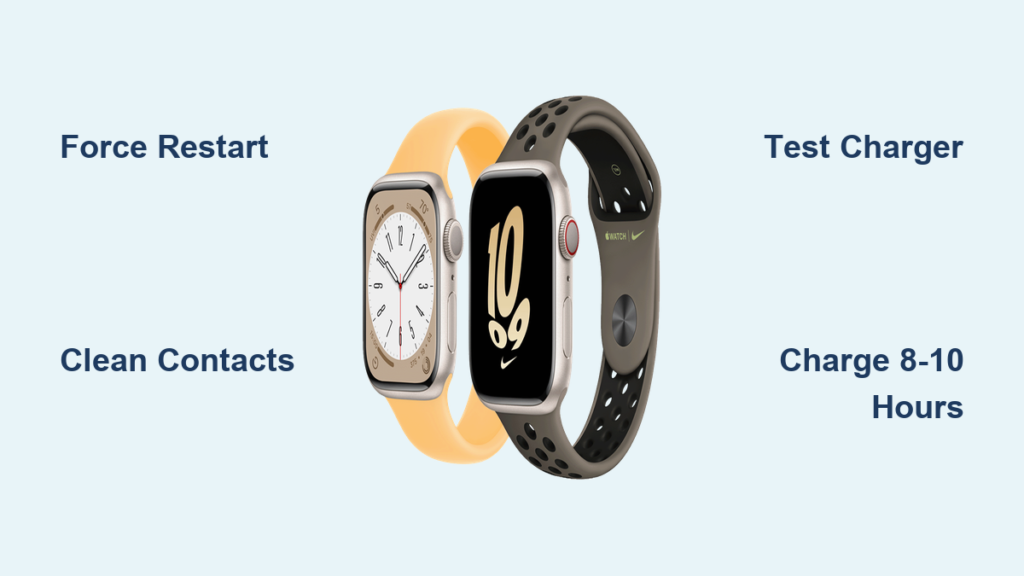
Your Apple Watch Series 8 won’t charge. You plug it in, tap the side button, and nothing happens. No Apple logo. No red lightning bolt. Maybe you catch a glimpse of the screen flickering—then silence. You’re not imagining it. The “Apple Watch Series 8 won’t charge” issue affects real users daily, from brand-new devices to models used for over a year. But here’s the good news: most cases are fixable without replacing the watch.
This frustrating problem can stem from something as simple as a dirty charging port or as serious as water-damaged internals. The key is to diagnose methodically, starting with the easiest fixes. In this guide, you’ll learn proven troubleshooting steps, identify common pitfalls, and discover when it’s time to contact Apple. Whether your watch died overnight or stopped responding after a swim, you’ll get it back on your wrist—fast.
Force Restart Your Apple Watch
A frozen operating system can prevent charging, even if the battery is functional. A force restart resets the software without deleting your data.
How to Force Restart the Apple Watch Series 8
- Press and hold the side button and the Digital Crown at the same time.
- Keep holding for 10–15 seconds until the Apple logo appears.
- Release both buttons and wait 1–2 minutes before reconnecting the charger.
Pro Tip: If the Apple logo doesn’t appear, repeat the process. Some users need 2–3 attempts, especially if the system is deeply unresponsive.
What to Expect: After a successful restart, reconnect the charger. If the red lightning bolt changes to a red bolt inside a white ring, charging has begun. This is the first sign your watch is recovering.
Warning: Do not confuse this with a regular restart. You must hold both buttons until the screen goes completely black and the Apple logo returns.
Test with a Different Charger and Cable

Faulty cables or adapters are among the top causes of charging failure. Before assuming your watch is broken, rule out the charger.
Steps to Test Charger Functionality
- Borrow a known-working Apple Watch charger from a friend or family member.
- Plug into a wall outlet using an Apple 12W, 18W, or 20W USB-C adapter.
- Avoid using laptops, power banks, or USB hubs, which often deliver unstable power.
User Hack: Try charging your AirPods with the same cable. If they charge, the cable works—meaning the issue lies with the watch or power source.
Expert Advice: The USB-C Magnetic Fast Charging Cable paired with a 20W+ adapter provides faster, more reliable charging than the older USB-A version. If you’re still using the original cable, consider upgrading.
Clean the Charging Contacts Thoroughly
Dirt, sweat, soap residue, or moisture can block the magnetic connection between your Apple Watch and charger.
Safe Cleaning Procedure
- Unplug both the watch and charger.
- Use a dry, soft-bristled brush (like a clean toothbrush) to gently scrub the back of the watch and charger magnets.
- Wipe both surfaces with a lint-free microfiber cloth.
- Let the watch air-dry for 10 minutes before reconnecting.
Critical Note: If you frequently enable Water Lock while washing dishes, soap and moisture can corrode the charging contacts over time.
Signs of Corrosion: Look for discoloration, pitting, or greenish spots on the back of the watch—these indicate chemical or water damage.
Never Use: Alcohol, household cleaners, or compressed air. These can damage seals or push debris deeper into the charging port.
Align the Watch and Charger Correctly
Misalignment prevents the magnets from connecting, so your Apple Watch won’t charge—even if everything else is working.
Best Practices for Proper Alignment
- Place the charger on a flat, stable surface.
- Line up the magnets on the back of the watch with those on the charger.
- For 45mm or 49mm models, a slight wiggle may help the magnets snap into place.
- If using a charging dock or MagSafe Duo, ensure it’s lying completely flat.
Warning: Some WPT-compliant chargers sold in China or Indonesia are region-locked. If used outside their country, you’ll see:
“Unable to charge. This is a country-specific charger.”Fix: Use only globally compatible Apple chargers—avoid third-party or region-specific models.
Charge for 8–10 Hours Without Interruption
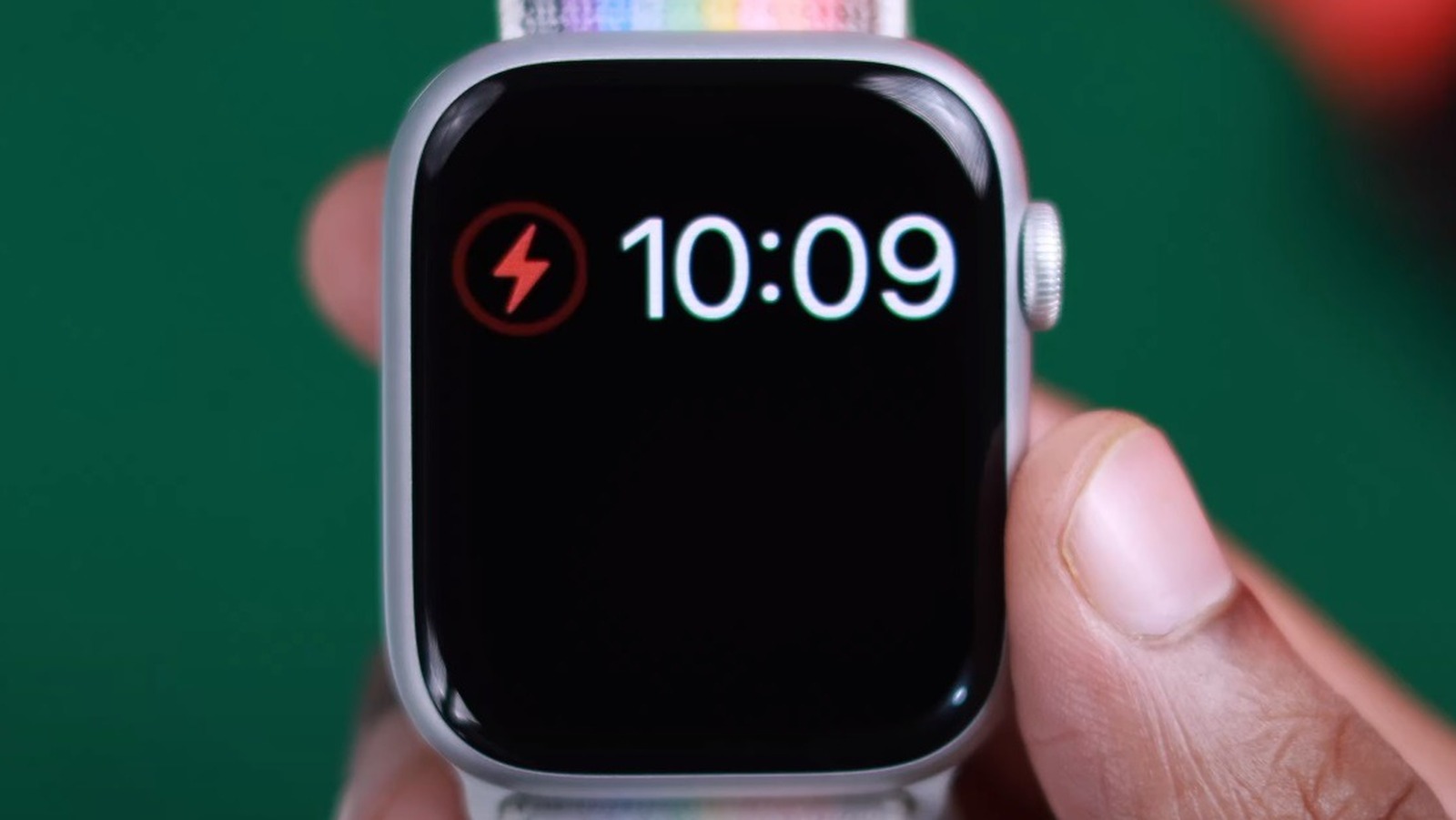
After a deep battery drain, the Apple Watch may take hours before showing any sign of life.
What to Do
- Connect the watch to a known-good charger and wall adapter.
- Leave it undisturbed for 8 to 10 hours.
- Do not press any buttons or attempt to restart during this time.
User Success: One Series 6 owner saw no response after 7 hours—then the watch powered on with 13% charge after 9 hours.
Extreme Case: A user left their watch untouched for 4–5 days—it rebooted on its own with partial charge.
Why It Works: The battery management system needs time to detect and safely charge a deeply depleted cell.
Drain the Battery Fully, Then Recharge
This method resets battery calibration, which can fix false “dead battery” readings.
Step-by-Step Reset
- Let the watch die completely—no response when pressing the side button.
- If stuck on the Apple logo, perform 2–3 force restarts to drain residual power.
- Once fully dead, connect to the charger and leave for 8–10 hours.
User Tip: Repeated force restarts speed up the draining process.
Warning: If the watch remains unresponsive after full drain and extended charge, hardware failure is likely.
Try the Freezer Method (Use with Caution)

Some users report success using cold exposure to reset the battery system—though Apple does not recommend it.
How to Attempt It
- Place the watch (with band) in a sealed plastic bag.
- Put it in the freezer for 20 minutes.
- Remove and immediately perform a force restart.
- Connect to the charger.
Risk Alert: Condensation can form inside the device, leading to short circuits or permanent damage.
Expert Opinion: This method lacks scientific backing and should be a last resort—only if all else fails.
Check for Software Updates
Outdated watchOS can cause charging bugs or prevent the watch from recognizing the charger.
How to Update
- On the watch: Open Settings > General > Software Update.
- Install any available updates.
- If the watch won’t turn on, use the Apple Watch app on iPhone:
– Open app > General > Software Update
– Ensure your iPhone is updated—outdated iOS blocks watch updates.
Note: Some users resolved charging issues after installing watchOS 9.6.3 or later.
Tip: Keep both devices updated to avoid compatibility issues.
Reset All Content and Settings
If software corruption is suspected, a factory reset may fix the issue—but only if the watch is partially responsive.
How to Factory Reset
- Go to Settings > General > Reset.
- Tap Erase All Content and Settings.
- Confirm and wait for the process to complete.
- Re-pair the watch using your iPhone backup.
Warning: This deletes all apps, data, and settings. Only use if other fixes fail.
Limitation: If the watch is completely dead or stuck on the Apple logo, this step won’t work.
Test with a Different Power Source
Not all outlets or USB ports deliver enough power to charge the Apple Watch Series 8.
Best Power Sources
- Apple wall adapter (12W or higher)
- Direct connection to a wall outlet (no extension cords)
- iPad or Mac charger plug—users report better performance due to higher voltage
Avoid
- USB ports on computers (especially when asleep)
- Power strips with unstable output
- Charging hubs or daisy-chained devices
User Report: One person found their watch wouldn’t charge via PC USB but worked instantly with a wall adapter.
Check Battery Health

Degraded battery health can prevent charging or cause rapid drain.
How to View Battery Health
- On Apple Watch: Settings > Battery > Battery Health
- Check the Maximum Capacity percentage
- Above 80%: Battery is healthy
- Below 80%: Battery is degraded—service may be needed
Key Fact: Apple Watch batteries are not user-replaceable. Only Apple or authorized service providers can replace them.
User Case: A Series 6 owner with 71% health after 4 years still used the watch—but charging became unreliable.
Watch for Water and Physical Damage
Even with 50-meter water resistance, exposure to soap, detergent, or impacts can cause charging failure.
Signs of Water Damage
- Corrosion on charging contacts (green or white spots)
- Fog inside the display
- Liquid Contact Indicator (LCI) triggered (visible during diagnostics)
Warranty Alert: Water damage is not covered by Apple’s standard warranty or AppleCare+, even if used within rated limits.
User Case: A dishwasher who used Water Lock weekly had charging failure—Apple denied service due to liquid exposure.
Physical Damage Clues
- Cracked back case
- Bent or loose charging magnets
- Device feels warm during charging (could indicate short circuit)
Note: One user was asked if the back was cracked—physical damage can block charging.
Know Your Warranty and Repair Options
Your Apple Watch Series 8 may still be under warranty—this affects your repair path.
Warranty Details
- Standard Warranty: 1 year from purchase (covers hardware defects)
- AppleCare+: Extends to 2 years, includes up to 2 accidental damage incidents
- Purchase Date Example: December 18, 2022 → still under warranty in early 2024
Seek Professional Diagnosis
If all else fails, Apple can run deep diagnostics to identify the root cause.
What Apple Can Test
- Charging port functionality
- Battery health and charge cycles
- Logic board integrity
- Liquid Contact Indicators (LCIs)
Possible Outcomes
- In-warranty: Free repair or replacement
- AppleCare+: Low-cost replacement for accidental damage
- Out-of-warranty: Paid replacement only—no user repairs
Apple’s Policy: Most Apple Watch issues are not repairable—they’re replaced with a like-new unit.
Prevent Future Charging Issues
Avoid repeat problems with these best practices.
Daily Maintenance Tips
- Clean the back of the watch and charger weekly with a dry cloth.
- Avoid soap, detergent, or prolonged water exposure.
- Use only Apple-certified or MFi-approved chargers.
- Keep watchOS and iOS updated.
- Monitor battery health monthly.
Pro Tip: Turn off Optimized Battery Charging if you notice delayed charging—it may limit charge to 80% temporarily.
When to Contact Apple Support
Don’t wait forever. Reach out if:
- Watch shows no response after 10+ hours on a known-good charger
- Battery health is below 80%
- You suspect water or physical damage
- The device is under warranty or AppleCare+
What to Bring
- Proof of purchase
- Original charger and cable
- iPhone used for pairing
Do Not Attempt DIY Repairs: Opening the watch voids the warranty and risks permanent damage.
Apple’s Final Say: If hardware failure is confirmed, they’ll offer a replacement—not a repair.
Final Note
The Apple Watch Series 8 won’t charge issue is common—but rarely permanent. Start with a force restart and charger test, then move to cleaning and extended charging. If software updates or a factory reset don’t help, battery health or hardware failure may be the cause. With most Series 8 units still under warranty, professional help is accessible. Avoid DIY fixes, use Apple-certified gear, and act early—the faster you respond, the better your chances of a free or low-cost resolution.





