
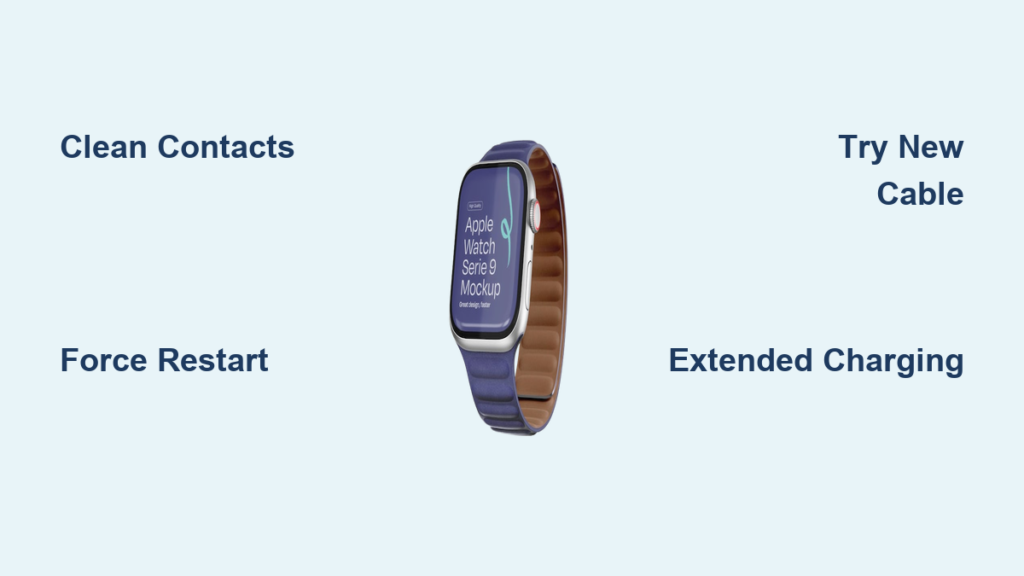
Your Apple Watch won’t charge. The screen is dark, the green ring never appears, and no matter how many times you reposition it on the charger, nothing happens. If you’re staring at a silent, lifeless device, you’re not alone. Charging issues affect Apple Watch users across all models—Series 5, Series 8, Series 10, Ultra, and SE—with alarming frequency. But here’s the good news: most Apple Watch charging problems are not permanent, and over 90% can be resolved at home with simple, proven steps.
This guide delivers a clear, no-nonsense action plan—backed by Apple support, real user success stories, and technical diagnostics—to help you diagnose the root cause and restore charging quickly. Whether your watch shows a red lightning bolt, freezes at 80%, or refuses to power on, you’ll learn exactly what to do—from cleaning hidden debris to testing cables, restarting frozen systems, and knowing when to seek professional repair. No guesswork. Just results.
Let’s get your Apple Watch back up and running.
Decode What Your Charging Lights Mean
Before grabbing tools or replacing parts, listen to what your watch is trying to tell you. The charging indicators are your first diagnostic tool.
Red Lightning Bolt: Not Dead—Just Drained
A solid red lightning bolt on a black screen means your Apple Watch has entered Power Reserve mode—its battery is critically low. This is normal after extended use.
When placed on a charger, it should shift to a red lightning bolt inside a white ring, signaling that charging has started.
If the red bolt flashes briefly and disappears, charging isn’t sticking. This usually points to dirty contacts, cable failure, or poor alignment, not a dead battery.
No Green Ring? Check Hardware First
If after 30 minutes there’s no green charging ring, that’s a red flag.
Newer models (Series 7 and later) support fast charging, hitting 80% in about 30 minutes. Older models may take longer to respond—especially if deeply drained.
But zero visual feedback after 30+ minutes means the issue is likely hardware-related: faulty cable, weak power source, or debris blocking the connection.
Blank Screen ≠ Dead Watch
A black screen doesn’t mean the battery is dead.
If the watch was recently in use, it may have slipped into a deep discharge state. In these cases, the system shuts down completely and may take up to 8–10 hours to show signs of life.
Many users revive watches stored for months by simply leaving them on a good charger overnight. Don’t give up too soon.
Test and Replace Charging Accessories

Faulty cables and weak power sources are the leading causes of Apple Watch charging failure.
Use Genuine Apple Chargers Only
The Apple Magnetic Charging Cable or USB-C Fast Charging Cable (for Series 7 and later) is engineered for reliable power delivery.
Many third-party cables look identical but lack proper magnetic alignment, power regulation, or firmware compatibility. Even some MFi-certified chargers fail under real-world conditions.
Watch Out for Region-Locked Chargers
Chargers bought in China or Indonesia are country-specific. If used elsewhere, your watch may display:
“Unable to charge. This is a country-specific charger.”
Solution: Replace it with a globally compatible Apple charger.
Try a Different Cable—It’s the #1 Fix
Over 60% of charging issues are resolved by swapping the cable.
Signs your cable is failing:
– Frayed or bent connector
– Discoloration near the charging puck
– Charging that starts and stops randomly
If you can, borrow a known-good Apple cable. If the watch charges immediately, your original cable is the culprit.
Plug Into the Right Power Source
Not all USB ports are equal.
Avoid:
– Computer USB-A ports (low power output)
– USB hubs
– Extension cords with voltage drop
Instead, use:
– Apple 12W or 20W USB wall adapter
– USB-C charger (20W+) for fast-charging models
For best results, plug directly into the wall—no adapters or power strips in between.
Clean Charging Contacts—The Hidden Fix
Sweat, lotion, and pocket lint can silently block the magnetic charge connection.
Why Cleaning Works
The back of your Apple Watch and the charging puck use inductive coils. Any debris—like dried sweat or oils—creates a barrier that stops power transfer.
Thousands of users report success after cleaning, especially those who wear their watch during workouts or apply hand lotion.
How to Clean Without Damage
- Power off the watch (if possible).
- Use a soft, lint-free cloth (like a glasses or screen cloth).
- Gently wipe:
– The entire back of the watch
– The metal contacts on the charging puck - Ensure both surfaces are dry and oil-free
⚠️ Never use:
– Compressed air (pushes debris deeper)
– Water or cleaning sprays (risk of moisture damage)
– Rough or abrasive materials (can scratch the coating)
Do this weekly if you’re active or wear the watch daily.
Fix Magnetic Alignment Issues
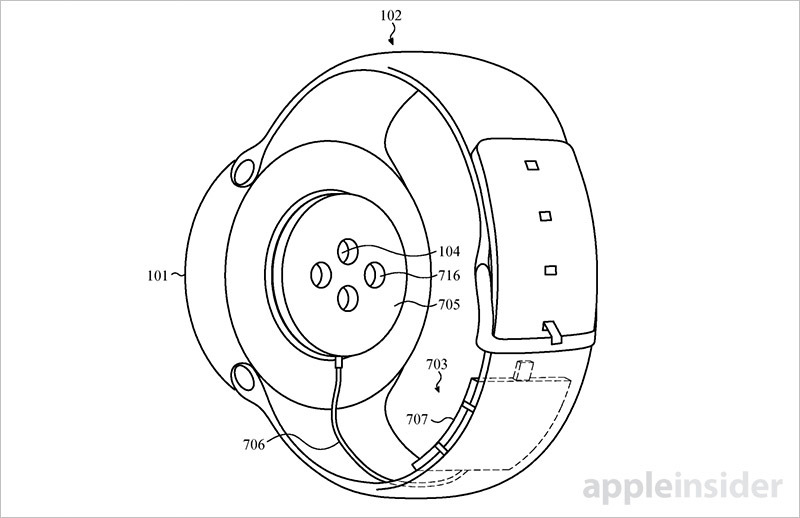
Even a millimeter of misalignment can break the charging connection.
Ensure a Full Magnetic Snap
When you place your Apple Watch on the charger, you should hear and feel a firm magnetic “click.”
If it feels loose or slides off easily, reposition it:
– Center the puck under the watch
– Press down gently until it locks
Larger models (45mm, 49mm, Ultra) are more sensitive—especially on vertical docks.
Remove the Band for Better Contact
Thick or metal bands can tilt the watch, preventing full contact.
Try removing the band and placing the bare watch on the charger.
If it starts charging immediately, your band was the issue.
Adjust Your Charging Dock
Some stands, like the Apple Magnetic Charging Dock, need to be flat and stable.
Try:
– Laying it flat on a table
– Tilting it slightly for better alignment
– Using a foldable 3-in-1 pad for consistent contact
Restart a Frozen Apple Watch (Even If It’s Dead)
A frozen system can prevent the watch from recognizing the charger—even if the battery is fine.
How to Force Restart
Even with a black screen, a force restart can revive it.
Steps:
1. Press and hold the side button and Digital Crown together.
2. Hold for at least 10 seconds.
3. Release when you see the Apple logo.
Wait 2 minutes before reconnecting to the charger.
✅ Works for: All models (Series 5–10, Ultra, SE)
⏱️ Time required: 30 seconds
🔧 Difficulty: Easy
This resets the charging controller and clears software glitches.
Real-World Success Stories
- A Series 10 user at 13% battery saw no charging response. After a force restart, it charged to 100%.
- A Series 8 owner could only charge via laptop. Restarting before plugging in fixed the issue.
Update watchOS to Fix Charging Bugs
Outdated software can cause charging to stall, stop at 80%, or fail entirely.
How to Check for Updates
- Open the Watch app on your iPhone.
- Tap General > Software Update.
- Install any available update.
💡 Tip: Keep your iPhone charged and on Wi-Fi. Updates are typically 100–300MB.
Why Updates Matter
Apple regularly releases patches for:
– Charging logic errors
– Thermal management bugs
– Battery optimization
For example, watchOS 10.3 fixed a bug where watches stalled at 80% due to false overheating detection.
Check Battery Health: Is It Time for a Replacement?
A degraded battery won’t hold or accept charge properly.
How to Check Battery Health
On your Apple Watch:
1. Open Settings
2. Tap Battery > Battery Health
3. Check Maximum Capacity
- 100–80%: Normal
- Below 80%: Battery is degraded
📉 Signs of battery failure:
– Dies quickly after full charge
– Shuts down unexpectedly
– Won’t charge past 50–80%
Battery Replacement Options
| Condition | Cost | Service Type |
|---|---|---|
| With AppleCare+ | Free (if <80%) | Apple Store or authorized provider |
| Without AppleCare+ | $99 | Out-of-warranty service |
| Older models (Series 4 or earlier) | $79 | Reduced-cost replacement |
Apple replaces the battery in 1–2 hours—no data loss.
Handle Deep Discharge Recovery
A fully drained battery may take hours to respond.
Extended Charging Method
If your watch shows no signs of life:
1. Connect to a known-good charger.
2. Plug into a wall adapter (not computer).
3. Leave undisturbed for 8–10 hours.
🚫 Do not unplug to check status—this resets the recovery process.
Many users report their watch powered on after 6+ hours with normal battery health.
Think of it like jump-starting a car—just slower.
Recalibrate a Faulty Battery Gauge
Sometimes the watch is charging, but the display lies.
Full Charge Cycle Reset
If your watch:
– Stops at 80% (without Optimized Charging)
– Shows 100% but dies in minutes
– Jumps erratically between percentages
Try a battery recalibration:
Steps:
1. Use until it shuts down completely.
2. Charge uninterrupted for 8–10 hours.
3. Do not use during charging.
This resets the battery management system and often fixes false readings.
Avoid the Freezer “Fix”—It’s Risky
Some users freeze their Apple Watch to restore charging.
Why It’s Dangerous
Apple does not endorse this. Risks include:
– Condensation inside the device
– Thermal stress on components
– Permanent damage to seals or display
While a few report temporary success, the risk outweighs the benefit. Stick to proven methods first.
Upgrade to Reliable Charging Stations

Prevent future issues with high-performance accessories.
Best: Anker MagGo Series (Qi-2 Certified)
Delivers 15W fast charging with advanced safety.
Anker MagGo 3-in-1 Dock Stand
- Charges iPhone, AirPods, Apple Watch together
- 50% faster than standard
- Adjustable viewing angles
Anker MagGo Foldable 3-in-1 Pad
- Travel-friendly, folds flat
- Works with metal bands—no removal needed
Anker MagGo with ActiveShield 2.0
- AI monitors temperature 3M+ times/day
- Aluminum cooling for consistent fast charging
All support fast charging on Series 7 and later.
When to Seek Professional Repair
If home fixes fail, it’s time for expert help.
Signs You Need Service
- No response after 10+ hours on a good charger
- Watch powers on but won’t recognize any charger
- Water or drop damage
- Charging stops at 50% or 80% (no heat, no Optimized Charging)
- Battery health below 80% with rapid drain
How to Get Help
- Visit Apple Store for diagnostics
- Contact Apple Support (chat or phone)
- Use an authorized provider for repairs
Bring your charger and receipt (if under warranty).
Prevent Future Charging Failures
Small habits ensure long-term reliability.
Daily Tips
- Clean contacts weekly
- Charge at 20–30%—avoid full discharges
- Keep software updated
- Charge in cool, dry places
Optimize Settings
Enable Optimized Battery Charging—it delays the final 20% to reduce wear.
Expected Lifespan
- 3–5 years average
- Battery replacement adds 2+ years
- Consider multi-device stations to reduce cable wear
Final Note: Most Apple Watch charging issues are not permanent. Start with a force restart, clean the contacts, and test with a different Apple charger. If those fail, try extended charging for deeply drained units. Only after exhausting these steps should you consider battery service. With proper care, your Apple Watch can remain reliable for years.





