

Your Apple Watch suddenly starts narrating every tap, swipe, and notification. You didn’t turn this on—so why won’t it stop? If Apple Watch VoiceOver won’t turn off, you’re likely dealing with an accidental activation, not a broken device. This feature, designed to help users with visual impairments, changes how you interact with your watch: taps select instead of open, swipes move between items, and everything is spoken aloud. Worse, it can re-enable itself if the wrong shortcut is triggered.
The good news: VoiceOver is always reversible. Whether it’s stuck, unresponsive, or keeps coming back, this guide gives you every proven method to disable it—fast. You’ll learn how to use hardware shortcuts, navigate the VoiceOver interface, disable it remotely from your iPhone, and stop it from returning unexpectedly. No factory reset needed. No trip to Apple Support required. Just clear, step-by-step fixes that work across all Apple Watch models.
Use Triple-Press Shortcut
The fastest way to disable VoiceOver is often the one you didn’t know existed.
Press Digital Crown 3 Times
Quickly press the Digital Crown three times in succession. This triggers the Accessibility Shortcut, which by default includes VoiceOver. If the feature was active, you’ll hear a clear confirmation: “VoiceOver Off.” Instantly, your watch returns to normal—taps open apps again, and the voice stops speaking.
This method works even when you can’t navigate the interface properly, making it ideal for sudden, confusing activations. But if nothing happens, don’t panic. The shortcut may be disabled, or you might be pressing too slowly. Try again with a snappy, consistent rhythm—like tapping a drumbeat.
Pro Tip: The triple-press shortcut is a toggle. If VoiceOver turns back on later, it’s likely because you (or someone else) pressed the Digital Crown three times again—perhaps while adjusting the watch or during sleep.
Disable VoiceOver in Watch Settings
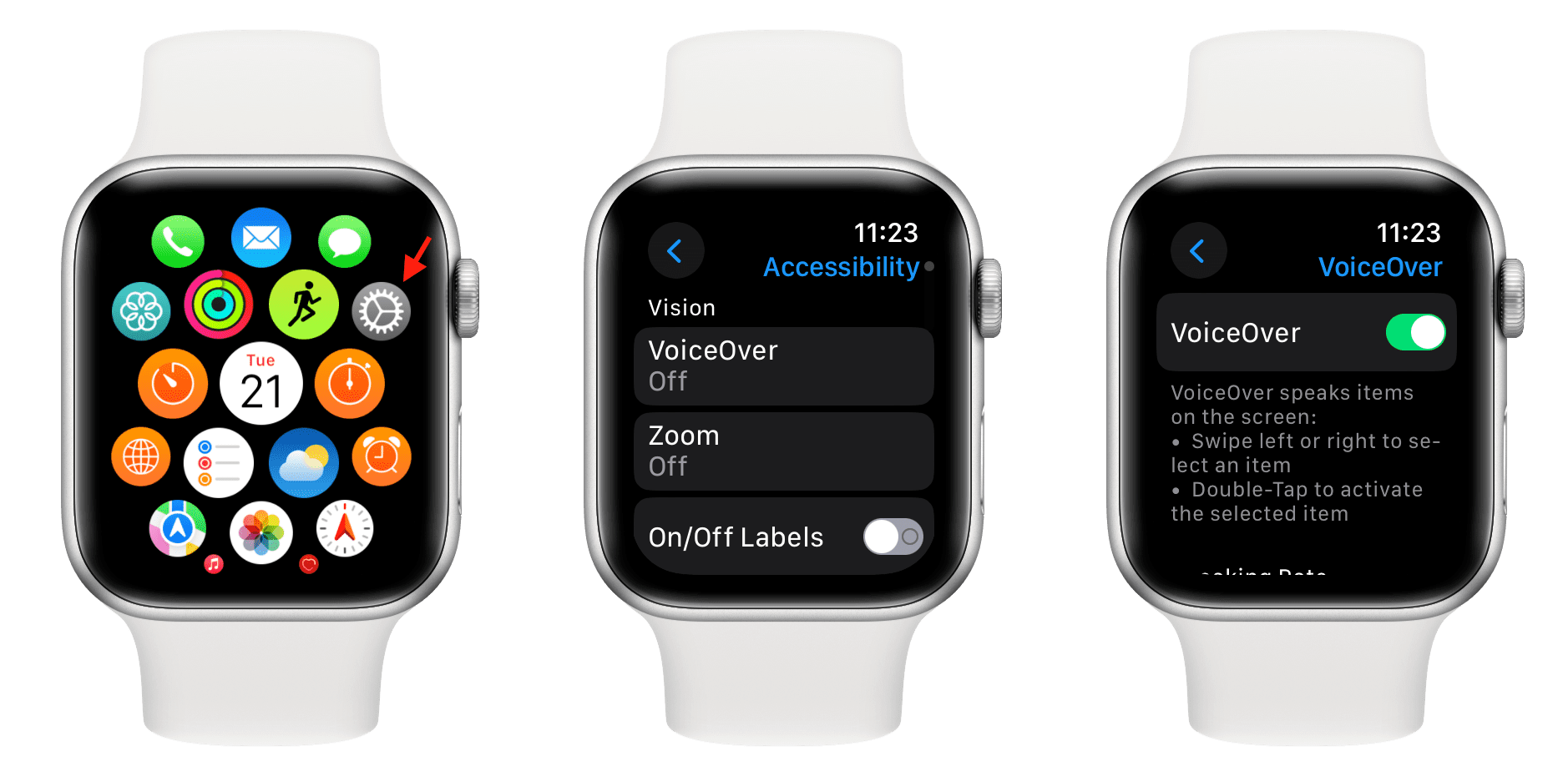
If your Apple Watch responds to touch and you can navigate the screen, turning VoiceOver off directly is simple.
Open Settings and Navigate
- Press the Digital Crown to return to the Home screen.
- Tap the Settings app (gear icon).
- Scroll down and select Accessibility.
- Tap VoiceOver.
- Toggle the switch to Off.
Once disabled, the toggle will change from green to gray, and audio narration will stop immediately. Normal tap-to-open functionality returns without delay.
What to Do If Taps Don’t Work
If tapping only highlights an app and requires a second tap to open it, VoiceOver is still active. In this mode, single taps select, and double taps activate. Use slow, deliberate swipes to move between items, and double-tap only when you hear the correct label. This can be frustrating at first, but it’s the system working as intended—your goal is to reach the VoiceOver setting and turn it off.
Ask Siri to Turn It Off
When navigation feels impossible, your voice is your best tool.
Activate Siri and Speak
- Press and hold the Digital Crown until Siri responds.
- Say: “Turn VoiceOver off” or “Turn Voice Over off.”
- Wait for confirmation: “VoiceOver has been turned off.”
Siri listens regardless of whether VoiceOver is active, as long as the microphone isn’t blocked and the watch isn’t in Airplane Mode. This method is perfect for hands-free control, especially when you’re on the go or the screen feels unresponsive.
Siri Not Responding?
- Ensure “Hey Siri” is enabled on your paired iPhone: Go to Settings > Siri & Search > Listen for ‘Hey Siri’.
- Speak clearly in a quiet environment.
- Hold the watch close to your mouth to improve mic input.
- If Siri still doesn’t respond, try using the iPhone method below.
Turn Off VoiceOver from iPhone
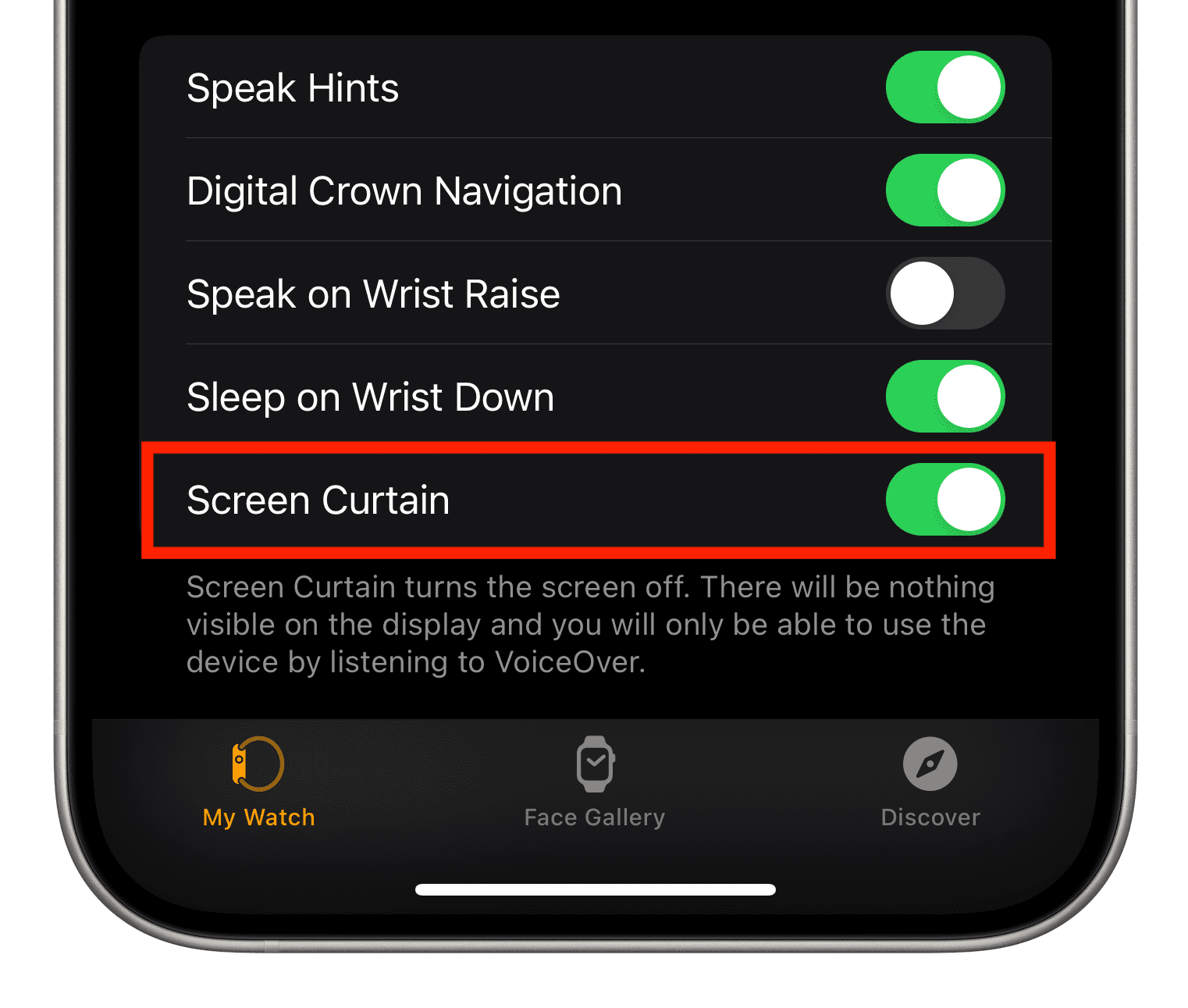
Can’t control your watch? Disable VoiceOver remotely using your iPhone.
Use Apple Watch App on iPhone
- Open the Apple Watch app on your iPhone.
- Tap the “My Watch” tab.
- Go to General > Accessibility.
- Tap VoiceOver.
- Toggle it Off.
This method bypasses the Apple Watch interface entirely—perfect when VoiceOver makes navigation impossible. It’s one of the most reliable solutions, especially after a software update or when the watch behaves erratically.
Can’t Find the Setting?
- Ensure your iPhone and Apple Watch are connected via Bluetooth.
- Wait a few seconds after toggling—the change syncs wirelessly.
- If the app doesn’t respond, close and reopen it, or restart your iPhone.
Navigate VoiceOver to Disable It
When shortcuts fail, use VoiceOver’s own navigation system to shut it down.
Step-by-Step with VoiceOver Active
- Wake the screen by tapping or raising your wrist.
- Open Settings:
– Swipe left or right with one finger until VoiceOver says “Settings.”
– Double-tap to open. - Enter Accessibility:
– Swipe until you hear “Accessibility.”
– Double-tap to enter. - Select VoiceOver:
– Swipe until you hear “VoiceOver, on.”
– Double-tap to open. - Turn It Off:
– Swipe once to reach the toggle.
– Double-tap to turn it off.
You’ll hear “VoiceOver Off,” and the watch instantly reverts to standard behavior.
Common Mistake to Avoid
Don’t double-tap too quickly. VoiceOver needs a brief pause between taps to register the action. Rushing leads to missed selections and frustration. Take your time—each step is designed to be accessible, even under stress.
Restart Your Apple Watch
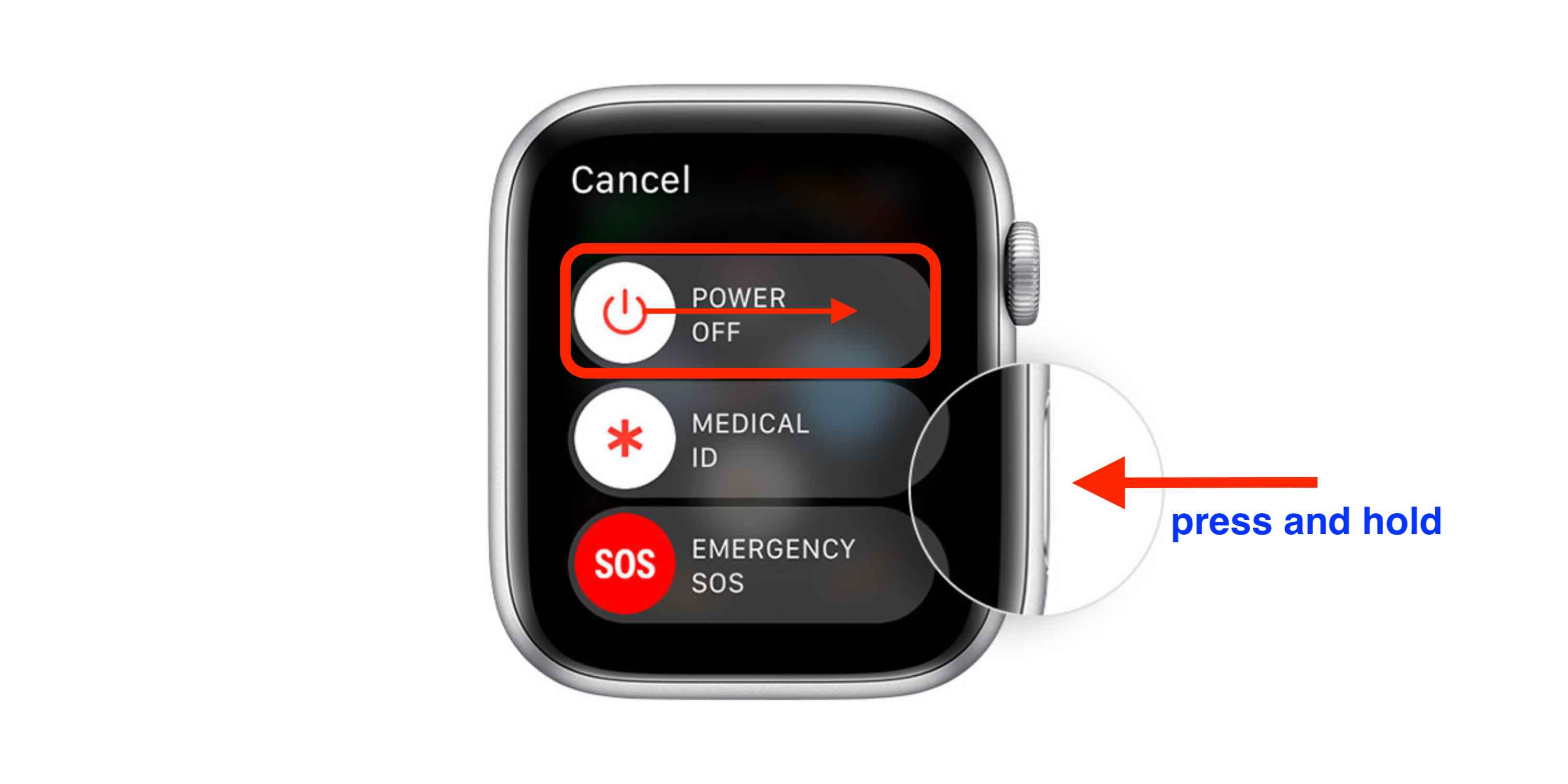
If VoiceOver won’t respond or keeps reactivating, a restart can clear temporary glitches.
Power Cycle the Device
- Press and hold the side button until the power slider appears.
- Drag the slider to power off.
- After the screen goes black, press and hold the side button again to restart.
- Once rebooted, try disabling VoiceOver again.
This is especially useful after a watchOS update, which can sometimes trigger unexpected accessibility settings.
Force Restart (If Unresponsive)
- Press and hold both the side button and the Digital Crown for at least 10 seconds.
- Release when the Apple logo appears.
Note: This does not erase data. It’s a safe, standard procedure that often resolves stuck states.
Check Accessibility Shortcut Settings
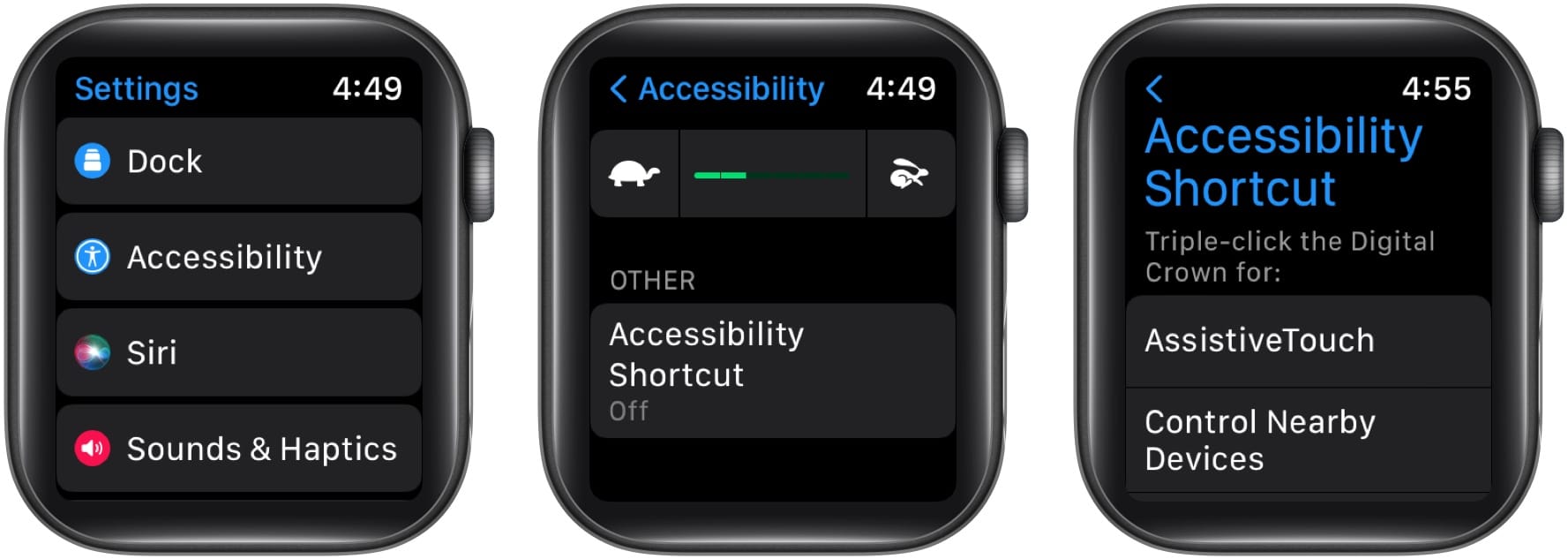
VoiceOver keeps coming back? The triple-press shortcut might be reactivating it.
Disable the Toggle Shortcut
- On iPhone, open the Apple Watch app.
- Tap My Watch > General > Accessibility.
- Tap Accessibility Shortcut.
- Uncheck VoiceOver.
Now, triple-pressing the Digital Crown won’t turn VoiceOver on—preventing accidental reactivation.
What Else Could Be There?
You may see Zoom or Switch Control listed. Unless you use them, remove them from the shortcut list. This reduces the risk of triggering any accessibility feature by accident.
Don’t Confuse VoiceOver With Siri Announcements
Even after turning off VoiceOver, your watch might still “talk.” That’s likely Siri, not VoiceOver.
Turn Off Siri Voice Feedback
- On Apple Watch, go to Settings > Siri.
- Tap Announce Messages with Siri.
- Toggle it Off.
- Optionally, disable “Hey Siri” if unwanted.
Many users report that VoiceOver is “still on” when it’s actually Siri announcing incoming texts or calls. This is a common mix-up—especially since both involve spoken audio.
Other Audio Settings to Check
- Sounds & Haptics > Prominent Haptic: Affects feedback intensity but not voice.
- Accessibility > VoiceOver > Speech Rate: Irrelevant if VoiceOver is off.
- Hearing Aid Compatibility: Only affects hearing aid users.
Prevent VoiceOver From Turning On Again
Stop future accidents before they happen.
Disable Accessibility Shortcut
Go to Accessibility Shortcut and remove VoiceOver from the list. This is the single most effective way to prevent accidental activation.
Learn the Gestures
- Tap once: Selects item (when VoiceOver is on).
- Double-tap: Activates selected app or button.
- Swipe left/right: Moves focus between elements.
Knowing these helps you recover quickly if it happens again.
Keep watchOS Updated
Go to Settings > General > Software Update to check for the latest version. Updates often fix bugs that cause accessibility features to behave erratically.
Verify VoiceOver Is Truly Off
Test that the fix worked.
Quick Confirmation Steps
- Tap an app icon once—does it open immediately? ✅ Normal mode.
- Is there no audio narration of buttons or menus? ✅ VoiceOver off.
- Can you open Settings with a single tap? ✅ Success.
Final Test
Open the Messages app and read a conversation. If no voice reads the messages aloud, VoiceOver is off. If Siri still announces messages, disable Announce Messages with Siri separately.
Summary: All Ways to Fix It
| Method | Speed | Best For |
|---|---|---|
| Triple-press Digital Crown | ⚡ Fastest | Quick fix if shortcut enabled |
| Watch Settings App | 🕒 30 sec | When you can navigate interface |
| Siri Command | 🗣️ Hands-free | Voice-based control |
| iPhone Apple Watch App | 📱 Remote fix | Unusable watch interface |
| VoiceOver Navigation | 🧭 Manual path | When stuck in VoiceOver mode |
| Restart Apple Watch | 🔁 Reboot needed | Glitches after updates |
Final Note: Apple Watch VoiceOver won’t stay on forever—and it’s never permanent. Whether you triggered it by accident, updated your watch, or tested accessibility features, you can always turn it off. Use the triple-press shortcut first. If that fails, disable it from your iPhone. And to stop it coming back, turn off the Accessibility Shortcut. Once done, your watch returns to normal—silent, responsive, and fully under your control.





