
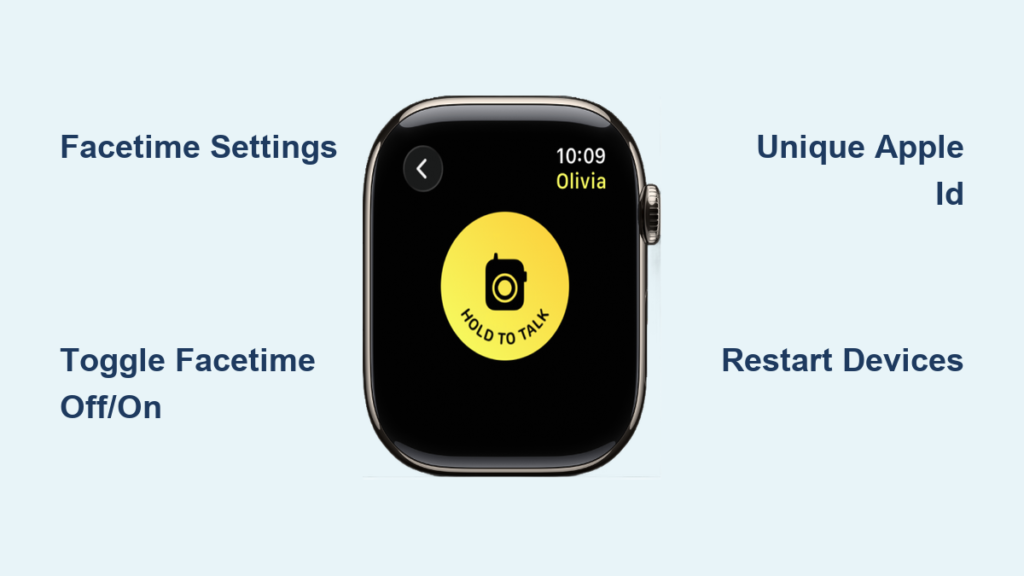
You tap the Walkie-Talkie app on your Apple Watch, select a contact, and send an invite—only to see it stuck on “Checking Availability” or get an error: “Unable to send invitation.” You’re not alone. Many users face Apple Watch Walkie-Talkie invite issues, even when everything seems set up correctly. The problem often isn’t your device, but a hidden misconfiguration in FaceTime or Apple ID settings. This guide cuts through the noise with proven fixes, step-by-step troubleshooting, and real user-tested solutions to get your Walkie-Talkie working—fast.
Whether you’re using an Apple Watch Series 3 or the latest model, if your invites aren’t going through, the root cause is likely FaceTime routing, shared Apple IDs, or missing Apple ID reachability settings. Follow this structured approach to diagnose and fix the issue in minutes.
Confirm Device and Software Compatibility
Before troubleshooting, ensure both you and your contact meet the basic requirements for Walkie-Talkie to work.
Check Your Hardware and OS
- Apple Watch Series 3 or later is required—older models don’t support the feature.
- iPhone 6s or newer must be paired with each watch.
- watchOS 5.3+ and iOS 12.4+ must be installed on both devices.
If either device runs outdated software, update immediately—many invite failures are resolved simply by updating.
Tip: Open the Watch app on iPhone > General > Software Update to check for watchOS updates.
Fix FaceTime Apple ID Reachability on Apple Watch
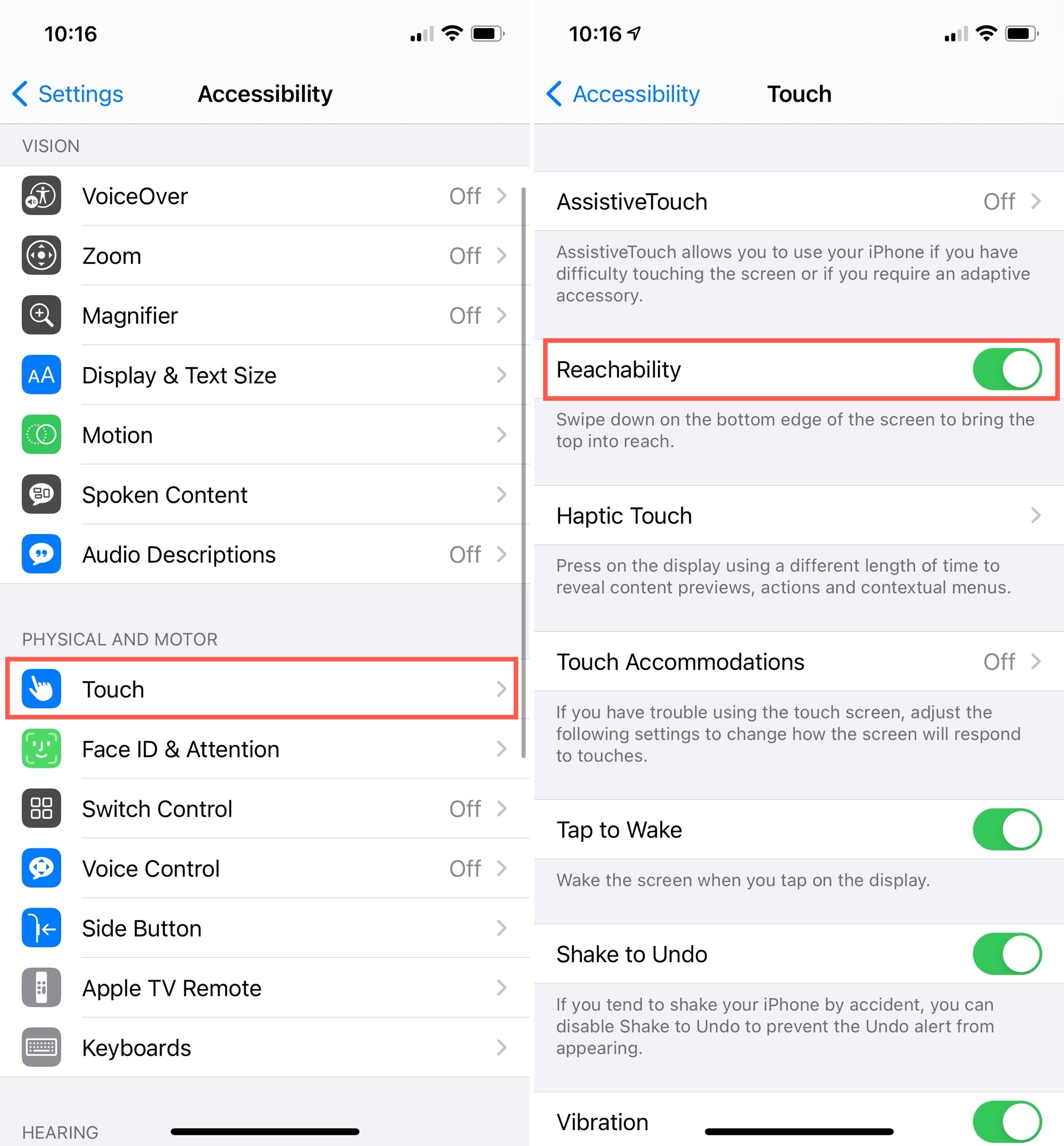
This is the most overlooked but critical fix. Walkie-Talkie uses FaceTime’s audio backend to connect users. If your Apple ID isn’t listed under FaceTime reachability on the Apple Watch, the system can’t identify you—invites fail silently.
Add Your Apple ID to FaceTime on Apple Watch
- On your Apple Watch, open Settings
- Tap FaceTime
- Scroll down to “You can be reached by FaceTime at”
- If only your phone number appears, tap to add your Apple ID email
- Ensure a checkmark is next to both your number and email
Why this matters: Even if FaceTime works on your iPhone, your Apple Watch must explicitly list your Apple ID as a reachable method. Without it, the Walkie-Talkie invite can’t complete the handshake.
Repeat this on both watches involved. This single fix resolves most “Checking Availability” and “Unable to send invitation” errors.
Toggle FaceTime Off and On (iPhone-Level Reset)
A simple but powerful fix that forces your device to re-authenticate with Apple’s servers.
Reset FaceTime Connection
- On your iPhone, go to Settings > FaceTime
- Turn FaceTime OFF
- Wait 60 seconds—this clears the connection state
- Turn FaceTime back ON
- Restart your Apple Watch
- Try sending the invite again
User verified: “I had the same problem. After switching FaceTime off and on, everything finally worked.” – Ube82
This fix resolves issues that appear after iOS updates or when FaceTime seems active but isn’t properly synced.
Force Correct FaceTime Number Routing
If your contact has multiple numbers or devices, Walkie-Talkie may try to reach them on the wrong one—resulting in silent failures.
Train FaceTime to Use the Right Number
- Delete any pending Walkie-Talkie invites
- On your iPhone, make a FaceTime audio call to the contact
- On your Apple Watch, open Dialer > Recents
- Re-dial the call from history (don’t use Contacts)
- Once connected, open Walkie-Talkie and send the invite
Why this works: Re-dialing from history locks in the correct number for FaceTime. The system learns which number is active and routes future invites correctly.
“It was trying to call the wrong number. This workaround fixed it instantly.” – tonymet
Restart Both Apple Watch and iPhone
A basic reset often clears stuck connections.
How to Restart Devices
Apple Watch:
– Press and hold the side button
– Drag the Power Off slider
– Wait 10 seconds, then press the side button to restart
iPhone:
– iPhone X and later: Press volume up + side button until the power slider appears
– iPhone 8 and earlier: Press and hold the side/top button
– Slide to power off, wait 30 seconds, then turn back on
Pro tip: Both users should restart at the same time to avoid sync gaps.
Remove and Re-Add the Contact in Walkie-Talkie
Corrupted invite states can block new attempts.
Clear Invite History and Start Fresh
- Open Walkie-Talkie app on Apple Watch
- Swipe left on the contact, tap Remove
- Tap the + (yellow button) to add them again
- Send a new invite
- When prompted, select Always Allow for notifications
User tip: Some users report success only after sending multiple invites. Try sending it 3–5 times in a row.
“I had to send it over and over—it worked eventually.” – Babygoat456
Persistence pays off.
Stop Using Shared Apple IDs

Using the same Apple ID on multiple iPhones is a common cause of invite failures.
Use Unique Apple IDs
- Each user must have their own Apple ID on their iPhone and Apple Watch
- Shared IDs confuse Apple’s system—invites get routed incorrectly or blocked entirely
Example: Couples or family members sharing an Apple ID often see “Unable to send invitation” errors.
Switch to unique IDs to fix identity conflicts and restore functionality.
Update watchOS and iOS
Outdated software is a frequent culprit.
Check for Updates
On Apple Watch:
– Open Settings > General > Software Update
On iPhone:
– Open Watch app > My Watch > General > Software Update
Ensure both devices are on the latest version. Apple frequently patches Walkie-Talkie bugs in minor updates.
Reset iPhone Network Settings
If connectivity is unstable, this fix can help.
Reset Wi-Fi, Bluetooth, and Cellular
- On iPhone, go to Settings > General > Transfer or Reset [Device] > Reset
- Tap Reset Network Settings
- Confirm (this erases saved Wi-Fi passwords and VPNs)
- Reconnect to Wi-Fi and test
Use this if other features like Bluetooth or cellular are also acting up.
Re-Pair Apple Watch (Last Resort)
If nothing else works, re-pairing can fix deep software glitches.
Unpair and Restore
- Open Watch app > My Watch > General > Reset > Unpair Apple Watch
- Back up your watch when prompted
- Re-pair and restore from backup
- Re-enable FaceTime and Walkie-Talkie
It’s time-consuming but often resolves persistent issues.
Try Simultaneous Setup (Advanced Workaround)
Some users report success only when both parties act at the same time.
Perform Steps Together
- Remove each other from Walkie-Talkie
- Restart both Apple Watch and iPhone
- Open Walkie-Talkie app together
- Add each other and send invites at the same time
“Keep trying—it eventually works.” – watchawatch
This workaround bypasses timing delays in Apple’s invite system.
Test Wi-Fi vs. Cellular Connection
Weak signal can block invite delivery.
Improve Connectivity
- Try Wi-Fi instead of cellular (or vice versa)
- Move to a stronger signal area
- For GPS-only watches, stay within 35 feet of your iPhone
Check connection status in Control Center:
– Swipe up from the watch face
– Look for the iPhone icon:
– Green = Connected
– Gray = Disconnected
If gray, move closer to your iPhone or restart Bluetooth.
Uninstall and Reinstall Walkie-Talkie App
Rare, but possible app corruption.
Reinstall the App
- Press and hold Apple Watch screen until apps jiggle
- Tap X on Walkie-Talkie app
- Press Digital Crown to exit
- Open App Store on Apple Watch
- Search for Walkie-Talkie and reinstall
Note: The app is pre-installed. If it doesn’t appear, skip this step.
Verify Contact and Apple ID Settings on Recipient’s iPhone
Small misconfigurations can break the invite chain.
On the Recipient’s iPhone
- Go to Settings > Phone > My Card
- Ensure correct phone number is selected
- In Settings > FaceTime, confirm:
– Phone number is enabled for FaceTime
– Apple ID email is listed and checked - In Settings > Messages > Send & Receive, ensure:
– Same Apple ID and number are selected as in FaceTime
“FaceTime wasn’t enabled on the number—only the email. That was the issue.” – anex_stormrider
When to Contact Apple Support
If all else fails, contact Apple.
Get Help
- Visit getsupport.apple.com
- Search: “Walkie-Talkie isn’t working on my Watch”
- Choose: chat, call, or book a Genius Bar appointment
Have ready:
– Device models
– Software versions
– Error messages
– Steps already tried
Persistent issues may indicate a regional restriction or account-level block.
Real User Feedback: What Actually Works
- tonymet’s FaceTime history fix: “Still works to this day.”
- FaceTime toggle: Resolved issues after iOS updates.
- Multiple re-invites: Some needed 5–10 attempts.
- Unique Apple IDs: Fixed invite blocks in family setups.
- Software updates: Patched bugs in watchOS 8.7 and 9.5.
“It’s iffy—it doesn’t work 100% reliably.” – Tackticat (USA)
“Works perfectly in the UK.” – mightydanbearpig
Reliability varies by region and setup.
Final Checklist: Fix Walkie-Talkie Invites
✅ FaceTime enabled on iPhone
✅ Apple ID listed under FaceTime reachability on Apple Watch
✅ Unique Apple ID per user (no sharing)
✅ Contact saved in iPhone Contacts
✅ Both devices updated to latest software
✅ Walkie-Talkie enabled in Control Center
✅ Contact removed and re-added in app
✅ FaceTime toggled off/on and devices restarted
✅ Strong Wi-Fi or cellular connection
✅ iPhone within range (for GPS-only watches)
Pro Tip: Start with FaceTime settings and the toggle fix—they solve 80% of cases. If invites still fail, try the FaceTime call history workaround or simultaneous re-invite. Keep software updated, avoid shared Apple IDs, and don’t give up—many users report success after repeated attempts.
With these steps, your Apple Watch Walkie-Talkie invite issue will likely be resolved—no more “Checking Availability” limbo.





