
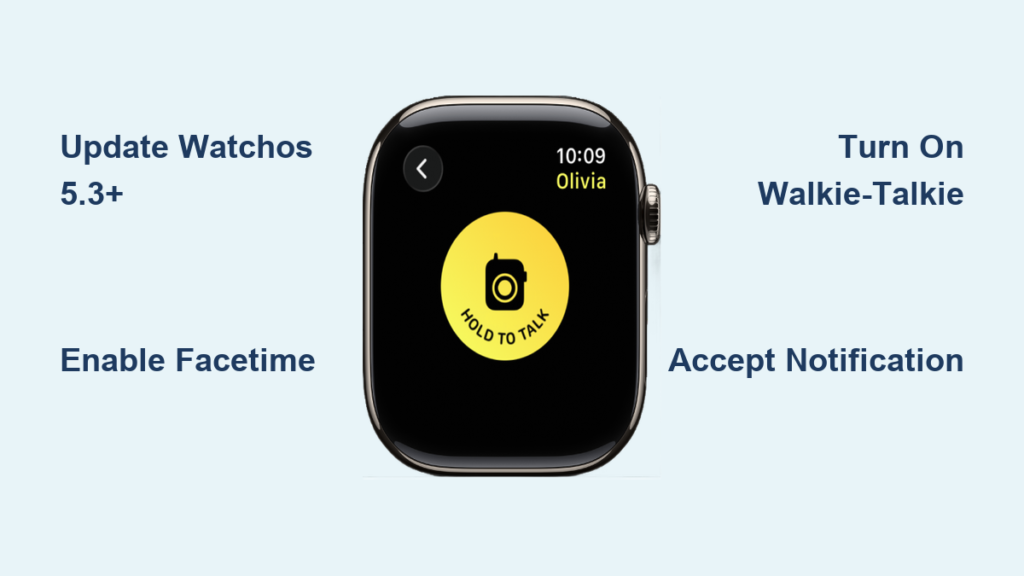
You’re out for a walk, your iPhone is tucked in your pocket, and suddenly your Apple Watch chimes with a full-screen alert: “You’ve been invited to Walkie-Talkie.” You tap it—expecting to connect instantly—but nothing happens. Or worse, you don’t even see the notification at all. This frustrating scenario is more common than you think, but the solution is usually simple.
The Walkie-Talkie app turns your Apple Watch into a real-time voice communicator, letting you talk instantly with friends or family with just a tap—no dialing, no waiting. But if you can’t accept an invitation, it’s likely due to overlooked settings, outdated software, or connectivity issues. The good news? Once everything is set up correctly, accepting a Walkie-Talkie invite takes seconds.
In this guide, you’ll learn exactly how to accept a Walkie-Talkie invitation on Apple Watch, troubleshoot why it might fail, and keep your device ready for instant push-to-talk conversations. Whether you missed the alert or keep getting silent failures, we’ll walk you through every step to get you connected.
Ensure Your Devices Meet Walkie-Talkie Requirements

Before you can accept any invitation, your Apple Watch and iPhone must meet specific technical conditions. If any of these are missing, the invitation won’t go through—or worse, you won’t even know it arrived.
Update to watchOS 5.3 and iOS 12.4 or Later
Walkie-Talkie requires watchOS 5.3 or later on your Apple Watch and iOS 12.4 or later on your paired iPhone. Older versions simply don’t support the feature.
To check and update:
– On your iPhone: Open the Watch app → Go to General > Software Update
– For your iPhone’s OS: Open Settings > General > Software Update
Install any available updates. Your Apple Watch will restart automatically after installation. Don’t skip this—many failed invitations stem from outdated software.
Enable and Sign In to FaceTime on iPhone
The Walkie-Talkie app relies entirely on Apple’s FaceTime infrastructure. If FaceTime is disabled or not signed in, invitations can’t be sent or received.
- Open the FaceTime app on your iPhone
- Sign in with your Apple ID if prompted
- Go to Settings > FaceTime
- Toggle FaceTime to ON
- Under “You Can Be Reached By FaceTime At,” ensure your phone number or email is selected
Test it: Make a FaceTime audio call to a friend. If it connects, your setup is correct.
Activate Walkie-Talkie on Apple Watch
Even if the app is installed, it may be turned off.
- Open the Walkie-Talkie app on your Apple Watch
- Tap the toggle at the top to turn it ON
- Or, press the side button to open Control Center, then tap the Walkie-Talkie icon (two overlapping speech bubbles)
When active, your contacts will appear, and incoming invitations will be accepted.
Confirm Stable Internet Connection
Your Apple Watch needs internet access to receive invitations:
– Bluetooth: Connected to your iPhone (within ~30 feet)
– Wi-Fi: Joined to a trusted network
– Cellular: Active plan (for cellular models)
If your iPhone is off or out of range, your Apple Watch must use Wi-Fi or cellular. No internet = no Walkie-Talkie alerts.
Check Availability and Do Not Disturb Settings
Certain modes block or silence incoming invitations:
– Do Not Disturb: Notifications appear silently—swipe down to check
– Theater Mode: Automatically disables Walkie-Talkie (tap screen to enable temporarily)
– Silent Mode: Does not block Walkie-Talkie—audio chimes still play
Keep Theater Mode off unless you want to appear unavailable.
Accept a Walkie-Talkie Invitation on Apple Watch
Once your setup is correct, accepting an invitation is straightforward—whether you catch it live or find it later.
Accept via Live Notification
When someone invites you:
1. A full-screen alert appears: “You’ve been invited to Walkie-Talkie”
2. Tap the screen
3. Tap Accept
4. Wait for the connection tone
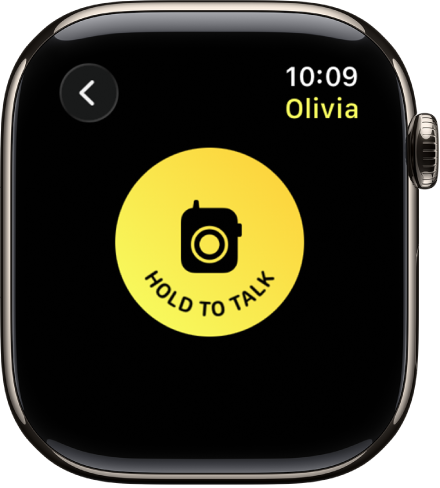
The contact’s name will turn yellow in your Walkie-Talkie app, confirming the link is active.
Pro Tip: If you don’t tap within seconds, the alert disappears. Don’t panic—check Notification Center.
Retrieve and Accept from Notification Center
Missed the alert? No problem.
1. Swipe down from the top of your Apple Watch face to open Notification Center
2. Scroll to find the pending Walkie-Talkie invitation
3. Tap it
4. Tap Accept
The app opens automatically, and the connection activates.
Accept an Invitation Inside the Walkie-Talkie App
Invitations also appear within the app.
1. Open Walkie-Talkie on your Apple Watch
2. Look for a contact listed under “Invitations”
3. Tap the name
4. Tap Accept
If the contact appears gray, they haven’t accepted your invite. Yellow means active.
Note: You can only accept one invitation at a time. Multiple invites stack in Notification Center.
Fix Common Walkie-Talkie Invitation Issues
Even with everything set up, problems happen. Here’s how to solve the most frequent issues.
No Invitation Appears
Common causes:
– FaceTime disabled
– Wrong reachability setting
– Outdated software
– Walkie-Talkie turned off
– Poor connectivity
Fix it:
1. Confirm FaceTime is ON in iPhone Settings
2. Ensure your phone number or email is selected under “You Can Be Reached By”
3. Update both devices to required OS versions
4. Open Walkie-Talkie app and turn it ON
5. Test Wi-Fi or cellular signal on your watch
Restart both devices if the issue persists.
Invitation Fails to Connect After Acceptance
Sometimes you tap Accept—but nothing happens.
Steps to resolve:
1. Restart Apple Watch and iPhone
2. Delete and re-send the invite:
– In Walkie-Talkie app, swipe left on the contact → Delete
– Tap Add Friends → Select contact again
3. Reinstall FaceTime (if missing):
– On iPhone: Open App Store → Search “FaceTime” → Reinstall
4. Reinstall Walkie-Talkie (if deleted):
– On Apple Watch: Open App Store → Search “Walkie-Talkie” → Install
After reinstalling, restart both devices.
Walkie-Talkie App Is Missing or Won’t Open
If the app isn’t on your watch:
– It may have been deleted
– Or FaceTime isn’t set up
Solutions:
1. On iPhone: Go to Settings > FaceTime → Turn ON
2. On Apple Watch: Open App Store → Search “Walkie-Talkie” → Install
3. Open the app and turn it ON
The app won’t appear if FaceTime is disabled.
Start Talking After Accepting the Invitation
Once accepted, you’re ready for instant voice chats.
Begin a Conversation
- Open Walkie-Talkie app
- Tap a yellow contact
- Press and hold the Talk button
- Speak clearly
- Release to send
You’ll hear a chime when the other side connects. They’ll hear your voice instantly.
Wait a second after the chime before speaking—early audio may cut off.
Adjust Volume During Talk
While transmitting or listening:
– Turn the Digital Crown up or down to control volume
– Works in real time—no need to pause
Perfect for noisy environments or quiet spaces.
Use Tap to Talk (Accessibility Feature)
Holding the screen isn’t always possible.
Enable Tap to Talk:
– On Apple Watch: Settings → Accessibility → Walkie-Talkie → Turn ON Tap to Talk
– Or via iPhone: Open Apple Watch app → My Watch → Accessibility → Enable Tap to Talk
Now:
– Tap once to start talking
– Tap again to stop
Ideal for gloves, mobility issues, or one-handed use.
Manage Friends and Availability

Keep your list clean and control when you’re reachable.
Remove a Friend
To end a connection:
– In the app: Swipe left on the contact → Tap Delete
– Or on iPhone: Open Apple Watch app → Walkie-Talkie → Edit → Remove
They’ll need to re-invite you to reconnect.
Control Your Availability
You don’t have to be always on.
– Turn Off Walkie-Talkie:
– Open app → Tap toggle at top
– Or open Control Center → Tap Walkie-Talkie icon
– When off, you’ll get a notification asking if you want to join when invited
Theater Mode automatically makes you unavailable—perfect for meetings or movies.
Optimize Performance and Battery Life
Walkie-Talkie is efficient but not invisible to your battery.
Maximize Connection Reliability
For best results:
– Keep Wi-Fi or cellular active
– Avoid switching networks mid-conversation
– Ensure both users have strong signals
Voice quality matches FaceTime audio—clear and low-latency.
Preserve Battery
Walkie-Talkie uses background connectivity:
– Turn it OFF when not in use
– Disable if you’re not expecting calls
– Avoid leaving it on overnight
Users report 5–10% battery drain during full-day availability.
Real-World Feedback
Verified users say:
– Connections establish in under 2 seconds
– Tap to Talk is a game-changer for seniors and outdoor workers
– Occasional lag when switching from Wi-Fi to cellular
– Ideal for family coordination (e.g., kids at school, shopping trips)
Apple Support confirms no additional warranty—covered under standard Apple Watch service.
Key Steps to Accept Walkie-Talkie Invite
| Step | Action |
|---|---|
| 1 | Update Apple Watch to watchOS 5.3+, iPhone to iOS 12.4+ |
| 2 | Enable FaceTime and sign in with Apple ID |
| 3 | Turn ON Walkie-Talkie in app or Control Center |
| 4 | Wait for notification or check Notification Center |
| 5 | Tap invite → Tap Accept |
| 6 | Confirm contact turns yellow in app |
| 7 | Use touch-and-hold or Tap to Talk to chat |
The Walkie-Talkie app is simple but picky. It only works between Apple Watch users, requires FaceTime, and depends on correct settings. Once set up, it’s one of the fastest ways to talk without a phone call. Accept invitations in real time, retrieve them later, and troubleshoot silently failing alerts with the steps above. Keep it enabled when needed, turn it off to save battery—and enjoy instant voice access to your closest contacts.




