
You’re in a crucial meeting, a lecture, or deep in a field recording session—and your Apple Watch is right there on your wrist, ready to capture everything. But how long can it actually record? The answer might frustrate you: just 20 minutes in a single session using the built-in Voice Memos app. After that, the recording cuts off—no warning, no continuation. You have to manually tap “Record” again to start fresh.
This 20-minute cap is not due to storage or battery limits. It’s a software-imposed restriction Apple introduced to prevent accidental recordings and address privacy concerns. Despite internal discussions about raising it to 60 minutes, no update has changed this limit as of October 2025. That means if you rely on your Apple Watch for interviews, meetings, or ambient sound capture, you need to understand both the limitations and the workarounds.
In this guide, you’ll learn:
– Why the 20-minute limit exists
– How third-party apps compare in recording length and quality
– The impact of Voice Isolation on audio fidelity
– Accessibility issues for VoiceOver users
– What improvements users and developers are pushing for
Let’s dive into what your Apple Watch can—and can’t—do when it comes to audio recording.
The 20-Minute Hard Stop in Apple’s Voice Memos App
The native Voice Memos app on Apple Watch stops recording after exactly 20 minutes, every time. No exceptions. Whether you’re halfway through an interview or dictating notes, the app simply ends the file and returns to the stop screen. To keep recording, you must manually restart the process.
This restriction applies regardless of your watch model, available storage, or battery level. Even with a fully charged Series 9 and 50 GB of free space, you still can’t exceed 20 minutes in one go.
Why Apple Enforces the 20-Minute Limit
Apple introduced this limit early in the Apple Watch’s development cycle after receiving reports of accidental recordings—like when the watch brushed against clothing, was placed face-down on a table, or was triggered during workouts. Because the microphone is always accessible via quick actions or Siri, there was a real risk of unintentional audio capture.
Apple Staff Confirmation (jijo_sunny):
“We added [the limit] after early reports of accidental recordings… which was also a privacy concern.”
While Apple briefly acknowledged user feedback suggesting a potential bump to 60 minutes, no such update has been released. The 20-minute rule remains unchanged across all watchOS versions, including the latest releases.
No Auto-Split Like the iPhone
One of the biggest frustrations is the lack of automatic file splitting. On your iPhone, the Voice Memos app seamlessly continues long recordings by creating new segments when file size or time limits are reached. The Apple Watch does not do this.
That means:
– No continuous capture for long sessions
– High risk of missing content during manual restarts
– User error is common—forgetting to resume recording
For professionals who use audio for meetings, lectures, or journalism, this makes the Apple Watch unreliable for serious documentation. Unlike the iPhone, it can’t be set and forgotten.
Storage and Battery: Real-World Constraints
While the 20-minute limit is software-based, real-world factors like storage capacity and battery life still affect how much audio you can record over time.
How Much Space Does a Recording Use?
A 20-minute mono voice memo typically uses 20–30 MB of storage, depending on background noise, compression, and model-specific encoding. Even older models have enough space for hundreds of recordings, but the per-file cap remains.
Storage Capacity by Model:
| Apple Watch Model | Total Storage | Usable Storage (Est.) | Max ~20-Min Recordings |
|---|---|---|---|
| Series 7 and earlier | 32 GB | ~20–24 GB | ~800–1,200 recordings |
| Series 8 and later | 64 GB | ~40–50 GB | ~1,600–2,500 recordings |
Even with ample storage, the 20-minute per-file limit persists, making total capacity irrelevant for long single sessions.
Battery Impact of Continuous Recording
Recording uses 5–10% of battery over 20 minutes, depending on:
– Background apps
– Bluetooth/WiFi usage
– Watch model efficiency
A full day of continuous recording (with manual restarts) could drain 60–80% of battery. And you cannot record while charging—the watch enters a restricted mode that disables certain sensors.
Key Fact: While total recording time is limited only by battery and storage, each individual recording is capped at 20 minutes.
Third-Party Apps That Beat the 20-Minute Limit
If you need longer recordings, third-party apps offer alternatives—though they come with trade-offs.
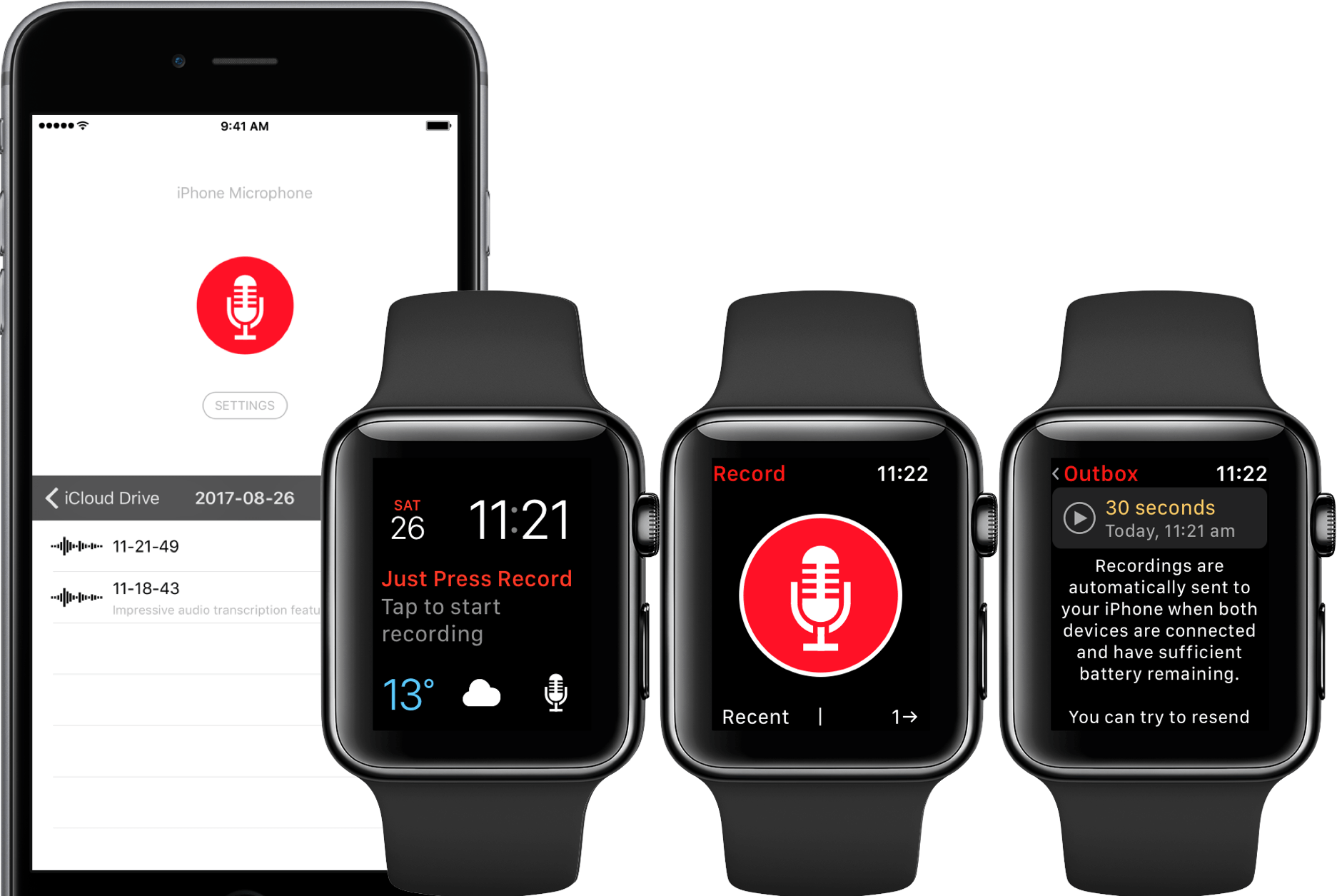
Just Press Record
One of the most popular options, Just Press Record, supports multi-hour recordings and syncs automatically to iPhone and iCloud.
Pros:
- Allows recordings beyond 20 minutes
- Minimalist interface—just tap to start
- Seamless iCloud sync
Cons:
- On Series 11 and later, Voice Isolation is enabled by default
- Background sounds (traffic, music, ambient noise) are suppressed
- Less ideal for field recordings or nature audio
Developers are aware of user concerns and are exploring ways to bypass or disable Voice Isolation.
Recorder HQ Pro
This app supports extended recordings with excellent clarity, but has a critical flaw.
Problem:
- After stopping a recording, the save confirmation appears too quickly
- Even with 70-second wake duration, VoiceOver users often can’t reach the “Save” button before the screen locks
- Result: Frequent loss of recordings
Despite strong audio performance, it’s inaccessible for blind or low-vision users.
Awesome Voice Recorder Pro
This app captures balanced, unprocessed audio, ideal for situations where background sound matters.
Strengths:
- Bypasses some Voice Isolation effects
- Supports long-duration sessions
- Great for music rehearsals or environmental recording
Weaknesses:
- Poor UI design—clunky navigation
- Limited VoiceOver support
- No automatic sync to iPhone
It captures better sound but falls short in usability.
Voice Isolation: The Hidden Audio Filter
Starting with watchOS 9, Apple introduced Voice Isolation, a machine learning feature that enhances speech clarity by filtering out background noise.
How It Works
- Uses dual mics and AI to focus on your voice
- Suppresses ambient sounds like wind, keyboard typing, or room chatter
- Active by default on Series 9 and later
The Problem
While great for calls, Voice Isolation degrades full-spectrum audio capture. If you’re recording:
– A musical performance
– Nature sounds
– A panel discussion
– Ambient field audio
…then critical background elements may be lost.
Can You Turn It Off?
No official toggle exists in watchOS to disable Voice Isolation for recordings. Some apps try to bypass it using lower-level APIs, but Apple restricts access to raw microphone input, limiting developer options.
Users seeking true ambient capture must:
– Use older Apple Watch models (pre-Series 9)
– Find apps that minimize processing
– Or switch to iPhone, which offers more control
Ideal Features for a Better Recording App
Until Apple or developers deliver better tools, here’s what a next-gen app should include:
| Feature | Why It Matters |
|---|---|
| >20-minute recordings | Essential for meetings, lectures, interviews |
| Disable Voice Isolation | Preserves ambient and background sounds |
| Auto-split files | Seamless continuation beyond limits |
| Accessibility support | VoiceOver-compatible save screens with delay |
| iCloud sync | Automatic backup without manual transfer |
| Stable performance | No crashes or data loss |
| Simple interface | Optimized for small screen and wrist interaction |
Until these features arrive, the Apple Watch remains a convenient but limited audio tool.
Use Case Guide: What Works and What Doesn’t
| Use Case | Recommended App | Limitations |
|---|---|---|
| Quick voice notes | Apple Voice Memos | 20-minute cap acceptable; great sync |
| Meetings / lectures | Just Press Record | Must restart every 20 min; Voice Isolation active |
| Field recordings | Awesome Voice Recorder Pro | No sync; poor UI |
| Accessibility users | None fully reliable | Save timing issues; VoiceOver delays |
| Long interviews | Not feasible natively | Manual restarts = high risk of gaps |
Pro Tip: For any session longer than 20 minutes, use your iPhone instead. It offers longer recording times, better audio control, and automatic file splitting.
Developer and User Action Steps
For App Developers
- Explore low-level audio APIs to bypass Voice Isolation
- Implement auto-continuation when one recording ends
- Increase save screen timeout or allow user-configurable delays
- Optimize for VoiceOver: ensure all buttons are reachable in time
- Add end-of-recording alerts to prevent missed stops
For Users
- Contact app developers (e.g., Just Press Record) to request:
- Voice Isolation bypass
- Longer recording support
- Accessibility fixes
- Submit feedback to Apple via betafeedback.apple.com or iPhone Settings > Feedback
- Ask for:
- 60-minute recording limit
- Auto-split like iPhone
- Toggle to disable Voice Isolation
- Use iPhone for critical long recordings—it’s simply more capable
Summary: What You Need to Know
- ✅ Max recording time in Apple Voice Memos: 20 minutes
- ❌ No automatic continuation or file splitting
- 🔒 Limit is software-enforced for privacy, not hardware
- 💾 Total recordings limited only by storage and battery
- 📱 Third-party apps can exceed 20 minutes
- 🧩 Voice Isolation (watchOS 9+) suppresses ambient sound
- ⚠️ Accessibility issues plague current apps
- 🔄 No 60-minute update released despite internal discussion
The Apple Watch is a powerful device, but its audio recording capabilities lag behind user needs. Until Apple lifts the 20-minute cap or introduces auto-splitting, it remains best suited for short notes—not long-form capture.
For now, if you need reliable, uninterrupted audio recording, keep your iPhone close. But stay hopeful—user feedback is being heard, and change may come in a future watchOS update.
Final Note: The 20-minute limit isn’t going away anytime soon—but awareness is growing. By choosing the right app, advocating for better features, and understanding the trade-offs, you can still make the most of your Apple Watch’s microphone.




