
You can’t directly change the Apple ID on your Apple Watch—there’s no built-in option in watchOS to switch accounts like you can on an iPhone or iPad. Unlike other Apple devices, the Apple Watch locks to the Apple ID used during pairing with your iPhone, especially the iCloud, iMessage, and FaceTime credentials. If you need to use a different Apple ID, your only reliable path is to unpair and re-pair the device.
This process completely erases your Apple Watch, wiping apps, messages, health data (unless backed up), and custom watch faces. But with the right steps, you can successfully switch Apple IDs and restore full functionality. Whether you’re transferring ownership, fixing mismatched accounts, or updating an expired university email, this guide walks you through every method, workaround, and critical warning based on real user experiences and Apple’s official procedures.
Why You Can’t Directly Change Apple ID on Apple Watch
No In-Watch Account Switching
There is no menu in watchOS that allows you to sign out of one Apple ID and sign into another. Once paired, the Apple Watch inherits the iCloud, iMessage, and FaceTime Apple ID from the paired iPhone. Even if you later change your Apple ID on the iPhone, the watch remains tied to the original account used during setup.
“You cannot change the Apple ID once it’s synced. The only option is to unpair and re-pair.” – DaveG, Apr 25, 2015
This restriction applies to all Apple Watch models and versions of watchOS. The system treats the watch as an extension of the iPhone’s primary account, making it impossible to switch IDs without a full reset.
Primary Method: Unpair and Re-Pair Apple Watch
The only complete solution to change the Apple ID on your Apple Watch is to unpair it, erase its data, and re-pair using the desired Apple ID.
Step-by-Step Guide to Unpair and Re-Pair
Open the Watch App on Your iPhone
Launch the Watch app on your paired iPhone. This is where all pairing and unpairing actions are managed.
Select Your Apple Watch
Tap “All Watches” at the top. If you have multiple watches listed, tap the (i) icon next to the one you want to modify.
Unpair the Apple Watch
Scroll down and select “Unpair Apple Watch.” Confirm the action when prompted.
⚠️ Warning: This will erase all data on the watch—apps, settings, messages, music, and locally stored health metrics. Only health data backed up to iCloud will be preserved.
Before unpairing, ensure Health data is backed up:
– Go to Settings > [Your Name] > iCloud > Health and verify sync is enabled.
Prepare to Re-Pair with a New Apple ID
You now have two options:
-
Same iPhone, Different Apple ID?
Sign out of your current Apple ID on the iPhone (Settings > [Your Name] > Sign Out), then sign back in with the new Apple ID. Open the Watch app and begin pairing. -
Different iPhone?
Bring the new user’s iPhone close to the Apple Watch. Follow the on-screen setup prompts. The watch will adopt the Apple ID signed in on that iPhone.
Complete the Re-Pairing Process
Place the Apple Watch near the iPhone and follow the setup assistant. When prompted, choose to set up the watch as new or restore from a backup (if available).
✅ Tip: Keep both devices charged and connected to Wi-Fi to avoid interruptions during pairing.
Workaround: Change iCloud Account Before Re-Pairing
If you only want to change the iCloud account (e.g., for Health, Find My, or backups) but keep your App Store purchases under a different ID, you can temporarily switch iCloud on the iPhone.
How to Temporarily Switch iCloud
- On iPhone: Settings > [Your Name] > iCloud
- Tap “Sign Out”
- Sign in with the desired iCloud account
- Open the Watch app and unpair/re-pair
After pairing, you can switch back to your original iCloud account—the watch may still retain access to synced health and Find My features.
“I had to sign out of iCloud and sign in with the other ID… then un-pair and re-pair.” – VinceClarke, Sep 5, 2015
This works because the Apple Watch pulls iCloud settings directly from the iPhone at pairing time.
Fix iMessage and FaceTime Mismatch

The Apple Watch often defaults to the Apple ID used for iMessage and FaceTime, which can override other account settings.
Steps to Update Messaging Accounts
- On iPhone: Settings > Messages > Send & Receive
- Tap your Apple ID and select “Sign Out”
- Sign in with the new Apple ID
Repeat for FaceTime:
– Settings > FaceTime > Sign Out, then sign in again
Reset and Re-Pair After Changing iMessage
After updating iMessage/FaceTime:
– Perform a hard restart on the Apple Watch: press and hold the Digital Crown + Side Button until the Apple logo appears.
– Unpair and re-pair using the Watch app.
“The Apple Watch wants to use the Apple ID associated with your iMessage account.” – jechama8, May 29, 2015
This ensures calls, notifications, and messages route correctly under the new ID.
Special Cases and Real-World Fixes
Case: Expired University Email Apple ID
Many users created Apple IDs with temporary school emails. Even after updating the email address online, the Apple Watch may remain locked to the original ID.
Risk: Activation Lock
If you unpair the watch and can’t access the old email, the device may ask for the original credentials to reactivate—potentially bricking the watch.
“It’s going to be locked to that old Apple ID email… Deal with this now before you lose access.” – Apple Support Agent
Solution: Re-Pair While Old Email Still Works
While you still have access:
1. Sign in to iCloud on iPhone with updated credentials
2. Unpair and re-pair the Apple Watch
3. Confirm the new Apple ID is used during setup
Do this before losing access to the old account.
Case: Transfer Watch to a Family Member
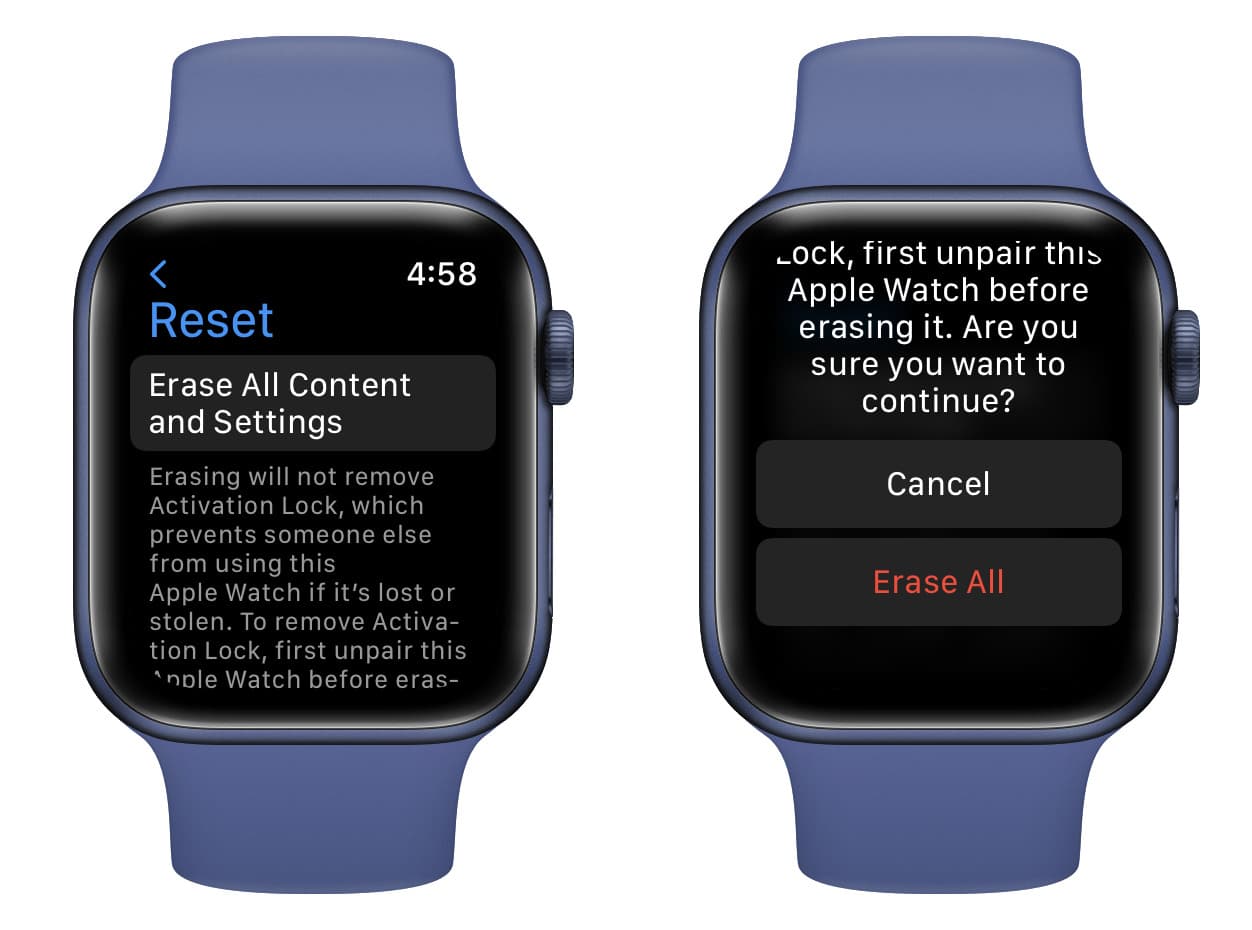
Giving your Apple Watch to someone else? You must fully erase it first.
How to Erase All Content
On the Apple Watch:
1. Open Settings
2. Tap General > Reset > Erase All Content and Settings
3. Confirm with passcode
After reset:
– Bring the new user’s iPhone close to the watch
– Follow setup instructions
– Sign in with their Apple ID
“Your brother’s iPhone will remain unaffected. Only the Apple Watch will be associated with your Apple ID.” – Article 6
This ensures clean ownership transfer.
How Apple ID Affects Watch Features
The Apple Watch uses different Apple IDs for different services, depending on the paired iPhone’s settings.
| Feature | Uses Apple ID From |
|---|---|
| iCloud Backup, Find My, Health Sync | iCloud account on iPhone |
| App Store, Music, Purchases | iTunes & App Store account |
| iMessage, Calls, Notifications | iMessage/FaceTime account |
| Apple Pay, Wallet | Primary Apple ID (may require re-verification) |
“All apps purchased with the abc ID appeared as expected… same AmEx account may have helped link them.” – Bnax
Apple links related accounts behind the scenes, allowing some cross-functionality—but not all features work reliably across IDs.
Common Issues and User Reports
Inconsistent Behavior Across Devices
Some users report full functionality despite mismatched IDs:
“After setup, I installed apps from my iPhone. They all work.” – lanceanz, Aug 4, 2015
Others face syncing problems:
“When I buy something on my computer, it does not appear on my Apple Watch.” – jolaca, Jun 5, 2015
Key Takeaway:
- Basic functions may work, but purchases, notifications, and iCloud sync can fail unpredictably.
- For reliable performance, use one primary Apple ID across devices.
Limitations and Warnings
Known Restrictions
- ❌ No in-device Apple ID switch
- ❌ Data loss on unpairing (health data not auto-backed up)
- ❌ Activation Lock remains tied to original email
- ❌ No official support for dual accounts
- ❌ Third-party tools or jailbreaks violate Apple’s terms and risk security
“I need one ID for iTunes and another for iCloud. So this makes it really hard.” – Skyboii, Dec 6, 2016
Apple has not implemented multi-account support, making complex setups frustrating.
Best Practices and Pro Tips
✅ Do This Before Changing Apple ID
- Back up Health data via iCloud
- Update Apple ID email before it expires
- Use one main Apple ID for consistency
- Test all features after re-pairing (messages, Apple Pay, Find My)
❌ Avoid These Mistakes
- Assuming the watch auto-updates when iPhone changes ID
- Delaying fixes for expired university/school emails
- Trying unofficial tools or reset services
“You should be able to easily select the ID you want to use.” – jechama8
Until Apple adds native account switching, these steps are your best defense against lockouts and data loss.
Future Outlook: Will Apple Add Account Switching?
Many users want Apple to add a native Apple ID selector in watchOS.
Current trends suggest growing demand:
– More people manage personal/work accounts
– Legacy MobileMe and school IDs are expiring
– Family sharing and device transfers are common
While no official update has been announced, increased feedback may push Apple to introduce multi-account support or in-system login options in future watchOS versions.
Until then, unpairing and re-pairing remains the only guaranteed method.
Quick Reference: Change Apple ID by Goal
| Goal | Solution |
|---|---|
| Switch Apple ID completely | Unpair → Sign in with new ID → Re-pair |
| Fix iCloud mismatch | Temporarily switch iCloud → Re-pair |
| Fix iMessage/notifications | Change iMessage/FaceTime ID → Reset → Re-pair |
| Transfer to another person | Erase All Content → Pair with new iPhone |
| Prevent activation lock | Re-pair while old email still works |
Final Note: Changing the Apple ID on your Apple Watch requires a full reset. There is no software-only alternative. Always back up health data and act before losing access to old email accounts. While inconvenient, this process ensures your watch operates securely under the correct identity. Until Apple introduces account flexibility, unpairing and re-pairing is the only path forward.




