You just unboxed your Apple Watch or maybe you’ve had it for a while but still aren’t sure if you’re charging it right. One thing’s certain: the magnetic charger is essential. Unlike most devices, the Apple Watch doesn’t use a standard cable or plug—it relies on a unique magnetic charging system designed for speed, safety, and seamless alignment. If you’ve ever wondered whether you can charge your Apple Watch on your iPhone, with a power bank, or without the puck, this guide has all the answers. You’ll learn exactly how to charge Apple Watch with magnetic charger, which accessories work best, how to enable fast charging, and how to protect your battery for years to come—all based on verified technical specs and real user experiences.
Let’s get you charging confidently and correctly.
Prepare Your Charging Setup
Before attaching the charger, ensure your setup is safe and effective. The right environment and components prevent slow charging, overheating, and long-term battery wear.
Use a Stable, Ventilated Surface
Place the magnetic charger on a flat, stable surface away from moisture and heat. Avoid charging under pillows, blankets, or inside closed drawers. The Apple Watch needs airflow to regulate temperature during charging. Overheating can trigger thermal throttling, slowing down the charge or stopping it entirely.
Connect to a Compatible Power Source
Plug the USB end of the magnetic cable into a certified power adapter. While Apple no longer includes the wall adapter with newer models (like Apple Watch SE), you can use:
- iPhone 5W, 12W, or 20W USB-A adapter
- 18W or higher USB-C adapter (required for fast charging)
- Laptop USB port (slower, but works in a pinch)
- MFi-certified power bank with USB output
✅ Pro Tip: For fastest results, use a 20W USB-C iPhone charger—it’s safe and widely available.
Avoid cheap, uncertified wall plugs. They may deliver unstable voltage, risking damage over time.
Attach the Magnetic Charger Correctly
Proper attachment ensures fast, reliable charging. The magnets are designed to snap into place—but only if aligned correctly.
Align the Concave Puck with the Watch Back
Flip your Apple Watch so the back faces up. Bring the concave (dished) side of the magnetic puck close to the rear casing. The magnets will automatically pull and align it.
🔍 What to Look For:
– A green lightning bolt appears on the screen
– You hear a chime (unless Silent Mode is on)
– If the watch was dead, wait 1–2 minutes for the symbol to appear
If nothing happens, check for debris or misalignment.
Troubleshoot Weak or Failed Connection
Sometimes the puck won’t snap properly. Common causes:
- Dirt on the back of the watch or charger
- Third-party case blocking magnetic contact
- Worn or damaged cable
Clean both surfaces with a dry, lint-free cloth. Remove any thick or metal-backed cases. Try a different cable if connection remains weak.
Monitor Charging Status Visually
Once attached, your Apple Watch shows real-time feedback so you know it’s working.
Check the Charging Indicator
- Green lightning bolt = normal charging
- Yellow lightning bolt = Low Power Mode is active
- No symbol = not charging (check connection or power source)
The battery percentage may appear depending on your watch face. Swipe up from the watch face to see battery widgets.
Use Nightstand Mode While Charging
Lay the Apple Watch on its side during charging to activate Nightstand Mode. The display turns into a digital clock showing:
- Time (large digits)
- Charging status
- Active alarms
This is ideal for bedside charging. Tap the screen to wake it; rotate the Digital Crown to adjust brightness.
Enable Fast Charging (Series 7 and Newer)
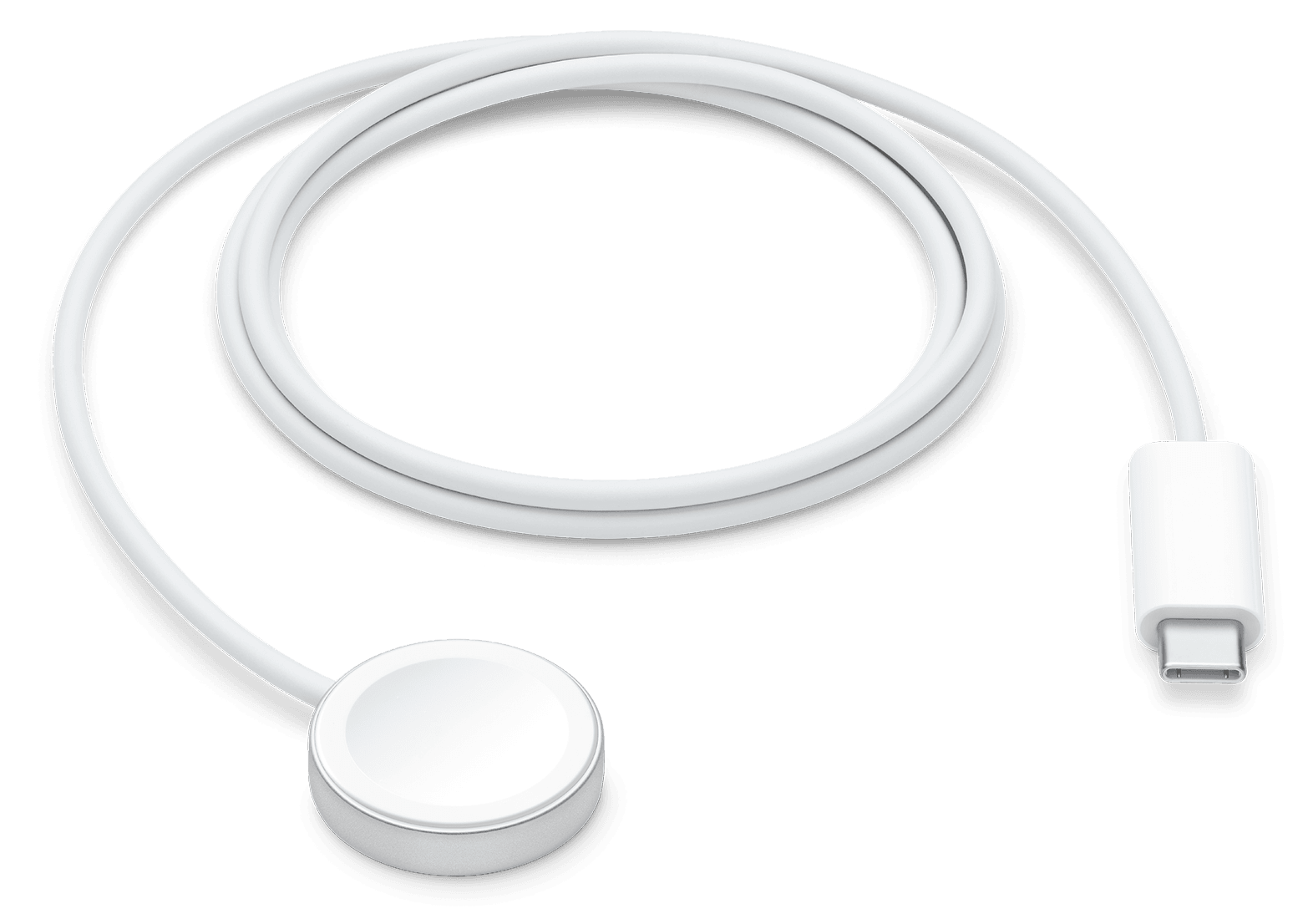
If you own an Apple Watch Series 7, 8, 9, or Ultra, you can charge faster—but only with the right gear.
Meet Fast Charging Requirements
Fast charging (0–80% in ~45 minutes) requires:
- USB-C Magnetic Fast-Charging Cable (included with Series 7+)
- 18W or higher USB-C power adapter with USB-PD support
Using a USB-A cable or lower-wattage adapter defaults to standard charging (~60 minutes to 80%).
⚠️ Myth Alert: Fast charging is not wireless—it still uses the magnetic puck, just with a USB-C cable.
Compare Charging Times
| Method | 0–80% Time | Full Charge |
|---|---|---|
| Fast Charging (USB-C + 18W+) | ~45 minutes | ~1.5–2 hours |
| Standard Charging (USB-A) | ~60 minutes | ~2.5 hours |
Charging speed may slow if you’re using GPS, workouts, or background apps.
Use Certified Third-Party Chargers Safely

You don’t have to use Apple’s original charger—but you should only pick Made for Apple Watch (MFW)-certified alternatives.
Choose MFW-Certified Options
These are tested for safety, compatibility, and performance:
- Anker USB-C Magnetic Charging Cable
- Belkin 3-in-1 Boost Charge Pro
- Satechi USB-C Magnetic Charger
- TwelveSouth HiRise Duet
These work just like Apple’s charger and support fast charging when paired with the right adapter.
Avoid Non-Certified Chargers
Uncertified chargers may:
- Deliver inconsistent power
- Overheat the battery
- Fail to initiate charging
- Void warranty in extreme cases
❌ Never use generic Qi wireless pads—the Apple Watch does not support standard Qi charging.
Charge with Multi-Device Docks
Keep your desk or nightstand clutter-free with charging stations that power multiple Apple devices at once.
Try the MagSafe Duo Charger
Apple’s MagSafe Duo lets you charge your iPhone and Apple Watch simultaneously. It folds flat for travel and uses the same magnetic puck system.
Explore 3-in-1 Charging Stands
Popular models like:
- Zeera 5-in-1 Fast Wireless Charging Stand
- Anker PowerWave Pad
- Belkin 3-in-1 Boost Charge Pro
These support MagSafe iPhone charging, AirPods, and Apple Watch on integrated magnetic pucks.
💡 User Tip: Some users report faint electrical noise from multi-docks. If you hear buzzing, try a different unit—quality varies.
Charge on the Go with Power Banks
Traveling? You can charge your Apple Watch without a wall outlet.
Use MFW-Certified Portable Chargers
Look for power banks with a built-in magnetic puck or USB output to connect your magnetic cable.
Features to Look For:
- At least 5,000mAh capacity (enough for 2–3 full charges)
- USB-C PD output (for fast charging)
- Compact size for pockets or bags
✈️ Perfect for: Flights, camping, long commutes
Can You Charge from an iPhone?
Only iPhone 15 and later (USB-C models) can provide trickle charging (up to 4.5W). Plug the Apple Watch’s USB-C cable into the iPhone—it acts like a mini power bank.
❌ Lightning iPhones (14 and earlier) cannot charge the Apple Watch.
✅ The magnetic puck is still required—you can’t place the watch on the iPhone’s back to charge.
Optimize Battery Health Long-Term
Your charging habits today affect battery life years from now. Follow these tips to keep your Apple Watch running strong.
Turn On Optimized Battery Charging
This feature learns your routine and holds charging at 80% until you typically unplug—reducing time spent at 100%, which slows battery aging.
How to Enable:
- Open Settings on Apple Watch
- Tap Battery > Battery Health
- Turn on Optimized Battery Charging
It’s on by default for most users.
Avoid Extreme Temperatures
Charge and use your Apple Watch between 0°C and 35°C (32°F to 95°F). Avoid:
- Direct sunlight (e.g., car dashboards)
- Steamy bathrooms
- Freezing outdoor conditions
Heat is the #1 cause of lithium-ion battery degradation.
Prevent Deep Discharges
Don’t wait until the watch dies. Recharge when battery hits 20–30%. Frequent 0% drops stress the battery.
Occasional full cycles are fine, but daily deep discharges shorten lifespan.
Troubleshoot Common Charging Issues
Even with the right setup, problems can occur. Here’s how to fix them fast.
No Charging Symbol Appears
Possible Causes:
– Dirty contacts
– Faulty cable
– Dead battery
Fix:
1. Clean the back of the watch and puck with a dry cloth
2. Try a different cable or adapter
3. Leave on charger for 15+ minutes before restarting
Watch Won’t Snap to Charger
Cause: Debris, weak magnets, or case interference
Fix: Remove the case, clean the area, reposition the puck slowly
Charging Stops Intermittently
Cause: Damaged cable, unstable power source
Fix: Replace with MFW-certified cable; avoid using laptop USB ports on battery
Yellow Charging Symbol
This means Low Power Mode is active. It disables automatically at 80%. Normal behavior—no action needed.
Never Use Unsupported Charging Methods
Some myths persist. Let’s clarify what does not work.
❌ No Qi Wireless Charging
The Apple Watch cannot charge on standard Qi pads. It requires the magnetic puck for alignment and power transfer.
❌ No Reverse Charging from iPhone
Placing the Apple Watch on the back of any iPhone—even iPhone 15—does not charge it. Reverse wireless charging is not supported.
❌ No Direct Cable Charging
There’s no port on the watch. You cannot plug a cable directly into the Apple Watch. The magnetic puck is mandatory.
Follow Safety Best Practices
Apple Watch is safe to charge overnight, but follow these guidelines to stay protected.
Overnight Charging Is Safe
The watch stops charging at 100% and resumes only if needed. Built-in systems prevent overcharging, overheating, and overvoltage.
✅ Leaving it on the charger all night is normal and safe.
Watch for Overheating
If the watch or charger feels hot:
– Remove it from the charger
– Take off the band and case
– Let it cool in a ventilated area
– Restart and try again
Discontinue use if overheating persists.
Replace Damaged Cables Immediately
Look for:
– Frayed wires
– Bent connectors
– Loose magnetic puck
Damaged cables can cause short circuits or fire risk.
Maximize Charging Efficiency
A few smart habits make charging faster and more reliable.
Charge Before Battery Dies
Start charging at 30% to avoid the slow initial phase after deep drain.
Close Background Apps
Running GPS, music, or workouts while charging slows the process. Close unused apps before plugging in.
Keep watchOS Updated
Apple releases battery optimizations in software updates. Go to:
Settings > General > Software Update on your Apple Watch
Newer watchOS versions often improve charging speed and thermal management.
Final Note: The magnetic charger is the only way to power your Apple Watch—and it’s designed to be simple, fast, and safe. Use the right adapter, keep contacts clean, enable Optimized Battery Charging, and stick to certified accessories. Whether you’re charging at home, in the car, or on a plane, these steps ensure your Apple Watch stays powered and lasts longer. Now you’re not just charging—it’s smart charging.