
Is your Apple Watch dying by midday? You’re not imagining it—over time, every lithium-ion battery degrades, and your Apple Watch is no exception. Unlike older devices that just slow down, modern Apple Watches let you see exactly how healthy your battery is—but only if you know where to look and meet a few key requirements. The feature exists, but it’s tucked away behind specific model and software conditions. In this guide, you’ll learn how to check Apple Watch battery health step by step, interpret what the numbers mean, and discover proven ways to extend your battery’s lifespan. Whether you’re troubleshooting sluggish performance, preparing to sell your watch, or just want to keep it running longer, this complete walkthrough covers everything you need.
Which Apple Watches Support Battery Health Monitoring?
Only Series 3 and Newer Models
Apple didn’t introduce built-in battery health reporting until Apple Watch Series 3, so older models like the Series 1 and 2 cannot display battery health data, even with software updates.
Supported models include:
– Apple Watch Series 3, 4, 5, 6, 7, 8, 9, and 10
– Apple Watch SE (both 1st and 2nd generation)
– Apple Watch Ultra and Ultra 2
If you’re using any of these models, you’re in luck—but software matters just as much as hardware.
Must Run watchOS 7 or Later
Even if you have a compatible model, your watch must be running watchOS 7 or newer to access battery health. Here’s what that means in practice:
- Apple Watch Series 3 maxes out at watchOS 8.8.1, but it still supports full battery health features.
- Devices stuck on watchOS 6 or earlier will not show the Battery Health option, regardless of model.
- Your paired iPhone must run iOS 14 or later to support watchOS 7+ updates.
Pro Tip: If you don’t see the Battery Health screen, first update your watch. Restart it afterward—sometimes the feature takes a few minutes to appear after an OS upgrade.
How to Check Battery Health on Your Apple Watch
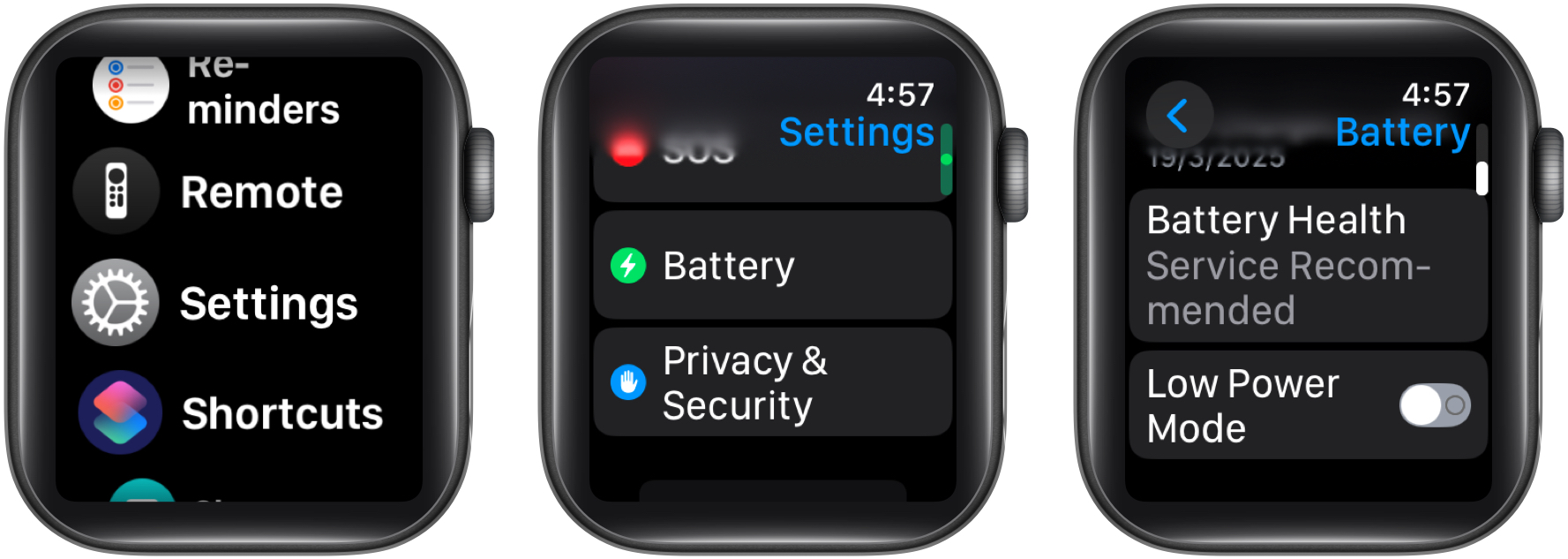
Direct Method: Using the Watch Itself
You don’t need your iPhone nearby to view battery health once the feature is active. Here’s how to check it directly from your wrist:
- Press the Digital Crown to go to the Home screen
- Tap the Settings app (gear icon)
- Scroll down and select Battery
- Tap Battery Health
You’ll now see critical metrics:
- Maximum Capacity: A percentage (e.g., 87%) showing how much charge your battery holds compared to when it was new
- Peak Performance Capability: A status message indicating whether the battery can deliver full power during demanding tasks
- Optimized Battery Charging: A toggle to enable smart charging that reduces long-term wear
Warning: If the Battery Health option is missing, ensure your watch is updated and restart it. It may take up to 24 hours after update for the system to generate health data.
Alternative: View Battery Health via iPhone Watch App
Sync Data from Your Paired iPhone
While the data lives on the watch, you can also view it through the Watch app on your iPhone:
- Open the Watch app on your iPhone
- Go to the My Watch tab
- Scroll down and tap Battery
- Select Battery Health
This displays the exact same information as the watch:
– Maximum Capacity percentage
– Performance status message
– Service alerts (if applicable)
Important: This method only works with a paired and functional Apple Watch. The iPhone app pulls data in real time—it doesn’t store it independently.
Interpreting Your Battery Health Results
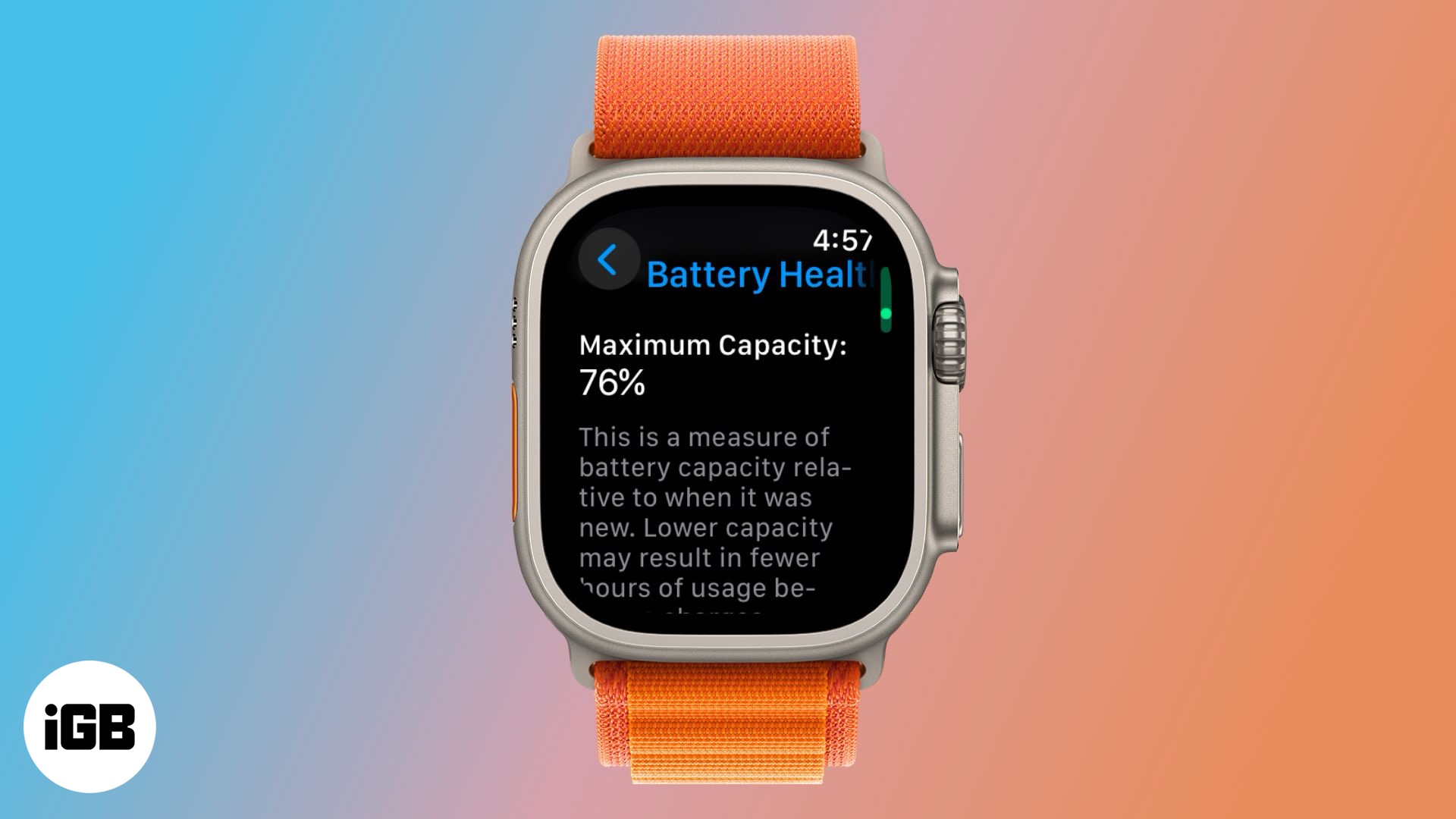
What Does Maximum Capacity Tell You?
This percentage is the most important number:
- 100%: Brand new or like-new battery
- 90–100%: Excellent condition, minimal wear
- 80–89%: Normal aging, still performs well
- Below 80%: Degraded—Apple recommends service
Apple designs its batteries to retain at least 80% capacity after 1,000 full charge cycles under normal use. Once capacity drops below this threshold, you’ll see a warning.
What Is a Charge Cycle?
A charge cycle = using 100% of your battery’s capacity, not one full charge. For example:
– Two 50% charges = 1 cycle
– Five 20% charges = 1 cycle
Most users hit 1,000 cycles within 18 to 24 months with daily use.
Why Peak Performance Capability Matters
This status tells you if your watch can handle high-power tasks like:
– GPS tracking during workouts
– Launching multiple apps quickly
– Continuous heart rate monitoring
If the battery is too degraded, the system may limit performance to avoid sudden shutdowns—just like older iPhones.
Unlike iPhones, Apple Watch doesn’t show historical throttling, but the protection logic runs silently in the background.
Can You Check Battery Health Without an iPhone?
No—Pairing Is Required
Despite widespread user demand, you cannot check battery health on an unpaired Apple Watch.
Apple requires:
– Initial setup with an iPhone
– The Watch app for access to certain settings
– Data syncing to display health metrics
Real-World Impact
This limitation affects:
– Buyers of used watches who can’t verify battery condition
– Sellers trying to prove their device is in good shape
– Repair shops diagnosing issues without customer phones
User feedback confirms:
“There’s no way to check without pairing.” — @doogm
“Apple should make this available standalone.” — @theowl_23
Workaround for Buyers and Sellers
Prove Battery Health Before Selling
If you’re selling or buying a used Apple Watch, follow this process:
- Temporarily pair the watch with any iPhone (iOS 14+)
- Update to the latest compatible watchOS
- Open Settings > Battery > Battery Health on the watch
- Show the screen to the buyer
This is the only reliable way to verify battery condition before purchase.
Critical: After demonstrating, erase all content and settings to remove personal data.
Monitor Battery Level and Usage Daily
Check Real-Time Charge Status
Battery health reflects long-term condition—battery level shows current charge.
Quick Way to See It:
- Press the side button to open Control Center
- See the battery % at the top
- Tap it, then turn the Digital Crown to view AirPods, iPhone, or other accessories
Add a Battery Complication:
- Long-press your watch face
- Tap Edit
- Choose a battery complication
- Save
Now you’ll see charge status at a glance—some complications show multiple devices.
Analyze Battery Usage Patterns
Track What’s Draining Your Power
To see how your battery behaves:
- Open Settings > Battery on your watch
- Review:
– Charge/discharge graph (past 24–72 hours)
– Time since last full charge
– App-specific power use (if supported)
Look for sudden drops after workouts or app updates.
Pro Tip: If your watch dies overnight, disable background app refresh or check for bugs in recently updated apps.
4 Proven Tips to Extend Your Apple Watch Battery Life

1. Avoid Extreme Temperatures
Heat is the #1 killer of lithium-ion batteries.
- Safe range: 32°F to 95°F (0°C to 35°C)
- Never leave in hot cars, saunas, or direct sunlight
- Cold exposure may cause temporary shutdowns (battery recovers when warmed)
Even short heat spikes accelerate chemical aging.
2. Optimize Charging Habits
Keep Between 20% and 80%
Avoid frequent full discharges or keeping it at 100% for hours.
Enable Optimized Battery Charging:
- Go to Settings > Battery > Battery Health
- Toggle on Optimized Battery Charging
This delays charging past 80% until you typically wake up—reducing stress and extending lifespan.
Users report slower degradation when using this feature, especially overnight.
3. Use Apple or MFi-Certified Chargers
Stick to:
– Apple’s magnetic charger
– MFi-certified third-party chargers
Avoid cheap cables—they can:
– Deliver unstable voltage
– Overheat the battery
– Shorten overall life
MFi (Made for iPhone/iPad/Watch) ensures safety and compatibility.
4. Store Properly When Not in Use
For long-term storage:
1. Charge to ~50%
2. Power off the watch
3. Store in a cool, dry place
4. Recharge to 50% every six months
Never store fully charged or completely drained—deep discharge can permanently damage the battery.
Technical Specs Behind the Scenes
| Feature | Detail |
|---|---|
| Battery Type | Lithium-ion polymer |
| Design Goal | ≥80% capacity after 1,000 cycles |
| Health Detection | On-device BMS with machine learning |
| Data Storage | Local to Apple Watch (not cloud-backed) |
The Battery Management System (BMS) tracks:
– Charge cycles
– Temperature exposure
– Voltage fluctuations
– Charging patterns
All fed into the health algorithm.
Warranty and Replacement Options
When to Seek Service
Consider replacement if:
– Maximum Capacity < 80%
– Performance warning appears
– Battery drains abnormally fast
Coverage:
| Plan | Battery Service Included? |
|---|---|
| Standard Warranty (1 year) | Only for defects |
| AppleCare+ (2 years) | Yes, if capacity < 80% |
| Out of Warranty | Paid service (~$69–$99 USD) |
Apple doesn’t publish official prices, but service providers confirm this range.
Final Tips for Owners and Buyers
For Resale: Maximize Value
Boost resale price by:
– Showing the Battery Health screen
– Providing AppleCare+ proof
– Including original charger and box
Watches with 90%+ capacity sell faster and for more.
For Daily Use: Prevent Premature Aging
Adopt these habits:
– Enable Optimized Charging
– Avoid 0% to 100% cycles
– Update watchOS regularly
– Restart weekly to clear memory leaks
Small changes can add years to your battery life.
Key Takeaways
- ✅ Only Series 3 and newer support battery health checks
- ✅ Must run watchOS 7 or later
- ✅ Check via Settings > Battery > Battery Health on watch or iPhone
- ✅ Below 80% = time to consider replacement
- ❌ No unpaired method exists—iPhone pairing required
- 🔋 Use Optimized Charging and avoid heat to extend lifespan
- 💬 For resale, temporarily pair with iPhone to prove battery condition
By following these steps, you’ll keep your Apple Watch running efficiently—and know exactly when it’s time for a battery refresh.




