
You can’t take an instant temperature reading on your Apple Watch like with a traditional thermometer—but if you own an Apple Watch Series 8 or later, you can monitor your wrist temperature during sleep to uncover valuable health trends. This feature helps detect subtle shifts related to your menstrual cycle, sleep quality, or even early signs of illness. Unlike medical thermometers, the Apple Watch doesn’t measure core body temperature in real time. Instead, it uses a built-in thermal sensor to passively record skin temperature at night and compare it to your personal baseline.
In this guide, you’ll learn exactly how to enable, view, and interpret wrist temperature data on your Apple Watch. You’ll discover which models support it, why your data might be missing, and how to maximize accuracy. Whether you’re tracking fertility, improving sleep, or monitoring wellness, this step-by-step walkthrough gives you everything you need to make the most of temperature tracking.
Which Apple Watches Support Temperature Tracking?
Only the following models include wrist temperature sensing:
– Apple Watch Series 8
– Apple Watch Series 9
– Apple Watch Series 10
– Apple Watch Ultra
– Apple Watch Ultra 2
– Apple Watch Ultra 3
❌ Series 7 and earlier do not have this sensor and cannot track temperature.
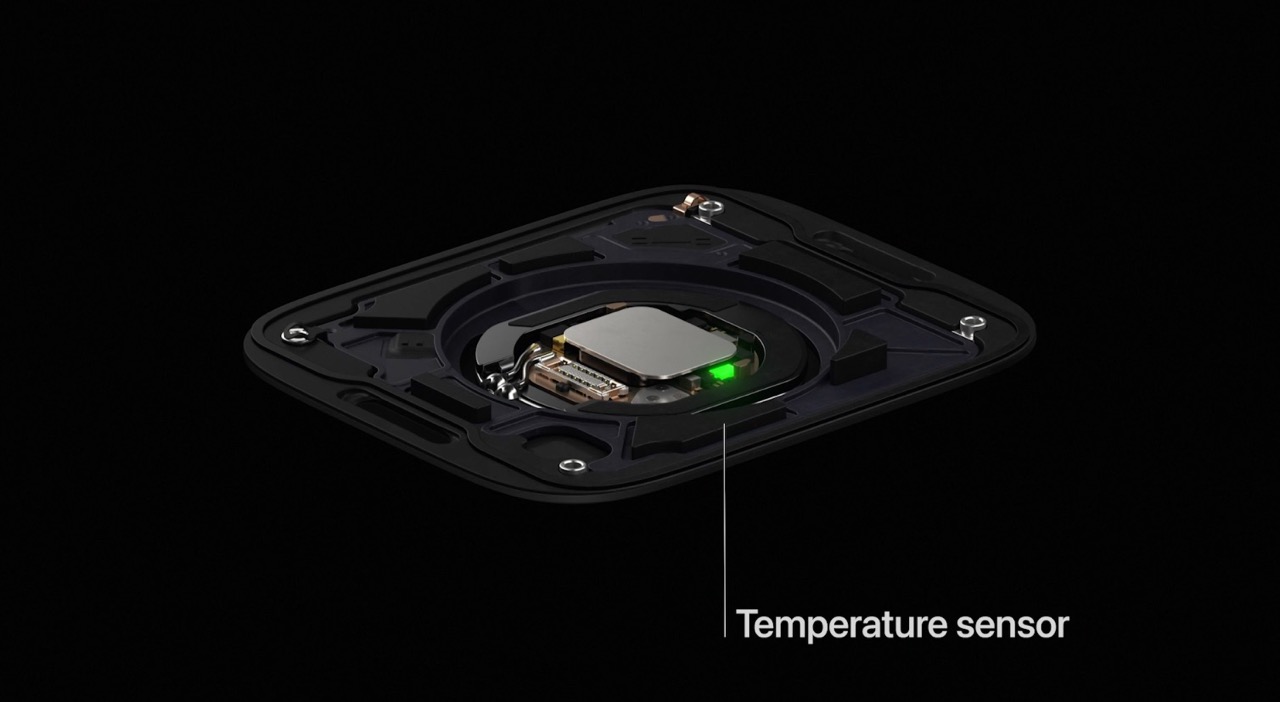
The thermal sensor is located on the back of the watch and measures small changes in skin temperature while you sleep. It works only during nighttime sleep tracking, not during the day or on demand. Apple designed this feature for long-term trend analysis, not for checking fevers or diagnosing illness.
Software and Setup Requirements
To use wrist temperature tracking:
– Install watchOS 9 or later
– Pair with an iPhone running iOS 16 or later
– Enable Sleep Tracking in the Apple Watch app
– Activate Sleep Focus each night
– Keep your iPhone within Bluetooth range overnight
You must wear the watch for at least 4 hours per night over 5 consecutive nights before any data appears. During this time, the system establishes your personal temperature baseline—a crucial reference point for detecting deviations.
🔋 Pro Tip: Charge your Apple Watch above 30% before bed. If battery drops too low, background sensors (including temperature) will shut off.
How to Enable Sleep and Temperature Monitoring
Turn On Sleep Tracking
- Open the Apple Watch app on your iPhone.
- Tap My Watch, then go to Sleep.
- Toggle on Track Sleep with Apple Watch.
- Set a consistent Sleep Schedule (recommended).
- Ensure Sleep Focus turns on automatically at bedtime.
Wearing your watch every night is essential. Removing it mid-sleep or skipping nights delays or disrupts data collection.
Why Enabling Cycle Tracking May Be Necessary
Although Apple doesn’t officially require it, many users report that wrist temperature data only appears when Cycle Tracking is enabled—even if you’re not actively using it for fertility.
To activate:
1. Open the Health app.
2. Tap Cycle Tracking under Featured.
3. Enter your last period start date.
4. Turn on Temperature Notifications.
This setting may unlock temperature syncing. After setup, wait 5–7 nights before expecting data. Some users experience delays due to syncing issues.
View Wrist Temperature Data on iPhone

Access Trends in the Health App
- Open the Health app.
- Tap Browse > Body Measurements.
- Select Wrist Temperature.
You’ll see a line chart showing deviations from your baseline—for example, “+0.4°C” means your wrist was warmer than usual that night.
This view helps identify:
– Post-ovulation temperature rises
– Elevated readings before illness
– Nightly fluctuations linked to sleep stages
See Exact Temperature Readings
By default, the Health app shows variance, not absolute numbers. To view actual values:
- In Wrist Temperature, scroll down.
- Tap Show All Data.
- Select any entry to see:
– Recorded temperature (e.g., 36.7°C / 98.1°F)
– Date and time
– Measurement source (Apple Watch)
💡 Normal wrist temperature typically ranges from 35.8°C to 37.2°C (96.4°F to 99°F), but varies by person and environment.
These are skin temperature readings—not core body heat. They’re best used for spotting trends over time, not diagnosing fevers.
Check Temperature Directly on Apple Watch
Use the Health App on Your Watch
You can view recorded temperatures without your iPhone:
- On Apple Watch, open Settings.
- Go to Health > Health Data > Body Measurements.
- Tap Wrist Temperature.
A list of recent readings appears, sorted newest first. Each shows the numerical value but no graph or trend line.
🔎 Ideal for quick reference, but limited for analysis.
View Trends in the Vitals App (watchOS 11+)
With watchOS 11, Apple introduced the Vitals app:
- Open Vitals on your Apple Watch.
- If enabled, Wrist Temperature appears under nightly metrics.
It displays:
– “0.3°C above average”
– Or “Within normal range”
⚠️ The Vitals app shows deviation only, not baseline or actual temperature. Some users must enable Cycle Tracking for this to appear.
It’s designed for at-a-glance wellness checks, making it easy to spot unusual changes.
Key Uses of Wrist Temperature Data
Track Menstrual and Fertility Cycles
Wrist temperature rises slightly after ovulation—a key fertility sign. Apple integrates this into the Cycle Tracking app to:
– Estimate ovulation day
– Predict period start dates
– Send high fertility alerts
Even without manual input, automatic tracking improves prediction accuracy.
📌 Pro Tip: Combine temperature with cervical mucus logging for better results.
Monitor Sleep Quality
Your body naturally cools during deep sleep. A consistent drop in wrist temperature often correlates with restorative rest.
Use temperature trends alongside:
– Heart rate variability (HRV)
– Blood oxygen levels
– Sleep duration
A disrupted cooling pattern may indicate poor sleep quality or a warm room.
Detect Early Illness Signs
Users have reported spotting colds or infections 1–2 days before symptoms using sustained temperature increases.
Look for:
– 3+ consecutive nights of elevated readings
– Deviations of +0.5°C or more
– Trends that persist despite normal conditions
⚠️ Don’t rely on this for medical diagnosis. Alcohol, heavy blankets, or room heat can cause false spikes.
Troubleshoot Missing Temperature Data
No Data After 5 Nights?
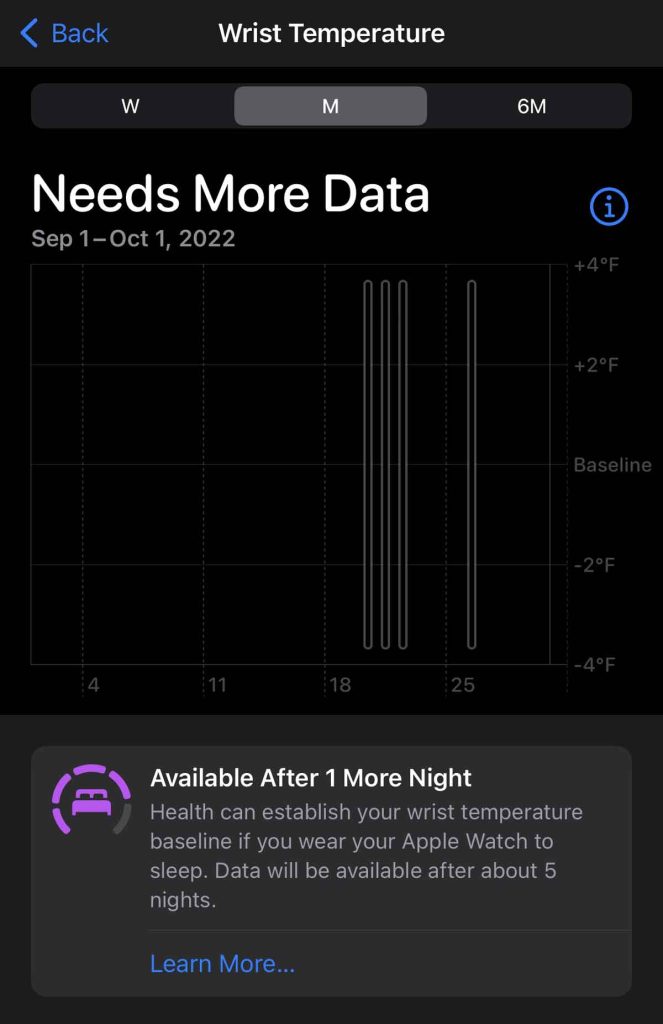
Even with correct setup, some users see blank charts. Common causes:
| Cause | Fix |
|---|---|
| Cycle Tracking disabled | Enable it in the Health app—even if not actively used |
| Sleep Focus not active | Confirm schedule in iPhone > Settings > Focus > Sleep |
| iPhone out of range | Keep both devices in the same room overnight |
| Loose watch fit | Wear snugly (but comfortably) for sensor contact |
| Software glitch | Restart iPhone and Apple Watch; re-enable Sleep Tracking |
❗ Some users report waiting 7–10 nights before data appears—suggesting occasional syncing delays.
Reset Health Sync
If data remains missing:
1. Turn off Sleep Tracking in the Apple Watch app.
2. Restart both devices.
3. Re-enable Sleep Tracking and wear the watch to bed.
This often resolves stuck sync states.
Can You Check Temperature During the Day?
❌ No. The Apple Watch only records wrist temperature at night during sleep.
There is:
– No way to manually trigger a reading
– No app (native or third-party) that accesses live temperature
– No support for daytime or real-time checks
The sensor operates exclusively in background sleep mode. You cannot use it like a clinical thermometer.
🔍 Third-party apps like Pillow or Gentler Streak pull data from Apple Health—they don’t access the sensor directly.
Use Smart Thermometers for Real-Time Readings
Since Apple Watch doesn’t support instant temperature checks, pair a Bluetooth-enabled smart thermometer with your iPhone:
| Device | Features |
|---|---|
| Kinsa Smart Thermometer | Oral/ear use; syncs to Health; appears on Apple Watch |
| iHealth No-Touch Forehead | Non-contact; auto-syncs; FDA-cleared |
| Withings Thermo | Multi-sensor otoscope; integrates with Apple Health |
Once synced, readings appear in:
– Health app > Body Temperature
– Apple Watch > Health > Body Temperature
This gives you on-demand, accurate core temperature data—complementing the Watch’s passive tracking.
Understand Accuracy and Limitations
Wrist vs. Core Temperature
- The Apple Watch measures skin temperature, not internal body heat.
- Skin temp lags behind core changes—useful for trends, not acute fever detection.
- Normal fluctuations occur due to room temp, bedding, hormones, and activity.
🌡️ Example: A wrist reading of +0.4°C may signal early illness—but could also result from sleeping under thick blankets.
Factors That Affect Readings
| Factor | Impact |
|---|---|
| Room temperature | Hot rooms elevate skin temp |
| Alcohol before bed | Causes vasodilation and heat rise |
| Loose watch fit | Reduces sensor accuracy |
| Low battery | Disables background monitoring |
| Software bugs | May delay or block data collection |
Always interpret data in context. A single spike isn’t meaningful—look for multi-night trends.
Control Privacy and Disable Tracking
Turn Off Wrist Temperature
If you prefer not to collect this data:
On Apple Watch:
1. Open Settings > Privacy & Security > Health.
2. Tap Wrist Temperature and toggle off.
On iPhone:
1. Open Apple Watch app.
2. Go to My Watch > Privacy > Health.
3. Turn off Wrist Temperature.
🔐 Your historical data remains in the Health app unless manually deleted.
Disabling stops future collection but doesn’t erase past entries.
Maximize Accuracy and Reliability
Wear Consistently and Snugly
- Wear the watch every night without removal.
- Fit it snugly—tight enough to stay in place, but not restricting circulation.
- Avoid wearing over tattoos or scars, which may interfere with sensors.
Keep Devices Paired Overnight
Ensure your iPhone is:
– On the same Wi-Fi network
– Within Bluetooth range (about 30 feet)
– Not in Airplane Mode
The Watch syncs health data to the iPhone in the morning. If they’re out of range, data may be lost.
Review Trends, Not Single Readings
One warm night doesn’t mean illness. Focus on:
– 3–5 day patterns
– Deviations of +0.5°C or more
– Correlations with symptoms or cycle phase
Use the Health app’s weekly view to spot meaningful shifts.
Final Note: Apple Watch doesn’t let you check temperature on demand, but its sleep-time wrist tracking offers powerful insights into your health trends. By setting up Sleep Tracking, enabling Cycle Tracking (even passively), and reviewing data in the Health or Vitals app, you can monitor fertility, sleep quality, and early illness signs. For real-time readings, pair a smart thermometer with Apple Health. Used together, these tools give you a complete picture—without replacing medical devices.




