
Running out of storage on your Apple Watch can be more than just annoying—it can block critical watchOS updates, prevent new apps from installing, and slow down performance. Even if you’ve never synced music or photos, you might still see a “Storage Almost Full” warning, especially on older models like the Series 3. This isn’t a bug—it’s real storage pressure caused by hidden cache, system logs, and auto-synced data. The good news? You can clear storage on Apple Watch quickly and safely, often without losing any important data. Whether you’re using a Series 3 or the latest Ultra 2, this guide walks you through every proven method to reclaim space, fix misleading “Other” data, and keep your watch running smoothly.
Check Your Apple Watch Storage Usage First
Before deleting anything, you need to know what’s actually using space. Apple Watch categorizes storage into Apps, Music, Photos, Podcasts, Audiobooks, and a mysterious category called Other—which often hides system logs and cached files.
View Storage via iPhone (Best Method)
- Open the Watch app on your iPhone.
- Tap My Watch > General > Storage.
- Wait for the list to load—this may take a few seconds.
- Scroll down to see total storage used and a breakdown of apps.
Look for: Apps with large sizes at the bottom of the list. Third-party apps like Strava, Spotify, or Messages often take up hundreds of MBs due to cached data.
View Storage on Apple Watch
- Press the Digital Crown.
- Open Settings > General > Storage.
- Tap any category (e.g., Music, Photos) to see what’s stored.
Red Flag: If “Other” shows several gigabytes, it likely contains hidden system files, failed update downloads, or corrupted logs—especially on older models.
Delete Unused Apps to Reclaim Space Fast
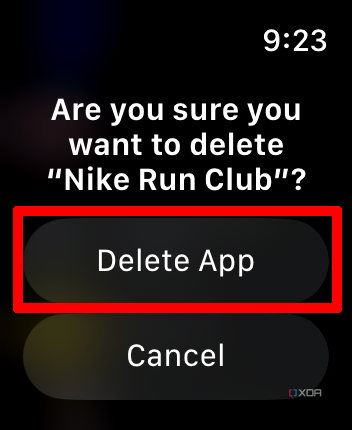
Removing apps is the fastest way to free up storage—especially those you rarely use.
From iPhone (Safest Method)
- Open the Watch app.
- Scroll to Installed on Apple Watch.
- Tap an app (e.g., Podcasts, Translate).
- Toggle off Show App on Apple Watch.
Why do this? The app is removed from the watch but stays on your iPhone. You can re-enable it anytime.
From Apple Watch (Quick Delete)
-
Grid View:
1. Press and hold any app until icons shake.
2. Tap the X on the app.
3. Confirm with Delete App. -
List View:
1. Swipe left on the app.
2. Tap the trash can.
3. Tap Delete App.
Watch for: Apps like Translate and Weather—they cache data silently and can grow large over time.
Limit or Remove Synced Photos
Photos sync automatically and can use hundreds of MBs—even if you never open the Photos app.
Reduce Photo Sync
- Open Watch app > My Watch > Photos.
- Select Custom instead of “Mirror my iPhone.”
- Tap Sync Album and pick a small album (e.g., “Favorites”).
- Set Photos Limit to 25, 50, or 100.
Result: Reduces photo storage from 500MB+ to under 50MB.
Warning: “Mirror my iPhone” syncs your entire library and can fill your watch fast—avoid it.
Clear Music, Podcasts, and Audiobooks
Even if you stream, Apple may auto-sync content for offline use—especially “Recent Music.”
Remove Music
On iPhone:
- Open Watch app > Music.
- Turn off Recent Music.
- Tap Edit, then delete playlists or albums.
On Apple Watch:
- Open Music app.
- Swipe down > Albums.
- Swipe left on an album > tap … > Delete from Library.
Reduce Podcasts
- In Watch app > Podcasts.
- For Up Next, reduce saved episodes.
- Tap a podcast > disable Save Episodes or Remove Show.
Delete Audiobooks
- In Watch app > Audiobooks.
- Turn off Reading Now and Want to Read.
- Swipe left on a book > tap Delete.
Pro Tip: Disable auto-sync and re-add media only when needed.
Delete Messages with Attachments
Message threads—especially those with photos, videos, or voice memos—can silently grow to 100–200MB.
Delete Old Conversations
- Press Digital Crown.
- Open Messages.
- Swipe left on any thread.
- Tap Delete.
Note: This only deletes the local copy on the watch. Messages remain safe in iCloud and on your iPhone.
Impact: A single photo-heavy thread can free up over 150MB.
Restart Apple Watch to Clear Temporary Files
A simple restart clears RAM and temporary cache—often fixing minor storage glitches.
How to Restart
- Press and hold the side button.
- Swipe to power off.
- Wait 10 seconds.
- Press and hold the side button to turn it back on.
Best time: After deleting apps or before installing a watchOS update.
Effect: Clears background logs and cached system files—can resolve phantom “Other” usage.
Unpair and Re-Pair to Clear Hidden “Other” Data
This is the most effective fix for stubborn storage issues—especially when “Other” shows multiple GBs.
Why It Works
Unpairing forces a full backup, then wipes the watch clean. Re-pairing restores only essential data, clearing:
– Hidden cache
– Corrupted logs
– Failed update files
– Bloat from outdated apps
Steps to Unpair
- Keep iPhone and Apple Watch close.
- Open Watch app > All Watches.
- Tap the (i) next to your watch.
- Tap Unpair Apple Watch.
- For cellular models, choose to keep your plan.
- Enter Apple ID password to disable Activation Lock.
Backup: Your iPhone creates a new backup automatically before erasing.
After Unpairing
- Set up the watch again.
- Choose Restore from Backup—your apps, settings, and health data return.
User Result: Many regain 2–5GB of space, especially on Series 3–6.
Expert Tip: Do this annually or before major updates.
Factory Reset as Last Resort
If unpairing doesn’t help, a full reset gives you a clean slate.
How to Factory Reset
- On Apple Watch, open Settings.
- Tap General > Reset.
- Select Erase All Content and Settings.
- Enter passcode.
- Tap Erase All.
After reset: Re-pair and restore from backup during setup.
Warning: This deletes all apps, settings, and media—but health data is safe if backed up to iCloud.
Use case: Best when troubleshooting persistent storage errors or preparing for a major update.
Special Fixes for Apple Watch Series 3
The Series 3 is especially prone to storage issues due to:
– Only 8GB (GPS) or 16GB (cellular) total.
– No longer receiving full software updates.
– Aggressive media limits (max 2GB music on 8GB model).
Series 3 Storage Tips
- Unpair regularly to clear cache buildup.
- Avoid syncing music or photos.
- Delete Translate, Podcasts, and Audiobooks—they auto-sync.
- Check Messages monthly for large threads.
- Don’t update watchOS if storage is below 1GB—unpair first.
Hard Truth: If you’re on Series 3 and constantly hitting limits, upgrade to a newer model. Apple no longer optimizes for it.
Replacement Note: Apple may replace a broken Series 3 with another Series 3—even with AppleCare.
Prevent Future Storage Problems
Keep your Apple Watch fast and responsive with these habits.
Monitor Storage Monthly
- Check Settings > General > Storage on the watch.
- Use Watch app > Storage on iPhone for details.
Limit Media Sync
- Set Photos Limit to 25–100 images.
- Disable Recent Music and Reading Now.
- Stream instead of storing media.
Delete Unused Apps
- Remove apps unused in 30+ days.
- Watch for large third-party apps (e.g., Spotify, Strava).
Restart Weekly
- Reboot both iPhone and Apple Watch.
- Clears temporary files and refreshes connections.
Update Software
- Keep watchOS and iOS up to date.
- New versions often include storage fixes.
Reset Before Major Updates
- Unpair and re-pair before installing new watchOS.
- Ensures clean install and prevents update failures.
Best Solutions Ranked by Impact

| Fix | Best For | Data Loss? | Effectiveness |
|---|---|---|---|
| Unpair & Re-pair | Hidden “Other” data, update blocks | No (backup saved) | ★★★★★ |
| Factory Reset | Severe bloat, unresponsive watch | No (if restored) | ★★★★★ |
| Delete Unused Apps | Quick space recovery | Yes (app data) | ★★★★☆ |
| Manage Photos/Music | Preventive control | Yes (media) | ★★★★☆ |
| Delete Messages | Hidden media cache | Yes (local threads) | ★★★☆☆ |
| Restart Watch | Minor glitches | No | ★★★☆☆ |
Final Tips to Keep Your Apple Watch Fast
- Start with unpairing—it’s safe and clears the most hidden data.
- Check Messages and Photos before resetting.
- Use iPhone for media—stream instead of storing.
- Upgrade if on Series 3—newer models have better storage management.
- Back up before unpairing—always protect your data.
Expert Insight: “Sometimes there are behind-the-scenes diagnostics logging to a file… unpairing clears it all.” — parrotnamedmrfuture
User Result: “Unpaired, re-paired, restarted—fixed it completely.” — Signal_A
By following these steps, you’ll not only clear storage on Apple Watch—you’ll keep it clean, fast, and ready for every update. No more failed downloads. No more “Storage Full” warnings. Just a smooth, responsive wearable experience.
Leave a Reply