
Your Apple Watch should feel like an extension of your daily routine—not a cluttered menu of apps you never touch. If your app screen is overflowing with third-party tools you’ve outgrown or preloaded Apple apps like Stocks and News that just sit idle, it’s time to take control. The good news: you can delete most third-party apps directly from your Apple Watch or via the Watch app on iPhone. But here’s the catch—core built-in apps like Messages, Health, and Workout can’t be fully removed, no matter how rarely you use them.
This comprehensive guide walks you through every method to delete or hide apps, explains what happens when you remove them, and reveals pro tips to keep your watch interface clean and efficient. Whether you’re troubleshooting sync issues, freeing up storage, or simply craving a minimalist setup, these steps work across all modern Apple Watch models and watchOS versions.
Delete Apps Directly on Apple Watch
Removing apps from your wrist is fast and intuitive—perfect for on-the-go cleanup without reaching for your iPhone.
Use Grid View to Remove Apps
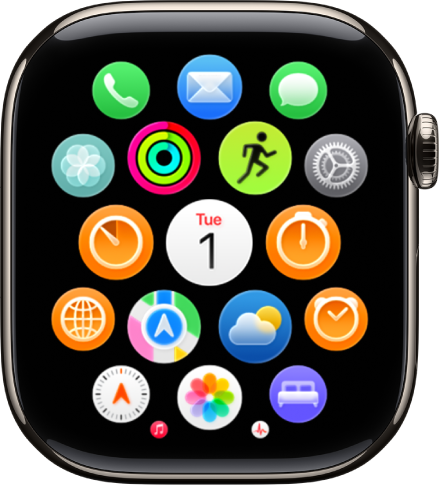
If you prefer a visual layout, the app grid lets you delete apps with just a few taps:
- Press the Digital Crown to return to the Home Screen.
- Touch and hold any app icon until all icons start to jiggle.
- Look for the X or Delete button in the top-left corner of eligible apps.
- Tap the X, then confirm by tapping Delete App.
- Press the Digital Crown again to exit jiggly mode and save changes.
✅ Works instantly for third-party and standalone watchOS apps.
❌ Built-in Apple apps (Phone, Messages, Health) won’t show a delete option.
While this method is quick, the jiggling icons can lead to accidental deletions. Be deliberate when tapping during this mode.
Swipe to Delete in List View
For faster, more precise management, switch to List View:
- From the Home Screen, scroll down until apps shift into a vertical list.
- Find the app you want to remove.
- Swipe left on the app name.
- Tap the red Trash icon.
- Confirm by selecting Delete App.
⏱️ Faster than grid mode—ideal for users with long app lists.
💡 List View keeps apps alphabetized, making it easier to locate and remove unused ones.
Unlike grid view, you don’t need to enter jiggly mode, reducing the risk of deleting the wrong app. Many users find List View less visually overwhelming and more accessible, especially those with ADHD or sensory sensitivities.
Remove Apps Using iPhone Watch App
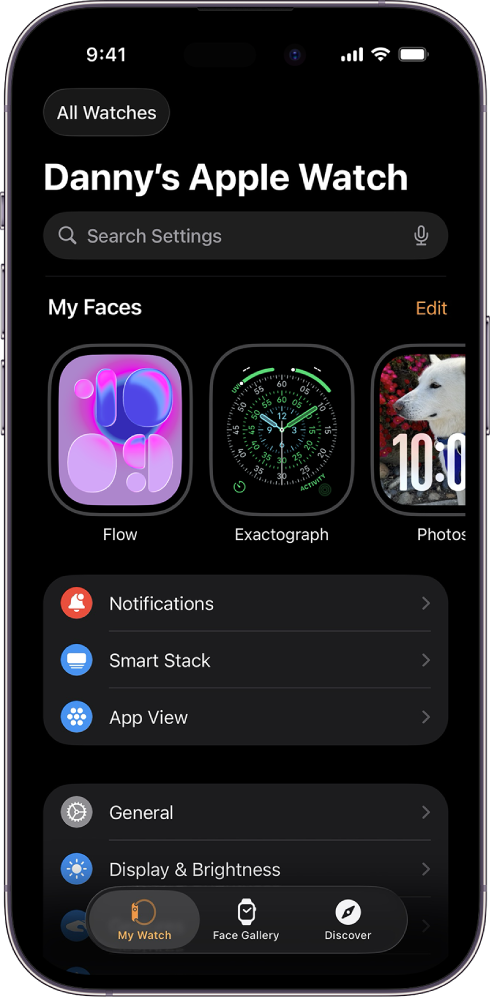
For greater precision and bulk management, the Watch app on iPhone is your best tool. It gives you full visibility into what’s installed and how apps sync.
Turn Off App Syncing
To hide a third-party app without fully uninstalling it:
- Open the Watch app on your iPhone.
- Tap the My Watch tab.
- Scroll to Installed on Apple Watch.
- Tap the “i” (info) icon next to the app.
- Toggle off Show App on Apple Watch.
🔄 The app disappears instantly from your watch.
🔁 If you re-enable syncing later, settings may restore from your iPhone.
This method is perfect if you want to declutter but might need the app again soon. It doesn’t free up much storage but keeps your interface clean.
Permanently Delete Watch-Only Apps
For apps that run only on the watch (like games or utilities):
- Tap the “i” icon next to the app.
- Select Delete app on Apple Watch.
- Confirm by tapping Delete.
🗑️ Fully uninstalls the app and frees up storage space.
⚠️ Must be re-downloaded from the App Store to restore.
Use this for apps that consume significant space, such as music players, podcast apps, or games.
What Happens When You Delete an App?
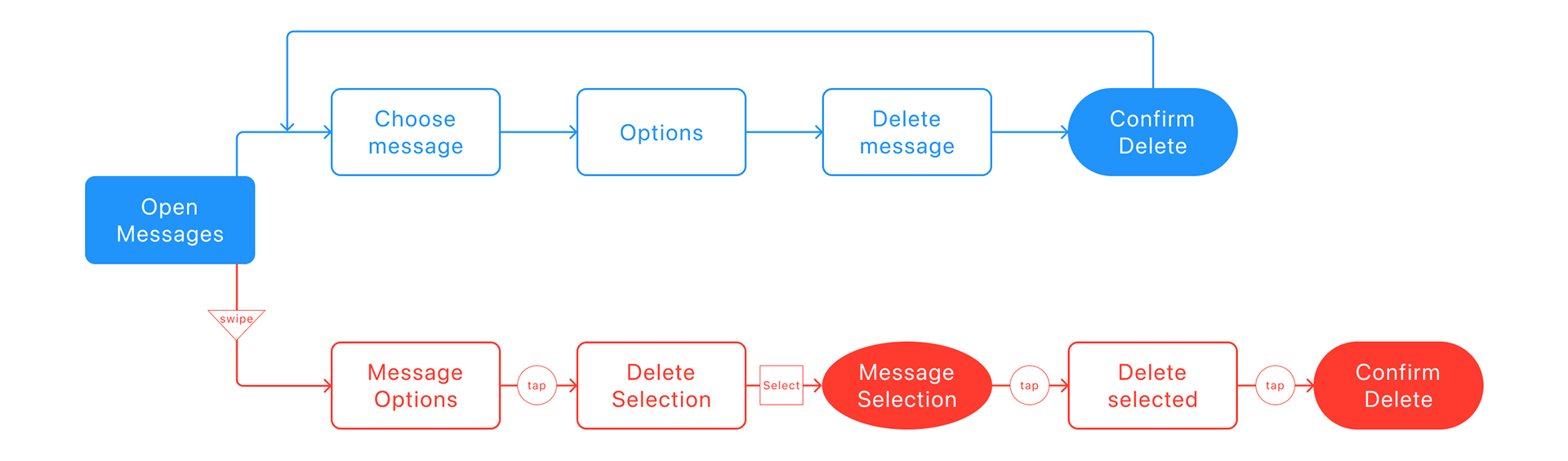
Before you tap “Delete,” know the consequences to avoid surprises.
App Data and Complications Are Removed
- All local data stored on the watch (cached files, preferences) is erased.
- Any complications (mini-widgets on your watch face) linked to the app vanish automatically.
- Cloud-synced data (like workout history or health metrics) remains safe in the iPhone’s Health app or the app’s server.
For example, deleting a running app removes its watch-side cache but preserves your training logs.
iPhone App Behavior After Deletion
- If the iPhone app stays, its companion app may reappear on your watch—especially if Automatic App Install is enabled.
- To stop this, disable auto-sync in the Watch app (see below).
🔄 Reinstall anytime: Open the App Store on Apple Watch or re-enable syncing via the Watch app.
Can You Delete Built-in Apple Apps?
Most System Apps Can’t Be Deleted
Apps like Phone, Messages, Health, Workout, Timer, Heart Rate, Weather, Stocks, and News do not offer a delete option. These are deeply integrated into watchOS and support essential features—even if you never open them.
| Non-Deletable Apps | Reason |
|---|---|
| Health, Heart Rate | Tied to sensors and medical tracking |
| Phone, Messages | Core communication functions |
| Workout, Activity | Required for fitness ecosystem |
| App Store | Necessary for app installation |
❌ No official way to hide or disable them.
🔄 Only workaround: Delete the iPhone version to remove it from the watch.
But beware—deleting core iPhone apps like Phone or Messages isn’t practical and can disrupt functionality.
Workarounds to Reduce Clutter
Even if you can’t delete built-in apps, you can minimize distractions.
Switch to List View as Default
- Scroll down on your app screen to enter List View.
- Apps appear alphabetically, making navigation faster.
- Easier to swipe-delete third-party apps.
💡 Many users report less anxiety and improved focus with List View.
Disable Automatic App Install
Stop unwanted apps from syncing:
– Open Watch app > My Watch > General > Automatic App Install.
– Toggle it off.
✅ Prevents new iPhone apps from auto-adding their watch counterparts.
✅ Stops deleted apps from reappearing unexpectedly.
This is one of the most effective ways to maintain a clean, intentional setup.
Troubleshooting Common Issues
Can’t Delete an App? Check Screen Time Settings
If deletion options are grayed out:
– Go to iPhone Settings > Screen Time > Content & Privacy Restrictions.
– Tap iTunes & App Store Purchases.
– Ensure Deleting Apps is set to Allow.
🔒 Parents or shared devices often restrict this by default.
App Keeps Reappearing After Deletion
Cause: Automatic App Install is enabled.
Fix:
– Turn off Automatic App Install.
– Or, delete the iPhone app permanently.
🔄 Some third-party apps reinstall themselves if their iPhone version remains.
Storage Not Freeing Up?
Check usage:
– Open Watch app > My Watch > General > Usage.
– Review large apps (games, music, podcasts).
– Delete high-storage apps one by one.
💾 While built-in apps use minimal space, third-party apps can consume hundreds of MB.
Pro Tips for Better App Management
Keep your Apple Watch efficient and stress-free with these expert strategies.
Use List View as Your Default
- Faster navigation.
- Easier to delete via swipe.
- Reduces visual overload—ideal for neurodivergent users.
🧠 Many users report less anxiety when switching from grid to list.
Audit Apps Monthly
Set a reminder to:
– Review unused apps.
– Delete 1–2 you haven’t opened.
– Reorder favorites for quicker access.
⏳ Takes less than 5 minutes and keeps performance optimal.
Reinstall Apps When Needed
Deleted an app by mistake?
– Open the App Store on Apple Watch.
– Search for the app.
– Tap the cloud download icon to reinstall.
Or use the Watch app on iPhone to re-enable syncing.
Avoid Force Touch Mistakes
- Apple Watch no longer uses Force Touch.
- Use a long press instead to access options.
- Accidentally pressing too hard won’t trigger hidden menus.
Deletable vs. Non-Deletable Apps at a Glance
| App Type | Can Be Deleted? | How to Remove |
|---|---|---|
| Third-party apps (Spotify, Strava) | ✅ Yes | Grid/List View or Watch app |
| Watch-only apps (games, tools) | ✅ Yes | Delete via “i” icon on iPhone |
| Apps with iPhone version | ✅ Hidden | Toggle off sync in Watch app |
| Built-in Apple apps | ❌ No | Only removable via iPhone app deletion |
| System utilities (Workout, Timer) | ❌ No | Permanently installed |
🟨 Partial control: Hide, don’t delete, for best results.
Final Recommendations
Your Apple Watch should serve you—not the other way around. Here’s how to stay in control:
- For quick cleanup: Use List View and swipe to delete.
- For full control: Manage apps via the Watch app on iPhone.
- To stop clutter: Turn off Automatic App Install.
- For minimalism: Stick to List View and audit apps monthly.
While Apple still limits full removal of built-in apps, these strategies let you reclaim your interface. With a few taps, you can transform a chaotic grid into a focused, functional tool tailored to your life.
As of 2025, user demand for customizable app layouts and hidden system apps continues to grow. Until Apple adds native support, smart syncing and selective deletion are your best tools for a cleaner, calmer Apple Watch.




