
You’ve been there—running late, keys in hand, and suddenly realizing your iPhone is nowhere in sight. It’s not in your pocket, not on the table, and definitely not where you left it. Before you tear the house apart, remember: you can ping your iPhone from your Apple Watch in seconds. This built-in Apple feature bypasses silent mode, triggers a loud ring, and even activates the flashlight with a long press. Whether your phone is buried under couch cushions or hiding in a coat pocket, your Apple Watch turns into a powerful tracking tool.
The Ping iPhone function uses Bluetooth to communicate between your devices, works across all Apple Watch models, and requires no third-party apps. For users with newer hardware, Precision Finding adds directional arrows and distance cues, guiding you like a GPS tracker. In this guide, you’ll learn how to use every method—tap, hold, or track—plus troubleshoot when it fails, unlock advanced tools, and prevent future losses. Let’s turn your wrist into a homing device.
Access Ping iPhone via Control Center
The fastest and most reliable way to find your iPhone is through the Control Center on your Apple Watch. This method works on all models and takes less than five seconds.
Open Control Center the Right Way
To access Control Center:
– On Apple Watch Series 2 and later: Press and hold the side button.
– On older models (Series 1 and original): Swipe up from the bottom of the watch face.
Wait for the Control Center to load. It displays toggles for Airplane Mode, Do Not Disturb, and more. Your goal is the iPhone icon, a small gray phone with a speaker. If it’s missing, skip ahead to customization steps.
Tap Once to Trigger the Ring
Once Control Center is open:
1. Locate the iPhone icon.
2. Tap it once.
Your iPhone will immediately start ringing at full volume—even if it’s on Silent or Do Not Disturb. The sound continues until you unlock the phone and tap Dismiss. No timeout, no automatic stop: you must silence it manually.
Pro Tip: Tap the icon multiple times as you move through rooms. Each tap restarts the alert, helping you follow the sound like breadcrumbs.
Add the iPhone Icon If It’s Missing
If the icon doesn’t appear:
1. Open Control Center.
2. Scroll down and tap Edit.
3. Find “Phone” in the list of available controls.
4. Tap the + to add it.
Now, the iPhone icon will appear every time you open Control Center—no more hunting for settings.
Activate Flashlight with a Long-Press

Sometimes sound isn’t enough—especially in dark rooms or cluttered spaces. That’s where the long-press trick comes in.
Trigger Both Sound and Light
To activate audio and visual alerts:
1. Open Control Center.
2. Press and hold the iPhone icon (don’t just tap).
This does two things:
– Your iPhone plays a loud, continuous ring.
– The back flashlight starts flashing repeatedly.
Why this matters: The flashing light cuts through visual noise—like under a bed, inside a drawer, or beneath car seats—where sound might be muffled.
When to Use Flashlight Mode
- At night: Find your phone on the floor without turning on lights.
- In bags or suitcases: A flashing beam catches your eye through fabric.
- For accessibility: Users with hearing challenges rely on visual cues.
- In noisy environments: When background noise drowns out the ring.
Note: The flashlight stays on as long as the ping runs. Stop it only by unlocking your iPhone.
Use Precision Finding on Supported Models
If you own a high-end Apple Watch and iPhone, you can go beyond basic pinging with Precision Finding—a smart tracking system that guides you step-by-step.
Check If Your Devices Support It
Precision Finding requires:
– Apple Watch Series 9, Ultra, or Ultra 2
– iPhone 15 or later
– Both devices signed into the same Apple ID
– U1 chip (built into listed models)
❌ Not available on Apple Watch SE or iPhone models before 15.
Without these, you’ll get standard ping only—but it still works great.
Follow On-Screen Directions to Locate Your iPhone
- Open Control Center.
- Tap the iPhone icon.
- If supported, your Apple Watch will show:
– An arrow pointing toward your iPhone.
– A distance estimate (e.g., “Within 50 feet”). - Walk slowly—the display updates in real time.
- When you’re very close:
– The screen turns green.
– Your iPhone plays two short pings.
Tap the Ping button (bottom-right) to retrigger sound if needed.
Expert Tip: Combine this with haptics—your watch may vibrate as you get closer, letting you track without looking.
Fix Common Ping iPhone Issues
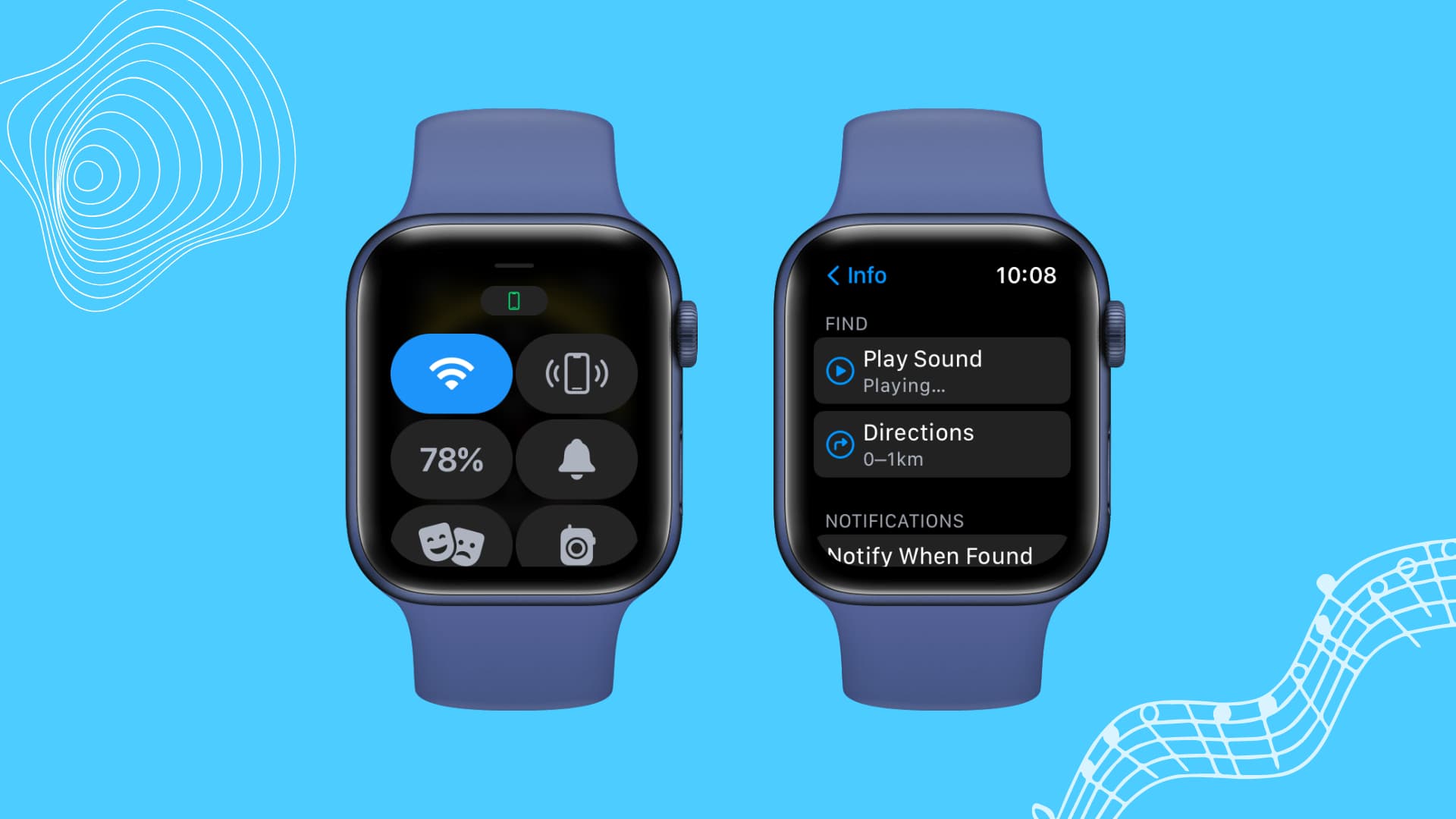
Even when everything seems set, the ping might fail. Most issues are simple to fix.
iPhone Not Ringing? Check These First
Confirm Bluetooth and Range
- Keep your iPhone within 30 feet (9 meters).
- Walls, metal, or Wi-Fi can block signals.
- If out of range, the ping won’t trigger.
Test: Walk toward where you last used your phone. Try again.
Turn Off Airplane Mode
Airplane Mode disables Bluetooth.
- On iPhone: Swipe down for Control Center; check for the airplane icon.
- On Apple Watch: Swipe up; disable Airplane Mode if on.
Verify Same Apple ID
Both devices must use the same Apple ID.
- On iPhone: Go to Settings > [Your Name].
- On Apple Watch: Open Watch app > My Watch > General > Apple ID.
Mismatched accounts break all Find My features.
Restart and Update Devices
Glitches happen. Fix them fast.
Reboot Both Devices
- Restart iPhone: Press and hold side + volume button; slide to power off.
- Restart Apple Watch: Press and hold side button; slide to power off.
Wait 30 seconds, then turn both back on.
Install Latest Software
Outdated systems lack fixes.
- iPhone: Settings > General > Software Update
- Apple Watch: Watch app > My Watch > General > Software Update
Update both to the latest iOS and watchOS.
Re-pair Apple Watch as Last Resort
If nothing works:
1. Open Watch app on iPhone.
2. Tap My Watch > [Your Watch] > Info > Unpair.
3. Re-pair and restore from backup.
Warning: This erases data—only use if all else fails.
When iPhone Is Out of Range: Use Find My Online
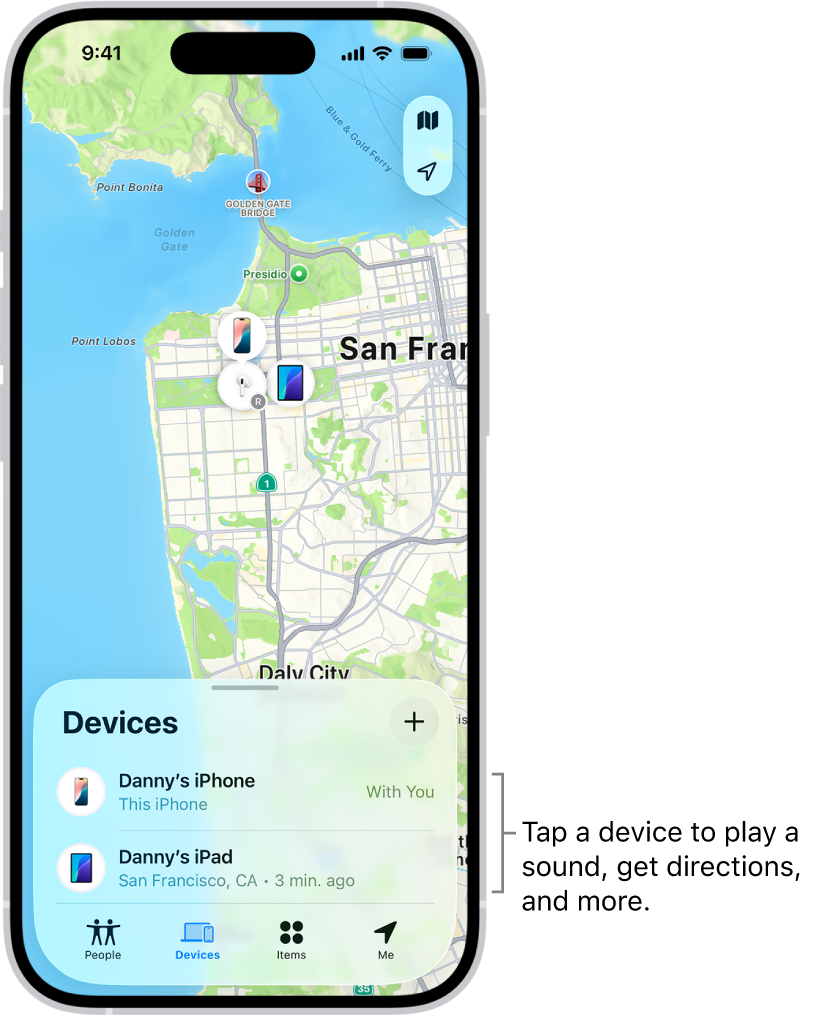
If your iPhone is too far or powered off, the Apple Watch ping won’t work. But you’re not out of luck.
Track iPhone via iCloud
Use any browser to access Find My remotely:
- Go to iCloud.com/find.
- Sign in with your Apple ID.
- Click Devices > Select your iPhone.
- Click Play Sound—it will ring when back in range.
Bonus: Enable Notify When Found for an alert when it reconnects.
Use Find My on Another Apple Device
You can also:
– Open Find My on a friend’s iPhone or iPad.
– Select your device.
– Trigger sound or view location on map.
Note: Offline Finding uses nearby Apple devices to detect your iPhone—even when it’s off.
Answer Key User Questions
Why Can’t I Ping My iPhone?
Common causes:
– Different Apple IDs
– Airplane Mode on
– Out of range or powered off
– Outdated software
✅ Fix: Reboot, check settings, update, confirm Apple ID.
How Loud Is the Ping?
It plays at maximum volume, louder than regular ringtones. Users say it’s “impossible to miss”—even in the next room or under a couch.
Can I Ping Someone Else’s iPhone?
No—only your paired iPhone. But if they’ve shared location:
1. Open Find My on your iPhone.
2. Tap their name.
3. Select Play Sound (if allowed).
Requires prior permission.
How Do I Stop the Ping?
Only two ways:
1. Unlock iPhone and tap Dismiss.
2. Wait for timeout (rare—manual stop is standard).
⚠️ No remote stop from Apple Watch.
Can I Ping My Apple Watch from iPhone?
Yes—reverse tracking works:
- Open Find My on iPhone.
- Tap Devices > Select Apple Watch.
- Tap Play Sound.
Your watch beeps repeatedly—faster as it nears timeout.
Perfect for finding it in a gym bag or on a nightstand.
Maximize Success with Pro Tips
Keep Control Center Ready
- Always keep the iPhone icon in Control Center.
- Use a watch face with quick swipe-up access (on older models).
Use for Accessibility
For users with hearing or vision needs:
– Pair with VoiceOver for spoken feedback.
– Use flashlight mode as primary cue in quiet spaces.
– Combine with Hearing Aid mode for amplified alerts.
Prevent Future Losses
- Set a routine check-in: Glance at devices before leaving.
- Enable Find My alerts: Get notified when you leave your iPhone behind.
- Use Lost Mode: Lock remotely and display a message.
Prevention beats recovery—every time.
The Ping iPhone from Apple Watch feature is one of Apple’s most useful yet underrated tools. With a single tap, your wrist becomes a locator, saving time and stress. From basic pinging to advanced Precision Finding, it’s fast, reliable, and built-in—no downloads, no setup beyond pairing.
Whether you’re using an original Apple Watch or the latest Ultra, this guide ensures you can always find your phone. Remember: tap to ring, long-press for light, and use Find My when out of range. Keep both devices updated, on the same Apple ID, and within range—and you’ll rarely lose your iPhone again.
Now go ahead: test it today. Tap that icon on your watch and hear your iPhone scream. You’ll be glad you did the next time it’s buried under the couch.





