
You’re selling your Apple Watch, upgrading your iPhone, or troubleshooting a pairing glitch—no matter the reason, knowing how to disconnect Apple Watch from iPhone the right way is critical. Simply turning off Bluetooth or ignoring the connection won’t sever the digital bond between your devices. If done incorrectly, your Apple Watch may still be locked to your Apple ID, rendering it unusable for the next owner.
The proper disconnection process involves unpairing through the Apple Watch app, which securely erases all personal data, disables Activation Lock, creates a backup, and removes the device from your iCloud account. Whether you still have your iPhone or not, this guide covers every scenario: selling your watch, switching phones, fixing setup errors, or remotely wiping a lost device.
You’ll learn the only three methods that work, what happens behind the scenes, how to avoid common mistakes, and exactly how to ensure your Apple Watch is truly free of your identity. Follow these steps, and you’ll protect your privacy while giving the next user a clean, functional start.
Unpair Apple Watch Using iPhone (Best Method)

This is the most secure and complete way to disconnect your Apple Watch. It ensures your data is backed up, Activation Lock is disabled, and the device is fully removed from your Apple ID.
Start Unpairing in the Watch App
- Keep your Apple Watch and iPhone close together—they need to communicate via Bluetooth.
- Open the Apple Watch app on your iPhone.
- Tap “All Watches” in the top-left corner of the My Watch tab.
- Select the watch you want to disconnect.
- Tap the info (i) button next to the watch name.
- Scroll down and tap “Unpair Apple Watch.”
⚠️ Warning: This action is irreversible. All data—including apps, messages, health metrics, and settings—will be erased.
- Confirm by tapping “Unpair [Your Watch Name].”
- Enter your Apple ID password when prompted.
This step is crucial: entering your Apple ID password disables Activation Lock, Apple’s anti-theft feature that prevents unauthorized use. Without this, the watch remains locked even after being wiped.
Manage Cellular Plan (If You Have GPS + Cellular Model)
If your Apple Watch has cellular capability, you’ll be asked:
- Keep Cellular Plan – Choose this if you plan to re-pair the same watch later.
- Remove Cellular Plan – Recommended when selling or gifting.
✅ Pro Tip: Selecting “Remove” deletes the eSIM profile from the watch, but does not cancel your monthly subscription. You must contact your carrier (AT&T, Verizon, T-Mobile, etc.) separately to stop billing.
The unpairing process now begins. Your iPhone automatically creates a local backup of your Apple Watch data, including app settings, Health data, and watch face layouts. This backup can be used to restore your watch later if needed.
What Happens After Unpairing
- The Apple Watch restarts and shows the Apple logo.
- After a few minutes, it displays the “Start Pairing” screen.
- It no longer appears in your iPhone’s Watch app or Find My app.
To verify success:
– Open the Find My app on your iPhone.
– Go to the Devices tab.
– Confirm your Apple Watch is no longer listed.
If it’s gone, the device is fully disconnected and no longer tied to your Apple ID.
Erase Apple Watch Without iPhone (Limited Use)
Use this method only if you no longer have the paired iPhone—such as after upgrading, losing it, or giving it away.
Reset Directly on the Apple Watch
- On the Apple Watch, open the Settings app.
- Tap General > Reset.
- Select “Erase All Content and Settings.”
- Enter your passcode if required.
- For cellular models: Choose whether to keep or remove the cellular plan.
- Tap “Erase All” to confirm.
The watch will reboot and begin erasing all data. This process takes 2–5 minutes.
❌ Critical Limitation:
While this wipes personal information, Activation Lock remains active. The original Apple ID and password are still required during setup.
Why This Isn’t Enough
Many users assume a factory reset removes all ties to the previous owner. It doesn’t. Activation Lock is tied to your Apple ID at the hardware level. A new user will see this message during setup:
“This Apple Watch is linked to an Apple ID. Enter the Apple ID and password used to set it up.”
Without remote removal via iCloud, the watch is unusable—essentially a high-priced paperweight.
Remove Apple Watch Remotely via iCloud (For Lost or Sold Devices)
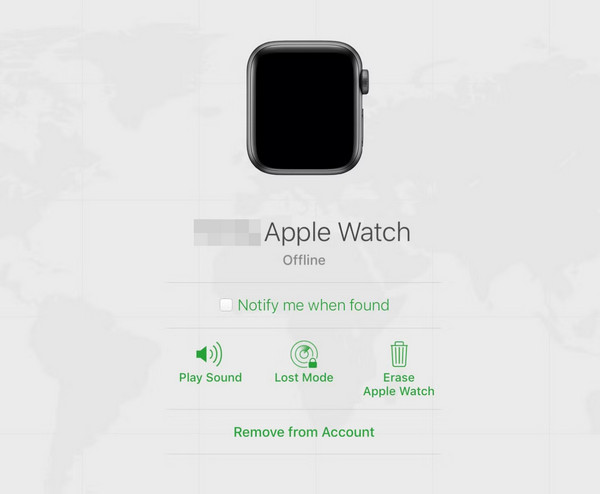
If you sold the watch without unpairing or lost access to the paired iPhone, this is your only way to disable Activation Lock and free the device.
Sign In to iCloud.com
- Open a web browser and go to iCloud.com.
- Sign in with your Apple ID and password.
- Click Find My (or “Find iPhone” on older accounts).
- Select All Devices at the top.
- Locate your Apple Watch in the list.
📝 Note: If the watch shows “Offline,” don’t worry—you can still proceed.
- Click Erase [Device Name].
- Confirm the action with your Apple ID password.
- After erasure completes, click Remove from Account.
Finalize the Disconnection
Removing the device from your account is the final, essential step. Until you do this:
– The watch remains linked to your Apple ID.
– Activation Lock stays enabled.
– A new user cannot activate the device.
Once removed, the Apple Watch becomes a blank slate. The next person can pair it with any iPhone by following standard setup steps.
✅ Verification: Return to All Devices in Find My. Your Apple Watch should no longer appear.
Fix Activation Lock After Disconnection
Activation Lock protects your device—but can block legitimate use if not handled correctly.
How Activation Lock Works
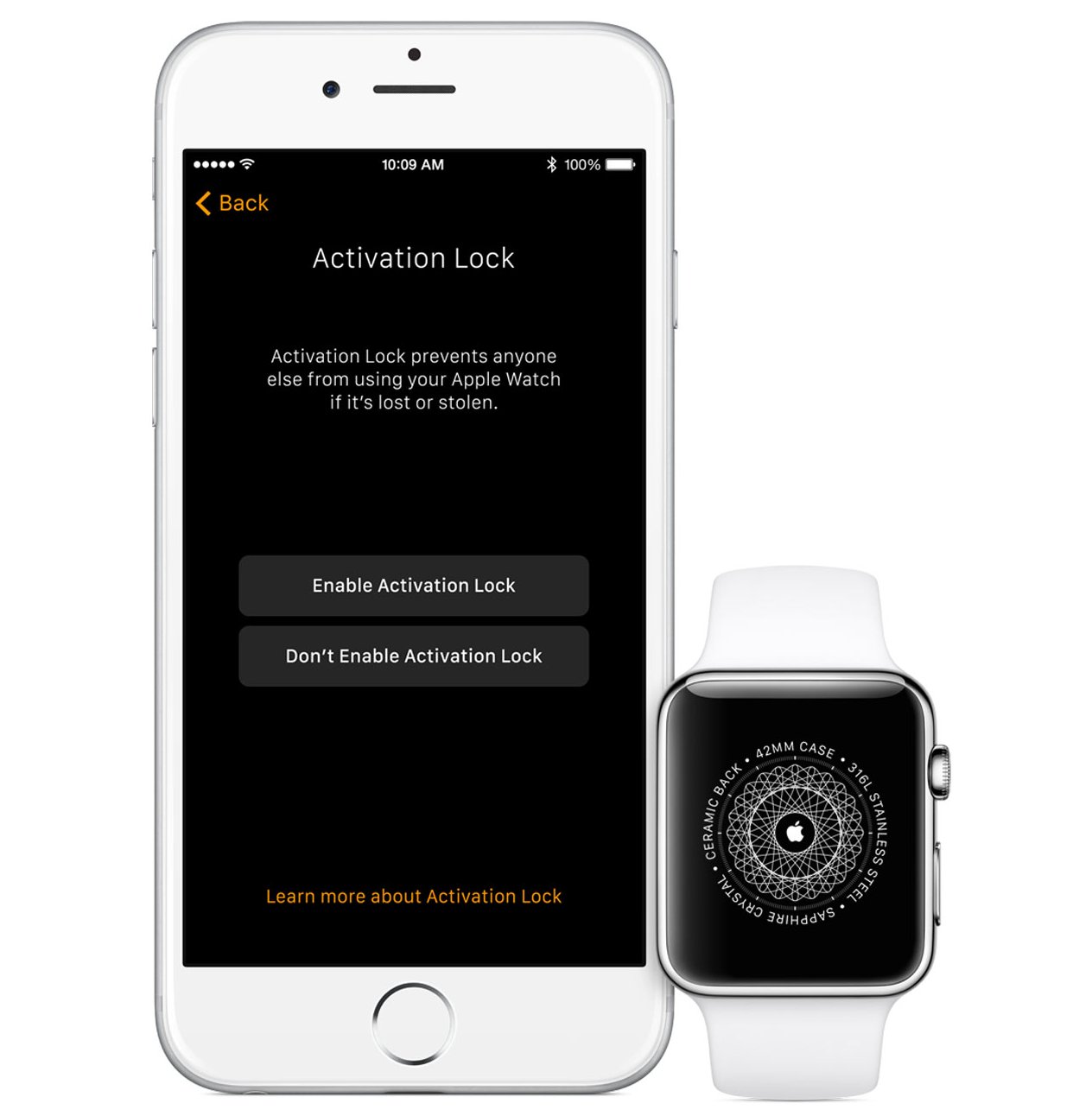
When Find My Apple Watch is enabled, your Apple ID is cryptographically bound to the hardware. Even after a full erase, the device checks in with Apple’s servers during setup and demands your credentials.
This prevents theft—but also means you must actively disable it before transferring ownership.
Ensure Lock Is Removed
| Method | Removes Activation Lock? |
|---|---|
| Unpair via iPhone (with Apple ID entry) | ✅ Yes |
| Direct erase on watch | ❌ No |
| Remote erase via iCloud | ❌ Not yet |
| Remote erase + Remove from Account | ✅ Yes |
Only two methods fully disable the lock:
– Unpairing via iPhone (with password confirmation)
– iCloud removal after remote erase
If the new user sees the Activation Lock screen, the previous owner must log in to iCloud and remove the device from their account.
Handle Common Scenarios
Switching to a New iPhone
You’ve upgraded your phone and want to pair your Apple Watch with the new one.
Solution:
- On the Apple Watch, go to Settings > General > Reset > Erase All Content and Settings.
- Set up your new iPhone and sign in with the same Apple ID.
- Open the Watch app and follow pairing prompts.
- When prompted, enter the Apple ID password linked to the watch.
🔁 Bonus: If you backed up your watch (via previous iPhone), you can restore apps and settings during setup.
No need to remove the watch from Find My—since you’re keeping it, just reset and re-pair.
Sold Watch Without Unpairing
The buyer can’t activate the watch because Activation Lock is still active.
Immediate Fix:
- Go to iCloud.com > Find My.
- Sign in with your Apple ID.
- Erase the Apple Watch and Remove from Account.
- Inform the buyer to restart the setup process.
🛠️ If You Can’t Access iCloud: Contact Apple Support with proof of purchase. They may assist in removing Activation Lock after verifying ownership.
Never ignore this step—otherwise, the watch is a $400 paperweight.
Watch Still Appears in Find My
Even after resetting, the device shows up in your iCloud device list.
Final Cleanup:
- Visit iCloud.com > Find My.
- Select All Devices.
- Choose your Apple Watch.
- Click Remove from Account.
This manually severs the last link between your Apple ID and the hardware.
✅ Check: Refresh the page. The device should be gone.
Re-pair Apple Watch After Disconnection
After unpairing, the watch is ready for a new start.
Pair with a New iPhone
- Press and hold the side button to turn on the Apple Watch.
- Bring your iPhone close to the watch.
- Open the Watch app on the iPhone.
- Tap “Start Pairing” or wait for the animation prompt.
- Use the iPhone camera to scan the swirling blue pattern on the watch.
– Or tap “Pair Apple Watch Manually” and enter the 6-digit code shown on the watch.
Complete Setup
During setup, you can:
– Set up as new or restore from backup (if available).
– Re-enable Find My Apple Watch for security.
– Configure cellular (if applicable) by following carrier prompts.
✅ Pro Tip: Restore from a backup only if it’s recent and from a trusted source.
Avoid Common Mistakes
- Skipping iCloud Removal: Resetting the watch does not remove it from your Apple ID. Always verify in Find My that the device is gone.
- Assuming Factory Reset Removes Lock: It doesn’t. Only unpairing via iPhone or iCloud removal disables Activation Lock.
- Forgetting Carrier Plans: Removing the eSIM doesn’t cancel your subscription—call your carrier.
- Not Backing Up First: Only unpairing via iPhone creates a backup. Direct reset offers no backup option.
Final Checklist Before Disconnecting
✅ Open Watch app and unpair via iPhone
✅ Enter Apple ID password to disable Activation Lock
✅ Choose Remove Cellular Plan (if applicable)
✅ Confirm backup was created (for future restore)
✅ Check Find My app—watch should not appear
✅ Visit iCloud.com > Find My > All Devices—remove if still listed
✅ Power off the watch before giving it away
Check each item. Missing one could block the next user from using the device.
Final Note: Disconnecting an Apple Watch from an iPhone isn’t just about breaking a Bluetooth connection—it’s about fully detaching the device from your digital identity. The only secure way is through the Watch app unpairing process, which erases data, creates a backup, and disables Activation Lock. If the iPhone is gone, a direct reset followed by iCloud removal is mandatory. Always verify the watch is gone from Find My. Do it right, and you protect your privacy while ensuring the next user can enjoy their device without hurdles.




