

You just finished a swim, stepped out of the shower, or got caught in the rain—and now your Apple Watch sounds muffled. Calls are hard to hear, alerts seem dull, and you can even see tiny droplets near the speaker. That’s water trapped in the speaker chamber. The good news? Apple built a smart, automatic way to clear it—right into your watch.
The water ejection feature uses your Apple Watch’s own speaker to vibrate at high frequency, pushing moisture out through the side ports. No tools, no disassembly, no risk. Just press a button, hear a few rising tones, and watch the water burst out in visible pulses.
In this guide, you’ll learn exactly how to eject water from Apple Watch, step by step. We’ll cover how to activate Water Lock, trigger the ejection sequence, troubleshoot issues, and avoid mistakes that could lead to long-term damage. Whether you’re using a Series 2 or the latest Ultra 2, this process works across all compatible models.
Let’s get your watch sounding crisp and clear again.
Activate Water Lock to Prepare for Ejection
Before water can be ejected, you must enable Water Lock—the essential first step. This feature disables the touchscreen to prevent accidental taps while wet and primes the speaker system for drainage.
Open Control Center Correctly Based on Your OS
The way you access Control Center depends on your watchOS version:
- watchOS 10.1 and earlier:
Swipe up from the bottom of the watch face to open Control Center. - watchOS 10.2 and later:
Press and release the side button (do not hold it down—holding triggers Emergency SOS).
If you don’t see the water droplet icon, go to Settings > Control Center > Edit, then add Water Lock to your quick-access menu.
Tap the Water Lock Icon to Engage Protection
Once in Control Center:
– Scroll down and tap the water droplet with a lock.
– A blue droplet icon will appear at the top of the screen—this means Water Lock is active.
Pro Tip: Water Lock often turns on automatically when you start a swim workout or submerge your watch (Series 2 and later). On Apple Watch Ultra, it activates during scuba mode too. But even if it turns on automatically, you still need to exit it to trigger ejection.
Don’t skip this step—water ejection only happens when you turn off Water Lock, not when you turn it on.
Trigger the Water Ejection Sequence
Now comes the actual water-clearing action. This is where your Apple Watch does the heavy lifting—using sound and vibration to push moisture out.
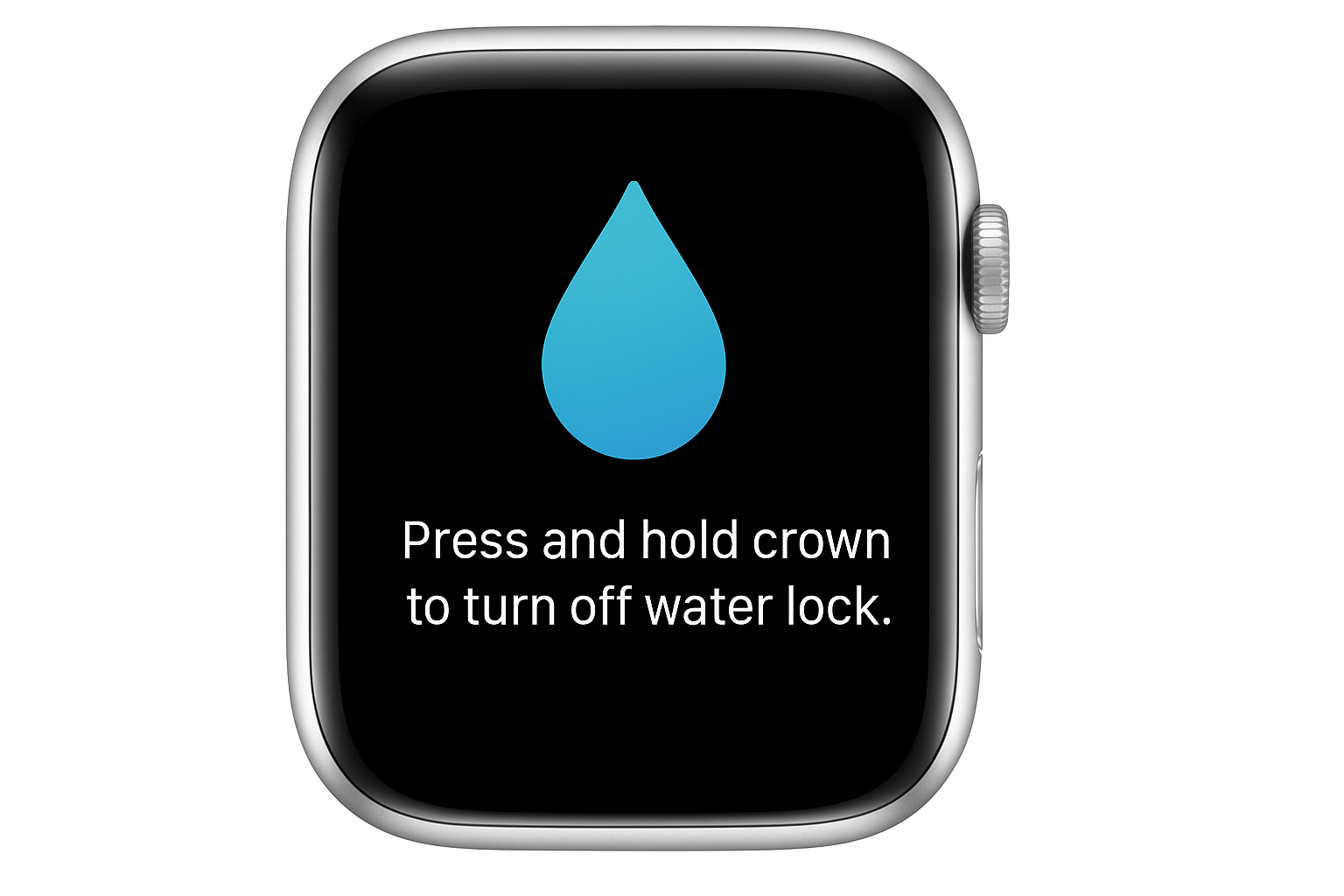
Press and Hold the Digital Crown to Start Ejection
To begin water ejection:
– Press and hold the Digital Crown (the lower knob on the side)
– Keep holding until:
– You hear a series of rising tones
– The screen displays “Unlocked”
– Water droplets visibly shoot from the speaker grilles
Release the crown once the tones stop—usually within 5 to 10 seconds.
Note for older systems: On watchOS 8 and earlier, you rotate the Digital Crown instead of pressing it. Rotate it like unlocking the screen after a swim.
Each tone sends a rapid pulse through the speaker diaphragm, creating pressure waves that force water out in bursts. High-speed camera tests show water doesn’t just drip—it explodes outward in rhythmic pulses, one per tone.
Watch for Visible Signs of Success
You’ll know the ejection is working when:
– Tiny droplets land on your wrist or nearby surface
– A fine mist sprays from the side near the buttons
– Audio clarity returns almost instantly
If no water appears, your speaker may already be dry—or moisture could be deeper. Try wiping the exterior and repeating the process.
Repeat the Process if Moisture Persists
One cycle isn’t always enough—especially after saltwater swims, long showers, or extended submersion.
Perform Multiple Ejection Cycles for Best Results
If:
– The blue droplet icon reappears
– Audio still sounds muffled
– You suspect residual moisture
Repeat the process:
1. Re-activate Water Lock via Control Center
2. Press and hold the Digital Crown again
3. Let the full tone sequence complete
Most users need 1–3 cycles for complete drying. Wait a few seconds between attempts to let water reposition.
Pro Tip: Tilt your Apple Watch so the speaker faces downward during ejection. Gravity helps water exit faster and reduces the chance of it being pulled back in.
Confirm Your Model Supports Water Ejection
Not all Apple Watches can eject water. The feature requires both Water Lock and a speaker system tuned for self-cleaning.
✅ Works on:
– Apple Watch Series 2 and later
– Apple Watch SE (1st and 2nd gen)
– Apple Watch Ultra and Ultra 2
❌ Does not work on:
– Apple Watch Series 1 or earlier (splash-resistant only)
– Any model with cracked casing or damaged seals
Note: While all compatible models use the same method, the ejection tone varies:
– Series 2–3: Louder, higher-pitched
– Series 4–5: Softer, lower tone
– Series 6 and later: Optimized frequency for better efficiency
The Apple Watch Ultra, with its WR100 rating, handles deeper dives but uses the same ejection technology.
Dry and Care for Your Watch After Water Exposure
Ejecting water is just one part of proper post-swim care. You also need to manually clean and dry your device.
Wipe Down and Rinse After Swimming
Right after exiting water:
1. Wipe the watch with a soft, lint-free cloth
2. Clean the band—especially if it’s nylon, leather, or silicone
3. Rinse with fresh water if exposed to salt, chlorine, or soap
This prevents mineral buildup and protects the water-resistant seals.
Never Charge a Wet Apple Watch
Moisture in the charging port can:
– Trigger moisture detection, blocking charging
– Cause corrosion over time
– Damage internal components
Instead:
– Dry the back and sides thoroughly
– Let it air dry for at least 30 minutes
– Only place it on the charger when completely dry
Warning: Do not use heat sources like hairdryers, ovens, or direct sunlight. Heat can warp seals and reduce water resistance.
Troubleshoot Common Water Ejection Problems

Even with the right steps, issues can occur. Here’s how to fix them.
No Sound During Ejection?
If pressing the Digital Crown produces no tones:
– Low battery: Charge to at least 20% and retry
– Blocked speaker: Gently wipe the grille with a dry cloth
– Software glitch: Restart your watch (press and hold side button > slide power off)
Try again after a reboot.
Touchscreen Stays Locked?
If the screen remains unresponsive:
– Press harder—a light touch won’t trigger ejection
– Hold longer—some watches need 10+ seconds
– Adjust Accessibility settings:
Go to Settings > Accessibility > Side Button Click Speed
Set to Slow or Slowest for easier access
Audio Still Muffled?
If sound remains unclear:
– Repeat ejection 2–3 times
– Air dry for several hours
– Check for debris—a grain of sand can block the port
If problems persist, contact Apple Support—you may have internal moisture damage.
Understand What Water Ejection Can’t Fix
The ejection feature is powerful—but it has limits.
Only Clears Surface Moisture
It removes water from:
– Speaker ports
– Microphone openings
– Outer casing gaps
It does not:
– Remove water from inside the display
– Fix corrosion from prolonged exposure
– Repair damaged seals or cracked glass
Apple’s Warning: Apple Watch is water-resistant, not waterproof. Repeated exposure to soap, shampoo, or hot water can degrade seals over time.
Never rely on ejection alone after heavy exposure—always dry thoroughly and avoid risky environments.
Avoid These Common Water Mistakes
Even small errors can lead to long-term damage.
Never Insert Tools or Blow Into Ports
Despite temptation:
– No cotton swabs
– No compressed air
– No blowing with your mouth
These can:
– Push debris deeper
– Damage the speaker diaphragm
– Introduce oils or more moisture
The only safe method? A dry, soft cloth.
Skip the Shaking
Shaking your watch like a thermometer won’t help and could harm internal sensors. Let the speaker do the work—its vibrations are precisely engineered for this.
Avoid Hot Water at All Costs
Showers, saunas, and hot tubs are off-limits.
Heat:
– Expands seals
– Reduces water resistance
– Can trap steam inside
Apple explicitly advises against hot water exposure—even with Water Lock on.
Real-World Performance: What Users Say
Long-term swimmers and athletes confirm the system works.
Swimmers Report Reliable Daily Use
Many users:
– See visible droplets after every swim
– Experience instant audio recovery
– Use the feature 5+ times a week without issues
One triathlete said:
“I swim daily. Water Lock works every time. My Series 6 still sounds perfect after four years.”
Rare Issues Occur—But Usually from Environment
A few reports include:
– Sand stuck in speaker after beach use (required AppleCare+ replacement)
– Boot loop after deep diving (likely internal, not ejection-related)
– Persistent muffled sound (resolved after 6-hour dry)
Most problems stem from environmental damage, not the ejection system.
The Engineering Behind the Magic
The real genius is in the design.
Speaker Doubles as a Water Pump
The same component that plays alerts also acts as a pump. Rapid vibrations from the speaker diaphragm create pressure pulses that force water out.
No extra parts. No moving mechanisms. Just smart use of existing hardware.
Frequency-Tuned for Maximum Efficiency
Apple tested dozens of sound frequencies to find the most effective one.
The final tone:
– Maximizes water displacement
– Minimizes user discomfort
– Prevents speaker fatigue
As one engineer noted:
“It’s not magic—it’s physics. But it’s brilliant physics.”
Final Note: The water ejection system is a seamless, reliable feature that enhances durability in wet conditions. By activating Water Lock, pressing the Digital Crown, and letting the tones clear moisture, you keep your Apple Watch functioning clearly and safely. Combine it with proper drying, avoid hot or harsh environments, and your device will handle water with confidence for years.




