You’re typing a Wi-Fi password, replying to a text with “r0cket,” or entering a two-factor code—and your Apple Watch stubbornly turns your 0 into the letter O. It’s not a glitch. It’s not user error. It’s a well-known limitation of Apple Watch’s Scribble handwriting recognition, which struggles to distinguish between the digit 0 and the letter o, especially in mixed text. The result? Frustration, failed logins, and wasted time.
But you can enter a true 0—every time. Whether you’re using Scribble, dictation, or the keyboard, this guide reveals the most reliable methods to type the number zero on your Apple Watch. From the foolproof long-press trick to voice commands and numeric keyboard hacks, you’ll learn exactly how to bypass Apple’s flawed recognition and get the digit you actually want.
Use the Number Keyboard for Instant Zero Access
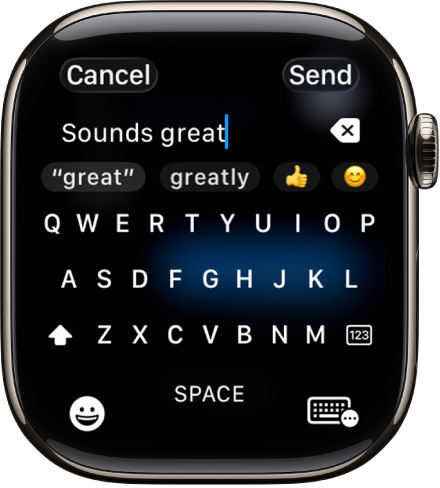
The fastest, most accurate way to enter 0 is by switching to the dedicated number keyboard. This method completely sidesteps the O/0 confusion by removing handwriting input from the equation.
Tap the 123 Key to Reveal Numbers
- Open any app that accepts text—like Messages, Notes, or Reminders.
- Tap inside a text field to bring up the keyboard.
- Tap the 123 key, usually located in the bottom-left or bottom-right corner.
- Select the 0 key directly.
This method guarantees you’ll get the digit 0, not the letter O, because you’re selecting it from a labeled numeric keypad.
✅ Works in: All major Apple apps and most third-party apps with text input.
⏱️ Time required: Less than 2 seconds.
🔒 Best for: Passwords, codes, account numbers, or any situation where accuracy is critical.
When the Number Keyboard Appears Automatically
In numeric-only fields—such as Apple ID passcode entry, Wi-Fi passwords, or two-factor authentication codes—the number keyboard appears by default. No need to tap 123; just start typing digits.
💡 Pro Tip: If you’re entering a code like 1024, start with 1 to lock the keyboard in numeric mode. This prevents it from switching back to letters after a single digit.
Fix Scribble’s Zero Mistake with the Long-Press Trick
Scribble lets you draw letters and numbers with your finger, but it’s notoriously unreliable when it comes to 0. Draw a perfect circle, and you’ll likely see o or O instead. But there’s a hidden workaround that works every time—even inside words like “N0” or “r0cket.”
Long-Press the ‘O’ to Select 0
When Scribble misreads your zero, don’t erase and try again. Instead:
- Draw a circle or oval as you normally would for 0.
- When the watch displays o, keep your finger pressed on the character.
- A small popup menu appears with three options: 0, O, and o.
- Slide your finger to 0 and lift.
This selects the actual digit, not the letter. And yes—it works even if the zero is in the middle of a word.
✅ Confirmed by users: “After scribbling a 0, hold your finger on the ‘o’. A menu pops up with zero. Game changer.” – 1j411
🕒 Time: 3–5 seconds, but 100% reliable.
Why Shaping Your Zero Doesn’t Work
Many users try to outsmart Scribble by drawing a slashed zero (0̸) or a tall, narrow oval, thinking it will signal “digit, not letter.” Unfortunately, these tricks fail more often than they succeed.
- ❌ Slashed zero: The system ignores the slash. Still outputs O.
- ❌ Tall oval: Occasionally recognized as 0, but inconsistent across devices and watchOS versions.
❗ Bottom line: Don’t waste time perfecting your handwriting. The long-press method is faster and guaranteed to work.
Stay in Numeric Mode to Prevent Letter Switching

Apple Watch often reverts to the letter keyboard after you enter one number. This increases the risk of 0 being misread as O, especially in multi-digit codes.
Type a Number First to Lock Numeric Input
To keep the keyboard in number mode:
- Tap 1 (or any digit) first.
- Then tap 0.
This signals to the system that you’re entering numbers, reducing the chance it will switch back to letters.
✅ Best for: Codes like 1024, 2048, or passwords with embedded zeros.
🧠 Why it works: The input system assumes you’re in a numeric context after the first digit, making subsequent entries more accurate.
Use Voice Dictation for Hands-Free Zero Entry
When your hands are busy—or you just want speed—voice dictation is a fast, accurate alternative.
Say “Zero” to Get the Digit 0
- Tap the microphone icon on the keyboard.
- Say “zero” clearly (or even “0”).
- The watch transcribes it as the digit 0.
✅ Accuracy: Near-perfect, even in noisy environments.
⏱️ Time: Under 2 seconds.
🎧 Works with: English and many non-English keyboards.💡 Pro Tip: Dictation bypasses Scribble entirely—ideal when wearing gloves, cooking, or exercising.
Enter Zero in Passcode Fields Without Issues
When setting or entering your Apple Watch passcode, you’ll use a full numeric keypad—no ambiguity here.
Steps to Input 0 in a Passcode
- Go to Settings > Passcode.
- Tap Turn Passcode On or Change Passcode.
- Use the on-screen keypad to tap 0.
✅ No confusion: The 0 key is clearly labeled and always inputs the digit.
⚠️ Security note: While 0000 is a valid passcode, Apple recommends using a six-digit or alphanumeric code for better security.
Handle Non-English Keyboards with Workarounds
If your Apple Watch uses a non-English keyboard, the 123 key might be less accessible, and number input could be buried.
Solutions for Non-English Users
- Tap 123 to switch to numbers.
- Use voice dictation and say “zero.”
- Use Scribble + long-press to force 0 after misrecognition.
🌍 Tip: For frequent numeric input, consider temporarily switching to an English keyboard layout for easier access to numbers.
Avoid These Common Zero Input Mistakes
Even experienced users fall into these traps—costing time and causing frustration.
Don’t Rely on Auto-Correction
Unlike iPhone, Apple Watch does not suggest 0 when you write a zero-like shape. You must manually correct it using the long-press method.
Don’t Use the Digital Crown to “Capitalize” to Zero
Some believe spinning the Digital Crown after writing o will convert it to 0. It won’t. The crown only changes case: o → O. It does not convert letters to numbers.
❌ Myth: “Spin the crown to get zero.”
✅ Truth: The crown changes letter case only. Use the long-press trick instead.
Don’t Stick with Scribble Out of Habit
Many users default to Scribble because it feels natural—but for 0, it’s often slower and less reliable than switching to the number keyboard.
✅ Rule of thumb: If you need 0, use the 123 key first—unless you’re using voice or the long-press fix.
Best Method by Use Case
Match the right technique to your situation for seamless zero input.
| Scenario | Best Method | Why |
|---|---|---|
| Passcode entry | Number keypad | Built-in, unambiguous |
| Messages with numbers | 123 keyboard or long-press | Fast and reliable |
| “r0cket” or “N0” | Scribble + long-press | Only way to embed 0 in text |
| Hands-free input | Voice dictation | Say “zero” for instant 0 |
| After typing letters | Type 1 then 0 | Locks numeric mode |
| Non-English layout | Dictation or long-press | Bypasses hidden number key |
Known Issues and User Frustrations
Despite Apple’s design, many users report persistent problems:
- Scribble ignores zero attempts during Apple ID or passcode setup.
- No visual hint that long-pressing ‘o’ reveals 0—users discover it by accident.
- No toggle to force numeric input in mixed text.
- Repeated failed attempts with zero can lock account access during device reset.
🛑 User report: During Apple Watch reset, Scribble rejected all zero inputs until the user found the 123 key—a non-intuitive step under stress.
Final Tips for Zero Success
Follow these proven strategies to always get 0, not O:
- ✅ Use the 123 keyboard—it’s the most reliable method.
- ✅ Long-press misrecognized ‘o’—fixes Scribble errors instantly.
- ✅ Dictate “zero”—fast, accurate, and hands-free.
- ✅ Start with 1—keeps the keyboard in numeric mode.
- ❌ Avoid shape-based tricks—they don’t work consistently.
💡 Apple should fix this: Add a contextual zero option in Scribble or a numeric lock for passwords. Until then, use these battle-tested workarounds.
Key Takeaways:
– The number keyboard is the most reliable way to enter 0.
– Scribble fails often, but the long-press trick fixes it instantly.
– Voice dictation is fast and accurate—say “zero” to get 0.
– No single method works perfectly in all cases—combine strategies based on context.
– Don’t waste time drawing better zeros—use the long-press workaround instead.
With these techniques, you’ll never let your Apple Watch turn your 0 into an O again.
Leave a Reply