
If your Apple Watch won’t connect to your iPhone, the fix usually starts with getting it into pairing mode—the essential gateway to setup, reconnection, or switching devices. Whether you’re setting up a new watch, replacing your iPhone, or troubleshooting a lost link, entering pairing mode correctly is the first critical step. This guide walks you through every official Apple method: standard setup, post-reset pairing, reconnecting after restarts, and pairing without access to your old phone. You’ll also learn how to troubleshoot common issues like undetected devices, failed scans, and manual code errors.
Let’s get your Apple Watch back in sync—fast, secure, and without frustration.
Power On to Enter Pairing Mode
When setting up your Apple Watch for the first time or after a full reset, simply powering it on properly triggers automatic pairing mode.
Turn On With Side Button
Press and hold the side button (located below the Digital Crown) until the Apple logo appears. Once you see it, release the button—don’t keep holding. The watch will continue booting and eventually display a rotating animated pattern on the screen. This animation is your visual cue: your Apple Watch is now in pairing mode and ready to connect.
⚠️ If it won’t power on, charge it for 15–30 minutes using the original magnetic charger. Even brand-new watches can arrive with low battery.
With the animation visible, open the Watch app on your iPhone and tap “Start Pairing.” Hold your iPhone close to the watch face so the camera can detect the rotating code.
Use iPhone to Detect Watch Automatically
The Watch app uses your iPhone’s camera to scan the animated pairing code displayed on the Apple Watch. Position your iPhone so the watch face fits inside the viewfinder. The scan starts automatically—no tapping needed.
If the camera doesn’t activate:
– Tap “Pair Apple Watch Manually”
– Enter the 8-digit code shown on the watch screen when prompted
✅ Pro Tip: Dim the lights or shield the watch from glare to improve scan accuracy. A dark room often makes the animation easier to detect.
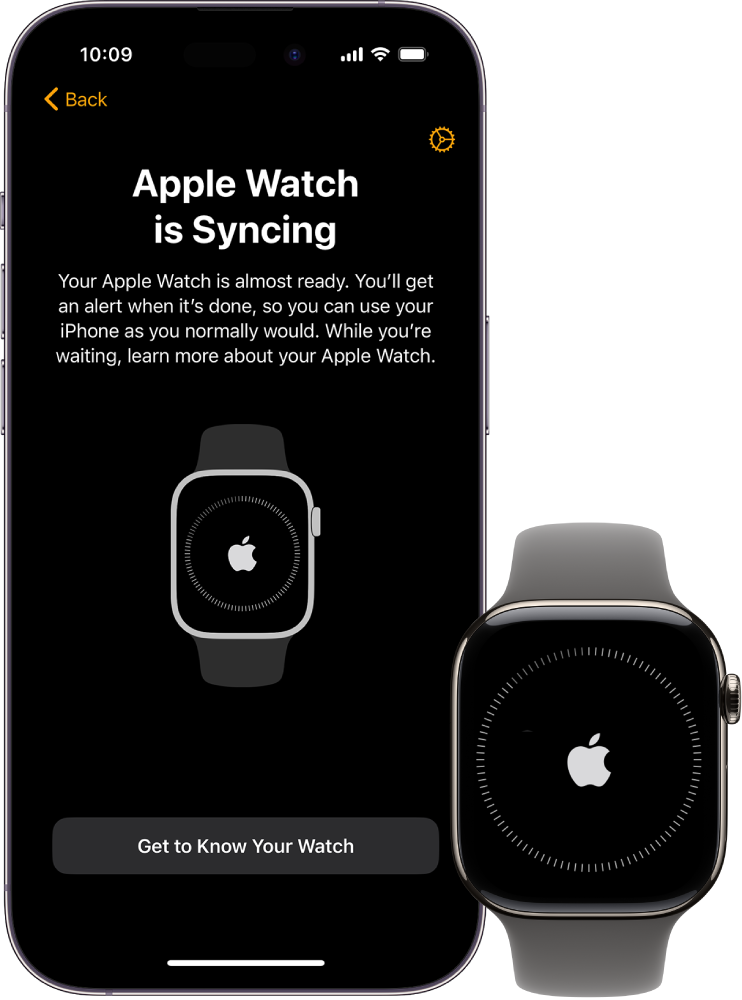
After a successful scan, follow the prompts to select your wrist, accept terms, and choose setup preferences. The sync process begins immediately—keep both devices close until complete.
Reset Apple Watch to Re-Enter Pairing Mode

If your watch is unresponsive or stuck in a broken pairing state, a reset forces it back into factory settings and pairing mode.
Erase All Content and Settings
On the Apple Watch:
1. Open Settings (gear icon)
2. Tap General > Reset
3. Select Erase All Content and Settings
4. Confirm and enter your passcode if required
The watch restarts and returns to the initial setup screen with the rotating animation—now in pairing mode.
⚠️ Warning: This deletes apps, health data, Apple Pay cards, and settings. Most data can be restored from iCloud or your iPhone backup during setup.
If the erase option is grayed out:
– Restart the watch first
– Ensure a passcode is set (required to enable reset)
This method works whether the watch was previously paired or stuck in limbo. It’s the surest way to clear corrupted connections.
Reconnect After Restart (No Reset Needed)
After a normal restart, your Apple Watch should reconnect automatically—no full pairing required.
Wait for Auto-Reconnection
Once the watch restarts and shows the watch face:
– It should reconnect to the last-paired iPhone within seconds
– Requires Bluetooth enabled, same iCloud account, and proximity (within 6 inches)
No action needed if both devices are signed in and nearby.
Manually Reconnect if Auto-Fail
If the connection fails:
On Apple Watch:
– Go to Settings > Bluetooth
– Find your iPhone under “Other Devices”
– Tap it to reconnect
On iPhone:
– Open Watch app > My Watch tab
– Tap All Watches
– Tap the “i” icon next to your watch
– Select Connect if shown as disconnected
❌ If your iPhone doesn’t appear in Bluetooth devices, pairing may be corrupted—proceed with full erase.
Pair Apple Watch to New iPhone (Old Phone Unavailable)
Switching iPhones? You can still pair your Apple Watch even without the original device.
Erase Watch Before Pairing
On Apple Watch:
1. Go to Settings > General > Reset > Erase All Content and Settings
2. Wait for restart and pairing screen
On new iPhone:
1. Sign in to the same iCloud account used on the old phone
2. Open Watch app > Start Pairing
3. Follow setup steps
4. Choose Restore from iCloud Backup when prompted
✅ Your data syncs from iCloud if backups were enabled.
If the watch remains linked to the old iPhone:
– Visit iCloud.com > Find My
– Remove the watch from the old device’s list to free it for pairing
This ensures a clean pairing process and avoids activation locks.
Troubleshoot Pairing Failures

Even with correct steps, pairing can fail. Here’s how to fix common issues.
iPhone Doesn’t Detect Apple Watch
Check these first:
– Bluetooth is on on both devices
– Airplane Mode is off
– Devices are within 6 inches of each other
– Watch is showing the rotating animation, not a watch face
Troubleshooting steps:
– Restart both devices
– Close and reopen the Watch app
– Reset network settings on iPhone:
Settings > General > Transfer or Reset iPhone > Reset Network Settings
✅ Try pairing in a quiet Bluetooth environment—turn off nearby speakers or headphones.
Manual Pairing Code Not Working
If entering the 8-digit code fails:
– Ensure digits are correct and match exactly
– Reboot both devices and retry
– Increase watch brightness to avoid misreading numbers
– Avoid reflections on the screen
❌ No other entry methods exist—manual code is the only fallback.
Pairing Screen Doesn’t Appear
If the watch shows a normal watch face instead of setup animation:
– It’s still paired
– You must unpair and erase via iPhone or reset directly on the watch
To unpair via iPhone:
1. Open Watch app > My Watch tab
2. Tap All Watches
3. Tap “i” > Unpair Apple Watch
4. Confirm—this erases data remotely
Then restart the watch to enter pairing mode.
Set Up Cellular and Accessibility Options
Pairing isn’t just about Bluetooth—it includes cellular activation and accessibility support.
Activate Cellular Service
During setup:
– Ensure iPhone and Apple Watch use the same carrier
– Not all regions or plans support cellular
– If skipped, activate later via:
Watch app > My Watch > Cellular > Set Up Cellular
✅ Family Setup allows different carriers for family members’ watches.
Enable Accessibility Features Early
Vision-impaired users can use:
– VoiceOver: Triple-click side button during startup (if previously enabled)
– Zoom: Available if already configured
These work even before pairing completes.
See Apple’s guide on using VoiceOver or Zoom for more.
Optimize Pairing Success
Follow these best practices to avoid hiccups.
Update Software First
Before pairing:
– Update iPhone: Settings > General > Software Update
– Update Apple Watch (if previously paired):
Watch app > General > Software Update
Ensures compatibility and security.
Keep Devices Charged and Close
- Minimum 20% battery recommended
- Use original Apple charger during setup if needed
- Keep devices within inches—Bluetooth range is critical
❌ Avoid wireless chargers or third-party cables that may deliver unstable power.
Prevent Bluetooth Interference
Turn off nearby Bluetooth devices:
– Speakers
– Headphones
– Other Apple Watches
Reduces signal conflict during pairing.
Final Note: Your Apple Watch stays paired unless you reset it or switch phones. Subsequent restarts reconnect automatically. If pairing repeatedly fails, contact Apple Support or visit an Apple Store for diagnostics. With the right steps, your watch will be back in sync in minutes—securely and seamlessly.




