
If you’ve ever woken up exhausted despite logging eight hours in bed, your Apple Watch sleep data could reveal why. It doesn’t just track how long you slept—it shows the quality, depth, and consistency of your rest. Learning how to read Apple Watch sleep data turns raw numbers into actionable insights, helping you spot patterns, improve recovery, and boost daily energy. Whether you’re battling fatigue, optimizing performance, or simply curious about your sleep, this guide breaks down every metric, where to find it, and what it means—so you can use your Apple Watch to sleep smarter.
Access Sleep Data on iPhone
The iPhone Health app is where you’ll find the full picture of your sleep. While the Apple Watch gives a quick glance, the iPhone delivers deep analysis.
Open the Health App
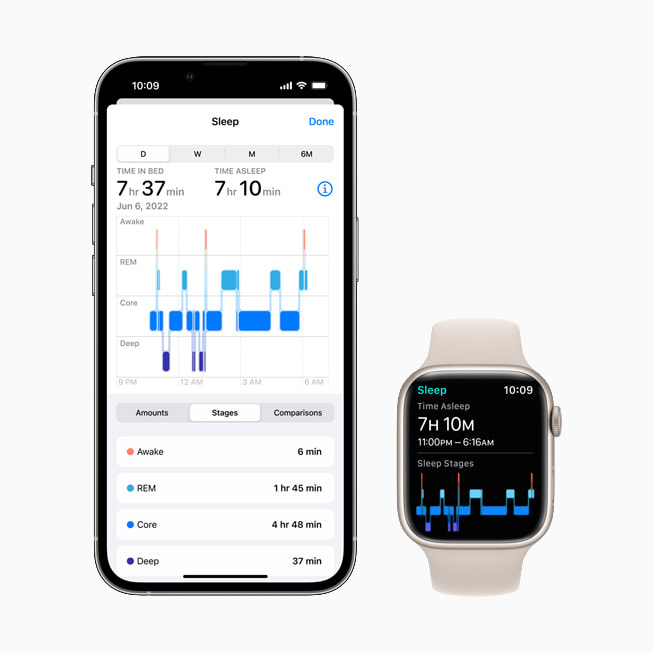
Launch the Health app on your iPhone, tap Browse, then search for “Sleep” or go to the Summary tab if you’ve pinned it. The default view shows a bar graph labeled D, representing your total sleep time for today.
Switch Time Views
Tap the D, W, M, or 6M buttons at the top to toggle between:
– D – Today
– W – Last 7 days
– M – Past month
– 6M – Previous 6 months
This lets you see trends—like whether stress, travel, or schedule changes are affecting your sleep. For example, a sudden drop in deep sleep during a busy workweek may signal poor recovery.
Expand Detailed Metrics
Scroll down and tap Show More Sleep Data to unlock:
– Light, Deep, and REM sleep durations
– Number and timing of wake-ups
– Sleep Score (0–100)
– Bedtime consistency
Tap your Sleep Score, then the (i) icon to see how it was calculated—duration, consistency, and interruptions. This breakdown helps you understand exactly what’s boosting or dragging down your score.
View Sleep on Apple Watch
For a fast check each morning, your wrist is all you need.
Open the Sleep App
Tap the blue bed icon on your Apple Watch. Scroll to Analysis to see last night’s full sleep graph.
Read the Sleep Stage Graph
The timeline displays:
– Green – Deep sleep
– Orange – Core (light) sleep
– Purple – REM (dream) sleep
– Gray – Awake periods
Below the graph, you’ll see:
– Total time asleep
– Duration in each stage
– Timestamps of awakenings (e.g., 2:14 AM, 4:30 AM)
This helps you connect real-life events—like a midnight bathroom trip or stress-induced wake-up—to your data.
Check 14-Day Trends
At the bottom, a bar chart shows your daily sleep duration over the past 14 days. A white line marks your 14-day average, making it easy to spot dips or improvements.
Note: The Apple Watch only shows last night’s stages and 14-day trends. No monthly or long-term views—use the iPhone for deeper analysis.
Understand Sleep Stages
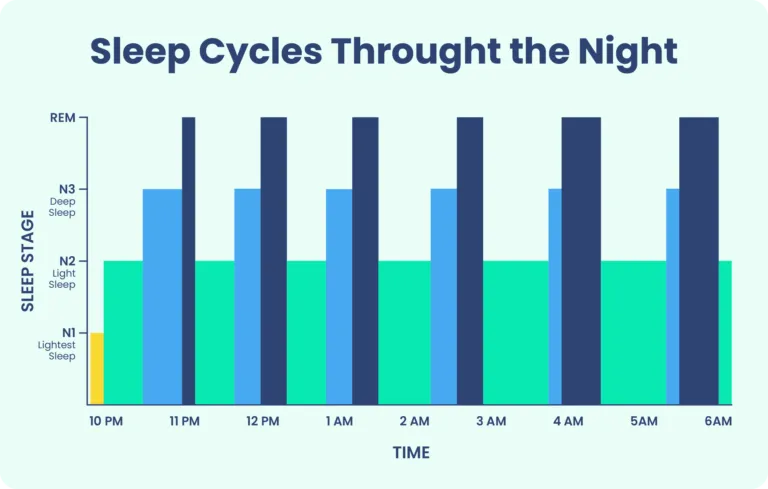
Apple Watch estimates sleep stages using motion, heart rate, and breathing data. These aren’t medical readings, but they reveal meaningful patterns.
Deep Sleep: Physical Recovery
Deep sleep (green) supports tissue repair, immune function, and hormone balance.
Ideal: 1 to 1.5 hours per night.
Red flag: Less than 45 minutes may mean poor recovery, even if total sleep looks good. Chronic lack of deep sleep can impair physical performance and immunity.
REM Sleep: Mental Restoration
REM (purple) fuels emotional balance, memory consolidation, and creativity. It increases in length toward morning.
Watch for: Low REM? Alcohol, sleep deprivation, or late bedtimes can suppress it.
Tip: If you wake up remembering dreams, you were likely in REM.
Light Sleep: Memory and Learning
Light (orange), or “Core” sleep, makes up 50–60% of your night. It’s normal and essential for memory processing.
Warning: Too much light sleep with little deep or REM may signal fragmented rest—common with stress, caffeine, or poor sleep hygiene.
Awake: Nighttime Interruptions
Gray bars show when you were awake—bathroom trips, noise, or stress.
Key insight: Frequent awakenings reduce sleep quality, even if total time is adequate. Three 20-minute interruptions can leave you feeling more tired than one full hour less sleep.
Real insight: One user thought their dogs were ruining sleep. Data showed frequent wake-ups—but solid deep and REM sleep. The real issue? Total sleep was only 6.5 hours. The fix? An earlier bedtime.
Decode Your Sleep Score (0–100)
Introduced in watchOS 9, the Sleep Score grades your night’s quality on a 100-point scale.
How the Score Is Calculated
| Factor | Weight | What It Measures |
|---|---|---|
| Sleep Duration | 50 pts | How close you got to your goal (e.g., 8 hours) |
| Bedtime Consistency | 30 pts | How regularly you fall asleep within your target window over 13 nights |
| Sleep Interruptions | 20 pts | Frequency and length of wake-ups |
The score appears in the Health app about 15 minutes after waking.
Score Interpretation
- 90–100 (Very High): Excellent duration, consistent timing, minimal disruptions
- 75–89 (High): Good overall, minor room for improvement
- 50–74 (Fair): Inconsistent or fragmented—needs attention
- Below 50 (Low): Significantly short, erratic, or broken sleep
Pro tip: A high score doesn’t always mean “perfect.” You might have low deep sleep but score well on duration and consistency. Always check the full breakdown.
Analyze Bedtime Consistency
Going to bed and waking up at similar times strengthens your circadian rhythm.
How It’s Tracked
Apple calculates consistency over 13 nights. The narrower your sleep window (e.g., 10:30–11:00 PM), the higher your score.
Improve Your Consistency
- Set a fixed bedtime in the Health app
- Use Sleep Focus to silence distractions
- Avoid late-night screen time or caffeine
Fact: One user’s data showed no significant difference in sleep duration by day of week—despite thinking they “slept in” on weekends.
Track Sleep Trends Over Time
Short-term fluctuations are normal. Long-term trends reveal real progress.
Use Weekly and Monthly Views
Switch to W, M, or 6M in the Health app to:
– Spot seasonal changes (e.g., shorter sleep in winter)
– See impact of lifestyle shifts (new job, travel, stress)
– Measure progress after improving sleep hygiene
Focus on Averages
Instead of stressing over one bad night, look at:
– 7-day average sleep duration
– Weekly deep sleep totals
– Consistency trends
Avoid orthosomnia: Don’t obsess over nightly scores. Anxiety about sleep can worsen it.
Set Up and Customize Sleep Schedule
Your Apple Watch can guide your bedtime and wake-up time.
Initial Setup
- Open Health app > Sleep > Get Started
- Set:
– Bedtime (e.g., 10:30 PM)
– Wake-up time (e.g., 6:30 AM)
– Sleep goal (e.g., 8 hours) - Enable a wake-up alarm with haptic taps and sound
Edit for One Night Only
Need to sleep in tomorrow?
1. Go to Health > Sleep > Edit
2. Adjust the curved slider
3. Tap Alarm to customize
4. Tap Done
Changes apply only to the next wake-up.
Update Full Schedule
For permanent changes:
1. Tap Full Schedule & Options
2. Select schedule to edit
3. Adjust times and save
Visual cue: The slider turns orange if your schedule won’t meet your sleep goal.
Enable Sleep Focus for Better Rest
Sleep Focus reduces distractions during your sleep window.
Activate Sleep Focus
- In Health app, scroll up and tap Customize Focus
- This opens Settings > Focus > Sleep
- Under Allowed People, add emergency contacts
- Under Allowed Apps, include essentials like Home or Messages
Customize Lock Screen
Choose a calming wallpaper or enable Do Not Disturb. Only approved alerts will break through.
Default behavior: All other notifications are silenced.
Know the Accuracy Limits
Apple Watch sleep data is insightful—but not medical-grade.
What’s Reliable
- Time asleep and wake-ups: Highly accurate compared to user logs
- Sleep Score trends: Useful for tracking progress
- REM correlation: Matches well with dream recall
What’s Estimated
- Sleep stages: Based on motion, HRV, and respiratory rate
- No EEG: Unlike clinical studies, Apple Watch doesn’t measure brain waves
- Algorithm-based: Uses machine learning trained on large datasets
Apple’s 2023 white paper confirms data is processed on-device for privacy.
Optimize Tracking Accuracy
Small tweaks can improve reliability.
- Charge before bed: Aim for 30%+ battery
- Wear snugly: Prevents false “awake” readings
- Update software: New updates refine sleep algorithms
- Enable Wrist Detection: Ensures accurate sleep onset detection
Models and Software Requirements
| Feature | Minimum Requirement |
|---|---|
| Basic sleep tracking | Series 3 or later |
| Sleep stages (Light, Deep, REM) | Series 4 or later + watchOS 9+ |
| Sleep Score and full analysis | Series 4+ with watchOS 9+ |
| Respiratory rate during sleep | Series 4+ (not for users under 13) |
Note: Series 3 doesn’t support watchOS 9, so no sleep stages or scores.
Export Data for Deep Analysis
For power users, export raw data via:
1. Health app > Profile > Export All Health Data
2. Save the ZIP file containing a CSV with:
– Sleep start/end times
– Stage durations
– Correlated heart rate, respiratory rate
Import into Google Sheets or Excel to analyze:
– Average sleep: One user averaged 6h 33m
– Day-of-week analysis: No significant difference between weekdays and weekends
– Auto-correlation: A –0.52 correlation between nights suggests the body compensates for poor sleep
CDC vs. Reality: Adults need 7–9 hours. Fitbit data shows average user sleeps 6h 38m.
Make Sense of Your Sleep Metrics
| Metric | Ideal Range | What to Do |
|---|---|---|
| Total Sleep Time | 7–9 hours | Extend bedtime if consistently short |
| Deep Sleep | 1–1.5 hours/night | Improve sleep hygiene if <45 min |
| REM Sleep | Increases toward morning | Avoid alcohol |
| Sleep Score | 75+ is good | Boost consistency |
| Bedtime Consistency | Same bedtime ±30 min | Set fixed schedule |
| Interruptions | Minimal | Reduce noise, light, caffeine |
Prevent Sleep Data Obsession
Data is powerful—but not a substitute for how you feel.
- Focus on 2–4 week trends, not daily scores
- Compare to population averages (e.g., 6h 38m average)
- Don’t self-diagnose—see a doctor for chronic fatigue, snoring, or daytime sleepiness
Final thought: As one user said, “Sleep tracking isn’t just about monitoring—it’s about transforming your habits.” When combined with awareness, Apple Watch data becomes a tool for lasting change.




