
You’ve just unboxed your Apple Watch, eager to set a daily step goal—only to realize it’s nowhere to be found. Despite tracking every stride you take, the Apple Watch does not allow you to set a custom step goal natively in the Activity app. No 10,000-step target. No step ring. No built-in alerts when you hit your stride count. It’s a common frustration for users who rely on step goals to stay active.
But here’s the good news: while Apple hasn’t added this feature into watchOS, your Apple Watch does track steps accurately using its motion sensors. And with the help of third-party apps that sync with Apple Health, you can set, track, and celebrate step goals just like on other fitness devices. This guide will show you exactly how to view your step count, choose the best step-tracking apps, add step complications to your watch face, and get real-time alerts when you crush your goal—so you can finally walk with purpose.
Let’s dive into what’s possible, how to do it, and why Apple still hasn’t made this simple feature native.
Why There’s No Native Step Goal on Apple Watch
Apple’s Activity app revolves around three core metrics:
– Move (active calories burned)
– Exercise (30+ minutes of moderate activity)
– Stand (at least one minute of movement in 12 different hours)
These form the iconic red, green, and blue Activity rings—but none are based on steps. You can tweak your calorie goal or adjust your exercise time, but you cannot replace any ring with a step counter or set a step milestone.
You Can’t Set a Step Goal in the Activity App
Despite what some users believe, Apple does not support:
– Setting a 5,000, 8,000, or 10,000-step daily goal
– Replacing the Move ring with a step ring
– Receiving native notifications when you hit a step target
– Adding step progress to your watch face without third-party help
Many users confuse the “ding” they hear when closing their rings with a step alert—but that sound marks calorie or exercise completion, not steps.
“My mom swears she set a step goal and got notifications… but I think she’s confusing it with closing her Move ring.”
— Apple Community user
Until Apple adds native support, step goals remain a missing piece of the puzzle—especially compared to Fitbit, Garmin, and even budget trackers that offer this basic feature out of the box.
Where to Find Your Step Count (Built-In Tracking)
Even without goal-setting, your Apple Watch tracks every step automatically. You just need to know where to look.
Check Steps on Your Apple Watch
- Open the Activity app
- Scroll down past the rings
- Tap “Show More”
- View Steps and Distance
Your step count updates in real time and pulls data directly from the watch’s accelerometer and motion sensors.
View Steps on iPhone
In the Activity App:
- Open Activity on your iPhone
- Tap a specific date
- Scroll to the bottom to see Steps and Distance
In the Health App:
- Open the Health app
- Tap Browse > Activity > Steps
- See daily, weekly, or monthly trends
- Tap Add to Favourites to pin steps to your Today tab
The Health app is your best tool for long-term tracking, offering charts, trends, and integration with other health apps and devices.
Best Third-Party Apps to Set a Step Goal
To actually set and track a step goal, you’ll need an app that integrates with Apple Health. These apps use HealthKit, Apple’s secure health data framework, to pull accurate step data and let you define targets.
Top Apps for Step Goal Tracking
| App | Key Features | Free or Paid |
|---|---|---|
| Pedometer++ | Custom goals, haptic alerts, multiple complications, real-time graphs | Free (Pro upgrade available) |
| Stepz | Simple interface, live step display, Health sync | Free |
| Duffy | Easy goal adjustment, clean design, watch face integration | Free |
| Watch My Health | Displays steps, heart rate, and more on watch face | Free |
| HealthDash | Dashboard view with widgets for steps, calories, and sleep | Free |
“I downloaded Duffy. You open the app and just tap to change your goal—super easy.”
— Apple Community user
All these apps run in the background and use your Apple Watch’s built-in sensors—no extra setup required.
How to Set a Step Goal Using Pedometer++
Let’s walk through setting up Pedometer++, one of the most popular and feature-rich options.
Install Pedometer++
- On your iPhone, open the App Store
- Search for Pedometer++
- Tap Get and install
- Open the app and allow access to Health data when prompted
🔔 Pro Tip: Grant full access to Steps and Distance so the app can read and display your data correctly.
Set Your Daily Step Goal
- Open Pedometer++ on your iPhone
- Tap the Today tab
- Tap the current goal (e.g., “10,000”)
- Use the +/– buttons to adjust (e.g., 7,500 or 12,000)
- Tap Set Goal
Your progress now updates in real time, and the app shows your current count and % toward goal.
Enable Goal Completion Alerts
Want to celebrate when you hit your target?
- In Pedometer++, go to Settings > Notifications
- Toggle on Goal Reached
- Choose Sound, Haptic, or both
- Set a time window (e.g., only between 6 AM and 10 PM)
Now you’ll get a satisfying buzz or chime when you reach your step goal—just like closing a ring, but for steps.
Add Step Count to Your Watch Face
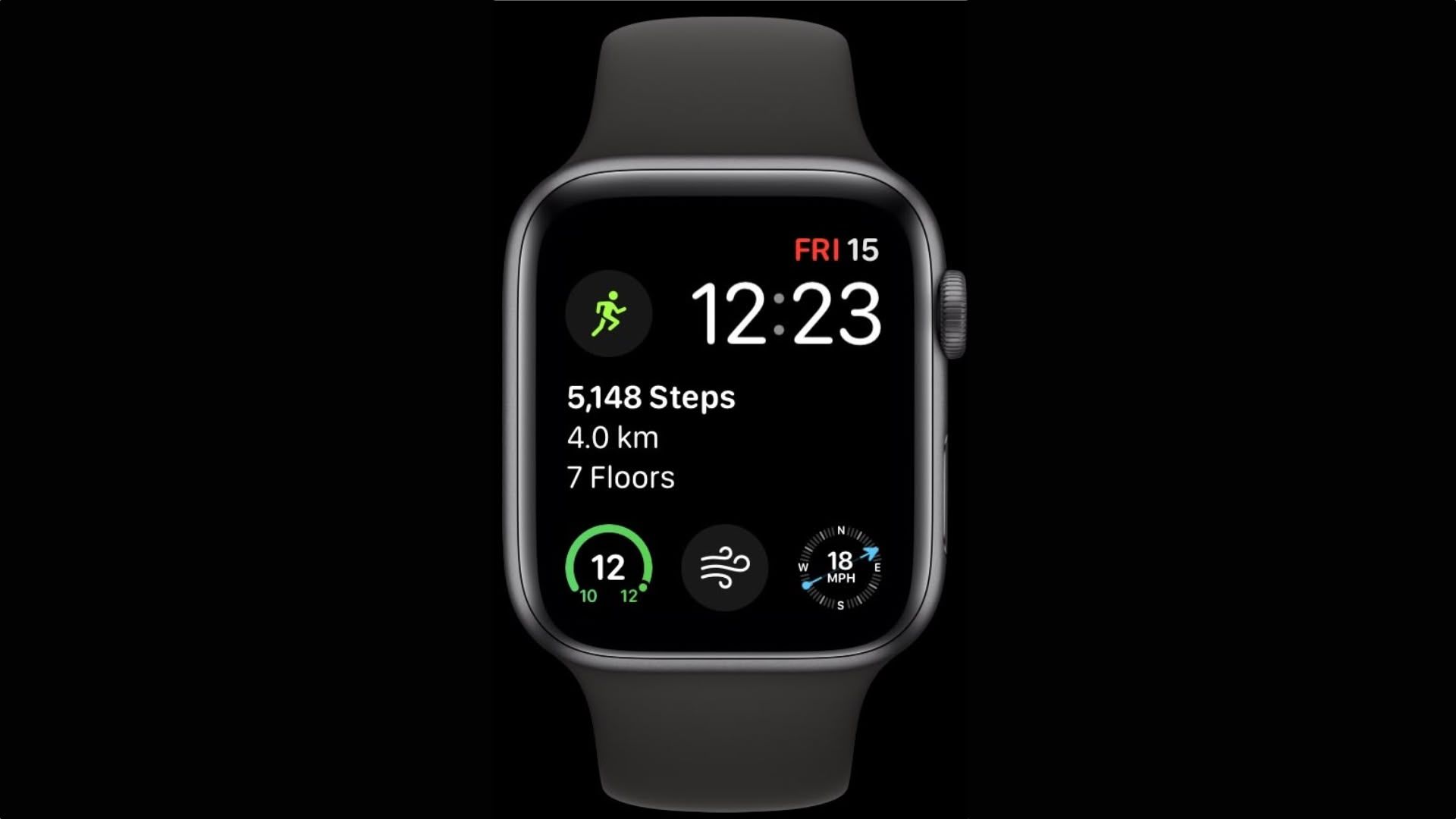
One of the biggest wins with third-party apps: you can see your steps at a glance without opening an app.
How to Add a Step Complication
- Press the Digital Crown to return to your watch faces
- Swipe to the face you want to edit
- Long-press the screen until Edit appears
- Tap Edit
- Tap any complication slot (e.g., bottom, corner)
- Scroll and select a complication from your step app (e.g., Pedometer++ > Steps)
- Press the Digital Crown to save
Now your step count appears right on your watch face.
Customize What the Complication Shows
Some apps let you choose what data to display:
– Total steps
– % toward goal
– Steps remaining
– Distance walked
In Pedometer++, tap the complication to cycle through different views—perfect for quick checks during the day.
💡 Expert Tip: Use Modular, Infograph, or Siri watch faces—they support the most complications and give you maximum visibility.
Verify Accuracy: Compare Step Data Across Apps

Even with third-party apps, it’s smart to verify your step count matches Apple’s data.
How to Check for Consistency
- Open the Health app on iPhone
- Go to Health Data > Activity > Steps
- Tap Show All Data
- Compare totals from:
– Apple Watch (Motion Calibration & Distance)
– Your third-party app (e.g., Pedometer++)
They should be nearly identical. If not:
– Restart your Apple Watch and iPhone
– Reinstall the app
– Re-grant Health permissions
⚠️ Warning: Some apps may double-count steps if multiple trackers are active. Review data sources in the Health app to avoid inflated totals.
Fix Common Step Tracking Issues
Even with the right app, step counts can sometimes freeze or seem low.
Steps Not Updating?
- Force restart Apple Watch: Press and hold the side button + Digital Crown until the Apple logo appears
- Open the app on your watch: Some apps only update when launched
Step Count Too Low?
- Ensure Fitness Tracking is enabled:
- On iPhone: Settings > Privacy & Security > Motion & Fitness > Fitness Tracking > ON
- Wear the watch snugly on your wrist—loose fit can reduce accuracy
App Not Syncing with Health?
- Open app > Settings > Apple Health > Toggle Steps to Read & Write
- Re-grant permissions if needed
🔧 Quick Fix: Close the app on your iPhone, reopen it, and sync manually.
Why Apple Doesn’t Offer Step Goals (And What You Can Do)
Apple focuses on active energy (calories) because:
– Calorie burn better reflects effort across different activities (e.g., cycling vs. walking)
– Steps don’t measure intensity
– Not all users walk—some are wheelchair users, swimmers, or cyclists
But for walkers, runners, and step-focused users, a step goal is a powerful motivator.
Request the Feature from Apple
Want to see native step goals added?
Submit feedback directly:
– Visit apple.com/feedback/watch.html
– Suggest:
– “Add a Steps ring to Activity app”
– “Allow step goal alerts”
– “Display step progress on watch face natively”
The more users request it, the more likely Apple is to act.
Smart Habits to Hit Your Step Goal
Even without native support, you can build a routine that keeps you moving.
Pro Tips for Success
- Start small: Set 5,000 steps if you’re new, then increase weekly
- Break it up: 3 x 10-minute walks = 3,000+ steps
- Use haptics: Enable goal alerts to celebrate wins
- Sync with reminders: Set iPhone alerts at 4 PM if you’re behind
- Walk during calls: Pace while on the phone
- Track weekly averages: Use Health app trends to monitor progress
🎯 Pro Tip: In Pedometer++, view the weekly graph to see your consistency and adjust goals accordingly.
Summary: How to Set a Step Goal on Apple Watch
❌ What You Can’t Do
- Set a step goal in the Activity app
- Replace Activity rings with step metrics
- Get native step alerts or complications
✅ What You Can Do
- Track steps automatically via Apple Health
- Use Pedometer++, Stepz, or Duffy to set custom goals
- Receive haptic or sound alerts when you hit your target
- Add step complications to your watch face
- View trends and history in the Health app
Final Thoughts
The Apple Watch tracks every step you take—but to set and chase a step goal, you need third-party help. While it’s frustrating that Apple hasn’t added this basic feature, apps like Pedometer++ and Stepz fill the gap perfectly, offering real-time tracking, customizable goals, and watch face visibility.
Until Apple listens to user demand and builds in native step goals, these tools are your best bet for turning your Apple Watch into a true step-counting companion.
Install one today, set your goal, and start walking with purpose.




