
You just unboxed your Apple Watch and want to track your daily steps—maybe you’re aiming for 10,000 or simply staying active. But when you glance at your watch face, there’s no step counter in sight. You tap the Activity rings, swipe up, and finally find your step count buried in the app. Frustrating? You’re not alone.
The truth is, Apple Watch does not natively display steps on the watch face or allow direct step goal setting like Fitbit or Garmin. Instead, Apple emphasizes active calories (Move ring), exercise minutes, and standing time as core fitness metrics. But that doesn’t mean you can’t track or set steps—you just need the right tools and workarounds.
In this guide, you’ll learn how to view, display, and set step goals on your Apple Watch using both built-in features and trusted third-party apps. Whether you’re a casual walker or a step-counting enthusiast, you’ll walk away with a seamless system to keep your progress visible and actionable.
Access Step Count on Apple Watch
Before you can set a step goal, you need to know how to find your current count. While Apple doesn’t show steps on the watch face by default, the Activity app tracks them automatically.
Open Activity App From Home Screen
- Press the Digital Crown to return to the app grid.
- Tap the Activity app (three colored rings).
- Swipe up to reveal Total Steps, Distance, and Flights Climbed.
This number updates in real time as you walk. No setup required—your Apple Watch starts counting steps the moment you wear it.
Use Activity Complication for Faster Access
Speed up access by adding the Activity complication to your watch face:
- Press and hold your watch face.
- Tap Edit.
- Choose an empty complication slot.
- Select Activity.
- Exit edit mode.
Now, tap the complication and swipe up to see your step count instantly—no need to open the full app.
Try the Glance Method
If you use Glances:
- Swipe up from the watch face.
- Scroll to the Activity Glance.
- Tap it to open the full app.
- Swipe up to view step count.
While slightly slower, this method keeps your app screen clean and is ideal for users who prefer minimal app clutter.
View Step History on iPhone
Want to analyze your weekly trends or compare months of progress? The iPhone’s Health app provides the most detailed historical data.
Check Daily Steps in Fitness App
- Open the Fitness app on your iPhone.
- Tap Activity Rings.
- Scroll down to see Total Steps for the day.
This matches the Apple Watch data and refreshes hourly, giving you a reliable daily snapshot.
Analyze Trends in Health App
For deeper insights:
- Open the Health app.
- Tap Browse > Activity > Steps.
- View data by day, week, month, or year.
- Tap Show All Data for a complete timeline.
- Tap Add to Dashboard for quick future access.
The Health app pulls step data from your Apple Watch, iPhone motion sensors, and compatible third-party apps—making it the most accurate long-term record.
Display Steps on Apple Watch Face
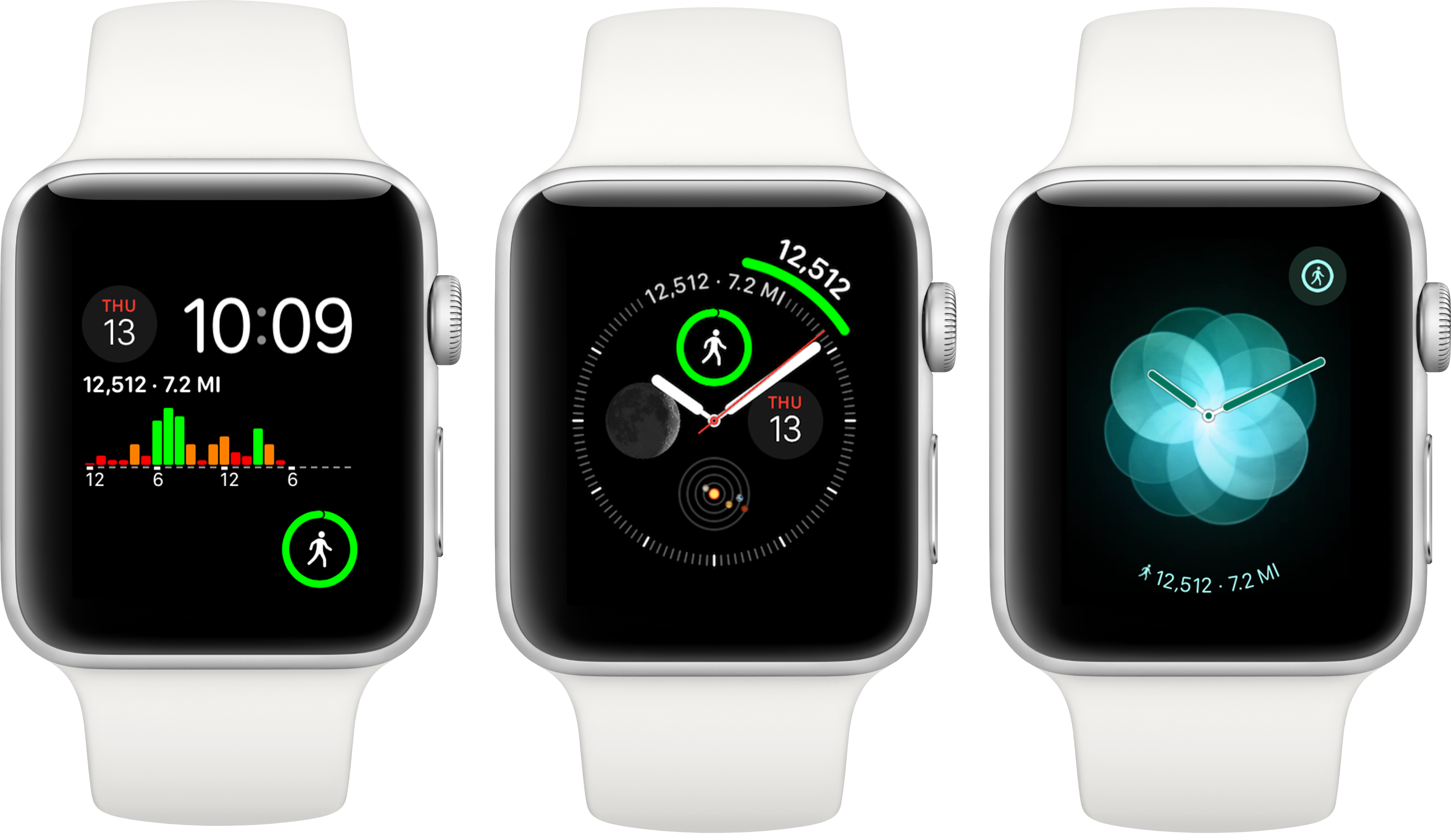
This is where most users hit a wall: no native step complication. But you can add one—using third-party apps that sync with Apple Health.
Install Pedometer++ (Recommended)
Pedometer++ is the most popular solution for adding steps to your watch face.
Install on iPhone
- Open the App Store on your iPhone.
- Search for Pedometer++.
- Download and install.
Enable on Apple Watch
- Open the Watch app on iPhone.
- Go to My Watch > Apps.
- Find Pedometer++ and turn on “Show App on Apple Watch.”
If the app doesn’t appear, force restart your Apple Watch by pressing and holding the side button and Digital Crown until the Apple logo appears.
Add Complication to Watch Face
- Press and hold your watch face.
- Tap Edit.
- Select a complication position.
- Choose Pedometer++.
- Pick a style: numeric, progress bar, or goal ring.
Now, your steps are visible at a glance—just like on a Fitbit.
Pro Tip: Pedometer++ also shows goal progress and supports custom step targets, making it ideal for goal-oriented users.
Set Step Goals Using Third-Party Apps

Apple’s Activity app uses calorie-based Move goals, not steps. If you want a true step target, you’ll need a third-party app.
Set Goal in Pedometer++
- Open Pedometer++ on your Apple Watch.
- Swipe to Settings (gear icon).
- Tap Daily Step Goal.
- Enter your target (e.g., 8,000 or 10,000).
- Press Back to save.
The app will now track progress and show how close you are to your goal—right on your watch face.
Alternative: Use StepsApp
StepsApp offers a sleek, minimalist interface with strong Health integration.
Setup
- Install StepsApp from the App Store.
- Open the Watch app on iPhone and enable it.
- Launch StepsApp on Apple Watch.
- Go to Settings > Daily Goal.
- Set your step target.
StepsApp also displays trends and weekly averages—great for long-term motivation.
Try HealthFace for Full Customization
HealthFace lets you put any Health metric—including steps—on your watch face.
- Install HealthFace from the App Store.
- Open the app on iPhone and link to Apple Health.
- Choose Steps as your primary metric.
- Customize display style (digits, bar, etc.).
- Add the HealthFace watch face to your device.
Now you have a fully personalized step tracker on your wrist.
Note: HealthFace is subscription-based but offers a free trial.
Why Apple Doesn’t Support Native Step Goals
You might wonder: Why doesn’t Apple just add this? The answer lies in their fitness philosophy.
Apple aligns with CDC guidelines, which recommend 150 minutes of moderate activity per week—not 10,000 steps. They believe metrics like calorie burn, heart rate, and movement variety are better indicators of health.
That’s why the Move ring (active calories) is central to their system. More movement = more calories = more steps, indirectly.
But many users—especially those transitioning from Fitbit—miss the simplicity of a step counter. In fact, user forums are filled with requests like:
“It’s 2024, and I still can’t see steps without opening an app? Unbelievable.” – Reddit user
Despite petitions and feedback, Apple has not added native step complications as of watchOS 10.
Improve Step Tracking Accuracy

Even the best app won’t help if your step count is off. Here’s how to ensure accuracy.
Wear Watch Snugly
- Too loose? Arm movements may not register.
- Too tight? May affect heart rate sensor.
- Ideal fit: One finger should fit between band and wrist.
Enable Fitness Tracking
- On iPhone: Open Watch app > Privacy > Motion & Fitness.
- Turn on Fitness Tracking and Heart Rate.
This ensures full sensor access.
Keep Software Updated
Apple frequently improves motion algorithms. Always:
- Update watchOS to the latest version.
- Keep iPhone OS current.
Newer Apple Watch models (Series 6 and up) offer better step accuracy due to improved accelerometers.
Avoid Data Conflicts
Using multiple step-tracking apps? That can cause double-counting.
Best practice:
– Use one primary step app (e.g., Pedometer++).
– Let it sync with Apple Health.
– Disable step tracking in other apps.
Check the Health app to verify data consistency.
Maximize Glanceability and Motivation
You’re more likely to hit your step goal if you can see it quickly.
Use a Dedicated Watch Face
Create a fitness-focused face with:
- Pedometer++ complication (step count)
- Activity rings (Move, Exercise, Stand)
- Battery level (so you don’t run out mid-day)
Switch to this face during workouts or busy days.
Set Realistic Step Goals
Don’t jump to 10,000 right away. Start with:
- Current average + 10%
- Example: If you average 5,000, aim for 5,500.
Use Health app data to find your baseline.
Celebrate Milestones
Some apps (like StepsApp) notify you at 25%, 50%, 75%, and 100% of your goal. Enable these for extra motivation.
Final Tips for Step Tracking Success
- Combine native and third-party tools: Use Activity app for rings, Pedometer++ for steps.
- Check Health app weekly to verify data accuracy.
- Submit feedback to Apple: Visit apple.com/feedback and request native step complications.
- Don’t overcomplicate: One reliable app is better than three conflicting ones.
Pro Tip: If you walk frequently, wearing your Apple Watch on your dominant wrist improves step detection due to natural arm swing.
Summary: How to Set and Track Steps on Apple Watch
| Task | Method |
|---|---|
| View steps | Open Activity app > swipe up |
| See steps on watch face | Use Pedometer++, StepsApp, or HealthFace |
| Set step goal | Configure in third-party app |
| Track without iPhone | Works—syncs later |
| Check history | Health app > Activity > Steps |
| Improve accuracy | Wear snugly, update software, enable Fitness Tracking |
While Apple may never make steps a native feature, the workaround is simple and effective. With Pedometer++ and a custom watch face, you can have a Fitbit-like experience on your Apple Watch—without sacrificing Apple’s ecosystem.
So go ahead: set your step goal, glance at your wrist, and start walking.




