
If your Apple Watch sits quietly on your wrist without inspiring movement, the problem might not be your motivation—it could be your goals. The Activity app’s colorful rings—Move, Exercise, and Stand—are designed to keep you active, but only if they reflect your real life. Default goals can feel too easy or impossibly high, leading to frustration or burnout. The good news? You’re in control.
Setting personalized activity goals on your Apple Watch helps you stay consistent, track progress, and build lasting habits. Whether you’re recovering from surgery, training for a marathon, or just trying to move more during a work-from-home week, you can adjust your Move, Exercise, and Stand goals—permanently or just for today. Plus, with features like scheduled goals, 7-day competitions, and the ability to pause rings, Apple makes it easy to adapt your fitness journey to real life.
In this guide, you’ll learn how to set and customize your activity goals using both iPhone and Apple Watch, discover ideal Move targets based on your lifestyle, and get expert-backed tips to close your rings—without burning out.
Understand What Each Activity Ring Measures
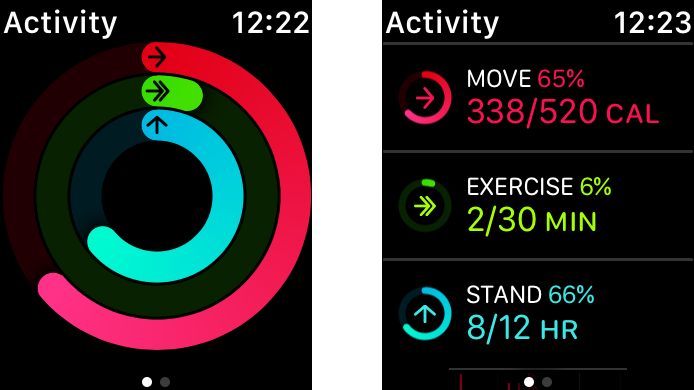
Before changing your goals, know what each ring tracks. The three rings work together to promote balanced daily movement—calorie burn, sustained effort, and reduced sitting.
Move Ring: Track Active Calories Burned
The Move ring fills as you burn active calories—the energy used during physical activity beyond your body’s resting needs. Unlike total calories, active calories exclude your basal metabolic rate (BMR), so only movement counts. Your goal appears in kilocalories (kcal), and closing the ring means you’ve hit or exceeded that number.
Example: A 30-minute brisk walk may burn 200 active calories. If your Move goal is 600 kcal, that walk covers one-third of your target.
All-day movement and recorded workouts contribute to this ring, making it the most flexible—and often the most challenging—of the three.
Exercise Ring: Log Minutes of Brisk Movement
The Exercise ring tracks minutes of activity at or above the intensity of a brisk walk (roughly 3.5–4 mph). You don’t need to exercise continuously—three 10-minute walks equal 30 minutes. Any workout in the Workout app (like running, cycling, or elliptical) counts automatically.
Tip: Even gardening, playing with kids, or mopping the floor can contribute if your heart rate rises enough.
This ring encourages daily effort and helps reduce sedentary-related health risks like heart disease and type 2 diabetes.
Stand Ring: Break Up Prolonged Sitting
The Stand ring rewards you for standing and moving slightly during at least 12 different hours each day. Each hour counts only once, so standing at 2:05 and 2:45 still counts as one hour. If you’ve been sitting too long, your Apple Watch will nudge you with a Stand Reminder.
For wheelchair users: The Stand ring becomes the Roll ring, which tracks rolling activity across 12 hours using push detection.
This ring combats the dangers of prolonged sitting, which research links to poor circulation, higher blood sugar, and increased mortality risk.
Change Activity Goals Using iPhone (Full Control)
The Fitness app on iPhone gives you the most powerful tools for managing your goals—including scheduling different targets by day.
Adjust Today’s Goal Temporarily
Need a lighter day? Lower your goal just for today without affecting your usual target.
- Open the Fitness app on iPhone.
- Tap Activity Rings at the top.
- Scroll down and tap Change Goals.
- Select Adjust Goal for Today.
- Use + or – to modify Move, Exercise, or Stand.
- Tap Change [Activity] Goal to confirm.
Best use case: Travel day with no gym access? Lower your Exercise goal to 15 minutes and focus on walking.
Set a Permanent Daily Goal
If you’ve built more fitness and want a higher challenge, update your default target.
- In the Fitness app, go to Activity Rings > Change Goals.
- Tap Change Daily Goal.
- Adjust Move, Exercise, or Stand.
- Tap Change [Activity] Goal to save.
This new goal applies every day unless you set a schedule.
Schedule Weekly Goals by Day
Your routine likely changes from day to day—and your goals should too.
- Tap Change Daily Goal.
- Tap the Schedule button (top-right).
- Choose a day (e.g., Sunday).
- Adjust goals for that day.
- Repeat for other days.
- Tap Set [Activity] Goal Schedule.
Example schedule:
– Monday–Friday: 700 kcal Move, 30 min Exercise (work week)
– Saturday: 400 kcal Move, 60 min Exercise (long workout)
– Sunday: 300 kcal Move, 20 min Exercise (recovery)Pro tip: Every Monday, Apple analyzes your past week and may suggest a new Move goal based on your consistency—check your Weekly Summary.
Set Goals Directly on Apple Watch (watchOS 11+)
Don’t have your iPhone nearby? You can still tweak goals—though the process is more limited.
Access Goal Settings on Watch
- Open the Activity app.
- Tap the Summary icon (three lines in the top-left).
- Scroll to the bottom.
- Tap Change Goals or Pause Rings.
Customize Goals on the Watch
- Tap Change Goals.
- Tap the Calendar icon to enable scheduling.
- Choose which goal to adjust:
– Move Goal
– Exercise Goal
– Stand Goal - Tap Schedule, pick a day, and adjust the value.
- Tap Set, repeat for other days.
- Tap Set Schedule to finish.
Limitation: The small screen makes this process tedious. Use iPhone for full control and complex changes.
Recommended Move Goals by Lifestyle

No single Move goal fits everyone. Your ideal target depends on your job, fitness level, and goals.
| Lifestyle | Move Goal (kcal) |
|---|---|
| Sedentary (desk job, little movement) | 300–500 |
| Lightly Active (daily walks, light workouts) | 500–700 |
| Moderately Active (on feet often, gym 3–5x/week) | 700–1,000 |
| Highly Active (manual labor, intense training) | 1,000+ |
How to Find Your Ideal Move Goal
Start with Apple’s suggested goal—it’s based on your early activity and usually falls between 400–600 kcal. If you’re closing it easily for 3–4 days, increase by 50–100 kcal.
If you’re losing weight, your body burns fewer calories doing the same activity. To keep closing the ring, increase intensity or duration—not just the goal number.
For weight loss, aim to burn 500–1,000 active calories daily through movement, combined with a healthy diet, to lose 1–2 pounds per week.
Pro tip: Use the Trends tab in the Fitness app to see your average weekly Move and adjust goals based on real data.
Pause Activity Rings When Life Interrupts
Illness, injury, or vacation? You can pause your rings to protect your streaks.
Pause on iPhone
- Open Fitness app > Activity Rings > Pause Rings.
- Choose duration:
– Today
– Until next week
– Until next month
– Custom (up to 90 days) - Tap Set.
Resume early by tapping Resume Rings or Edit Pause.
Pause on Apple Watch
- In Activity app, go to Summary > Pause Rings.
- Select duration and tap Set.
Note: Maximum pause is 90 days. After that, rings resume automatically.
Benefit: Your award streaks (like 30-day challenges) are preserved.
How to Close Each Ring
Close the Move Ring
- Track workouts in the Workout app for accurate calorie logging.
- Move in small bursts: walking calls, kitchen dances, or stair climbing.
- Sync third-party apps like Strava, Nike Run Club, or Peloton—they count if linked to Apple Health.
Hit Your Exercise Goal
- Brisk walking counts—even around the house.
- Break workouts into short sessions: three 10-minute walks = 30 minutes.
- Select correct workout type (e.g., “Outdoor Walk”) for accurate tracking.
Complete the Stand Ring
- Enable Stand Reminders in Apple Watch app > Notifications.
- Move for 1 minute each hour—stretching, pacing, or walking to the kitchen.
- Use a standing desk to make stand hours easier.
Health impact: Closing all three rings daily lowers risk of heart disease, diabetes, and poor mental health.
Use Built-In Motivation Tools
Earn Digital Awards
Collect trophies for milestones:
– First 7-day streak
– 365-day challenge
– Seasonal events (Earth Day, Heart Month)
View them in your Trophy Case in the Fitness app.
Share Activity with Friends
- Open Activity app on iPhone > Sharing.
- Invite contacts.
- Send encouragement or celebrate wins.
Psychology hack: Social accountability increases consistency by up to 65%.
Join 7-Day Competitions
Challenge a friend:
– Points based on % of rings closed.
– Real-time updates: “You’re 12 minutes behind!”
– Coaching tips appear when you’re close to winning.
Pro tip: Compete with someone slightly ahead of you for motivation.
Get Personalized Coaching
Apple Watch nudges you at day’s end if you’re close to closing a ring. Weekly summaries include:
– Performance review
– Streaks maintained
– Suggested goal changes
It’s like having a personal trainer on your wrist.
Accessibility for Wheelchair Users
Apple designed Activity for all users.
Roll Ring Replaces Stand
- Tracks rolling activity across 12 hours.
- Uses push detection for accuracy.
Wheelchair-Specific Workouts
Two options in the Workout app:
– Wheelchair Walk Pace
– Wheelchair Run Pace
Setup: Enable in Fitness app > Sharing > Your Profile > Update Goals > Wheelchair.
Final Tips for Success
- Use iPhone for full control: Schedule, pause, and analyze better on a larger screen.
- Customize weekly: Match goals to your real routine.
- Pause when needed: Up to 90 days off won’t break your streak.
- Leverage competition: Friendly challenges boost motivation.
- Review Trends: Let data guide your goal adjustments.
Your Apple Watch Activity rings are meant to grow with you. Whether you’re starting from 300 kcal or pushing past 1,000, the goal is progress—not perfection.
Now open your Fitness app, set a goal that fits your life, and start closing rings—one meaningful move at a time.




