

You’re packing for a flight, heading into a silent meeting, or preparing your Apple Watch Series 9 for storage—knowing how to turn off Apple Watch 9 is a small but crucial skill. While the device is designed to stay on almost all the time, there are legitimate reasons to power it down: troubleshooting glitches, complying with airline rules, or securing your data before repairs. Fortunately, turning off your Apple Watch Series 9 is fast and simple—once you know the right steps.
Unlike older gadgets that require daily shutdowns, the Apple Watch runs continuously, syncing data and tracking health metrics around the clock. But when you do need to shut it down, you’ll want reliable methods that work every time—even if the screen freezes or the buttons don’t respond. This guide covers all proven ways to power off your Apple Watch 9, including software alternatives, force restarts, and common pitfalls to avoid. You’ll also learn why your watch might seem to turn back on after shutdown and what to do instead if you just want silence and darkness.
Turn Off Apple Watch 9 Using the Side Button
The quickest and most common way to power down your Apple Watch 9 is using the physical side button.
Press and Hold the Side Button
- Locate the side button on the right edge of the watch, just below the Digital Crown.
- Press and hold it for 3 to 5 seconds.
- The Power Off slider will appear on-screen with a red power icon.
⚠️ Important: If your Apple Watch is plugged in and charging, this method won’t work. You must unplug it first before attempting to power down.
Slide to Power Off
- Tap the Power Off button (red circle with power symbol).
- Drag the slider from left to right across the screen.
- The display will fade to black—your Apple Watch is now completely off.
This entire process takes less than 10 seconds and is the go-to method for most users. Once powered off, the watch will not respond to taps, raises, or haptics until manually turned back on.
Shut Down Apple Watch 9 via Settings App
If the side button is sticky, damaged, or unresponsive, you can power down your watch entirely through software.
Access the Settings Menu
- Tap the Settings app (gear icon) on your watch face.
- Scroll down and select General.
- Tap Shut Down.
Confirm the Shutdown
- A prompt will appear asking you to confirm. Tap Shut Down again.
- The Power Off slider appears—drag it to the right.
- Your Apple Watch powers down immediately.
This method is ideal when:
– The side button isn’t working.
– You’re guiding someone remotely.
– You prefer touch-based controls over physical buttons.
No iPhone or external tools are needed—just a functional touchscreen and a few taps.
Force Restart Apple Watch 9 When It’s Frozen
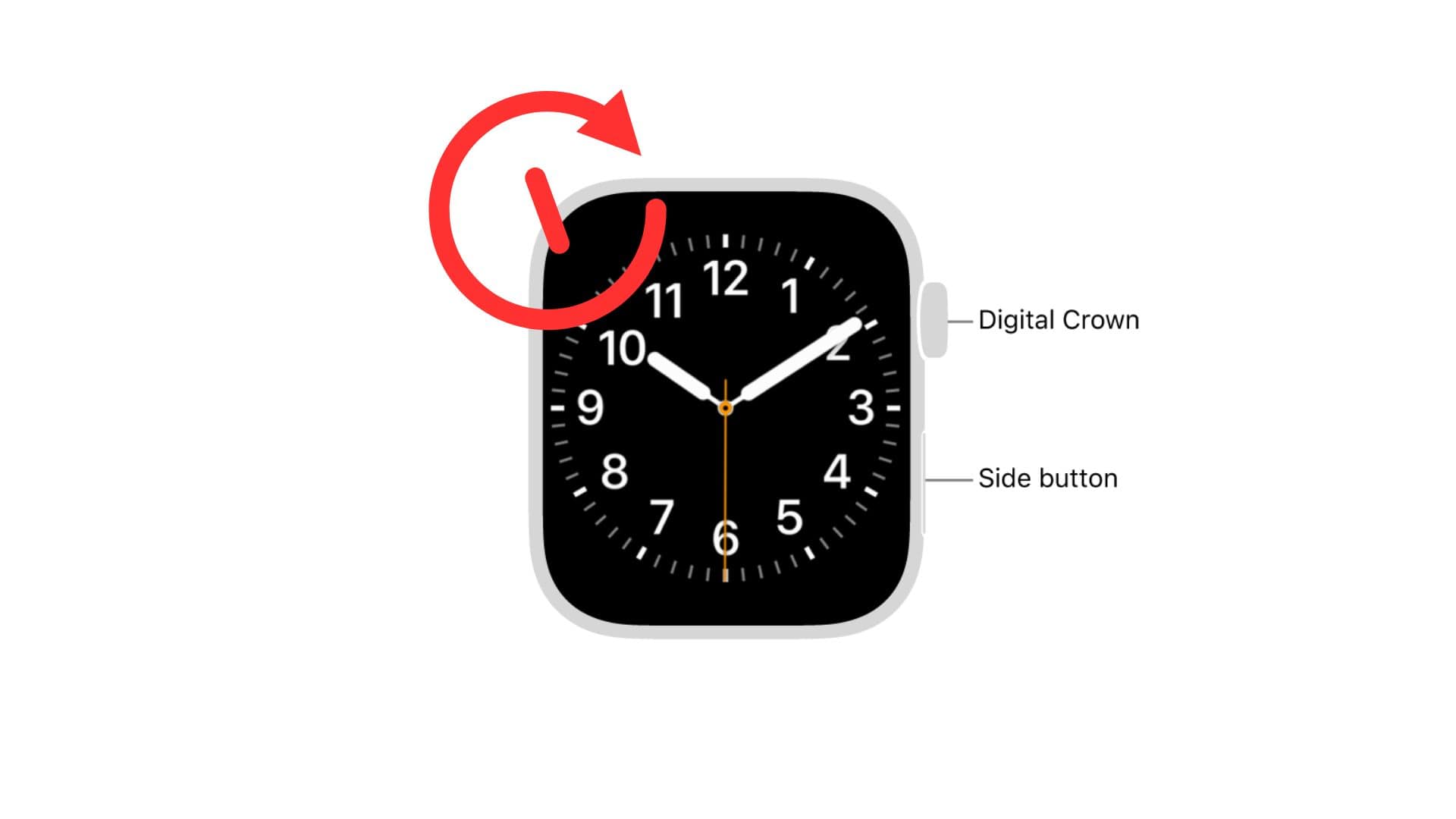
If your Apple Watch 9 is completely unresponsive—screen frozen, no taps registered, or stuck on a black screen—a force restart can bring it back to life.
Press Both Buttons Simultaneously
- Press and hold the side button and the Digital Crown at the same time.
- Keep holding for at least 10 seconds.
- Release when the white Apple logo appears in the center of the screen.
What Happens After a Force Restart
- The watch reboots, not shuts down.
- All apps, settings, and health data remain intact.
- After the restart, you can attempt a normal shutdown if needed.
🔁 Note: A force restart is not the same as turning off. It’s a recovery tool, like rebooting a frozen computer.
Use this method only when:
– The screen is frozen.
– Apps crash repeatedly.
– The watch won’t respond to any input.
Avoid holding the buttons longer than 15 seconds—this won’t speed up the process and could cause unnecessary wear.
Turn On Apple Watch 9 After Powering Off
Once your Apple Watch 9 is off, turning it back on is straightforward.
Power On Using the Side Button
- Press and hold the side button.
- Keep holding until the Apple logo appears (usually within 3–5 seconds).
- Wait a few more seconds for the full boot-up sequence.
Your watch will resume exactly as before—no re-pairing, password reset, or data loss.
💡 Troubleshooting Tip: If it doesn’t turn on:
– Charge it for 10+ minutes using the magnetic charger.
– Try a force restart instead.
– Check that your charger and cable are working properly.
Unlike iPhones, Apple Watches don’t have a low-battery hibernation mode—they simply shut down when drained. A quick charge brings them back instantly.
Why Your Apple Watch Might Seem to Turn Back On

Some users report their Apple Watch appears to “wake up” minutes after being powered off. This is usually not a restart, but a false signal detection.
Bluetooth Signal After Shutdown
- Even when powered off, some Apple Watch models emit low-power Bluetooth signals.
- Your iPhone may detect this and prompt: “Your Apple Watch is nearby.”
- Tapping this starts a re-pairing process—even though the watch screen is black.
How to Prevent False Reconnections
- Turn off Bluetooth on your iPhone before powering down the watch.
- Store the watch in a Faraday bag or signal-blocking pouch.
- Keep it away from your iPhone during storage or travel.
📌 While rare on Series 9, this behavior was more common in older models after factory resets.
Use Theater Mode Instead of Powering Off
Most people who want to “turn off” their Apple Watch actually just want it to stay quiet and dark—without losing connectivity or health tracking.
Enable Theater Mode
- Swipe up from the watch face to open Control Center.
- Tap the Theater Mode icon (two theater masks).
Or from your iPhone:
– Open the Watch app > My Watch > General > Accessibility > Theater Mode.
What Theater Mode Does
| Feature | Status |
|---|---|
| Screen wakes on raise | ❌ Disabled |
| Sound and alerts | ❌ Muted |
| Haptic taps | ✅ On (unless silenced) |
| Fitness tracking | ✅ Active |
| Connectivity | ✅ Maintained |
Perfect for:
– Meetings, movies, bedtime.
– When you still want to track sleep or workouts.
– Avoiding accidental screen wake-ups.
🔄 Disable Theater Mode by tapping the mask icon in Control Center again.
Disable Always On Display for a Fully Black Screen
Even when idle, the Apple Watch 9 screen dims but stays slightly visible—unless you disable this feature.
Turn Off Always On
- Go to Settings > Display & Brightness > Always On.
- Toggle Always On to Off.
Now:
– The screen turns completely black when idle.
– Looks like it’s off—even though it’s running.
– Saves a small amount of battery.
Combine with Theater Mode for maximum discretion.
⌚ Pro Tip: Enable Wake on Crown Up to prevent accidental raises.
Is It Necessary to Turn Off Apple Watch 9?
No. The Apple Watch Series 9 is engineered for 24/7 operation.
Designed to Stay On
- Millions of users never power it off.
- Reboots happen only during software updates.
- Battery and system are optimized for constant use.
When You Should Power It Off
| Scenario | Reason |
|---|---|
| Troubleshooting | Fixes app crashes or unresponsiveness |
| Air Travel | Some airlines require electronic devices to be off |
| Security Screening | TSA may ask you to power it down |
| Long-Term Storage | Protects battery health |
| Repair or Trade-In | Ensures privacy and safety |
🔋 For daily use: Charge nightly, leave it on.
Best Practices for Power Management
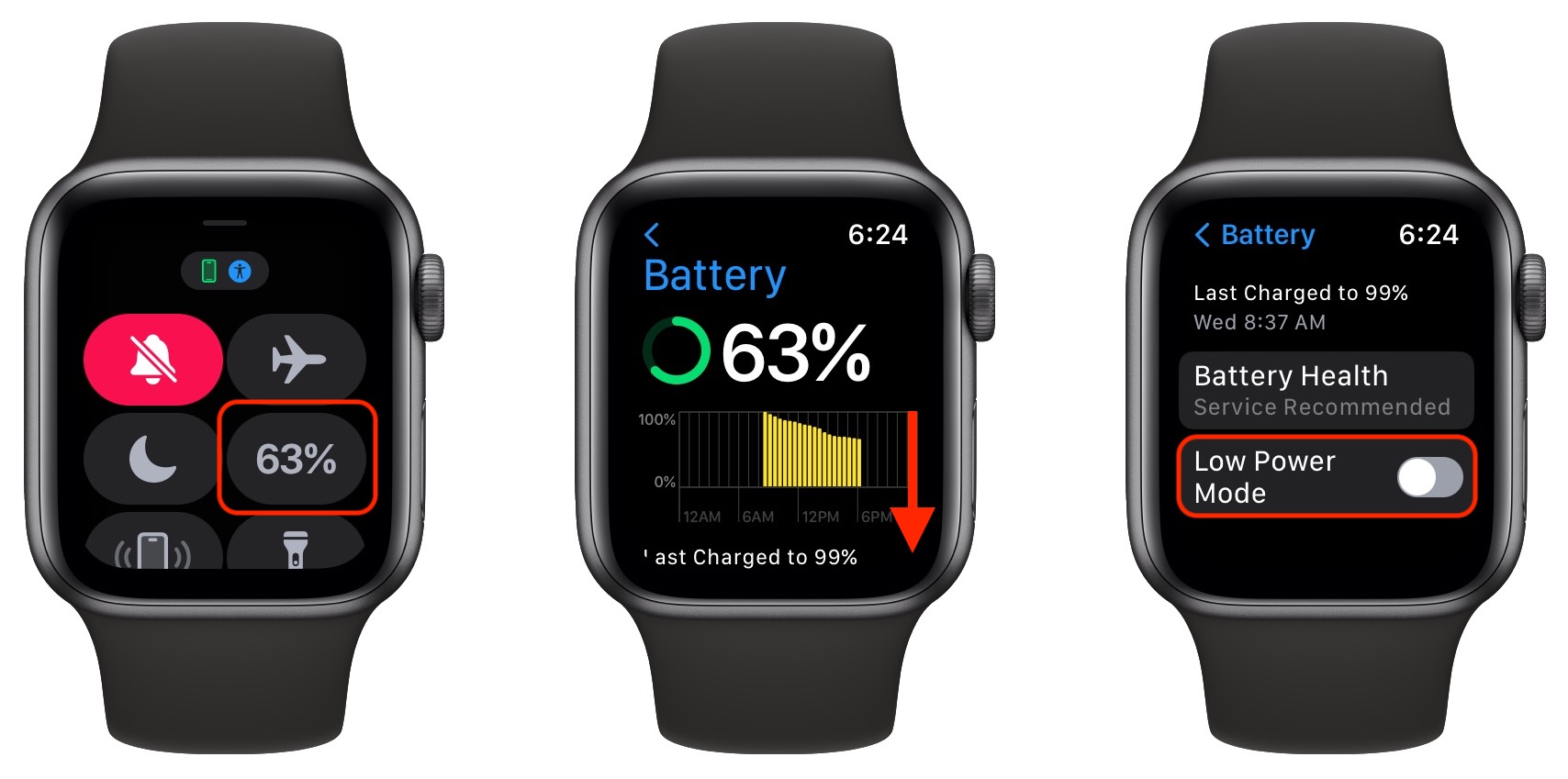
For Daily Use
- Leave the watch on—no need to shut down.
- Use Theater Mode when silence is needed.
- Disable Always On for a darker screen.
For Travel
- Enable Airplane Mode instead of full shutdown.
- Turn off Wi-Fi and Cellular to save battery.
- Combine Theater Mode + Silent Mode for discretion.
For Storage (1+ Months)
- Charge to 50–80%.
- Go to Settings > General > Shut Down.
- Store in a cool, dry place.
- Recharge every 3 months to prevent deep discharge.
❌ Never store fully charged or fully drained.
Final Tips and Warnings
⚠️ Never disassemble or damage your Apple Watch to disable it. This voids the warranty and can be dangerous.
Do This Instead
- Use Theater Mode for quiet, dark operation.
- Force restart if frozen—never hold buttons longer than 15 seconds.
- Back up before reset: In the Watch app on iPhone, go to My Watch > General > Reset > Erase All Content and Settings.
Long-Term Care
- Keep watchOS updated.
- Avoid extreme temperatures.
- Charge regularly—even when not in use.
Your Apple Watch Series 9 is built to last. Knowing how to turn off Apple Watch 9—and when not to—is part of using it wisely, safely, and efficiently.
Now you’re ready. Whether you’re troubleshooting, traveling, or just want peace and quiet, you can confidently control your Apple Watch 9’s power state—quickly, safely, and without guesswork.





