
You’ve just factory reset your Apple Watch, and now it’s frozen on the “Move close to iPhone to set up” screen. You’re trying to power it off—maybe you’re selling it, shipping it, or storing it—but nothing seems to work. Holding the side button brings up the SOS screen or does nothing at all. No power-off slider appears, and the usual shutdown process feels broken. This is a common frustration, especially after a reset when the watch enters setup mode with limited controls.
The good news: you can turn off your Apple Watch after a factory reset, but the standard method often fails due to the watch’s restricted interface during setup. Apple doesn’t require the device to be powered down before transfer, but for peace of mind and battery conservation, many users prefer to shut it off completely. The key? A force restart usually unlocks the ability to power down.
This guide walks you through proven, step-by-step methods to turn off your Apple Watch after a reset—even when it seems unresponsive. You’ll learn how to use a force restart to restore functionality, why unpairing via iPhone gives you the best results, and what to do if the power-off slider still won’t appear. Whether you’re clearing data before a sale or troubleshooting a glitchy reset, these strategies will help you regain control.
Unpair Your Apple Watch First for Full Control
If you still have access to your iPhone, unpairing through the Apple Watch app is the best first step—not just for erasing data, but for ensuring full post-reset functionality.
Why Unpairing Makes a Difference
Unpairing isn’t just a reset—it’s a full system cleanup. It removes Activation Lock, severs the Bluetooth pairing, and ensures your Apple Watch enters a true factory state. Without this step, your watch remains tied to your Apple ID, which can block certain system functions, including the ability to power off smoothly.
How to Unpair the Right Way
- Keep your Apple Watch and iPhone close together.
- Open the Apple Watch app on your iPhone.
- Tap the My Watch tab, then go to All Watches.
- Tap the info button (i) next to your watch.
- Select Unpair Apple Watch.
- Confirm with your Apple ID password.
- Wait for the process to finish—this can take several minutes.
After unpairing, your Apple Watch will reboot and show the setup screen. At this point, it’s fully reset and ready for sale or reuse. Now you can attempt to power it off—or perform a force restart first to ensure the controls work.
Force Restart to Restore Power-Off Functionality
If your Apple Watch won’t respond to the side button after a reset, a force restart is often the fix you need. Many users report that the power-off slider only appears after this step.
How to Force Restart Your Apple Watch
- Press and hold both the side button and the Digital Crown at the same time.
- Keep holding for at least 10 seconds.
- Release when you see the Apple logo appear.
This forces the watch to reboot its operating system and UI, clearing any glitches from the reset process.
Why a Force Restart Works
In setup mode, Apple intentionally limits certain system functions—like shutting down—to prevent accidental power-offs during initial pairing. But sometimes, this mode also freezes or hides the power-off slider. A force restart resets the interface state, allowing the side button to function normally again. Once the Apple logo appears, try the standard shutdown method.
Use the Standard Power-Off Method After Restart
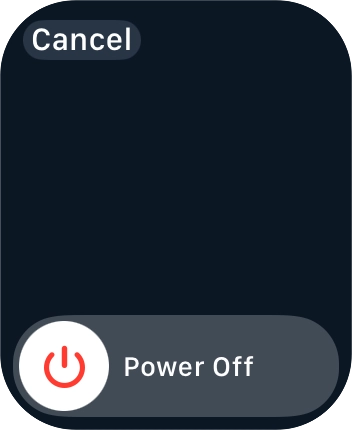
After a force restart, your Apple Watch should now respond to normal commands. Here’s how to shut it down properly.
Step-by-Step: Turn Off Apple Watch After Reset
- Remove the watch from the charger—charging disables the power-off function.
- Press and hold the side button (on the right edge).
- Wait for the SOS Emergency Call slider to appear.
- At the top of the screen, tap the on/off icon (a circle with a line).
- Drag the power-off slider to the right.
If the on/off icon doesn’t appear, repeat the force restart. System lag after a reset can delay UI elements.
Pro Tip: Check Battery Level First
Ensure your Apple Watch has at least 10–20% battery. A nearly dead battery can cause the device to behave unpredictably—shutting down unexpectedly or failing to respond to shutdown commands.
Troubleshoot When Power-Off Still Fails
Even after a force restart, some Apple Watches remain stubborn. Try these fixes in order.
Nothing Happens When You Press the Side Button?
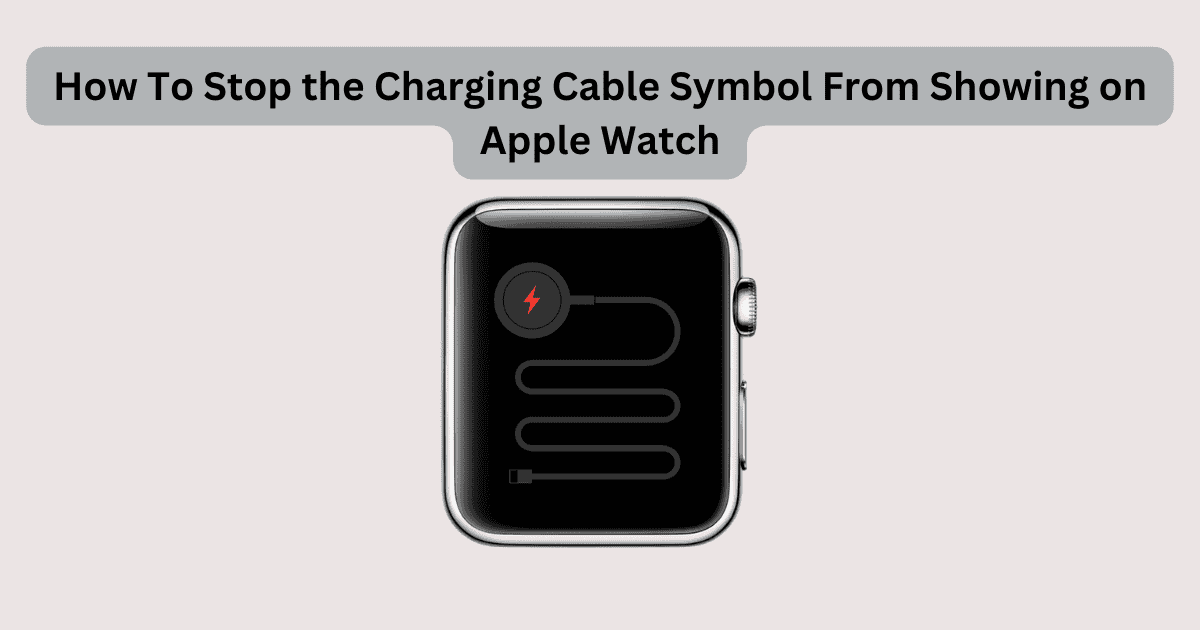
1. Remove from Charger
- The Apple Watch blocks the power-off option while charging.
- Unplug the magnetic charger and wait 10 seconds before trying again.
2. Wait for System Stability
- After a reset, the watch may take 2–3 minutes to stabilize.
- Let the “Move close to iPhone” screen fully load before attempting to power off.
3. Repeat the Force Restart
- One reboot might not be enough.
- Perform a second force restart if the first doesn’t restore responsiveness.
4. Inspect for Physical Issues
- Check the side button and Digital Crown for dirt, lint, or damage.
- Gently clean around them with a soft, dry cloth—never use metal tools.
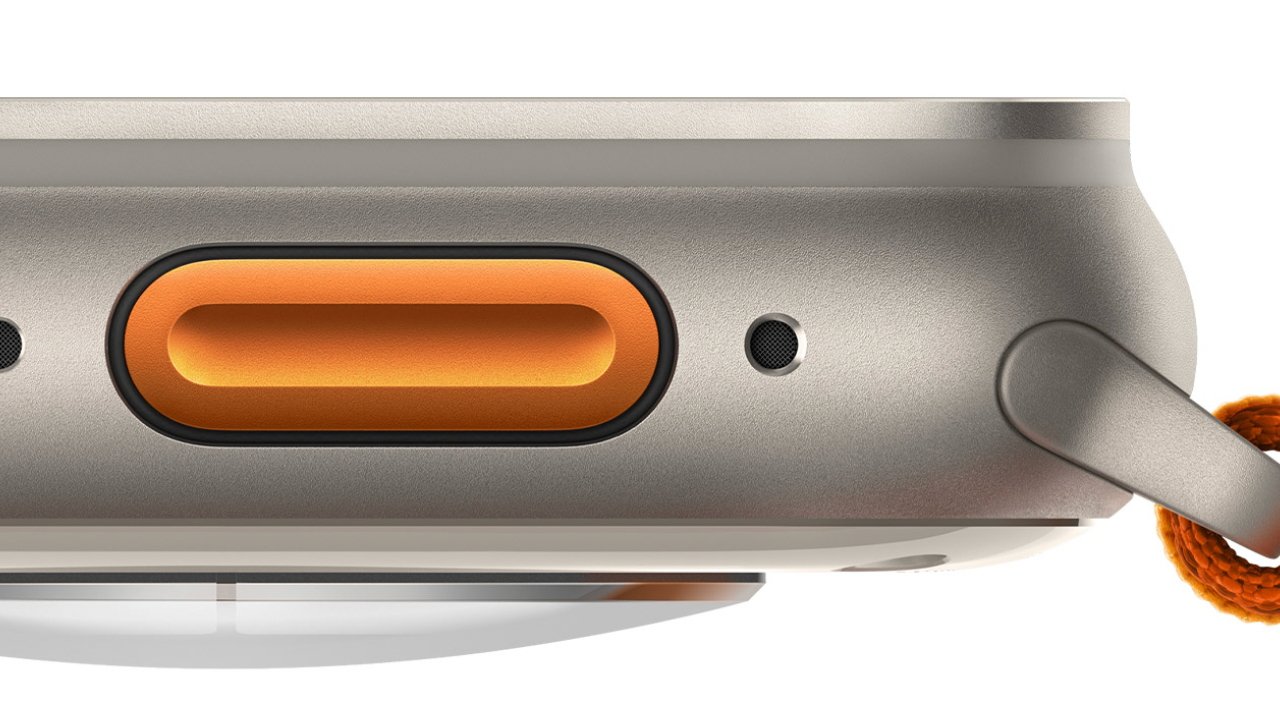
Warning: The small holes on the case are speaker ports or depth sensors (on Ultra models). Inserting objects can damage waterproofing or audio components.
Erasing Without iPhone: Limitations and Risks
If you don’t have your iPhone, you can still erase the Apple Watch—but this method has serious drawbacks.
How to Erase Directly on the Watch
- Open Settings on the Apple Watch.
- Go to General > Reset.
- Tap Erase All Content and Settings.
- Enter your passcode if prompted.
- Choose whether to keep or remove the cellular plan.
- Tap Erase All.
This wipes your data but does not remove Activation Lock. The original Apple ID and password will be required during setup.
Why This Can Block Power-Off
- Watches erased this way often remain in a restricted state.
- The UI may not load the power-off slider, even after a force restart.
- Unpairing via iPhone is still the only way to fully deauthorize the device.
Is It Safe to Ship in Setup Mode?
Yes—you do not need to power off your Apple Watch to sell or give it away.
Apple’s Official Stance
- Apple allows transfers in setup mode.
- The new owner pairs it with their iPhone and enters your Apple ID (if Activation Lock is active) to complete setup.
Best Practices for Shipping
- Unpair via iPhone (if possible) to remove Activation Lock.
- Remove from the charger before packaging.
- Do not leave powered on in a sealed box—if you can’t turn it off, let it sit in a ventilated area until ready to ship.
- Include a setup note for the recipient: “Powered on and in setup mode. Pair with iPhone to continue.”
Note: A powered-on watch won’t overheat dangerously, but turning it off reduces battery drain during transit.
Common Mistakes That Block Power-Off
Avoid these user-reported pitfalls:
❌ Skipping Unpairing via iPhone
- Leaves Activation Lock active.
- Limits resale value and post-reset control.
❌ Trying to Power Off While Charging
- The power-off option is disabled during charging.
- Always unplug first.
❌ Assuming the Watch Is Broken
- Many users think their watch is faulty when it’s just in setup mode.
- A force restart usually restores full functionality.
❌ Poking Holes in the Case
- The tiny openings are not reset buttons.
- Poking them can damage speakers or waterproof seals.
Model-Specific Considerations
All Apple Watch models follow the same core procedures, but there are nuances:
Apple Watch Ultra
- Has an Action Button, but it doesn’t affect power-off functions.
- Use side button + Digital Crown for force restart.
Cellular Models
- If you erase without removing the plan, the subscription may continue.
- Always select Remove Plan when selling.
Older Models (watchOS 6 and Below)
- May respond slower after reset.
- Force restart is even more critical.
Final Checklist: Can You Turn Off Your Apple Watch After Reset?
✅ Unpaired from iPhone (recommended)
✅ Performed force restart (side button + Digital Crown, 10+ seconds)
✅ Removed from charger
✅ Waited for setup screen to stabilize
✅ Tried power-off slider after SOS screen
✅ Repeated force restart if needed
If all else fails, shipping in setup mode is perfectly safe. The new user can set it up immediately.
Bottom Line: Turning off your Apple Watch after a factory reset is possible, but often requires a force restart first to restore button functionality. Unpairing via iPhone gives you the cleanest reset and highest chance of success. If the power-off slider still won’t appear, don’t worry—your watch is working as designed. Setup mode is meant to persist until paired, and powering off is optional, not required. With these steps, you’ll have full control over your device’s post-reset state.





