
You’re prepping for a flight, troubleshooting a frozen screen, or simply want to conserve battery during a long hike—knowing how to turn off Apple Watch Ultra is a simple but essential skill. Whether you own the original Apple Watch Ultra or the newer Ultra 2, the shutdown process is identical, intuitive, and designed to prevent accidental power-offs. In just seconds, you can fully power down your device with a deliberate press-and-swipe sequence. This guide walks you through every step, explains how to turn it back on, and helps you fix common issues if your watch doesn’t respond as expected. No guesswork, no confusion—just clear, actionable instructions.
The Apple Watch Ultra is built for adventure, from deep-sea dives to mountain treks, and its power controls reflect that rugged purpose. Apple intentionally made the shutdown process require two distinct actions—pressing and holding the Side button, then swiping a red power icon—to ensure your watch doesn’t turn off mid-workout, during navigation, or in extreme conditions. This article breaks down each step in detail, so you’re never left guessing what to do when it matters most.
Power Down in 3 Simple Steps

Turning off your Apple Watch Ultra is a quick, intentional process designed to protect against accidental shutdowns—especially important when you’re relying on your watch in the wild.
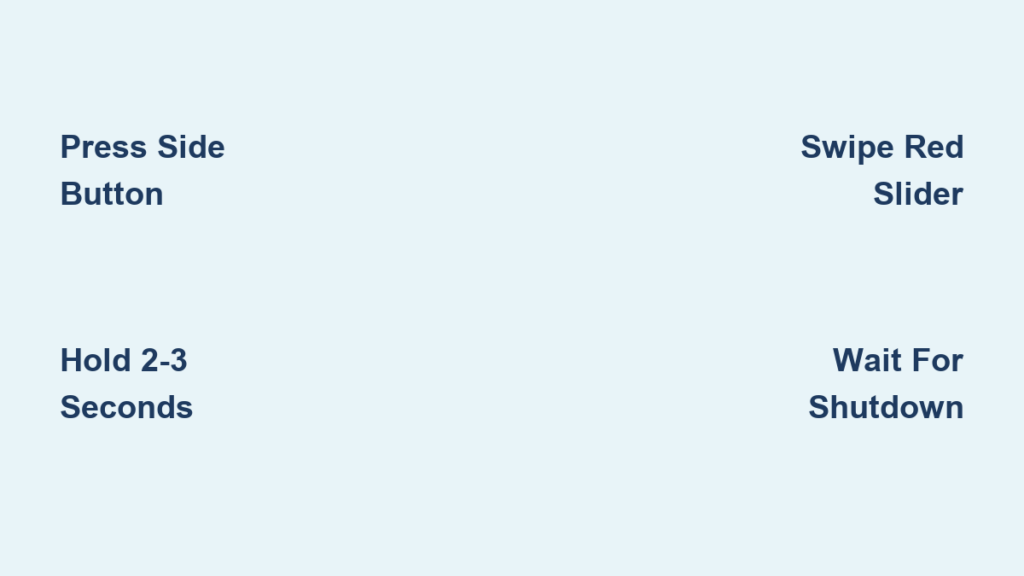
Press and Hold the Side Button
Start by pressing and holding the Side button, located just below the Digital Crown on the right edge of the watch. Hold it for about 2–3 seconds—don’t tap it quickly, as a short press may open the power menu, flashlight, or a workout instead. You need a firm, sustained press to trigger the shutdown screen.
When successful, the display changes to show a red Power Off slider with a power symbol (⚡) and a right-pointing arrow. This is your visual cue that the watch is ready to shut down. If you see something else—like music controls or your credit cards—release the button and try again with a longer, more deliberate hold.
Locate the Red Power Off Slider
Once the shutdown screen appears, look for the red circular Power icon on the left side of the screen. It’s bold, color-coded, and easy to spot even in bright sunlight—critical for outdoor users who rely on the Ultra’s durability and visibility. The red background and directional arrow make it clear you’re about to power down the device.
If the slider doesn’t appear, don’t panic. You might have pressed too briefly, or the system could be unresponsive. Try again with a longer press, or consider a force restart if the watch is frozen (covered later in troubleshooting).
Swipe Right to Power Off
Now, tap and drag the red Power icon to the right across the screen. A tap alone won’t work—Apple requires a full swipe to confirm your intent. As you drag, the icon moves with your finger, and once it reaches the far right, the screen dims and shuts off completely within seconds.
You’ll see no lights, vibrations, or sounds once powered down. This dual-step process—press + swipe—ensures your Apple Watch Ultra won’t shut off if it’s jostled in your backpack or bumped during a dive. It’s a small design detail that makes a big difference in reliability.
Turn On Your Apple Watch Ultra After Shutdown
Powering your watch back on is just as straightforward—but only if it has enough charge.
Press and Hold to Restart
To turn the Apple Watch Ultra back on, press and hold the Side button again. Keep holding for 3–5 seconds, and you’ll see the Apple logo appear on a black screen. That’s your confirmation the device is booting up.
Unlike the shutdown process, there’s no extra step—just hold the button until the logo shows. If nothing happens, don’t assume the watch is broken. It may simply be out of battery.
Charge Before Restarting If Needed
If the screen stays black even after holding the button, place your Apple Watch Ultra on its Magnetic Charging Cable. Connect it to a working USB port or power adapter and let it charge for at least 15 minutes before trying again.
Even if the battery was recently used, a complete shutdown can drain residual power, especially after days in storage. While charging, look for a green lightning bolt or battery icon on the screen—this confirms the watch is receiving power. If you see nothing, check the charger connection and clean the back of the watch and charger to remove dust or moisture.
Fix Common Power Issues
Sometimes things go wrong. Here’s how to handle the most frequent problems when turning your Apple Watch Ultra off or on.
Watch Won’t Respond to Button Press
If pressing the Side button does nothing, your watch might be frozen. Perform a force restart:
- Press and hold both the Side button and the orange Action button at the same time.
- Keep holding for at least 10 seconds, even after the Apple logo appears.
- Release when the logo stays on screen, then wait for the watch to reboot.
This resets the system and clears temporary glitches. After restarting, try the normal shutdown process again.
Power Slider Doesn’t Appear After Holding Button
If the red Power Off slider fails to show, possible causes include:
- A software hiccup
- Theater Mode or Do Not Disturb being active
- Too many apps running in the background
First, try a force restart (as above). Once the watch reboots, attempt the shutdown again. If the issue continues, open the Apple Watch app on your iPhone and check for watchOS updates—outdated software can cause interface bugs.
Can’t Turn On After Shutdown
If your Apple Watch Ultra won’t power back on:
- Use the official Apple charger—third-party cables may not deliver consistent power.
- Clean the charging surfaces—wipe the back of the watch and the magnetic charger with a dry, lint-free cloth.
- Ensure full contact—the charger must align perfectly with the back of the watch.
- Test a different power source—try a wall adapter instead of a computer USB port.
Let it charge for 15–30 minutes before pressing the Side button. If still unresponsive, contact Apple Support—hardware failure is rare but possible.
Why Apple Designed This Shutdown Process
Apple didn’t make the power-off process multi-step by accident. Every detail serves a purpose, especially on a rugged device like the Ultra.
Prevents Accidental Shutdowns in Critical Moments
Imagine you’re tracking a solo hike in Yosemite or timing a deep dive—the last thing you need is your watch turning off because the button got pressed. By requiring a long press plus a swipe, Apple ensures only intentional actions shut down the device. This safeguard is crucial for safety, navigation, and emergency functions.
Provides Clear Visual and Tactile Feedback
The red Power icon is designed for instant recognition. Its high contrast makes it visible in direct sunlight, and the directional arrow guides users to swipe right—reducing confusion, especially under stress or in low-dexterity situations (like wearing gloves).
No Passcode Required—But Security Remains
You don’t need to enter a passcode to turn off your Apple Watch Ultra, which is useful in emergencies or when handing it to someone else. However, when you power it back on, it will require your passcode (if set), protecting your health data, messages, and Apple Pay information.
Model Consistency: Ultra vs Ultra 2

Good news: the shutdown process is exactly the same on both the Apple Watch Ultra and Ultra 2. No changes in button layout, timing, or interface. Whether you own the first or second generation, the steps are identical. This consistency makes it easy to switch between models or help someone else power down their device.
Apple maintains this uniformity across its wearable line to reduce user confusion and ensure reliable support—whether you’re a seasoned adventurer or a first-time user.
Quick Reference: Shutdown Checklist
Need a fast guide? Here’s what to do:
| Step | Action |
|---|---|
| 1 | Press & hold Side button for 2–3 seconds |
| 2 | Wait for red Power icon to appear |
| 3 | Drag icon to the right fully |
| 4 | Wait for screen to go black |
To turn on:
Hold Side button until Apple logo appears.
→ If no response, charge for 15+ minutes first.
Final Tips for Safe Power Management
- Avoid frequent shutdowns: Apple Watch is designed for continuous use. Only power down when necessary—like for troubleshooting, travel security, or repairs.
- Keep watchOS updated: Updates often fix bugs that could interfere with power functions.
- Clean your charger weekly: Dust and sweat can block charging efficiency.
- Use Apple-certified accessories: Cheap chargers may not deliver enough power to restart a fully drained watch.
Turning off your Apple Watch Ultra should be quick, reliable, and stress-free. With the right steps, you’re always in control—whether you’re resetting a frozen screen or conserving battery on a long journey. Now that you know the exact method, you can power down confidently, every time.




