
You glance at your wrist—no response. The Apple Watch screen stays pitch black. But when a message comes in, you feel the familiar tap. It vibrates for calls. It shows up in Find My. So why won’t the screen light up?
If your Apple Watch displays this frustrating behavior—fully functional but visually dead—you’re likely dealing with a backlight or display issue, not a completely failed device. This problem affects Apple Watch Series 5 through 7 and SE models most frequently, often after a software update, accidental setting change, or physical bump. The good news? In many cases, it’s fixable in minutes without opening the case or visiting a repair shop.
The root cause usually lies in software settings or temporary glitches, not hardware failure. Features like Screen Curtain, Theater Mode, or a misconfigured brightness level can disable the screen while keeping internal functions alive. Only when all troubleshooting fails should you consider hardware damage—like a disconnected display cable or faulty OLED panel.
This guide will walk you through every step to diagnose and fix an Apple Watch with a non-working backlight. From remote fixes using your iPhone to advanced resets and repair options, you’ll learn how to bring your watch face back to life—fast.
Check for Screen Curtain Activation
Disable Screen Curtain via iPhone
One of the most common reasons your Apple Watch screen stays dark—while still vibrating and receiving notifications—is Screen Curtain, an accessibility feature designed for VoiceOver users. When enabled, it turns off the display completely to save battery, but haptics, sounds, and background operations continue normally.
If you’ve recently used accessibility shortcuts, repaired the screen, or let someone else handle your watch, Screen Curtain may have been activated by accident.
To disable it:
1. Open the Apple Watch app on your iPhone.
2. Tap My Watch, then go to General > Accessibility.
3. Tap VoiceOver, and ensure Screen Curtain is toggled OFF.
4. Wait 10–15 seconds—your watch may wake up automatically.
Pro Tip: Even if you don’t use VoiceOver, check this setting. Some users report it turns on after software updates or screen repairs.
Many people have solved their “dead” screen issue in under a minute with this fix. If the screen lights up after disabling Screen Curtain, you’ve just saved yourself a trip to Apple Support.
Confirm VoiceOver Isn’t Enabled
Even if Screen Curtain is off, VoiceOver mode can prevent normal screen interaction. With VoiceOver active, the watch won’t respond to regular taps or raises—it waits for specific gestures.
To turn it off:
– In the Apple Watch app: My Watch > General > Accessibility > VoiceOver → Toggle off.
– Or, triple-click the side button on the watch to disable it quickly.
Once disabled, raise your wrist or press the Digital Crown. The display should respond normally.
Rule Out Theater Mode
Manually Disable Theater Mode
Theater Mode stops your Apple Watch from waking when you raise your wrist. It’s perfect for movies or meetings—but if left on by mistake, it can make your screen appear broken.
You’d normally see an orange mask icon in Control Center, but if the screen is black, you can’t confirm visually.
Disable it remotely:
– On your iPhone: Open the Apple Watch app → My Watch > General > Theater Mode → Toggle off.
– Or, swipe up from the bottom of the dark screen and tap where the mask icon would be.
Note: Theater Mode does not disable haptics or notifications—only the automatic wake. If your watch still buzzes for alerts, this could be the culprit.
Turning it off often restores normal screen behavior instantly.
Adjust Brightness Remotely
Increase Brightness Using iPhone
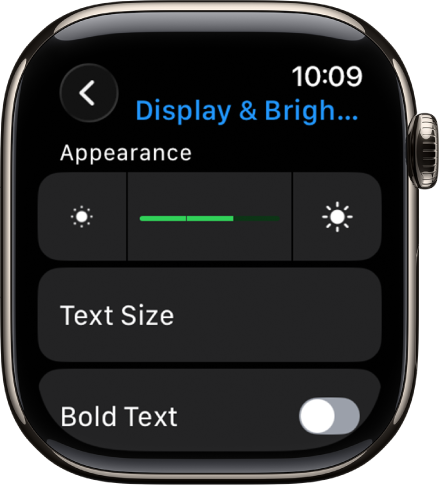
A dimmed screen can look completely black in bright light. If someone (or an app) accidentally turned brightness down to zero, your display might still work—but be invisible.
Fix it from your iPhone:
1. Open the Apple Watch app.
2. Go to My Watch > Display & Brightness.
3. Slide the Brightness bar all the way to the right.
4. Enable Auto-Brightness to prevent future issues.
Wait a few seconds, then raise your wrist. You should see the screen respond.
Enable Always On Display (Series 5+)
On Apple Watch Series 5 and later, Always On Display keeps the screen faintly visible when idle. If disabled, the watch turns pitch black—easily mistaken for a failure.
To re-enable:
– In Apple Watch app: My Watch > Display & Brightness > Always On → Toggle on.
– Then raise your wrist—you should see a dim clock face.
User Insight: Many Series 6 and 7 users report this setting gets disabled after updates, causing panic over a “dead” screen.
Force Restart the Apple Watch
Perform a Hard Reset
When settings don’t help, a force restart clears temporary software freezes that may be blocking the display.
Steps:
1. Press and hold both the Side Button and Digital Crown.
2. Hold for 15 to 30 seconds—do not release early.
3. Release when you see the Apple logo.
4. Let the watch reboot (1–2 minutes).
Critical: Many users fail because they let go too soon. Even if nothing happens, hold the buttons for the full duration.
This resolves issues caused by app crashes, failed updates, or stuck processes.
Charge While Restarting
Combine Charging with Reset
A weak battery can prevent the screen from powering on—even if internal functions run briefly.
Boost success by charging during the restart:
1. Place the watch on its magnetic charger.
2. Immediately press and hold Side Button + Digital Crown.
3. Hold for 30 seconds, keeping it on the charger.
4. Watch for the Apple logo or charging symbol.
Why this works: A deeply drained battery may not have enough power to complete a reboot. Charging ensures stability.
Use a wall adapter, not a laptop USB port, for best results. Wait 10 minutes if no response—sometimes a dead battery needs time to register charge.
Remotely Change the Watch Face
Trigger a Display Refresh
A corrupted or disabled watch face can prevent the screen from waking. Changing it remotely forces the display system to reload.
Steps:
1. Open Watch Faces in the Apple Watch app.
2. Choose a bright, simple face like Chronograph, Modular, or Infograph.
3. Tap Set.
Wait 10–20 seconds, then raise your wrist. The new face should activate.
Expert Note: Some watch faces have bugs or low contrast that make them appear off. Forcing a change bypasses this.
Update watchOS and iOS
Install Pending Software Updates
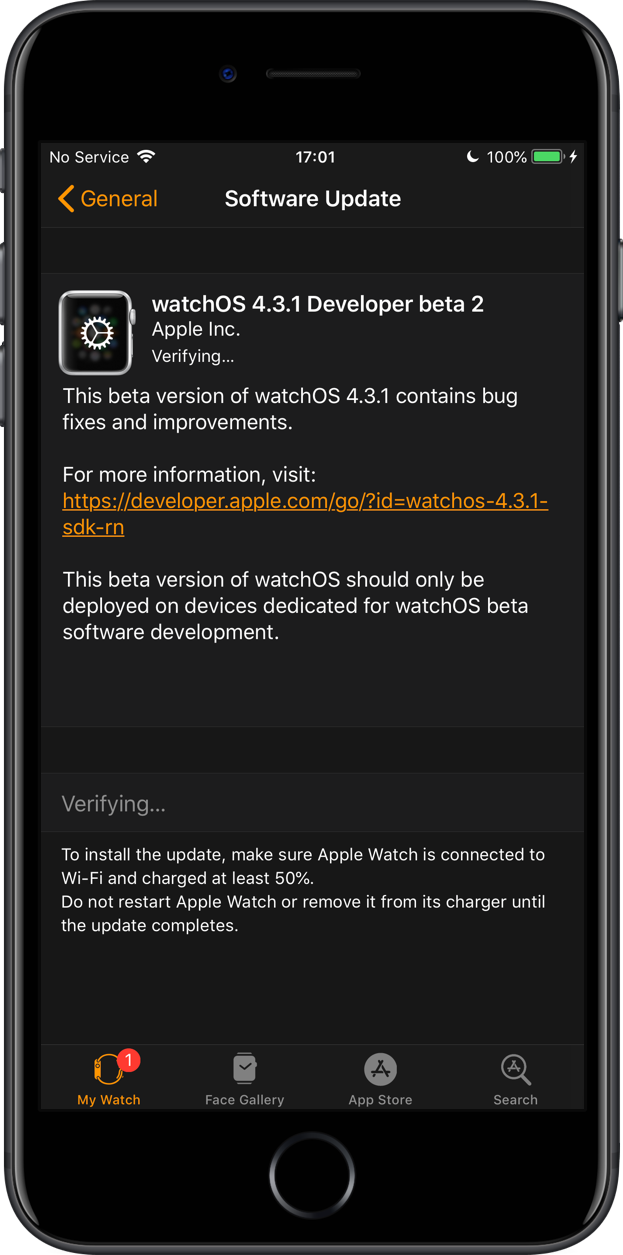
Outdated or mismatched software can cause display issues.
Update your Apple Watch:
– On iPhone: My Watch > General > Software Update → Install.
Also update your iPhone:
– Settings > General > Software Update → Install latest iOS.
Why both? The watch relies on the paired iPhone. Version mismatches can cause sync and display errors.
After updating, restart the watch again.
Test for Hardware Failure
Confirm Internal Functionality
If software steps fail, test whether the watch is alive:
– Use Find My to play a sound.
– Send a text—does it vibrate?
– Press the side button—do you feel a haptic slider?
– Try charging—do you hear the chime?
If any of these work, the display or backlight is the issue, not the entire device.
Diagnose Physical Damage
Inspect for:
– Cracks or discoloration
– Water exposure indicators (red dot under crystal)
– Loose glass or gaps around edges
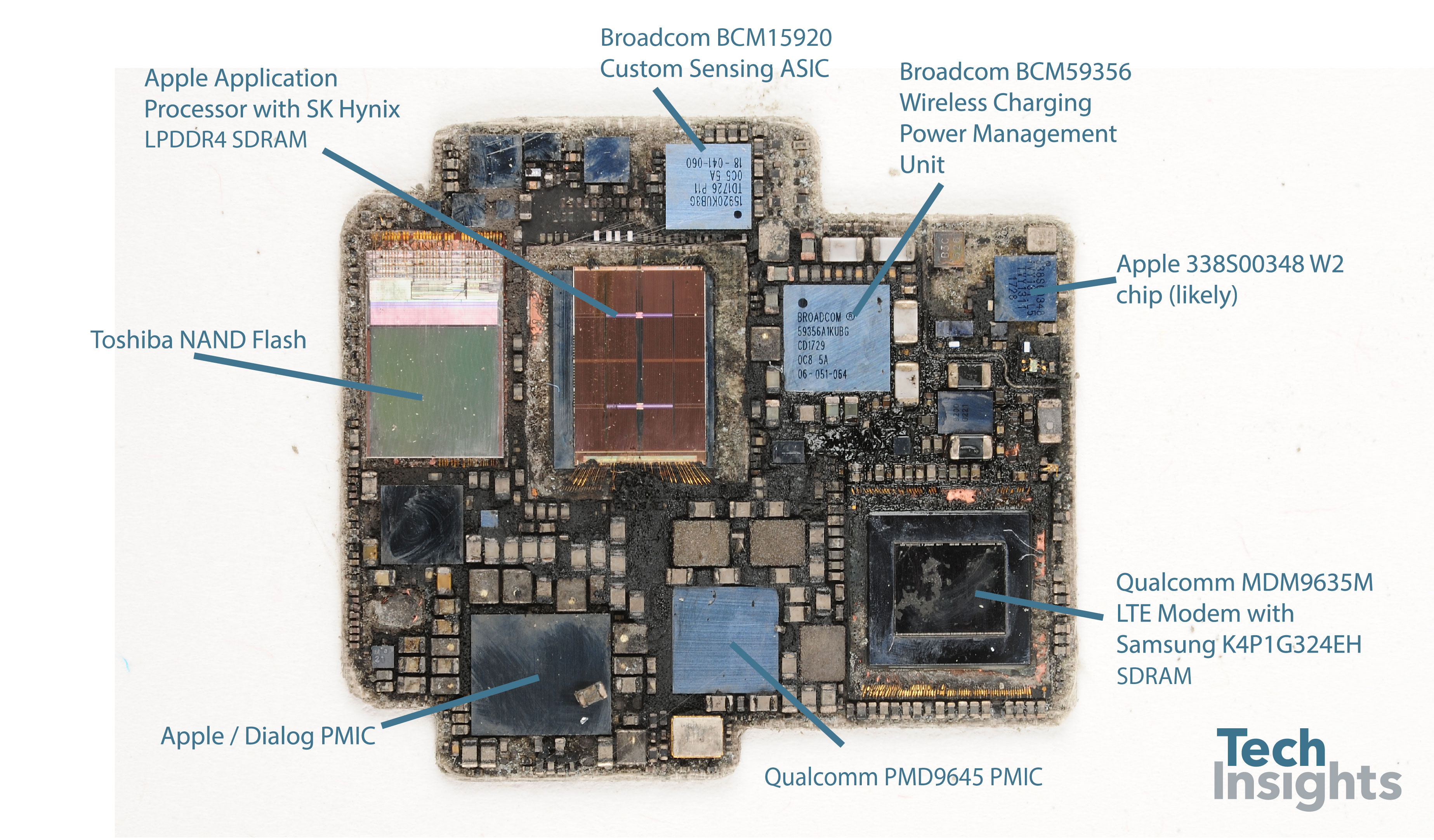
Drops or liquid exposure can disconnect the display ribbon cable or damage the OLED panel.
Warning: Don’t press hard—this can worsen internal damage.
Try the Freezer Trick (Last Resort)
Use Cold to Restore Connection
Some users report success with the freezer method, which may reseat loose connections.
Proceed with caution:
1. Place the watch in a sealed plastic bag.
2. Put it in the freezer for 20 minutes.
3. Remove and immediately attempt a force restart.
Risks: Condensation can damage electronics. Apple does not endorse this.
Use only if other options fail.
Reset and Re-Pair the Watch
Erase All Content as Final Software Fix
If the watch remains unresponsive:
1. On iPhone, open Apple Watch app.
2. Tap the “i” icon next to your watch.
3. Select Unpair Apple Watch.
4. Choose Erase All Content and Settings.
5. Re-pair and set up as new.
Note: This removes all data. Ensure you have a backup.
This clears deep system corruption.
Know When to Seek Repair
Signs of Hardware Failure
Seek professional help if:
– The watch vibrates but screen stays black.
– No flicker or image appears—even during restart.
– You had a drop or screen replacement.
– Software fixes show no response after 2+ hours of charging.
Apple Repair Options
- Apple Store or Authorized Provider: Can replace the display module.
- Cost: $50–$80 for minor damage; $300+ for full replacement (Series 7).
- AppleCare+: Covers accidental damage for $69–$79.
Avoid third-party repairs—they may use low-quality parts or void future coverage.
Prevent Future Backlight Issues
Maintain Settings and Charging
Prevent recurrence:
– Check Accessibility settings monthly.
– Keep watchOS and iOS updated.
– Restart weekly with a force restart.
– Use original or MFi-certified chargers.
– Clean charging contacts weekly.
Protect Against Physical Damage
- Use a protective case.
- Avoid extreme temperatures.
- Don’t let the battery drain completely.
- Be cautious with water exposure.
Pro Tip: Enable Wrist Detection and Wake on Wrist Raise to ensure normal behavior.
Final Note: A black screen doesn’t mean your Apple Watch is dead. Most backlight issues are software-related and fixable in minutes. Start with Screen Curtain, Theater Mode, and a force restart—they solve 80% of cases. If those fail, try remote brightness and face changes, then update software. Only after exhausting these steps should you consider hardware repair. With patience and the right steps, your watch could be back on your wrist in no time.





