
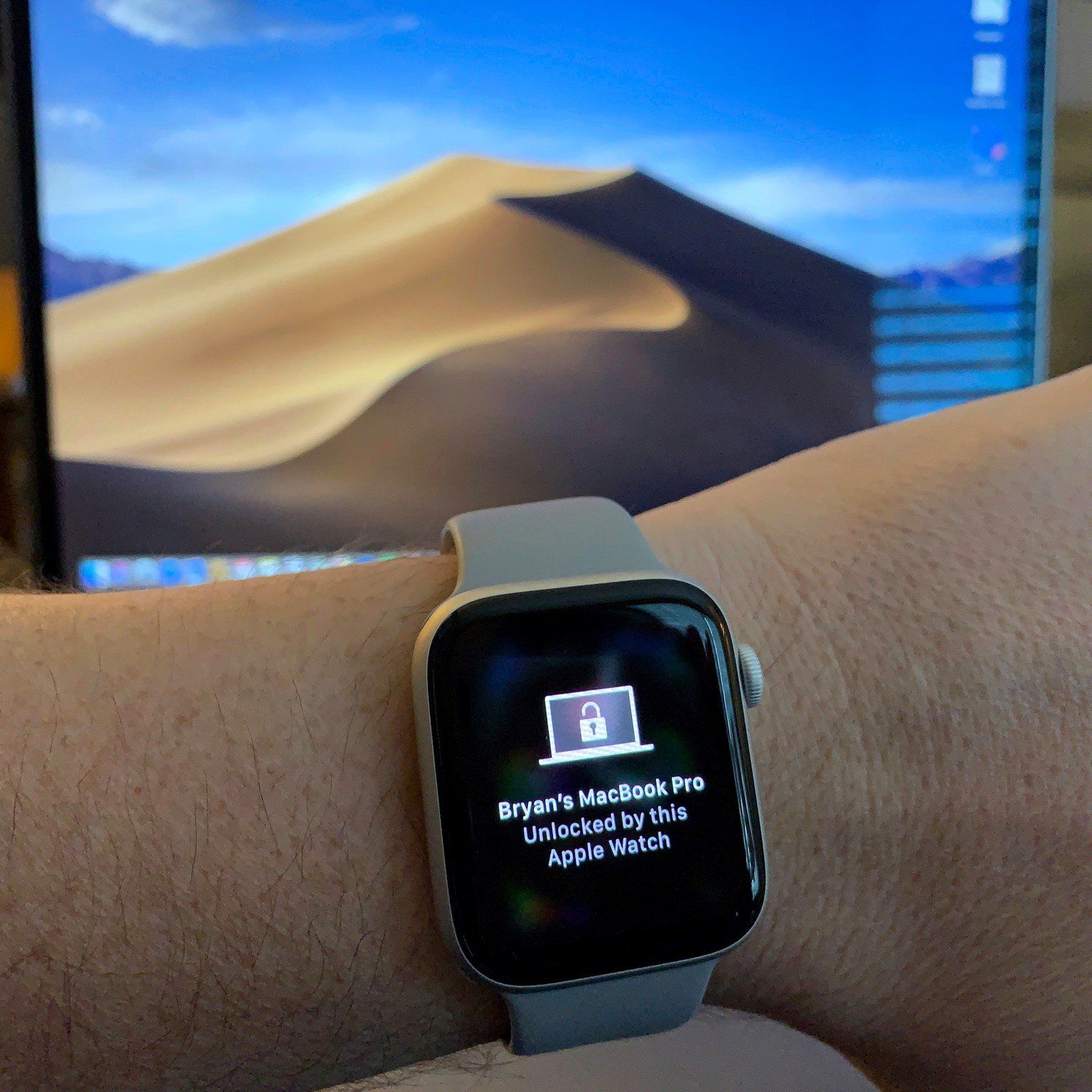
Tired of typing your password every time you wake your MacBook? If you own both a Mac and an Apple Watch, there’s a smarter, faster way: unlock MacBook using Apple Watch with Apple’s Auto Unlock feature. This seamless integration allows your authenticated, unlocked Apple Watch to log you into your Mac automatically—no password required—whenever you’re nearby.
Auto Unlock works the moment you open your MacBook or press a key. As long as your Apple Watch is on your wrist, unlocked, and within range, your Mac will unlock in seconds. It even extends beyond login—your watch can approve admin prompts for software installations, system changes, or password-protected files with just a double-click of the side button.
But for this magic to happen, everything must be set up correctly. You need compatible devices, matching Apple IDs, updated software, and specific settings enabled across both devices. And while it’s incredibly convenient, Apple adds a smart security layer: you’ll still need to manually enter your Mac password about once every two weeks to maintain account integrity.
In this guide, you’ll learn exactly how to enable, use, and troubleshoot Auto Unlock so you can seamlessly unlock MacBook using Apple Watch—every single time.
Enable Auto Unlock on Your Mac
For macOS Ventura and Later
If you’re running macOS Ventura (13.0) or newer, enabling Auto Unlock is simple and intuitive.
- Click the Apple menu () and select System Settings.
- In the sidebar, go to Touch ID & Password (or Login Password if your Mac doesn’t have Touch ID).
- Look for the Apple Watch section on the right-hand side.
- Toggle on “Use Apple Watch to unlock Mac”.
- Enter your Mac’s password to confirm.
Once activated, your Mac will begin detecting your Apple Watch whenever it wakes from sleep. The first unlock after setup still requires a manual login, but after that, Auto Unlock takes over—provided your watch is unlocked and nearby.
Pro Tip: Make sure your Apple Watch is unlocked (passcode entered) and within Bluetooth range. If it’s locked or in Power Reserve mode, Auto Unlock won’t work.
For macOS Sierra to Monterey
On older versions of macOS, the process uses System Preferences instead.
- Go to Apple menu () > System Preferences.
- Open Security & Privacy.
- Switch to the General tab.
- Check one of these boxes:
– “Allow your Apple Watch to unlock your Mac” (Sierra to Mojave), or
– “Use your Apple Watch to unlock apps and your Mac” (Mojave and later). - Enter your Mac password when prompted.
No restart is needed—the feature activates immediately.
Note: If the option is grayed out, double-check that both devices are signed in with the same Apple ID and meet all system requirements.
Meet the System Requirements

Compatible Devices and Software
Before you enable Auto Unlock, ensure your devices are compatible:
- Mac: 2013 or newer models with Bluetooth Low Energy (BLE) support. Most Macs released from 2014 onward qualify.
- Apple Watch: Any model (Series 0+) running watchOS 3 or later.
- macOS: Must be Sierra (10.12) or newer. For the best experience, upgrade to Ventura or later.
- Apple ID: Both devices must use the same Apple ID.
- Two-Factor Authentication: Must be enabled on your Apple ID for security verification.
Required Settings on Both Devices
Even with compatible hardware, incorrect settings can block Auto Unlock.
On Mac:
– Turn on Bluetooth and Wi-Fi.
– Enable Handoff under System Settings > General > AirDrop & Handoff.
– Ensure iCloud Keychain is turned on in your Apple ID settings.
On Apple Watch:
– Set a passcode (required for authentication).
– Keep Bluetooth and Wi-Fi active.
– Enable Handoff in Settings > General > AirDrop & Handoff.
Warning: Disabling iCloud Keychain or Handoff disables Auto Unlock—even if the toggle appears active in Security settings.
Use Auto Unlock Daily
Automatic Login When Waking Mac
After setup, Auto Unlock runs silently in the background.
- Simply wake your Mac by opening the lid or pressing a key.
- If your Apple Watch is unlocked and nearby, your Mac logs in automatically.
- No typing, tapping, or clicking required—it happens in under two seconds.
Visual Cue: The login screen may flash briefly before disappearing as the unlock completes.
Keep in mind: After a full shutdown or restart, you must manually enter your password once. Auto Unlock only works after that initial login.
Approve Admin Tasks Without Typing
Need to install software or change system preferences? Auto Unlock helps here too.
- A password prompt appears on your Mac.
- Your Apple Watch vibrates gently.
- Double-click the side button.
- The password is auto-filled and approved instantly.
This works even when your Mac is locked—your Apple Watch acts as a trusted authenticator.
Expert Note: This feature saves time during frequent admin tasks and keeps your workflow uninterrupted.
Security: How Safe Is It?
Proximity-Based Authentication
Auto Unlock isn’t just about proximity—it’s about authenticated presence.
- Your Apple Watch must be unlocked (passcode entered since last lock).
- If you remove the watch, it locks automatically—blocking Auto Unlock.
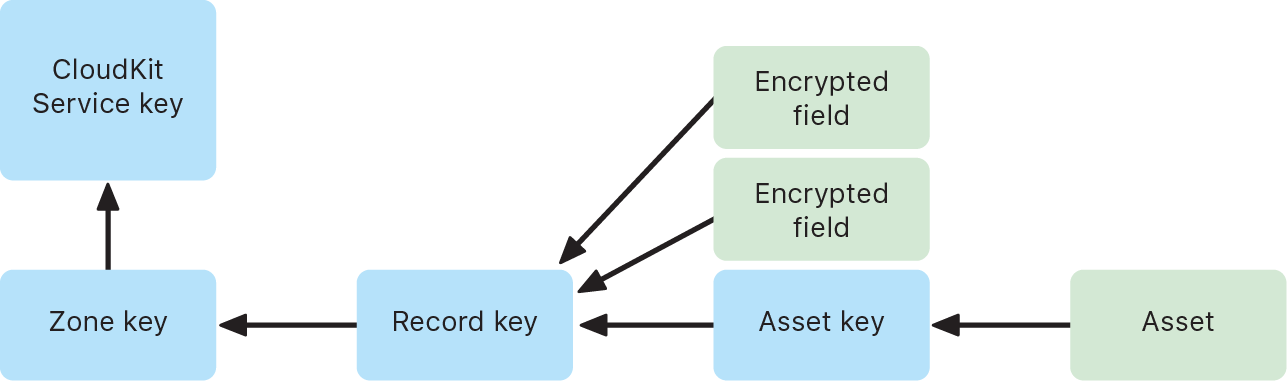
- All communication uses end-to-end encryption via Apple’s Secure Enclave.
This means someone can’t unlock your Mac just by bringing a paired Watch nearby—they’d need physical access to your wrist and an unlocked device.
Forced Password Entry Every Two Weeks
Apple enforces a security reset roughly every 14 days.
- You’ll be required to manually enter your Mac password.
- After that, Auto Unlock resumes normally.
This ensures you don’t lose access to your password and maintains long-term account security.
Why It Matters: Prevents over-reliance on biometrics, aligning with enterprise-grade security standards.
Fix Auto Unlock When It Fails
Common Reasons It’s Not Working
Even with correct setup, Auto Unlock can fail. Here’s how to diagnose.
No Unlock Despite Being Nearby
- ✅ Is your Apple Watch unlocked? (Passcode entered?)
- ✅ Are Bluetooth and Wi-Fi on both devices?
- ✅ Is Handoff enabled in iCloud settings?
- ✅ Did you restart after updating macOS or watchOS?
Quick Test: Open Control Center on your Mac—can you see AirDrop or Handoff options? If not, iCloud sync may be broken.
Feature Option Missing or Grayed Out
This usually points to account or device mismatch.
- On Mac: Apple menu > System Settings > Apple ID.
- Confirm the same Apple ID is used on both devices.
- Check iCloud > Keychain is enabled.
- On Apple Watch: Open Settings > Apple ID > iCloud and verify Keychain and Handoff are on.
Fix Tip: Sign out of iCloud on both devices and sign back in if syncing fails.
Advanced Troubleshooting Steps
Restart Bluetooth Module on Mac
Bluetooth glitches can block Auto Unlock.
- Hold Shift + Option and click the Bluetooth icon in the menu bar.
- Select Debug > Reset the Bluetooth module.
- Confirm and wait for the system to restart Bluetooth.
- Restart your Mac afterward.
This clears connection caches and often restores functionality.
Re-enable Auto Unlock After Reset
Sometimes the feature gets stuck.
- Go to System Settings > Touch ID & Password.
- Turn off “Use Apple Watch to unlock Mac”.
- Restart your Mac.
- Re-enable the toggle and re-enter your password.
This forces a fresh handshake between devices.
Update Both Devices
Outdated software breaks compatibility.
- On Mac: System Settings > General > Software Update.
- On Apple Watch: Open Watch app on iPhone > General > Software Update.
Install all pending updates—even minor ones. Apple often patches Continuity bugs silently.
User Feedback: Many report Auto Unlock failing after a macOS beta; updating to the latest stable build resolves it.
Limitations You Should Know
Range and Obstruction Issues
Auto Unlock works within 3–5 meters (10–16 feet).
- Thick walls, metal objects, or interference from other Bluetooth devices can disrupt the signal.
- If you’re across the room, it won’t work.
- No Wi-Fi or internet required, but both devices need to be awake and connected via Bluetooth.
Power Reserve and Watch State
- If your Apple Watch is in Power Reserve mode, Auto Unlock fails.
- A low battery (below 10%) may cause inconsistent detection.
- Sleeping display is fine—as long as the watch is unlocked.
Doesn’t Bypass Full Lock Screen After Inactivity
If your Mac locks due to long inactivity or security settings (e.g., “Require password immediately”), Auto Unlock may not trigger.
- It only works after short sleep periods.
- After extended idle time, you may need to manually enter the password—even with the watch nearby.
Optimize for Best Performance
Keep Devices Updated
Apple continuously improves Continuity features.
- Enable automatic updates on both Mac and Apple Watch.
- Check for updates monthly, especially after major iOS/watchOS releases.
Maintain Strong Bluetooth Signal
- Avoid wearing thick sleeves or placing the watch under clothing.
- Keep your Mac’s Bluetooth antenna unobstructed (usually near the edges).
- Reduce Bluetooth clutter—turn off unused accessories.
Use a Strong, Memorable Password
Since you’ll only type it every two weeks, make sure it’s secure but recallable.
- Use a passphrase (e.g., “BlueSky$Coffee2024!”).
- Store it in a password manager as a backup.
- Never disable the manual password requirement—security depends on it.
Real-World Tips from Users
“It Just Works—Until It Doesn’t”
Many users say Auto Unlock is flawless 95% of the time.
- It’s especially useful in fast-paced workflows—writers, developers, and designers love skipping login delays.
- Some report intermittent failures when the watch battery drops below 20%.
- A few note that cold weather affects Bluetooth range temporarily.
Workaround: If it fails twice, manually unlock and check your watch battery.
Double-Click Admin Approval Saves Time
One of the most underused benefits? Approving admin tasks.
- Installing updates? Double-click.
- Changing network settings? Double-click.
- Unlocking password-protected files? Double-click.
No fumbling for passwords—even when your Mac is locked.
When Not to Use Auto Unlock
High-Security Environments
In workplaces or shared spaces, convenience may compromise security.
- If others have physical access to your Mac and could bring a trusted Watch nearby, disable Auto Unlock.
- Use “Require password immediately after sleep” instead.
Travel or Public Use
On planes or in cafes, your Mac may wake unexpectedly.
- Auto Unlock could expose your screen if someone opens the lid while your watch is on.
- Consider disabling it in public until you’re in a secure location.
Privacy Tip: Use Control Center > Lock Screen to manually lock your Mac instantly.
Unlocking your MacBook using Apple Watch via Auto Unlock is one of Apple’s most underrated productivity tools. When configured correctly, it saves time, reduces friction, and maintains strong security. By meeting the requirements, troubleshooting connectivity issues, and understanding its limits, you can enjoy a truly seamless experience across your devices. Just remember: your password still matters—use it when prompted, and keep it safe.





