
You’re checking your heart rate mid-run when suddenly—your Apple Watch screen zooms in, trapping you in a magnified corner of the display. No matter how hard you tap, it won’t go back. If this sounds familiar, you’ve accidentally triggered the Apple Watch zoom feature, an accessibility setting designed to enlarge the screen for better visibility. But when activated by mistake, it can be more frustrating than helpful.
The good news? Unzooming your Apple Watch is fast and simple once you know the correct gesture. In this guide, you’ll learn how to exit zoom mode instantly, disable it permanently, prevent accidental triggers, and troubleshoot stubborn cases—even if hardware is to blame. Whether you’re using an older Series 3 or the latest Series 9 or Ultra 2, these steps work across all models.
Let’s get your screen back to normal—and keep it that way.
Exit Zoom Mode Instantly
When your Apple Watch screen is stuck in magnified view, the fastest way to restore full display is with a simple two-finger gesture. This method works on every Apple Watch model that supports the Zoom feature.
Two-Finger Double-Tap to Unzoom
- Action: Place two fingers flat on the screen and double-tap simultaneously.
- Result: Instantly toggles between zoomed-in and standard display modes.
- Visual Feedback: The screen snaps back to full view, and the small thumbnail in the top-right corner disappears.
⚠️ Common Mistake: Many users try a one-finger double-tap—it doesn’t work. Apple specifically requires two fingers to activate or deactivate Zoom, ensuring it’s not triggered too easily.
If the gesture doesn’t respond:
– Make sure both fingers touch the screen at the same time.
– Tap slowly and deliberately—avoid swiping or dragging after the second tap.
– Wipe the screen with a microfiber cloth if sweat, dirt, or moisture is interfering with touch sensitivity.
This is the official method recommended by Apple and confirmed by hundreds of user reports. Once mastered, it takes less than two seconds to fix.
Adjust Zoom Level: Double-Tap and Hold
If you don’t want to exit zoom completely but need to reduce magnification:
– Double-tap and hold with two fingers.
– While holding, drag your fingers up to zoom in further, or down to zoom out.
– Lift your fingers to lock in the new level.
This gives you fine control over magnification, perfect if you use Zoom occasionally but find the default setting too extreme.
Zoom Out in Grid View with Digital Crown
When you’re on your app grid (home screen), you can bypass touch gestures entirely:
– Rotate the Digital Crown counter-clockwise to zoom out gradually.
– Continue until all apps are visible in a compact layout.
– Works only on the home screen—not on watch faces or inside apps.
This is ideal if you prefer physical controls over gestures, especially when your fingers are wet or sweaty.
Turn Off Zoom Permanently
If your Apple Watch keeps zooming in unexpectedly—especially during workouts—it’s time to disable the feature for good.
Disable via Apple Watch Settings
- Open the Settings app (gear icon) on your watch.
- Go to Accessibility > Zoom.
- Tap the toggle to switch Zoom from On to Off.
The screen refreshes immediately—no restart needed.
✅ Pro Tip: Use this method if you don’t have your iPhone nearby or prefer managing settings directly on your wrist.
Disable via iPhone Watch App
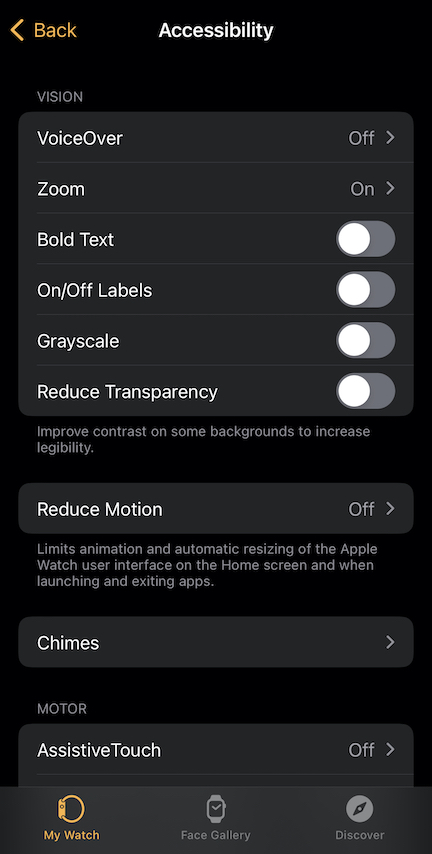
For a larger interface and easier navigation:
1. Open the Watch app on your iPhone.
2. Tap the My Watch tab.
3. Go to Accessibility > Zoom.
4. Toggle Zoom off.
This method is especially helpful if you’re adjusting multiple accessibility settings at once.
🔄 Both methods sync instantly. Turning off Zoom on your iPhone disables it on your Apple Watch, and vice versa.
Use Hand Gestures Instead of Touch (Series 9+)
If you own an Apple Watch Series 9 or later, you can replace the two-finger tap with hand gestures—a game-changer for active users.
Enable Hand Gesture Control
- On your iPhone, open the Watch app.
- Tap My Watch > Accessibility > Zoom > Hand Gestures.
- Turn on Hand Gestures.
- Choose your preferred trigger:
– Double Tap (pinch index and thumb twice)
– Tap
– Clench
– Double Clench
Now, perform your selected gesture to toggle Zoom—no screen contact required.
⚠️ Important: Enabling hand gestures disables the universal double-tap system control (used for answering calls or pausing music). Choose carefully based on your daily usage.
✅ Best For: Runners, gym-goers, and anyone prone to sweat-induced false touches.
Adjust Maximum Zoom Level
Even if you keep Zoom enabled for occasional use, you can limit how much it magnifies to avoid disorientation.
Set Zoom Magnification Limit
- On your Apple Watch, go to Settings > Accessibility > Zoom.
- Scroll down to Maximum Zoom Level.
- Drag the slider left to reduce maximum magnification, or right to increase.
Lowering the limit means less screen distortion if the feature activates accidentally.
✅ Recommended: Set to medium-high if you use Zoom occasionally but don’t need extreme enlargement.
Why Does Apple Watch Zoom In Randomly?
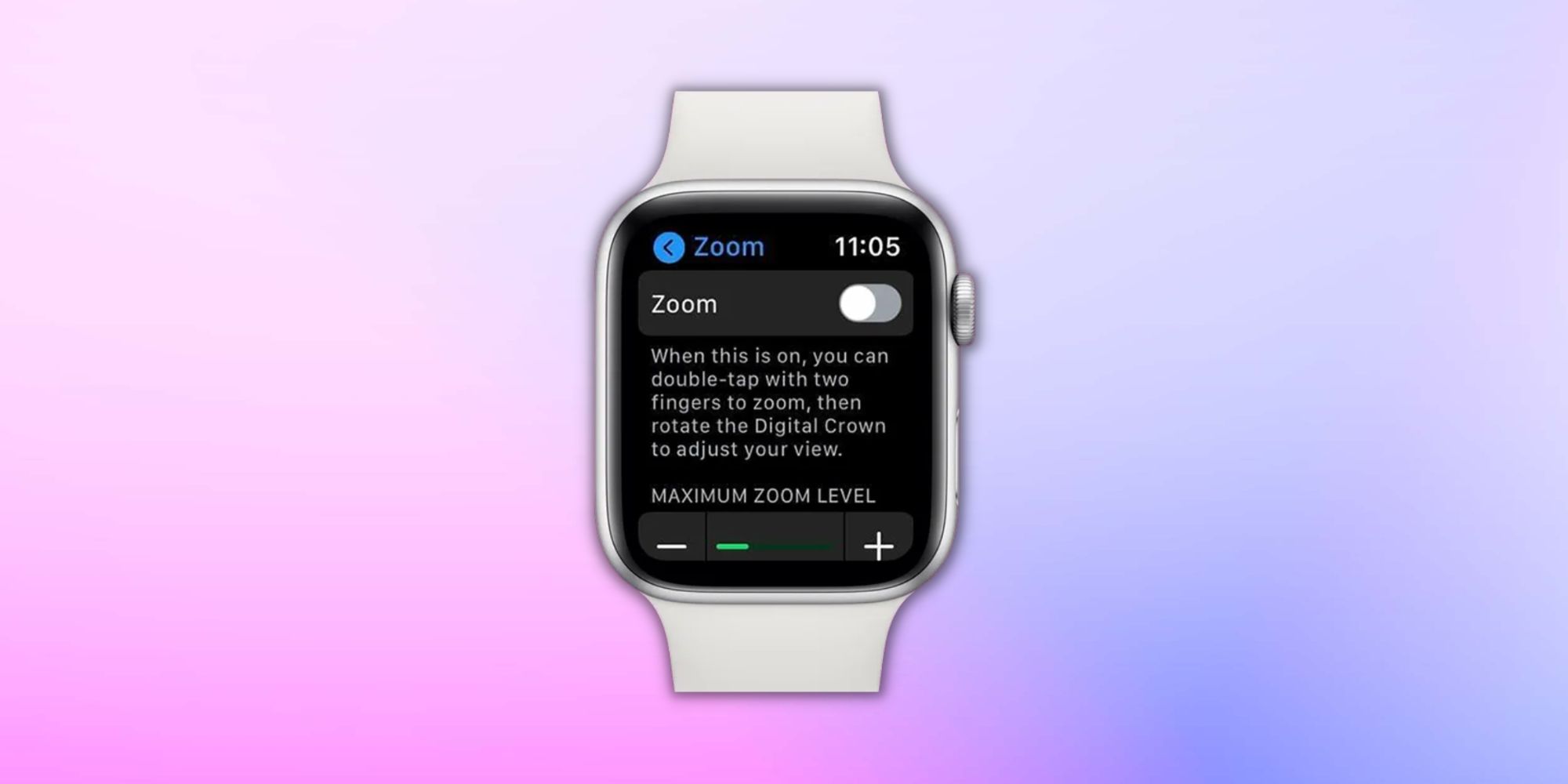
Accidental zoom activation is surprisingly common—especially during physical activity. Here’s why it happens.
Accidental Two-Finger Tap During Activity
During running, cycling, or weightlifting, arm motion, sweat, or clothing friction can simulate a two-finger double-tap. Many users report zooming in without touching the screen intentionally.
“During runs, my watch face suddenly zooms in—no idea how.” – Apple Community user
Prevention: Disable Zoom during workouts or switch to hand gestures.
Accessibility Shortcut Triggered
If Accessibility Shortcut is set to Zoom:
– Pressing the side button three times quickly toggles Zoom on.
– Easy to trigger while adjusting the band or waking the display.
To disable:
1. Open the Watch app on iPhone.
2. Go to My Watch > Accessibility > Accessibility Shortcut.
3. Ensure Zoom is not selected.
✅ Best Practice: Assign the shortcut only to rarely used tools like VoiceOver.
Hardware Fault (Rare but Possible)
In rare cases, persistent zooming—even with Zoom disabled—points to a hardware issue:
– Faulty display assembly may register phantom touches.
– Reported on Apple Watch SE (1st Gen) and older models.
– Diagnosed by Apple as touchscreen or logic board defects.
“Took it to Apple—confirmed hardware failure. Got a replacement.” – Verified user
Signs of hardware issue:
– Zoom activates repeatedly despite being turned off.
– Screen responds erratically to touch.
– Restarting doesn’t fix it.
Visual Signs Your Watch Is Zoomed
Don’t guess—look for these clues:
– Only part of the screen is visible.
– A thumbnail in the top-right corner shows which area is in view.
– You must drag with one finger to pan around the zoomed section.
Once you see the thumbnail, Zoom is active—even if you didn’t turn it on.
Troubleshoot Stuck in Zoom Mode
If the two-finger tap fails, follow these steps:
Step 1: Retry Two-Finger Double-Tap
- Clean the screen first.
- Use both index fingers, tap flat and simultaneously.
- Avoid tapping too fast or too hard.
Step 2: Restart Your Apple Watch
When software freezes:
1. Press and hold the side button.
2. Drag the power slider to turn off.
3. Wait 10 seconds, then press the side button to restart.
✅ User Confirmed: “Couldn’t unzoom—had to restart. Fixed instantly.”
Step 3: Check Zoom Status in Settings
Go to Settings > Accessibility > Zoom:
– If toggle is green, turn it off.
– If grayed out but zoomed, it may be a deeper issue.
Step 4: Reset Settings (Last Resort)
If Zoom keeps returning:
– On iPhone: Watch app > General > Reset > Erase All Content and Settings.
– Re-pair if needed.
⚠️ This deletes apps, data, and preferences. Back up first.
Step 5: Contact Apple Support
If Zoom won’t stay off:
– Likely a hardware malfunction.
– Visit an Apple Store or authorized provider.
– Covered under warranty or AppleCare+.
Prevent Accidental Zoom Activation
Avoid future surprises with these strategies:
| Prevention Strategy | Why It Works |
|---|---|
| Turn Off Zoom | Eliminates risk if not needed. |
| Disable Accessibility Shortcut | Prevents triple-press activation. |
| Use Hand Gestures (Series 9+) | Removes touch dependency. |
| Avoid Bubbled Screen Protectors | Air pockets cause false touches. |
| Clean Screen Before Workouts | Reduces sweat-induced triggers. |
✅ Pro Tip: Do a weekly check of accessibility settings every Sunday.
Summary: Key Actions at a Glance
| Task | Method | Device |
|---|---|---|
| Unzoom instantly | Two-finger double-tap | Apple Watch |
| Fine-tune zoom | Two-finger double-tap and drag | Apple Watch |
| Zoom out in grid view | Rotate Digital Crown CCW | Apple Watch |
| Turn off Zoom | Settings > Accessibility > Zoom > Off | Apple Watch |
| Disable via iPhone | Watch app > Zoom > Off | iPhone |
| Enable hand gestures | iPhone Watch app > Zoom > Hand Gestures | iPhone |
| Adjust max zoom | Slider in Zoom settings | Apple Watch |
| Force restart | Power off via side button | Apple Watch |
Final Recommendations
- For Casual Users: If you’ve never used magnification, turn Zoom off permanently—it’s the safest fix.
- For Runners & Athletes: Use hand gestures or disable Zoom during workouts to avoid sweat-related triggers.
- For Accessibility Needs: Keep Zoom on but set a lower max level and use gestures to minimize touch.
- For Persistent Issues: If Zoom won’t stay off, seek Apple diagnostics—it may be a hardware flaw.
The Apple Watch zoom feature is helpful when used intentionally—but a nuisance when triggered by accident. Now that you know how to unzoom fast, disable it for good, and prevent future issues, you’re in full control.
Don’t let a small gesture ruin your experience. Take charge today.
Your full-screen view is just a two-finger tap away.




