
If your Apple Watch screen goes completely black when your wrist is down, you’re likely facing the Apple Watch always on not working issue—a frustrating problem that impacts Series 5 through Ultra 2 users. Despite the “Always On” setting appearing enabled, the display may shut off entirely, defeating one of the watch’s core features. This isn’t just a minor glitch; it affects how you check time, track activity, and receive alerts without lifting your wrist. The good news? Most cases stem from overlooked settings or software hiccups—not hardware failure. In this guide, you’ll get a complete, step-by-step action plan based on real user reports, Apple’s hidden dependencies, and verified fixes. No guesswork—just solutions that work.
Disable Theater and Cinema Mode
Theater Mode Blocks AOD Intentionally
One of the most frequent causes of Apple Watch always on not working is Theater Mode. When activated, it disables screen wake and forces the display off—regardless of your AOD settings. Look at your Control Center: if the double mask icon (two emoji faces) glows orange, Theater Mode is active.
Tap the icon to turn it off. Immediately test by lowering your wrist. The time should now appear in a dimmed state. Many users unknowingly enable this feature via Siri with a voice command like “Hey Siri, turn on Theater Mode,” or by accidentally swiping up and tapping the icon.
Cinema Mode Functions the Same Way
Though not a separate setting, some users refer to “Cinema Mode” when describing the same behavior. It uses the identical double mask toggle in Control Center. Whether labeled Theater or Cinema, the effect is the same: AOD gets disabled. Turn it off using the same method.
Pro Tip: If you rarely use Theater Mode, consider removing its shortcut from Control Center. Go to Settings > Control Center on your watch and delete the Theater Mode tile to prevent accidental activation.
Turn Off Low Power Mode
Low Power Mode Overrides Always On
When your battery dips below 20%, your Apple Watch automatically activates Low Power Mode—and this disables Always On Display. Even if you manually re-enable AOD, it won’t function while Low Power Mode is active.
Check the battery icon in Control Center:
– A yellow or red battery means Low Power Mode is on.
– Tap the icon to disable it.
For a permanent fix, go to Settings > Battery > Low Power Mode and ensure it’s toggled off. After disabling, restart your watch to reset the display subsystem. On older watches with degraded batteries (below 80% health), Low Power Mode can trigger even at 30–40% charge, silently blocking AOD.
Enable Fall Detection
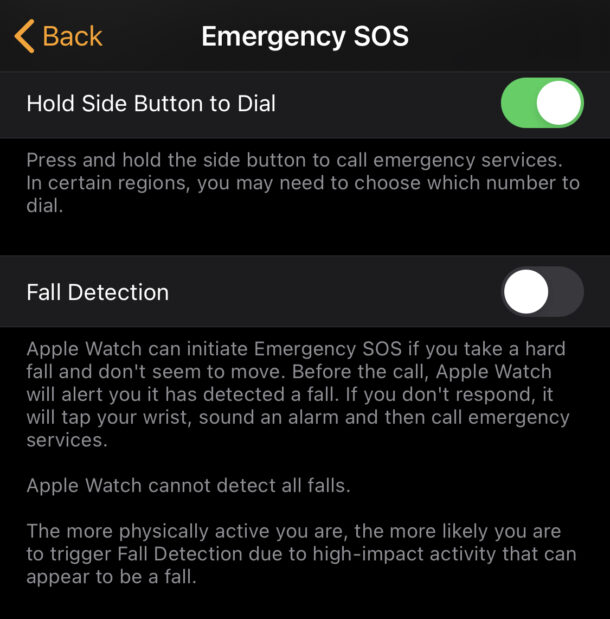
Fall Detection Is Required for AOD (Undocumented)
Here’s a surprising fact Apple doesn’t advertise: Fall Detection must be enabled for Always On to work on certain models and watchOS versions. This dependency has been confirmed by multiple users across forums and support threads.
Navigate to:
Settings > Safety & Emergency > Fall Detection → Turn ON.
Even if you don’t plan to use the feature, disabling it may prevent AOD from functioning. After enabling, restart your watch and test the display. One Series 8 user reported instant restoration of AOD after turning on Fall Detection—despite no other changes.
Note: If the “Always On” option is grayed out, this is often the culprit. Enabling Fall Detection typically unlocks the setting.
Restart Your Apple Watch
A Simple Reset Clears Hidden Glitches
A restart resolves many Apple Watch always on not working issues, especially after a watchOS update or unexpected crash.
To restart normally:
1. Press and hold the side button.
2. Slide the Power Off slider.
3. Wait 15 seconds.
4. Press and hold the side button until the Apple logo appears.
If the watch is frozen:
– Force restart: Hold Digital Crown + Side Button for 10 seconds until the Apple logo shows.
This clears temporary software conflicts affecting the display driver. Many users report AOD returns within seconds after rebooting.
Toggle Always On Setting Off and Back On
Reset the Display System
Sometimes the setting appears on but isn’t actually active. Reset it to force the system to reinitialize.
On your iPhone:
1. Open the Watch app.
2. Tap My Watch > Display & Brightness > Always On.
3. Toggle it off.
4. Wait 2 full minutes.
5. Toggle it back on.
Repeat on the watch if needed. This process resets the ambient light sensor and OLED panel communication.
Why it works: The display subsystem occasionally gets stuck in a failed state after updates or app crashes. Resetting forces a clean reload.
Update to the Latest watchOS
Software Bugs Can Break AOD
Apple frequently patches display-related bugs in watchOS updates. If your Apple Watch always on not working started after an update—or you haven’t updated in months—check for new software.
On Apple Watch:
– Settings > General > Software Update
On iPhone:
– Watch app > My Watch > General > Software Update
Install any pending update. Use Wi-Fi and ensure your battery is at least 50% before starting. Avoid cellular downloads—they’re slower and more prone to failure.
Fact: Users reported AOD failure after watchOS 9.3 and 10.1. Apple resolved these in subsequent patches.
Adjust AOD Visibility Settings
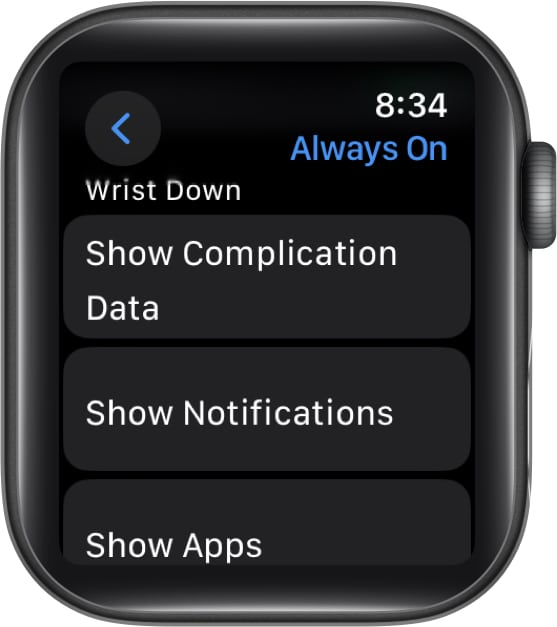
Enable Apps and Notifications on Dimmed Screen
If only the time appears (dimmed digits on a black screen), but no complications or app data, the issue is visibility—not AOD itself.
On your Apple Watch:
1. Open Settings.
2. Go to Display & Brightness > Always On.
3. Ensure these are ON:
– Complication Data
– Show Notifications
– Show Apps
Then tap Show Apps and verify individual apps (Messages, Calendar, etc.) are toggled on.
Root Cause: A notification from a disabled app can force the display into minimal mode—showing only time. This is a failsafe to prevent unapproved data exposure.
Disable Active Focus Modes
Focus Can Suppress Screen Wake
While not officially documented, user reports confirm that active Focus modes (Sleep, Work, or custom) can interfere with AOD behavior.
To test:
1. Swipe up to open Control Center.
2. Look for the Focus icon (a bell with slash or custom symbol).
3. If active, tap to disable.
Try disabling different Foci—some may allow AOD, others may not. For example, Sleep Focus often disables screen wake entirely.
User Report: A Series 10 owner fixed intermittent AOD by disabling a custom Focus mode they’d forgotten was active.
Fix Wrist Detection Issues
Poor Fit or Dirty Sensors Disable AOD
If the watch doesn’t detect consistent skin contact, it assumes it’s not being worn and turns off the display.
Check:
– Is the strap too loose?
– Are you wearing gloves or a thick sleeve?
– Is the back of the watch dirty?
Clean the sensor area with a soft, dry cloth. Tighten the band so the watch sits snugly.
To test:
– Disable Wrist Detection (Settings > Passcode > Wrist Detection).
– The watch will stay awake at all times—but requires passcode entry for Apple Pay.
Re-enable after testing. If AOD works with Wrist Detection off, the issue is fit or sensor contact.
Clean the Screen and Sensors
Dirt and Screen Protectors Can Block Sensors
Grime, moisture, or thick screen protectors can interfere with the ambient light sensor, making the dimmed display appear off.
Clean properly:
1. Remove the watch.
2. Use a soft, lint-free cloth (microfiber).
3. Gently wipe the front and back.
4. Avoid chemicals or water.
Avoid thick or reflective screen protectors—they can diffuse the dimmed display, especially in bright light.
Rule Out Environmental Factors
Darkness and Cold Can Mimic AOD Failure
In very dark rooms, the AOD dims further to save power. Shine a light on the watch—it should become visible.
Extreme cold (below 32°F / 0°C) may temporarily disable AOD. Return to room temperature before troubleshooting.
Note: AOD is disabled while charging on some models. Don’t test during charging.
Reset All Settings

Clear Deep System Conflicts
If nothing works, reset system settings:
On Apple Watch:
– Settings > General > Reset > Reset All Settings
This clears:
– Display preferences
– Network settings
– Focus and Do Not Disturb rules
Your data stays intact. After reset, re-enable Always On and test.
User Success: Multiple users resolved lingering AOD issues after this step.
Erase and Re-pair Your Apple Watch
Last Resort for Software Corruption
When all else fails, erase and re-pair:
- On iPhone: Open Watch app > My Watch > (i) next to watch > Unpair Apple Watch.
- Back up when prompted.
- On watch: Settings > General > Reset > Erase All Content and Settings.
- Re-pair and restore from backup.
This eliminates deep software conflicts affecting AOD.
Warning: This takes 30–60 minutes. Only use if other fixes fail.
Check Battery Health
Degraded Battery May Disable AOD
If your battery health is below 80%, the watch may disable power-intensive features—even if Low Power Mode is off.
Check:
– Settings > Battery > Battery Health
If significantly degraded:
– Visit Apple Store or authorized provider.
– Request battery replacement.
After replacement, AOD often returns to normal.
Seek Hardware Repair
Faulty Display or Sensor May Be the Cause
If AOD still doesn’t work after all steps, hardware may be at fault.
Signs of hardware failure:
– Screen stays black even with Wrist Detection off.
– No dimmed display in any condition.
– Watch fails diagnostics.
Next steps:
1. Run diagnostics via Apple Support app.
2. Visit support.apple.com.
3. Schedule service at Apple Store.
Quote: “If none of these steps work, your Apple Watch may have a hardware issue.” — Verified User Report
Final Note: The Apple Watch always on not working issue is usually software-related—most cases are fixed by disabling Theater Mode, turning off Low Power Mode, or restarting the device. Always check Fall Detection and app visibility settings—they’re often overlooked. Keep watchOS updated, ensure a snug fit, and clean sensors regularly. If problems persist, consider battery health or professional repair.





