
You tap “Check for Update” on your Apple Watch, only to be met with the frustrating message: “Unable to Check for Update.” Even though your Wi-Fi is on, your iPhone is nearby, and everything seems normal, the update process halts before it even begins. This common yet maddening error affects users across Apple Watch models—especially older ones like the Series 3—and often appears despite a stable internet connection.
The truth? The “not connected to the internet” warning is misleading. In most cases, your devices are online. The real culprits are usually connectivity mismatches, low storage, outdated iOS, or corrupted pairing data between your iPhone and Apple Watch. Fortunately, this issue is fixable in over 85% of cases without visiting an Apple Store.
By following a structured troubleshooting approach—from simple restarts to deeper resets—you can bypass this barrier and finally install the latest watchOS. This guide delivers proven solutions, including fixes specifically effective for stubborn Apple Watch Series 3 models, so you can get your wearable back on track.
Confirm All Update Requirements Are Met
Before attempting complex fixes, ensure your setup meets Apple’s essential update conditions—many failures stem from overlooked basics.
Battery Must Be Above 50% and Charging
Your Apple Watch must be charging with at least 50% battery to begin an update. The system blocks downloads if power is too low, even if the device appears functional. Plug in your watch and confirm the lightning bolt or charging symbol appears. Do not attempt updates on a weak battery.
iPhone and Watch Must Share the Same Wi-Fi Network
Even if both devices show Wi-Fi connectivity, they may be on different network bands (e.g., 2.4 GHz vs. 5 GHz). This breaks communication. Go to Settings > Wi-Fi on both devices and verify they’re connected to the exact same network name.
Devices Need to Be Within 1–2 Feet
Bluetooth syncs the update command from iPhone to Watch. If they’re too far apart, the signal drops. Place them close together, ideally on the same surface, and avoid metal objects or walls between them.
iPhone Must Run the Latest iOS Version
An outdated iPhone OS can block watchOS updates entirely. Always update your iPhone first. Go to Settings > General > Software Update and install any pending iOS updates before retrying the Apple Watch update.
Optimize Your Wi-Fi for Apple Watch Compatibility

Wi-Fi issues are the #1 cause of the “unable to check” error—especially for older models.
Switch to 2.4 GHz Wi-Fi Band
Apple Watch Series 3 and earlier do not support 5 GHz Wi-Fi. If your router broadcasts dual-band networks (e.g., “Home” and “Home_5G”), your watch may connect but fail verification. Force both devices onto the 2.4 GHz network:
- On iPhone, go to Settings > Wi-Fi.
- Tap your 2.4 GHz network (usually the one without “_5G”).
- Reconnect your Apple Watch manually via Settings > Wi-Fi.
Pro Tip: Restart your router to clear cached connections. Wait 60 seconds before reconnecting.
Manually Reconnect Wi-Fi on Apple Watch
Even if Wi-Fi shows as connected, the handshake may be stale. Refresh it:
Steps:
- On Apple Watch, open Settings > Wi-Fi.
- Tap your network name again—even if already connected.
- Wait for the checkmark to appear.
- Return to Watch app > General > Software Update and retry.
User Confirmed: Many report this single step resolved the error after hours of failed attempts.
Toggle Watch Cellular Setting on iPhone

Cellular interference—even when using Wi-Fi—can disrupt the update handshake.
Disable and Re-enable Watch Cellular
This resets the iPhone’s communication channel with the watch:
Steps:
- Open Settings > Cellular on iPhone.
- Scroll down to Watch.
- Toggle the switch off, wait 5 seconds, then toggle it back on.
- Reopen the Watch app and go to Software Update.
Why It Works: This clears temporary cellular conflicts, especially common when pairing Series 3 with newer iPhones like XR or 15 Pro.
Free Up Apple Watch Storage Space
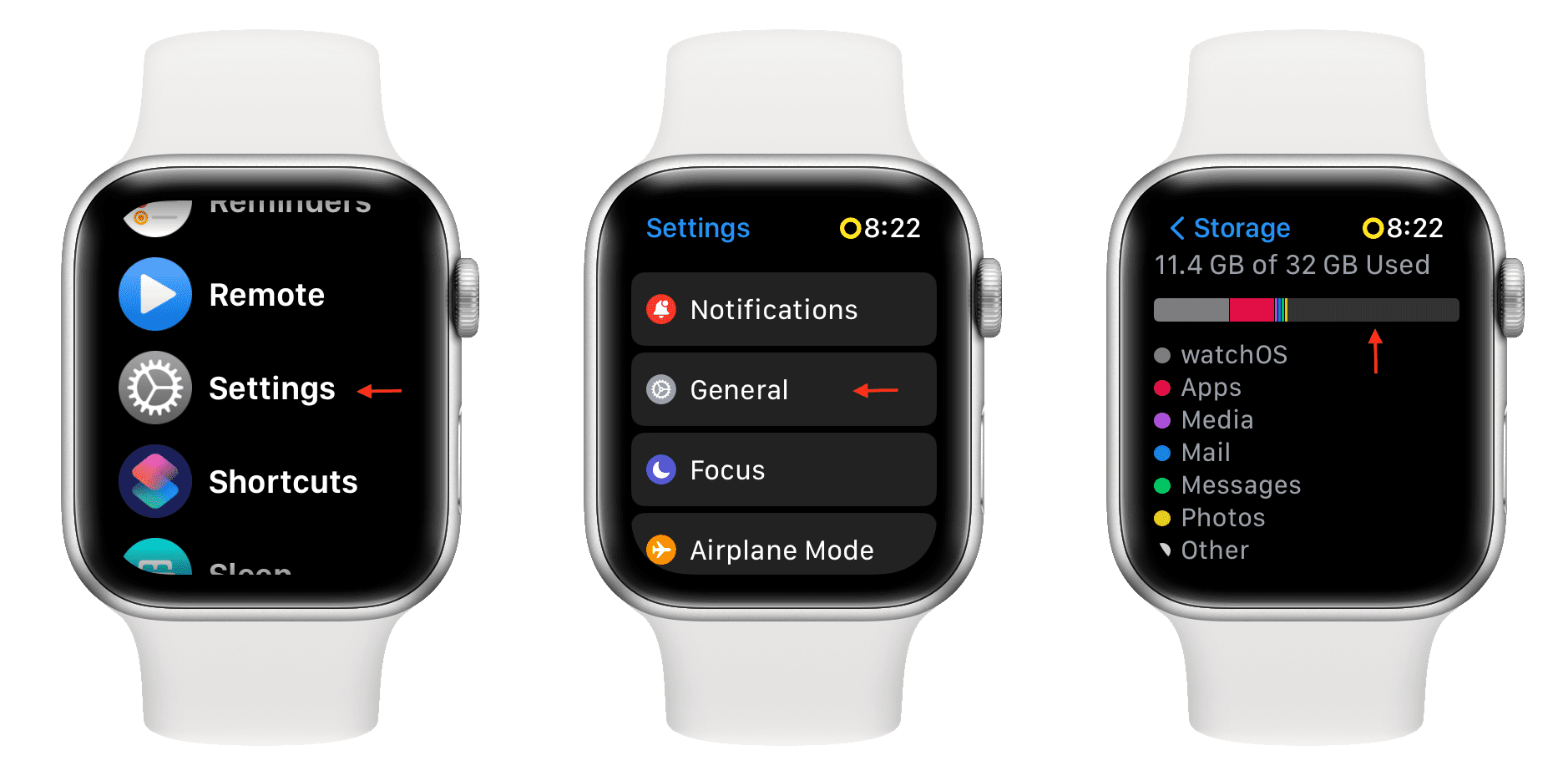
Less than 1GB of free space prevents update downloads—regardless of internet status.
Check Available Storage
On Apple Watch:
- Settings > General > Storage – review available space.
On iPhone:
- Watch app > My Watch > General > Storage
Delete Unnecessary Content
Remove Synced Media:
- Music: Delete downloaded playlists in Music app > Library > Downloaded.
- Photos: Turn off sync in Watch app > Photos > Synced Albums.
- Podcasts/Voice Memos: Unsync or delete manually.
Offload Large Apps:
- Gaming, navigation, or fitness apps often use hundreds of MB.
- Delete via Settings > General > App Storage.
- Reinstall after the update.
Key Insight: Freeing just 100–200MB can be enough to trigger a successful update check.
Force Restart Both Devices
A simple reboot clears temporary glitches affecting connectivity.
Restart Apple Watch
- Press and hold the side button and Digital Crown.
- Hold for 10–15 seconds until the Apple logo appears.
- Release and wait for full boot.
Restart iPhone
- iPhone 8 and later: Press Volume Up, then Volume Down, then hold Side button until Apple logo.
- iPhone 7: Hold Volume Down + Side button.
- iPhone 6s and earlier: Hold Home + Side button.
Best Practice: Restart watch first, then iPhone, and attempt the update immediately after.
Reset iPhone Network Settings
Deep network issues like DNS or IP conflicts can block updates.
Perform Network Reset
- Go to Settings > General > Transfer or Reset iPhone > Reset > Reset Network Settings.
- Confirm (you’ll lose saved Wi-Fi passwords).
- Reconnect both devices to Wi-Fi.
- Retry the update.
User Confirmed: Meems28 resolved the error after combining this with 2.4 GHz Wi-Fi and cellular toggle.
Unpair and Re-pair Your Apple Watch
Corrupted pairing data is a frequent cause—especially after failed update attempts.
Steps to Unpair
- Open Watch app > My Watch > All Watches.
- Tap the (i) icon next to your watch.
- Select Unpair Apple Watch.
- Confirm—iPhone creates a backup automatically.
- Wait for completion (may take minutes).
Set Up as New Watch
- Choose Set Up as New Apple Watch to clear update blockers.
- After updating, you can unpair again and restore from backup.
Note for Cellular Users: You can choose to keep your cellular plan during unpairing.
Full Reset and Re-login (Advanced Fix)
When all else fails, this nuclear option clears deep system conflicts.
Steps:
- Erase Apple Watch:
– Hold side button + Digital Crown until Apple logo.
– Keep holding until “Erase all content and settings” appears—confirm. - Power down Apple Watch completely.
- Sign out of iCloud on iPhone: Settings > [Your Name] > Sign Out.
- Shut down iPhone.
- Power on Apple Watch first, then iPhone.
- Sign back into iCloud.
- Begin pairing.
User Confirmed: tvonchale succeeded after 5 hours of failed attempts.
Use an Older iPhone for Legacy Watches
If your Apple Watch is stuck on watchOS 7.6.1, newer iPhones may block the update.
Bypass OS Incompatibility
- Use an older iPhone (e.g., iPhone X, iOS 14.3).
- Pair your watch and update to a mid-range version (e.g., watchOS 6.3 or 7.6.2).
- Unpair and re-pair with your newer iPhone.
- Install the latest watchOS.
User Confirmed: We1etu1n used this for Series 3 and Series 5 with full success.
Address Hardware-Specific Failures
Some issues go beyond user control—especially with certain Apple Watch models.
Apple Watch Series 3 (Steel Models)
Users report persistent update failures even with perfect Wi-Fi, storage, and pairing.
Symptoms:
- “Unable to Check for Update” on multiple iPhones.
- “No SIM” error on cellular models.
- Cannot re-enable cellular.
- Failure at Apple Store diagnostic.
Apple’s Official Fix:
- Mail-in firmware update service required.
- Not available at retail stores.
- Takes ~1 week.
- Confirmed by users stteve and mloeffler.
Important: If you own a steel Series 3 and all software fixes fail, contact Apple Support with your serial number to check eligibility.
Prevent Future Update Issues
Keep your devices running smoothly with these habits:
- Maintain 1GB+ free storage – audit monthly via Watch app > Storage.
- Update iPhone first – always install iOS before watchOS.
- Avoid public/guest networks – use a private, password-protected home network.
- Check Apple ID sync – ensure the same ID is used: Watch app > General > Apple ID.
When to Contact Apple Support
Not all issues are fixable at home. Escalate if:
– You’ve tried all software fixes without success.
– You own a steel Apple Watch Series 3 with recurring failure.
– The watch shows “No SIM” and cannot re-enable cellular.
– Error persists across multiple iPhones and networks.
Bring your device history, including steps attempted, to speed up diagnosis.
Final Note: The “Apple Watch unable to check for update” error is solvable in ~85% of cases using Wi-Fi optimization, storage cleanup, and unpairing. For the remaining 15%—primarily steel Series 3 models—Apple’s internal firmware service is required. By following this guide in order, you maximize your chances of a fast, successful fix without unnecessary trips to the store.





