If your Apple Watch dies by dinnertime—or worse, overnight—you’re not imagining it. Apple Watch battery issues are one of the most common complaints across all models, especially after a watchOS update. Users report 100% charge dropping to 20% by lunch, unexpected shutdowns at 40%, or needing to charge twice daily. While Apple promises up to 18 hours of battery life (36 for Ultra models), real-world performance often falls short due to software bugs, misconfigured settings, or battery degradation.
The good news? Most battery drain problems are fixable without replacing your watch. Whether you’re on a Series 5 or the latest Series 10, over 90% of fast drain cases stem from software or settings—not hardware. From disabling power-hungry features to deep resets that clear corruption, this guide delivers actionable fixes based on verified user reports, Apple’s technical specs, and proven troubleshooting methods. You’ll learn how to diagnose the cause, apply targeted solutions, and keep your Apple Watch running all day—every day.
Know Your Watch’s Real Battery Life
Check What to Expect by Model
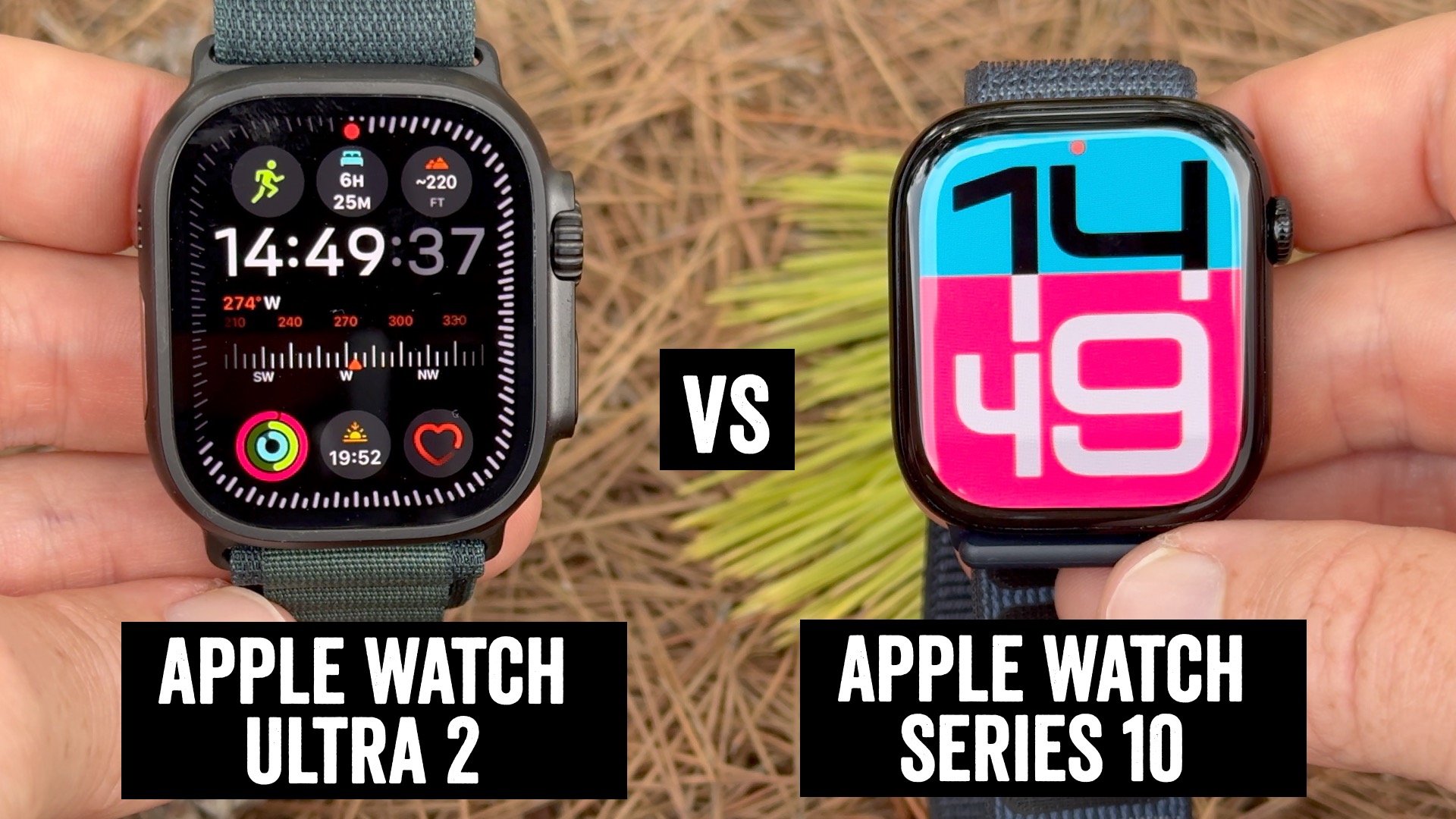
Apple advertises “up to 18 hours” for most models, but actual battery life depends heavily on usage. The Ultra 2 is the only model that consistently delivers its full 36-hour promise, even with GPS and cellular use during hikes or workouts. Other models vary:
| Model | Advertised Life | Real-World Max (Optimized) |
|---|---|---|
| Apple Watch Series 10 | Up to 18 hours | ~30 hours |
| Apple Watch Ultra 2 | Up to 36 hours | 30–36 hours |
| Apple Watch SE (2nd gen) | Up to 18 hours | ~24 hours |
| Apple Watch Series 8 | Up to 18 hours | Up to 48 hours (light use) |
| Apple Watch Series 6–7 | Up to 18 hours | 18–24 hours |
Heavy use cuts battery fast. A 60-minute outdoor run with GPS and LTE can drain 25–40%. Streaming music to AirPods uses ~10% per hour, while using the speaker uses even more.
How Low Power Mode Doubles Runtime
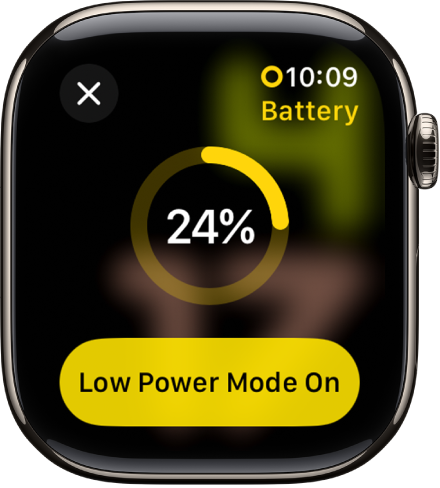
Low Power Mode can double your battery life by disabling non-essential features:
– Turns off Always-On Display
– Pauses background app refresh
– Reduces haptic feedback
– Slows syncing frequency
Enable it from Control Center (tap the battery icon) or let it activate automatically when charging past 80%. It stays on until you unplug—perfect for travel or long workdays.
Test Your Battery Health First
Find Maximum Capacity in Settings
Go to Settings > Battery > Battery Health on your Apple Watch. Look for:
– Maximum Capacity: Your battery’s current strength vs. new.
– 100%: Like new.
– 80% or below: Degraded—Apple recommends replacement.
– Battery Needs Service: Appears if hardware failure is detected.
A reading of 72% is significantly degraded and will cause fast drain, even with ideal settings.
Understand When Batteries Degrade
After 2–3 years of daily charging, most watches drop to 80% capacity. A Series 5 user reported exactly 80% at 35 months—typical for lithium-ion wear. Below this threshold:
– Unexpected shutdowns at 30–50%
– Slower performance during workouts
– Longer charging times
Apple uses automatic performance management on Series 5 and later to prevent crashes, but it may dim the screen or delay app launches.
Fix Software-Related Battery Drain
Restart After watchOS Updates
watchOS 10 and 11 caused widespread battery drain. Symptoms include:
– 100% → 23% in 7 hours
– Drain worsens over 1–3 days post-update
– Background indexing runs up to 72 hours
Fix: Wait 2–3 days first. Then:
1. Force restart Apple Watch: Hold Side Button + Digital Crown for 10 seconds.
2. Restart iPhone to fix sync issues.
3. Let indexing complete.
Most users see improvement within 48 hours.
Stop Stuck Update Loops
An update stuck in “Preparing…” can drain battery continuously.
Solution:
1. Open Watch app on iPhone > General > Software Update
2. Turn off Automatic Updates
3. Delete any pending download
4. Leave watch charging overnight
If it fails repeatedly, unpair and re-pair (see below).
Optimize Power-Hungry Settings
Turn Off Always-On Display
Always-On Display (AOD) reduces battery life by up to 25%. On Series 7–10, it keeps the screen dimly lit even when your wrist is down.
Fix:
1. Go to Settings > Display & Brightness > Always On
2. Toggle off
You’ll gain significant runtime—especially with bright watch faces.
Disable Background App Refresh
Apps syncing in the background waste power. Weather, fitness, and messaging apps are worst offenders.
Fix:
1. On iPhone, open Watch app
2. Tap General > Background App Refresh
3. Disable for non-essential apps
Or disable entirely if you don’t need live updates.
Limit “Hey Siri” and Raise to Wake
- “Hey Siri” keeps the mic active—drains battery over time.
- Disable: Settings > Siri & Search > Listen for ‘Hey Siri’
- Raise to Wake triggers screen too often.
- Fix: Reduce wake duration to 15 seconds in Display settings
Reduce Brightness and Animations
Max brightness uses more power. Set to 30–50% in Settings > Display & Brightness.
Also:
– Use dark watch faces—OLED screens use less power with black pixels
– Avoid animated or complex faces (e.g., Unity, Astronomy)
– Add a Battery Complication to monitor charge at a glance
Manage Connectivity to Save Power
Turn Off Cellular When iPhone Is Near
Cellular uses more power than Bluetooth. If your iPhone is in your pocket, LTE is unnecessary.
Fix:
– Swipe up > Control Center > Tap Cellular icon to disable
– Or enable Airplane Mode, then turn Bluetooth back on
Saves power during commutes or office work.
Avoid Weak Wi-Fi and Signal Hunting
In low-coverage areas, your watch constantly searches for signal.
Signs of weak connection:
– Blue Wi-Fi icon with one bar
– Green cellular icon flickering
Fix: Enable Airplane Mode, then manually re-enable Bluetooth.
Also helps if you’re using a VPN or ad-blocking profile—these can interfere with Watch connectivity.
Identify and Stop Battery-Sucking Apps
Use Battery Usage to Find Culprits
Check which apps drain power:
1. On iPhone, open Watch app
2. Tap Battery
3. View usage for Last 24 Hours or Last 10 Days
If one app uses disproportionate power (e.g., 40% in 6 hours), it may be malfunctioning.
Common culprits:
– Third-party weather apps with “Always” location access
– Fitness apps running GPS in background
– Messaging apps with constant notifications
Fix: Uninstall or disable background refresh for the app.
Stop Streaming Audio from Watch
Playing music via Bluetooth headphones or watch speaker drains battery fast:
– Up to 15% per hour on speaker
– ~10% per hour via AirPods
Use your iPhone instead for long listens.
Apply Advanced Fixes That Work
Unpair and Re-Pair Your Watch
This fix resolves 80% of persistent drain cases. It clears corrupted data, stuck updates, and sync loops.
Steps:
1. On iPhone, open Watch app > My Watch > Apple Watch > Unpair
2. Wait for backup to finish
3. Re-pair and restore from backup
Reported results:
– Ultra 2: 10h → 20+ hours
– Series 6: 5h → 11+ hours
– Series 8: From dying by afternoon to 66% at bedtime
Do this after major updates or unexplained drain.
Factory Reset and Set Up as New
If re-pairing fails, go nuclear.
Steps:
1. On watch: Settings > General > Transfer or Reset > Erase All Content and Settings
2. Keep cellular plan if prompted
3. Shut down iPhone completely
4. Re-pair watch and set up as new (don’t restore backup)
Why it works: Eliminates corrupted settings, bad app data, and sync conflicts.
One user saw 34% battery remaining after 19 hours of normal use post-reset.
Reset Sync Data and Network Settings
Clears hidden glitches.
Reset Sync Data:
– iPhone: Watch app > General > Reset > Reset Sync Data
Reset Network Settings:
– iPhone: Settings > General > Reset > Reset Network Settings
May take 1–2 days to stabilize, but often stops phantom drain.
Handle Hardware and Charging Right
Replace Degraded Battery
If battery health is below 80%, replacement is the only fix.
Costs (U.S.):
– Series 4 and newer: $99
– Older models: $79
– With AppleCare+: Free when health <80%
Process:
– Apple may replace the entire unit with a refurbished one
– Turnaround: ~2 weeks
– New serial number assigned
Contact Apple Support or visit a store for diagnostics.
Use Proper Charging Setup
Avoid:
– Charging via laptop USB ports (insufficient power)
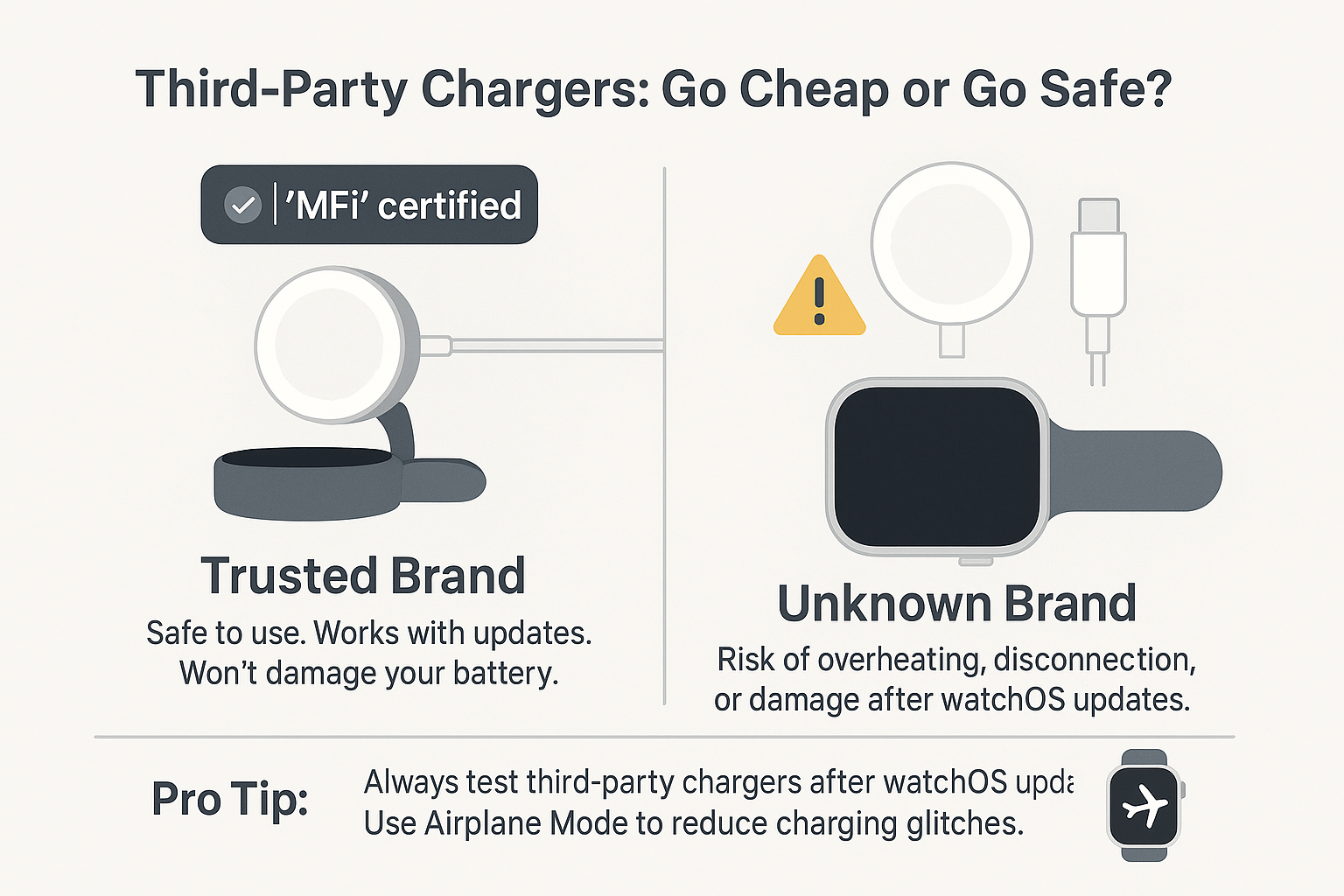
– Third-party chargers (may not deliver full wattage)
Do:
– Use original magnetic charger
– Pair with 20W USB-C adapter for fastest charge (~1–2 hours)
– Charge in room temperature (62°F–72°F / 16°C–22°C)
Never charge in hot cars or freezing temps—extremes accelerate degradation.
Prevent Future Battery Drain
Adopt Smart Charging Habits
Lithium-ion batteries hate extremes.
Best practices:
– Charge nightly—don’t let it drop to 0%
– Avoid leaving at 100% for days
– For storage: Keep at 50% charge
– Enable Optimized Battery Charging to reduce wear
But if you need max runtime (e.g., travel), disable Optimized Charging temporarily.
Maintain Software Wisely
- Update watchOS—patches often fix battery bugs
- But disable auto-updates if new versions are unstable
- Reboot watch weekly to clear background tasks
Check Apple’s Feedback Page to report issues—forums aren’t monitored.
Optimize Daily Usage
- Use AirPods, not watch speaker
- Let iPhone handle GPS for runs
- Turn off cellular when iPhone is near
- Enable Theater Mode in dark rooms to prevent accidental wakes
When to Contact Apple
Spot Hardware Failure Signs
Seek help if you see:
– Unexpected shutdowns at 30–50%
– Battery health below 80%
– Watch gets hot during use or charge
– Drains from 100% to 10% overnight
– Takes much longer to charge than before
These indicate hardware failure, not software.
Get Support and Service
Options:
– Apple Support app: Remote diagnostics
– Apple Store: In-person testing and battery swap
– Mail-in service: Available in most regions
Bring usage logs and battery health screenshots for faster resolution.
Final Note: Most Apple Watch battery issues are fixable—and usually stem from software, not hardware. Start with simple fixes like restarting and disabling Always-On Display. If drain persists, unpair and re-pair your watch. Only when battery health drops below 80% should you consider replacement. With the right settings and maintenance, your Apple Watch can last all day, every day.
Leave a Reply