

You wake up, reach for your Apple Watch, and notice the charging ring stops just short of full—again. No warning, no error, just a stubborn halt at 80%. You try a different cable, restart the watch, even plug it in earlier—but nothing pushes it past that invisible barrier. Before you assume your battery is failing or your charger is broken, here’s the real story: your Apple Watch is working exactly as intended.
Apple Watch models from Series 6 onward often pause charging around 80% thanks to Optimized Battery Charging and Optimized Charge Limit—two smart software features designed to extend your battery’s lifespan. These tools learn when you charge your watch (especially overnight) and delay the final 20% to prevent long-term battery wear. The watch then finishes charging just before you typically unplug it, so it’s fully powered when you need it.
This isn’t a glitch. It’s protection. Lithium-ion batteries degrade faster when held at 100% for hours. By pausing at 80%, Apple reduces chemical stress and helps your battery stay healthy for years. In this guide, you’ll learn how to identify when this feature is active, how to override it, disable it (if your model allows), and troubleshoot cases where it won’t turn off—even after toggling the setting.
Why Your Apple Watch Stops at 80%
If your Apple Watch halts at 80%, it’s almost certainly due to battery optimization features, not a hardware fault. These are built-in safeguards, not malfunctions.
How Optimized Battery Charging Works
Optimized Battery Charging uses on-device machine learning to study your charging habits and location patterns.
- It activates when you charge overnight or for extended periods
- Pauses charging at 75–80% to avoid prolonged full charge
- Resumes charging just before your usual wake-up or unplug time
- Only works in familiar locations like home or work
- Available on Apple Watch Series 6 and later
On Series 9 and Ultra models, this feature cannot be disabled—it’s permanently active to protect battery health.
The system learns from your routine: if you plug in at 10 PM and unplug at 7 AM, it’ll wait until 6:30 AM to complete the charge. This means your watch hits 100% just in time—without sitting at full charge for 8 hours.
What Is Optimized Charge Limit?
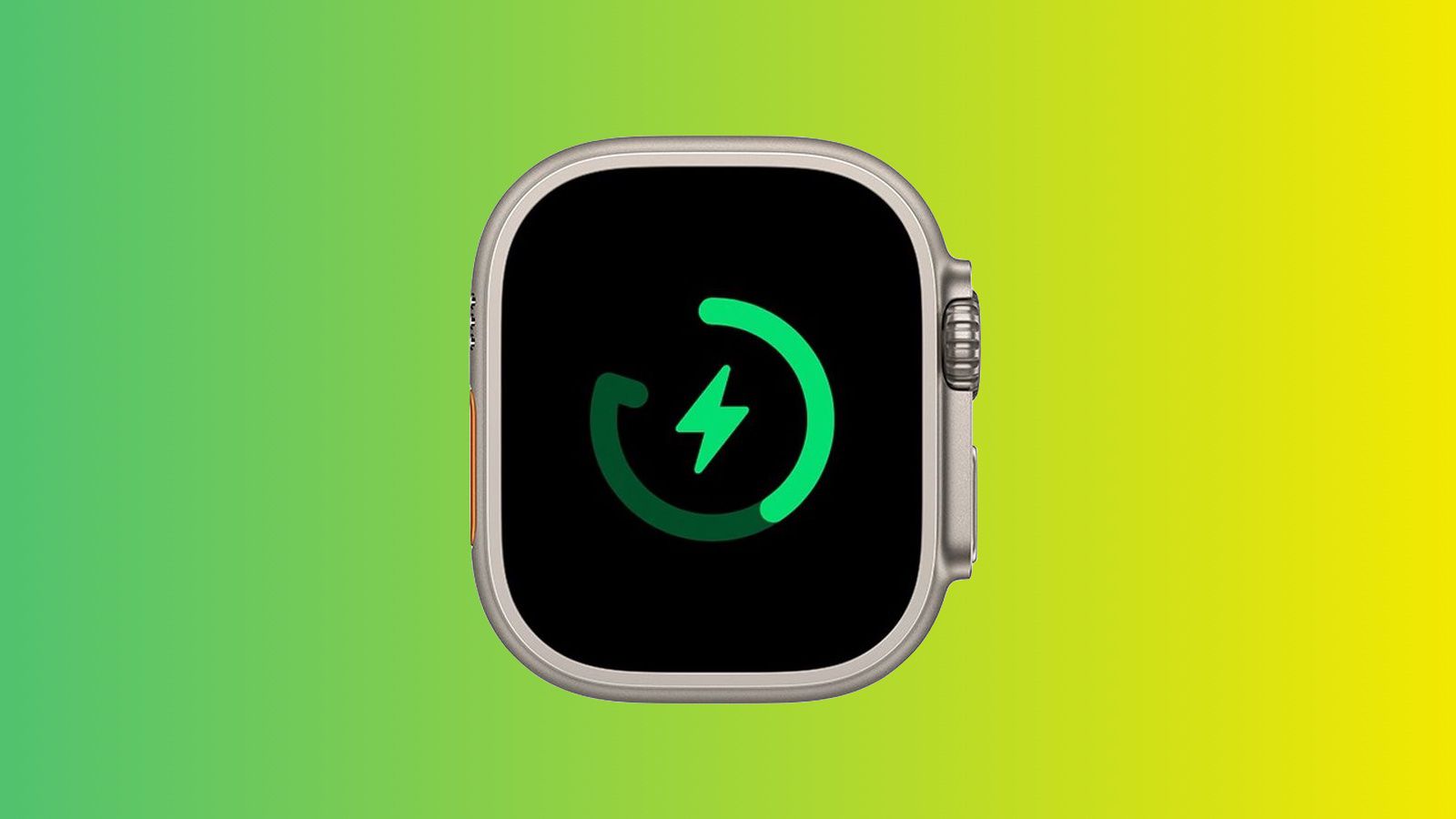
Introduced in watchOS 10, Optimized Charge Limit is the next evolution of battery protection.
- Dynamically caps charge based on your daily usage
- May allow 100% on high-activity days (e.g., workouts, travel)
- Limits to ~80% on low-usage days
- Displays an open ring (like a “G” or “C”) on the charging screen
- Works on Series 6+, SE (2nd gen), and Ultra with watchOS 10+
Unlike the older Optimized Battery Charging, this feature adjusts daily. If you’re sedentary, it may stop at 80%. If you’ve got a long hike planned, it might let the battery top off.
How to Charge to 100% Immediately

Even with optimization enabled, you can override the limit anytime.
Tap to Charge to Full Now
When your watch is paused at 80%:
- Tap the screen while it’s charging
- Tap the charging circle (green or yellow)
- Select “Charge to Full Now”
The watch will finish charging to 100% within 30–60 minutes, depending on model and charger.
This override is temporary. The next charging session will resume normal optimization.
Can You Disable the 80% Charging Limit?
Yes—but only on older models. Apple has made this decision for you on newer devices to protect long-term battery health.
| Model | Can Disable Optimization? |
|---|---|
| Apple Watch Series 6–8 | ✅ Yes |
| Apple Watch SE (1st/2nd gen) | ✅ Yes |
| Apple Watch Series 9 | ❌ No |
| Apple Watch Ultra | ❌ No |
On Series 9 and Ultra, battery optimization is always on, and there’s no setting to turn it off permanently. This reflects Apple’s shift toward battery sustainability over user control.
How to Turn Off Optimized Charging (If Your Model Allows)
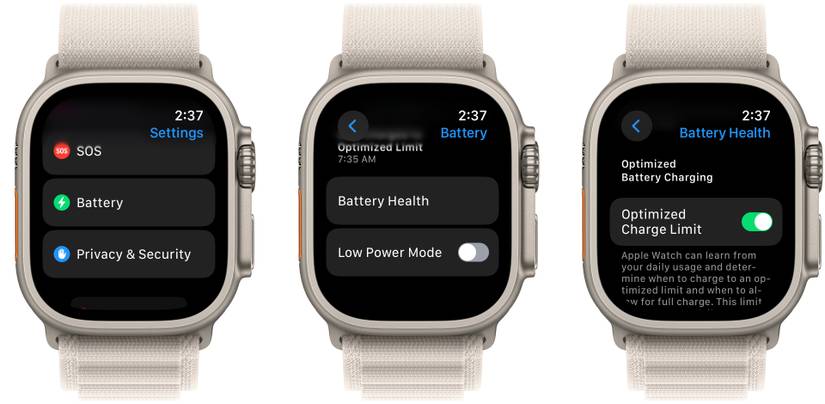
If you’re using a Series 8 or earlier, you can disable the feature.
Step-by-Step Disable Guide
- Open Settings on your Apple Watch
- Go to Battery > Battery Health
- Tap Optimized Battery Charging
- Choose:
– Turn Off (permanent, if supported)
– Turn Off Until Tomorrow (temporary pause)
⚠️ Warning: Disabling this feature may accelerate battery aging. Apple recommends leaving it on for long-term device health.
Watch Still Stuck at 80%? Troubleshooting Steps
Some users report their Apple Watch still stops at 80% even after disabling the feature. This is often due to software bugs or misconfigured settings.
Common Causes
- Optimized Charge Limit still active (even if Optimized Battery Charging is off)
- Software bug in watchOS 10 or 11
- Settings not saved after an update
- Feature re-enabled automatically post-update
Force Reset the Optimization Setting
Sometimes the setting appears off but still runs in the background.
Toggle On and Off Again
- Turn Optimized Battery Charging ON
- Wait 10 seconds
- Turn it OFF again
- Restart both Apple Watch and iPhone
- Check if the watch now charges to 100%
This forces the system to re-register your preference and clear any cached states.
Update watchOS and iOS
Outdated software can cause charging glitches.
How to Check for Updates
- On iPhone: Open Watch app → General → Software Update
- On Apple Watch: Settings → General → Software Update
Install the latest version. Apple frequently releases patches for battery and charging issues.
Unpair and Re-pair Your Watch
If nothing works, reset the connection.
Steps to Re-pair
- Back up your Apple Watch in the Watch app on iPhone
- In Watch app → select your watch → tap “i” → Unpair Apple Watch
- Wait for backup to complete
- Set up as new or restore from backup
- Re-enable features one by one
This clears corrupted preferences and resets the battery optimization logic.
Why Location Affects Charging Behavior
Optimized Battery Charging only activates in familiar locations—like home or work.
- Uses on-device location data to identify where you regularly charge
- Does not send data to Apple
- Won’t activate when traveling or in new environments
If you charge your watch somewhere unfamiliar, it often charges straight to 100%.
🔁 Pro Tip: Enable Location Services on your iPhone to help your watch recognize familiar spots faster.
Is 80% Better for Battery Longevity?
Yes—keeping lithium-ion batteries at 100% for hours accelerates degradation.
The Science Behind the 80% Rule
- High voltage stress damages battery chemistry over time
- Time at full charge is a major factor in battery aging
- Charging to 80% and stopping can reduce wear by up to 50% over a year
Apple’s approach mirrors best practices in electric vehicles and laptops, where full charges are avoided unless necessary.
Check Your Battery Health
Monitor your battery’s long-term condition:
- Open Settings on Apple Watch
- Go to Battery → Battery Health
- View:
– Maximum Capacity (e.g., 95%)
– Peak Performance Capability
– Any Service Battery warnings
A capacity below 80% may require a battery replacement.
Model-Specific Charging Rules
Not all Apple Watches behave the same. Here’s what to expect:
| Model | Optimization Active? | Can Disable? | Notes |
|---|---|---|---|
| Series 3–5 | ❌ No | N/A | Charges to 100% normally |
| Series 6–8 | ✅ Yes | ✅ Yes | Disable in Battery Health |
| SE (1st gen) | ✅ Yes | ✅ Yes | 2nd gen adds Charge Limit |
| SE (2nd gen) | ✅ Yes | ✅ Yes | Needs watchOS 10+ |
| Series 9+ | ✅ Yes | ❌ No | Always on |
| Ultra | ✅ Yes | ❌ No | Always on |
✅ Tip: If you need full control, consider using a Series 8 or earlier model.
Charging Screen: What the Colors and Shapes Mean

The charging interface gives visual cues about what’s happening.
Normal Charging
- Solid green ring: Charging normally to 100%
Optimized Charging Active
- Ring stops at ~80% with a small gap
- Looks like a “G” or “C” shape
- Tap to reveal “Charge to Full Now” option
Low Power Mode
- Yellow ring: Battery below 20% or Low Power Mode active
- Still supports optimization
🟦 Note: Some users report a blue tint—this is likely screen reflection, not a system color.
Common Mistakes to Avoid
Even experienced users make these errors.
Mistake 1: Using Non-MFi Chargers
Cheap or uncertified chargers can cause slow or erratic charging.
✅ Use only Apple-certified (MFi) chargers and cables
Mistake 2: Charging in Hot Environments
Heat damages batteries faster than partial charging.
✅ Avoid charging in direct sun, cars, or near heaters
Mistake 3: Assuming 80% = Battery Failure
Many users panic and visit Apple Support unnecessarily.
✅ Check settings first—it’s almost always software, not hardware
When to Seek Hardware Help
If your watch never charges past 80%, even after:
- Toggling settings
- Restarting devices
- Updating software
- Using “Charge to Full Now”
…then consider real battery issues.
Signs of Hardware Problems
- Battery drops rapidly (e.g., 20% in 30 minutes)
- Watch shuts off at 30%+ charge
- Swollen case or screen lift
- “Service Battery” warning in Battery Health
Visit an Apple Store or authorized provider if you see these signs.
Best Practices for Daily Use
Maximize convenience and battery life with smart habits.
Overnight Charging
✅ Leave optimization ON—it’s designed for this
Daytime Top-Ups
⏱️ Turn off optimization if you need full charge fast
Before Long Trips
🔋 Use “Charge to Full Now” to ensure 100%
Weekly Maintenance
🔁 Restart both devices weekly to clear memory
Bottom Line: 80% Is Protection, Not a Problem
Your Apple Watch stopping at 80% is by design, not a defect. It’s Apple’s way of helping your battery last longer—just like iPhone’s Optimized Battery Charging and MacBook’s battery health management.
- On Series 9 and Ultra: You can’t disable it—accept it as part of long-term care
- On older models: You can disable it, but consider leaving it on
- Always override with “Charge to Full Now” when needed
This feature reflects a shift in tech: sustainability over instant convenience. Yes, it’s frustrating when you want 100%. But in two years, when your battery still holds 90% capacity, you’ll be glad it was there.
Keep your watch updated, understand the settings, and use the manual override when necessary. That’s the smartest way to live with Apple’s 80% charge rule.





