
You’ve just unboxed your new iPhone 16, eager to sync your Apple Watch—only to be met with silence. No pairing screen. No prompt. Your watch either doesn’t appear at all or vanishes from the Watch app after a brief connection. You’re not alone. Hundreds of iPhone 16 users are reporting this exact issue, especially when upgrading from older iPhones like the iPhone 13. The good news? In nearly every case, this problem is fixable—without losing your health data, apps, or custom watch faces.
The root cause usually lies in software incompatibility, Activation Lock, or interference from a previously paired iPhone. With iOS 18 and watchOS 11 now required for iPhone 16 compatibility, older Apple Watch models—especially Series 5 and below—can’t update past watchOS 8.8, blocking secure pairing. Even if you traded in your old phone, your Apple ID still holds the digital key. This guide delivers proven, step-by-step fixes—from quick restarts to full resets—so you can get your devices working together again. Let’s solve this.
Restart Both Devices
If your Apple Watch isn’t showing up during iPhone 16 setup, start with the simplest fix: restart both devices.
A soft reboot clears temporary glitches in Bluetooth, Wi-Fi, and the pairing stack—common culprits during device transitions. Many users report success after just one restart, especially if they skipped it initially.
Power Cycle iPhone and Watch
- Turn off iPhone 16: Press and hold the side button + volume up button until the power slider appears. Slide to power off. Wait 30 seconds, then press the side button to restart.
- Restart Apple Watch: Press and hold the side button until the Power Off slider appears. Drag to turn off. Wait 10 seconds, then press the side button to power on.
- Let both devices fully boot.
- Open the Watch app on your iPhone 16 and try pairing.
Pro Tip: One user succeeded on the fourth restart attempt. Don’t give up after one try—temporary software hiccups can persist.
Force a Hard Reset on Apple Watch
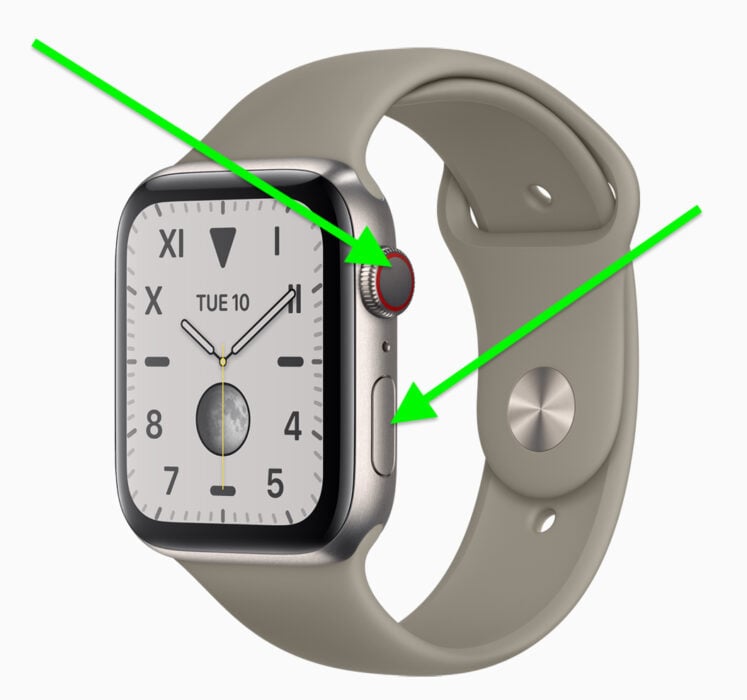
If a standard restart fails, force a hard reset on the watch.
This clears deeper system caches that may be blocking the pairing process. It won’t erase your data.
- Press and hold both the side button and Digital Crown for about 10 seconds.
- Keep holding until the Apple logo appears.
- Release and wait for the watch to restart.
- Bring it close to the iPhone 16 and retry pairing.
This method has resolved pairing freezes for users on Series 7, 8, and SE2 models.
Stop Old iPhone from Interfering
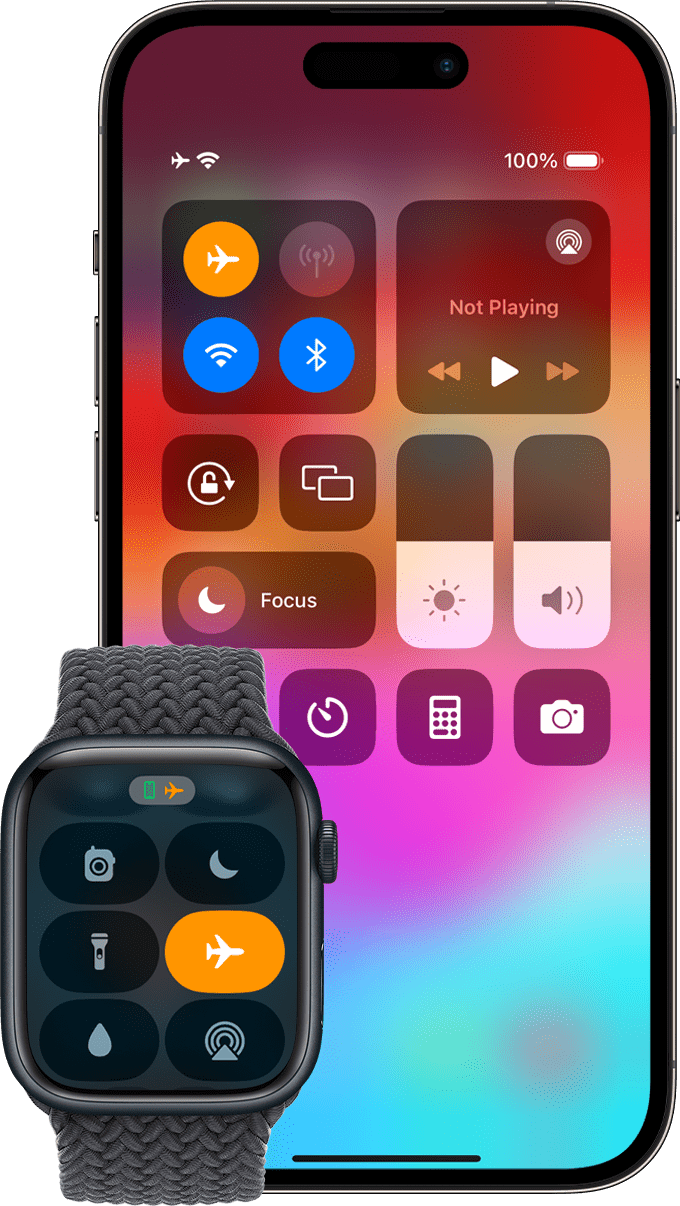
Your Apple Watch may be trying to reconnect to your old iPhone—blocking the new pairing.
Even if you traded it in, the watch “remembers” the last paired device. If that phone is still active or wasn’t properly unpaired, it can hijack the connection.
Break the Old Connection
- If you still have the old iPhone: Turn it off or enable Airplane Mode.
- If you no longer have it: Ensure it was erased and unpaired before trade-in.
Warning: If the old iPhone wasn’t unpaired, Activation Lock remains active. You’ll still need the original Apple ID and password to pair the watch.
Once the old device is offline, return to your iPhone 16 and open the Watch app. The pairing prompt should now appear.
Skip Pairing During Setup, Do It Later
The iPhone 16’s setup assistant may glitch when detecting the watch too early.
Instead of pairing during initial setup, skip it and reconnect manually.
Delayed Pairing Method
- During iPhone 16 setup, tap “Set Up Later” when the Apple Watch appears.
- Complete iPhone setup and let apps and data sync.
- Open the Watch app from the home screen.
- Tap Start Pairing.
- Hold your iPhone near the Apple Watch to scan the animation.
This avoids race conditions in the setup process and gives the system time to stabilize.
Reinstall the Watch App
If the Watch app is missing or unresponsive, reinstall it.
Apple occasionally removes system apps during carrier resets or iOS bugs.
Restore the Official App
- Open the App Store on iPhone 16.
- Search for “Watch”.
- Tap Get to reinstall the official Apple Watch app.
- Once installed, open it and try pairing.
This fixed the issue for users who accidentally deleted the app or encountered a corrupted install.
Update Apple Watch Before Pairing
An outdated watchOS version can block pairing with iPhone 16.
iOS 18 and watchOS 11 are required for full compatibility. If your watch runs an older OS, it may fail to connect.
Update Before Pairing
If you still have access to the old iPhone:
1. Open the Watch app.
2. Go to General > Software Update.
3. Download and install watchOS 11.
4. Once updated, erase the watch or unpair it.
5. Now pair with iPhone 16.
✅ User Success: “Updating the watch first fixed everything. It paired in seconds.”
Without the old iPhone, you can’t update wirelessly—so proceed to reset the watch directly.
Remove and Reinstall Watch Profile on iPhone
The iPhone may retain corrupted pairing data from the old device.
Remove it completely and start fresh.
Clear Watch Data on iPhone
- Open Watch app on iPhone 16.
- Tap All Watches.
- Tap the “i” icon next to your watch.
- Select Unpair Apple Watch.
- Confirm and wait for erasure (this removes the watch from your account).
- Restart iPhone 16.
- Open Watch app again and tap Start Pairing.
This preserves your data on the watch and often resolves “ghost” pairing issues.
✅ User Confirmation: “Uninstalled the profile, restarted, and it paired instantly—no data loss.”
Reset Apple Watch Without Unpairing (Old iPhone Gone)
If your old iPhone is gone, you can’t unpair the watch normally.
But you don’t need to. Activation Lock is tied to your Apple ID, not the phone.
Reset Watch Without Unpairing
- On Apple Watch, go to Settings > General > Reset.
- Tap Erase All Content and Settings.
- A warning appears: “You need to unpair first to disable Activity Lock.”
- Ignore it—this is safe. Activity Lock is iCloud-based.
- Confirm reset.
- After reset, bring watch near iPhone 16.
- When prompted, enter your Apple ID and password.
This removes Activation Lock and allows clean pairing.
✅ User Success: “Thought I was stuck—reset anyway and it worked. Lock is tied to iCloud, not the phone.”
Factory Reset Apple Watch (Last Resort)
When all else fails, a full reset is the most reliable fix.
This wipes the watch but lets you restore everything from backup.
Full Erase and Restore
On Apple Watch:
1. Go to Settings > General > Reset.
2. Tap Erase All Content and Settings.
3. Confirm. Wait for reset to complete (watch restarts to setup screen).
On iPhone 16:
1. Open Watch app.
2. Tap Start Pairing.
3. Scan the animation on the watch.
4. Choose Restore from Backup.
5. Select the most recent iCloud or encrypted computer backup.
6. Wait for sync to finish.
✅ User Confirmation: “Reset the watch, and the iPhone recognized it immediately. Restored from backup—nothing lost.”
Reset Apple Watch Without Passcode
Forgot your Apple Watch passcode? You can still reset it.
This method uses the charger and button combo.
Force Reset Without Unlocking
- Place Apple Watch on its magnetic charger.
- Press and hold the side button until the Power Off slider appears.
- Now, press and hold the Digital Crown.
- After a few seconds, a Reset option appears.
- Tap Reset and confirm.
- Once erased, pair with iPhone 16 and enter Apple ID.
This bypasses the passcode requirement and is Apple’s official recovery method.
Fix Stalled Pairing Animation
If the pairing screen freezes or won’t scan, interrupt and retry.
A stuck animation often means the watch is trying to reconnect to an old device.
Reset During Pairing Mode
- With the pairing screen active (animation showing), press and hold the Digital Crown.
- A Reset option will appear.
- Tap it and confirm.
- The watch restarts to setup screen.
- Immediately bring iPhone 16 close and try scanning again.
Do this in one fluid motion—don’t let the watch fully boot between steps.
Handle Missing Old iPhone
No access to your old iPhone? You can’t unpair remotely—but you can still pair.
The key is erasing the Apple Watch directly and using your Apple ID to bypass Activation Lock.
Pair Without Old Device
- Erase Apple Watch via Settings > General > Reset.
- Ignore the “unpair first” warning.
- After reset, open Watch app on iPhone 16.
- Start pairing.
- When prompted, enter the original Apple ID and password.
⚠️ Critical: Without the correct Apple ID and password, pairing will fail. Activation Lock cannot be bypassed.
If you’ve changed passwords, use your current Apple ID credentials. Two-factor authentication must be accessible.
Complete Incomplete Pairing
If you started pairing but didn’t finish, the watch may show “Pairing Not Complete.”
Don’t start over—resume the process.
Finish Setup from Watch App
- Open Watch app on iPhone 16.
- Go to My Watch > All Watches.
- Find your watch with “Pairing Not Complete” status.
- Tap Finish Pairing.
- Keep the Apple Watch unlocked and on your wrist.
- Follow prompts to complete setup.
This avoids duplicate entries and preserves existing data.
Fix Watch Not Appearing in App
If the Watch app shows “Pair New Watch” but your device won’t appear, troubleshoot visibility.
Common causes include Bluetooth issues, distance, or incorrect mode.
Restore Watch Visibility
- Restart both devices.
- Ensure Bluetooth and Wi-Fi are on (Settings > Bluetooth).
- Place Apple Watch within 1 foot of iPhone.
- Make sure the watch is in setup mode (shows Apple logo or pairing animation).
- If not, reset it manually.
If still invisible, reinstall the Watch app or reset network settings on iPhone:
Settings > General > Transfer or Reset iPhone > Reset > Reset Network Settings.
Series 4 and Older Models May Not Work

Apple Watch Series 4 and earlier may fail to pair with iPhone 16.
watchOS 11 dropped support for Series 5 and older, meaning these watches can’t update beyond watchOS 8.8.
Compatibility Reality Check
- Series 4, 5, and SE1: Max out at watchOS 8.8.
- iPhone 16 requires watchOS 11+ for secure pairing.
- Result: Older watches lack modern security protocols and fail to connect.
❌ User Report: “Series 4 won’t pair with iPhone 16 Pro—tried every fix.”
Recommendation: If you own a Series 5 or older, consider upgrading your watch. Continued use may lead to instability, missing features, or no pairing at all.
Final Note: The “Apple Watch won’t pair with iPhone 16” issue is frustrating but rarely permanent. Most cases stem from software mismatches, Activation Lock, or old-device interference. By restarting, resetting, or restoring from backup, you can regain full functionality. Always back up, update, and unpair properly before upgrading—your future self will thank you.





