

You glance at your Apple Watch, and there it is—a small red dot in the top-right corner of the screen. Your first thought might be: Is something wrong? Is my watch broken? Is it recording me? The good news: none of that is true. The red dot is not a glitch, a sensor, or a security alert. It’s actually one of the most useful—and misunderstood—features on your Apple Watch.
Simply put, the red dot means you have unread notifications. It’s Apple’s way of giving you a silent, glanceable heads-up that something needs your attention—just like the red badge numbers on iPhone app icons. Whether it’s a text message, calendar reminder, email, or social media alert, the dot appears as soon as a new notification arrives and stays visible until you view or clear your alerts.
Even a quick swipe down from the top of your watch face to open the Notification Center is enough to make the red dot disappear—no need to tap on each message. This subtle but smart design keeps you informed without constant buzzing or beeping.
In this guide, you’ll learn everything about the Apple Watch red dot: what it means, how it works, how to remove or disable it, and what to do if it won’t go away. You’ll also discover how to customize which apps trigger it and avoid the common confusion that trips up so many users. By the end, you’ll have full control over your notifications—and that little red dot won’t surprise you again.
Why the Red Dot Exists on Apple Watch
The red dot is a core part of watchOS’s notification system, designed to give you instant visual feedback without interrupting your day. Unlike haptic taps or alert sounds, the dot works silently—perfect for meetings, sleep, or quiet environments where you don’t want distractions but still need to stay aware.
A Seamless Extension of iPhone Design
Apple built the red dot to mirror the red badge indicators on iPhone app icons. If you’re used to seeing a red number on your Messages or Mail app, the red dot on your Apple Watch serves the same purpose—just more minimal. Instead of cluttering the tiny watch screen with multiple badges, Apple uses a single unified dot to represent all unread alerts, no matter how many apps sent them.
This design keeps the interface clean while still delivering critical information at a glance.
Fun fact: The red dot has been part of watchOS since version 1.0, meaning every Apple Watch model—from the original Series 1 to the latest Series 10 and Ultra—uses it the same way.
Where to Find the Red Dot and When It Appears
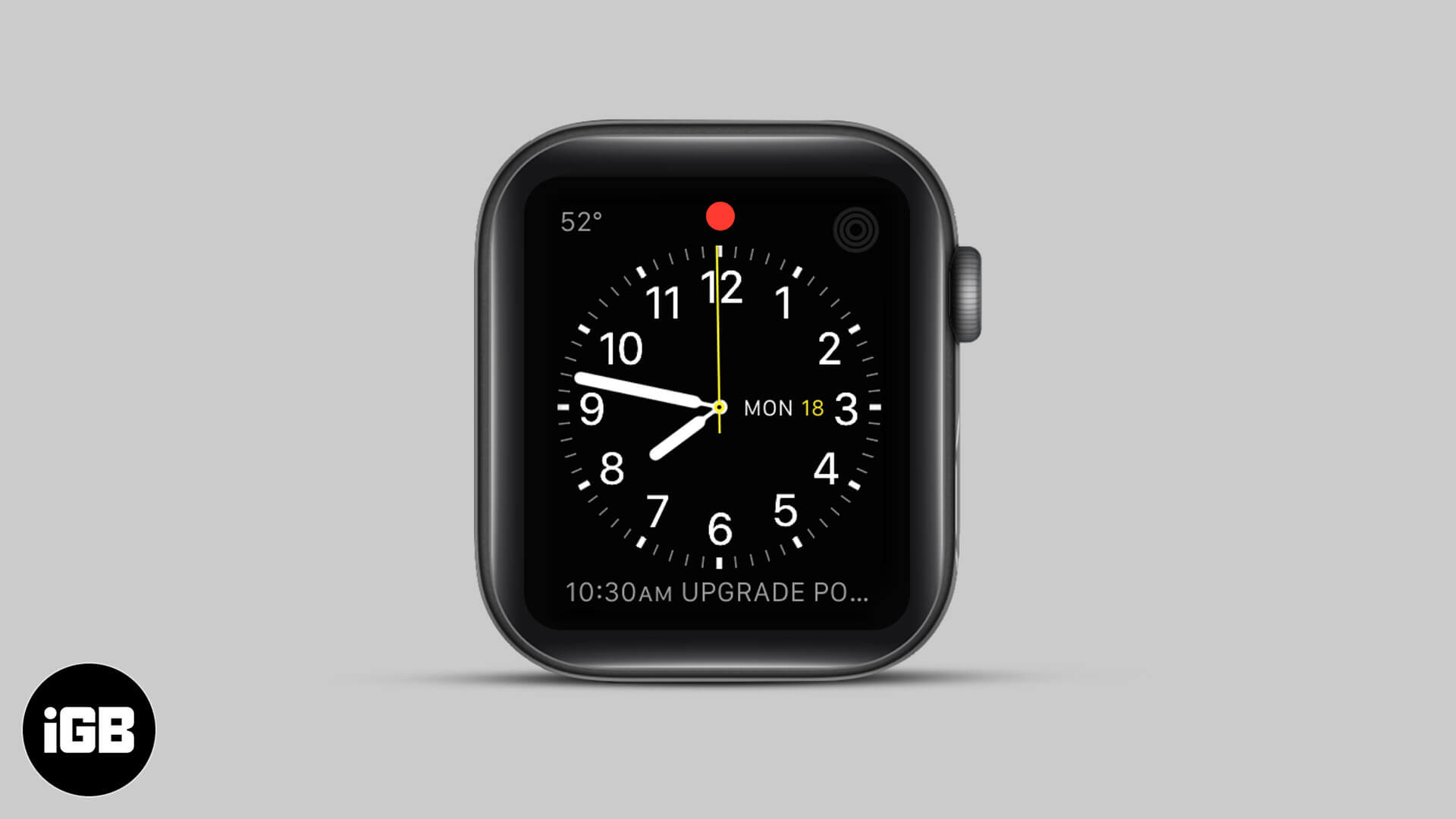
Fixed Location: Top-Right Corner
The red dot always appears in the top-right corner of your Apple Watch display, nestled among other status icons like battery percentage, Bluetooth, Wi-Fi, and cellular connectivity. It’s visible on all watch faces, whether you’re using a minimalist digital face or a full-featured analog design.
Even in Always-On mode, the dot remains visible when you have unread notifications. It doesn’t blink, animate, or change size—it’s a static, bright red circle that’s easy to spot but unobtrusive.
Note: You can’t move, resize, or change the color of the red dot. It’s fixed by design.
What Triggers the Red Dot?
The dot appears as soon as your Apple Watch receives a notification from any app that’s allowed to send alerts. This includes:
- Messages (iMessage, SMS)
- Phone (missed calls)
- Mail and Gmail
- Calendar reminders
- Social media (Instagram, X, Facebook, WhatsApp)
- Work and productivity apps (Slack, Teams, Todoist)
As long as the paired iPhone app is set to send notifications to your watch, the red dot can appear.
Exception: Some apps run natively on the watch (like Workout, Alarms, or Timer) and can trigger local notifications even when your iPhone is out of range.
How to Remove the Red Dot from Your Apple Watch
The red dot isn’t permanent—it disappears as soon as you view or clear your notifications. Here’s how to make it go away.
Open Notification Center to Clear It
The fastest way to remove the red dot is to swipe down from the top of your watch face. This opens the Notification Center, where all your alerts are listed.
Important: You don’t need to tap on any individual notifications. Just opening the panel tells your watch that you’ve “seen” the alerts, and the red dot vanishes instantly.
Clear All Notifications at Once
To wipe the slate clean:
1. Swipe down to open Notification Center.
2. Scroll to the very top.
3. Tap Clear All.
This removes every notification and the red dot in one tap.
Delete Individual Notifications
If you want to keep some alerts and remove others:
– Swipe left on any notification.
– Tap the X.
Repeat for each alert you want to delete. The red dot will stay until all unread notifications are either viewed or dismissed.
How to Disable the Red Dot Completely
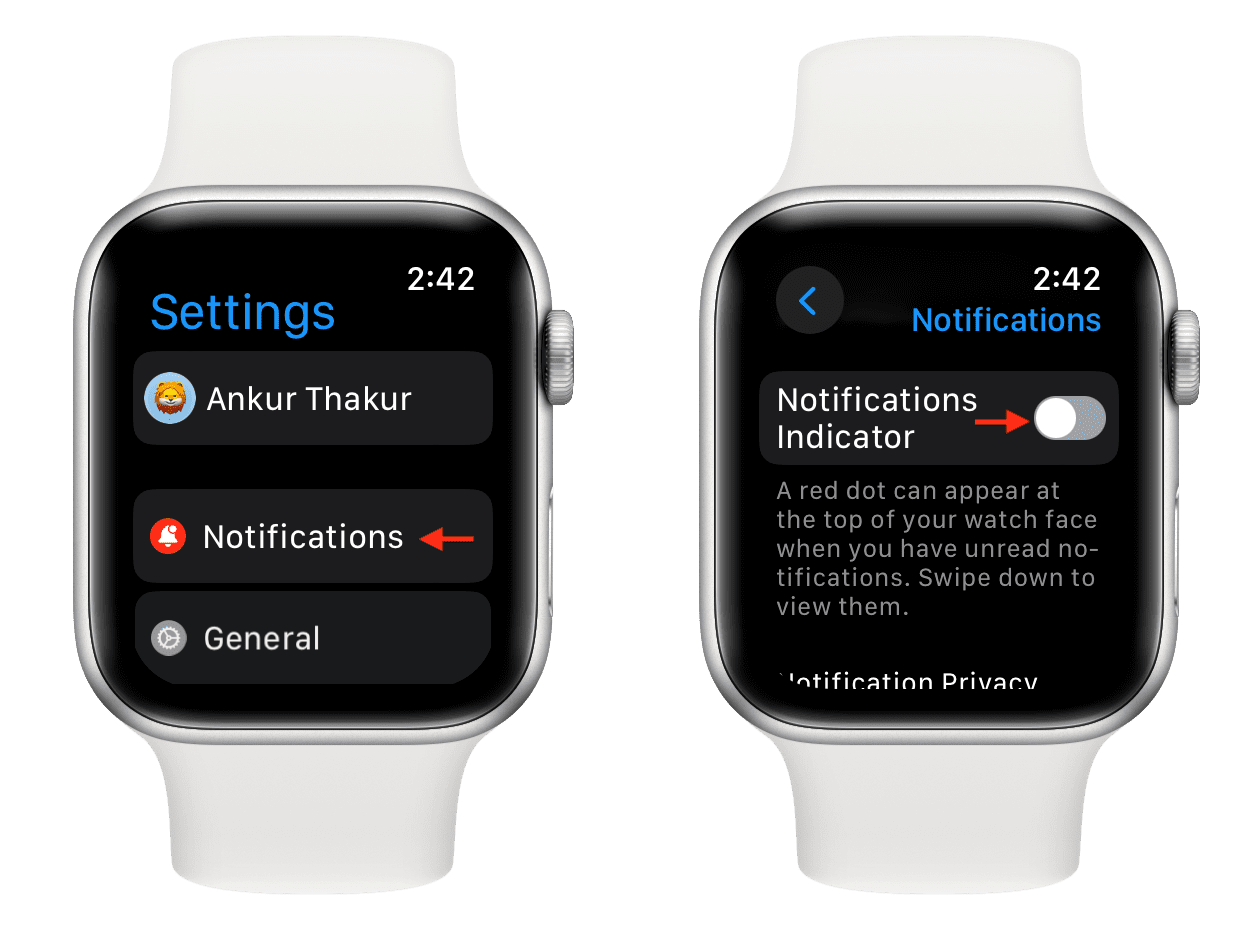
If you find the red dot distracting but still want to receive notifications, you can hide it entirely. Disabling the indicator does not stop alerts—you’ll still get haptics, sounds, and banners. It just removes the visual dot.
Turn Off the Indicator from Your iPhone (Recommended)
- Open the Watch app on your iPhone.
- Tap the My Watch tab.
- Go to Notifications.
- Toggle off Notifications Indicator.
The change syncs automatically to your watch.
Disable It Directly on Your Apple Watch
- Press the Digital Crown to open the Home screen.
- Open Settings.
- Tap Notifications.
- Turn off Notifications Indicator.
This setting is synced across devices, so turning it off on one disables it on the other.
Pro tip: You can re-enable the dot anytime by toggling the switch back on.
Customize Which Apps Trigger the Red Dot
Even with the red dot enabled, you can reduce how often it appears by controlling which apps send notifications to your watch.
Manage App Alerts via iPhone
- Open the Watch app > My Watch tab.
- Tap Notifications.
- Select any app to adjust its settings.
You’ll see four options:
– Allow Notifications: Full alerts with sound and banners.
– Mirror iPhone Alerts: Syncs exactly what appears on your phone.
– Custom: Choose alert style, sound, and haptics.
– None: Blocks all notifications from that app on the watch.
Apps That Trigger the Dot Most Often
These high-volume apps are usually the main culprits behind frequent red dots:
– Instagram, X (Twitter), TikTok
– WhatsApp, Telegram, Signal
– Gmail, Outlook
– News, weather, and stock apps
Setting these to None or Custom can dramatically reduce distractions.
Best practice: Use Mirror iPhone Alerts for essential apps like Messages and Phone to ensure you never miss something important.
Fix a Red Dot That Won’t Go Away
Sometimes, the red dot stays visible even after you’ve cleared notifications. This usually isn’t a hardware issue—it’s a minor software or sync glitch.
1. Force Restart Your Apple Watch
This fixes most temporary bugs:
1. Press and hold the side button and Digital Crown at the same time.
2. Keep holding until the Apple logo appears (about 10 seconds).
3. Release and wait for the watch to reboot.
Check if the dot is gone after restarting.
2. Check iPhone Connection
Most notifications rely on a Bluetooth or Wi-Fi connection to your iPhone. If your phone is out of range, powered off, or in Airplane Mode, alerts may not sync properly.
Ensure:
– Bluetooth is on.
– Airplane Mode is off.
– Your iPhone and watch are within range.
3. Update watchOS and iOS
Outdated software can cause bugs:
– On iPhone: Settings > General > Software Update
– On Apple Watch: Settings > General > Software Update
Install any available updates.
4. Clear Problematic App Notifications
Some third-party apps (like fitness or messaging apps) don’t register alerts as “read” after viewing. To fix:
– Open the app on your iPhone.
– Force-quit it (swipe up from the App Switcher).
– Reopen it and check for pending alerts.
This often resets the notification state.
5. Reset Sync Data (Last Resort)
If nothing works:
1. Open the Watch app on your iPhone.
2. Go to General > Reset > Unpair Apple Watch.
3. Re-pair the watch (back up first).
This clears all sync data and starts fresh.
Debunking Common Myths About the Red Dot
Despite being a simple feature, the red dot sparks confusion—especially among new users.
Myth: “It’s a camera or microphone indicator.”
False. The Apple Watch has no front-facing camera, so there’s no need for a recording indicator.
Myth: “It means I’m being tracked or recorded.”
False. The red dot has nothing to do with privacy, location, or surveillance. It’s purely a notification badge.
Myth: “It’s a battery or charging warning.”
False. Battery status appears as a separate icon or percentage—never the red dot.
Why the Confusion?
- No on-screen label: Apple doesn’t explain the dot in settings.
- Red = warning: People associate red with danger or errors.
- Proximity to sensors: It’s near the heart rate sensor, leading some to think it’s hardware-related.
Fact: The red dot is 100% software-based and completely normal.
Accessibility and Design: Who Benefits Most?
Apple designed the red dot to be minimal, consistent, and glanceable. It fits into a broader design language that values clarity and instant feedback.
For users who rely on visual cues, the dot is invaluable—especially in silent environments. However, those with color vision deficiency (like red-green blindness) may struggle to see it.
Unfortunately, watchOS doesn’t offer:
– Alternative dot colors (blue, yellow)
– Size adjustments
– Position changes
Workaround: Enable Prominent Haptics in Settings > Accessibility > Haptics for stronger tap feedback when alerts arrive.
Final Tips to Master Your Apple Watch Notifications
- Prioritize essential apps: Allow notifications only for Messages, Phone, and Calendar.
- Use Focus modes: Set up Work, Sleep, or Personal Focus to filter alerts automatically.
- Review weekly: Spend 2 minutes adjusting which apps can alert on your wrist.
- Hide the dot if it bothers you: You’ll still get alerts—just without the visual cue.
The red dot on your Apple Watch isn’t a mystery—it’s a tool. By understanding what it means and how to manage it, you can enjoy a smarter, cleaner, and more focused experience. Whether you keep it visible or hide it entirely, you’re now in full control.





