
Your Apple Watch sits silently on your wrist—no buzz for messages, no rings for calls, and worst of all, a persistent red iPhone icon staring back at you. If your Apple Watch won’t connect to your iPhone, you’re not alone. This frustrating issue plagues users during setup, after iOS updates, or even in the middle of a normal day. But here’s the good news: in most cases, the problem isn’t hardware-related or permanent. It’s usually a software glitch, misconfigured setting, or corrupted pairing data—and it can be fixed in minutes.
Whether you just got a new iPhone, updated your watchOS, or your connection dropped out of nowhere, this guide delivers proven, step-by-step solutions that actually work. From simple restarts to full factory resets and iCloud cleanup, we’ll walk you through every fix—organized in order of difficulty—so you can get your Apple Watch back in sync fast.
Check Connection Status First
Before diving into fixes, confirm whether your Apple Watch is truly disconnected.
Look for the Red iPhone Icon
A red iPhone icon or red X on your watch face means it’s not communicating with your iPhone. This is the clearest sign of a broken connection. When paired correctly, you’ll see a green iPhone icon instead. If the red icon appears intermittently, the issue might be due to distance, interference, or Bluetooth dropping.
Use Control Center to Verify
Swipe up from the watch face to open Control Center. Here’s what to look for:
– Airplane Mode (orange airplane icon) — if enabled, disable it immediately.
– Bluetooth symbol missing or grayed out — indicates Bluetooth is off or inactive.
Turn off Airplane Mode and wait 10–15 seconds. The green connection icon should reappear automatically if Bluetooth and Wi-Fi are functioning.
Restart Both Devices Immediately
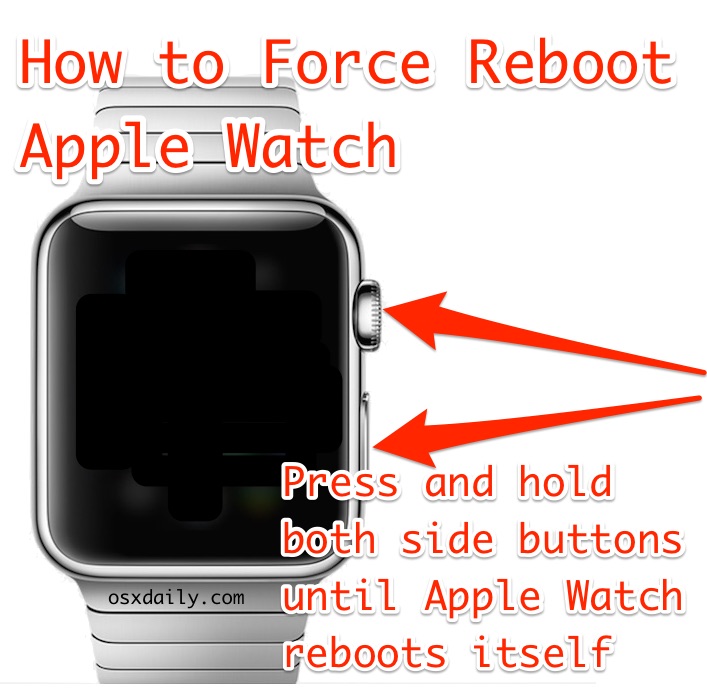
A soft restart resolves temporary software glitches in over 60% of cases.
Force Restart Apple Watch
Press and hold the Side Button + Digital Crown at the same time. Keep holding for about 10 seconds until the Apple logo appears. Release both buttons and let the watch boot fully.
Pro Tip: If your watch is frozen during pairing, this reset often breaks the loop and restores normal function.
Reboot Your iPhone
For iPhone 8 and later: Press and hold the Side Button + Volume Up until the power slider appears. Slide to power off. Wait 30 seconds, then press the Side Button to restart.
For iPhone 7/7 Plus: Hold Side + Volume Down.
After both devices restart, place them within a few inches of each other. Wait 1–2 minutes. In many cases, the connection restores automatically.
Fix Bluetooth and Airplane Mode Issues
Misconfigured settings are the top cause of Apple Watch disconnection.
Ensure Bluetooth Is On
On your iPhone, open Control Center (swipe down from top-right). Confirm:
– Bluetooth icon is blue (active).
– Wi-Fi is on — even though pairing uses Bluetooth, Wi-Fi helps with iCloud syncing and initial setup.
– Airplane Mode is off.
If Airplane Mode is on, disable it on both devices.
Disable Airplane Mode on Watch
Open Control Center on your Apple Watch and tap the airplane icon to turn it off. Wait 15 seconds. Check if the green iPhone icon returns.
Warning: Leaving Airplane Mode on disables Bluetooth—your Apple Watch cannot connect.
Update iOS and watchOS
Outdated software breaks compatibility and stalls pairing.
Update Your iPhone
Go to Settings > General > Software Update. Install any available iOS update. Make sure your iPhone model supports your Apple Watch (e.g., iPhone 6s or later for Series 3+).
Update Apple Watch
On the watch: Open Settings > General > Software Update. Ensure it’s charging and connected to Wi-Fi. Install any pending watchOS updates.
Note: Newer Apple Watch models require the latest iOS version. If your iPhone can’t update, it may not support your watch.
Reset iPhone Network Settings
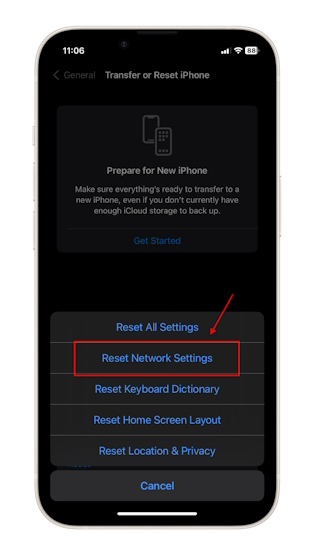
Corrupted Bluetooth or Wi-Fi data can block pairing.
Perform Network Reset
On iPhone:
Settings > General > Transfer or Reset iPhone > Reset > Reset Network Settings.
Confirm the action. This erases saved Wi-Fi passwords and Bluetooth pairings but often fixes invisible glitches.
After reset:
– Restart iPhone.
– Turn on Bluetooth and Wi-Fi.
– Open Apple Watch app and try pairing.
User Verified: Many users (fight-krill9, Senpai_clavier) report this fixed connection issues without a full reset.
Reinstall the Apple Watch App
A corrupted app can stop pairing even if everything else works.
Delete and Reinstall
- Long-press the Apple Watch app on your iPhone home screen.
- Tap Remove App > Delete App.
- Go to the App Store, search “Apple Watch,” and reinstall.
- Open the app and attempt to pair.
Why It Works: The Watch app stores pairing data. Reinstalling clears corrupted files.
Factory Reset Your Apple Watch
When nothing else works, a full erase clears deep software conflicts.
Erase via Settings (If Watch Responds)
On Apple Watch:
1. Open Settings > General > Reset.
2. Tap Erase All Content and Settings.
3. Enter passcode if prompted and confirm.
Wait for the process to finish. The watch will restart to setup mode.
Use Recovery Mode (If Unresponsive)
- Place watch on charger.
- Press and hold Side Button until Power Off slider appears.
- Release, then immediately press Side Button + Digital Crown together.
- Keep holding until “Erase All Content and Settings” appears. Tap it.
Activation Lock Warning: You’ll need the Apple ID and password used to set up the watch.
Pair to a New iPhone Successfully

Switching phones? Follow the right steps.
If Old iPhone Is Available
- On old iPhone: Open Apple Watch app > All Watches > [i] icon > Unpair Apple Watch.
- Wait for unpairing to complete.
- On new iPhone: Open Apple Watch app and follow setup.
Result: No Apple ID prompt needed—clean transfer.
If Old iPhone Is Gone
- Erase Apple Watch manually.
- Set up new iPhone with the same Apple ID.
- Open Apple Watch app and start pairing.
- Enter the original Apple ID and password when prompted.
User Confirmed: IsitPretzelDay and franklinjaeger used this method successfully.
Fix Stuck Pairing or No Prompt Issues
Sometimes the iPhone doesn’t react when you try to pair.
iPhone Doesn’t Show Pairing Prompt
If no “You’ve got an Apple Watch” message appears:
- Open Apple Watch app manually.
- Tap Start Pairing.
- Use iPhone camera to scan the animated pairing code on the watch.
- If scan fails, tap Pair Apple Watch Manually.
Ensure:
– Devices are within 1 foot.
– Bluetooth is on.
– No other Apple Watch is paired.
Remove Watch from iCloud (Hidden Fix)
Some users can’t pair because the watch is still linked remotely.
Remove from Apple ID Devices
- On iPhone or Mac: Go to Settings > [Apple ID] > Devices.
- Find your Apple Watch.
- Tap it, then select Remove from Account.
Why This Matters: If the watch appears in iCloud but not in the Watch app, this conflict blocks pairing. User dissolvingatoms confirmed this resolved a months-long issue.
After removal:
– Reset the watch.
– Try pairing again.
Handle Post-Migration Sync Failures
After transferring data from an old iPhone, the watch may not reconnect.
Finish Incomplete Pairing
On new iPhone:
1. Open Apple Watch app > My Watch > All Watches.
2. If “Pairing Not Complete” appears:
– Put watch on wrist and unlock it.
– Tap Finish Pairing.
3. Follow prompts to sync apps and data.
Sync Time: Expect 5–15 minutes. Don’t use the watch during this process.
Avoid Common Mistakes
Even small errors can derail pairing.
Don’t Use Third-Party Chargers
Cheap or faulty chargers can cause instability during setup. Use only Apple-certified charging equipment.
Keep Devices Close and Unlocked
Place iPhone and Apple Watch within 3 inches and keep both screens awake and unlocked during pairing.
Charge Watch to 50% Minimum
Low battery interrupts syncing. Charge your Apple Watch to at least 50% before starting.
Pro Tip: A full reset solves 95% of pairing issues, according to real-world repair data.
When to Contact Apple Support
Try everything above first. If you’re still stuck:
Seek Help If:
- Reset and re-pairing fail three times.
- Activation Lock persists with correct Apple ID.
- Watch won’t turn on or stays on Apple logo.
- Hardware issues suspected (e.g., no Bluetooth detection).
How to Reach Support
- Use the Apple Support app.
- Chat online at support.apple.com.
- Visit an Apple Store or authorized service provider.
User Experience: IsitPretzelDay resolved a stalled pairing via Apple Support chat—no store visit needed.
Final Note: Most “Apple Watch won’t connect” issues are fixable in under 30 minutes using the right sequence. Start with restarts and setting checks, escalate to network reset and app reinstall, then full reset if needed. Always ensure software is up to date and use the same Apple ID across devices. With these steps, your Apple Watch will be back in sync—and back on your wrist—fast.





