Is your Apple Watch alarm not working when it should be buzzing or vibrating? You’re not imagining it—this is a common and frustrating issue affecting Apple Watch users across models and software versions. Whether you rely on your watch to wake up, stay on schedule, or manage health routines, a silent alarm can throw off your entire day. The good news: in most cases, the fix is simple and doesn’t require a trip to Apple Support.
The problem is rarely hardware-related. Instead, it’s usually due to misconfigured settings, silent modes, Focus interference, or connectivity gaps between your iPhone and watch. Alarms set on your iPhone might not mirror properly. Your watch could be locked or unlocked in a way that changes alarm behavior. Even your AirPods being connected can silently redirect the alarm sound away from your wrist.
In this guide, you’ll learn step-by-step how to diagnose, troubleshoot, and fix every possible cause of a non-working Apple Watch alarm. From enabling “Break through Silent Mode” to checking audio routing and resetting settings after updates, we’ll cover everything you need to ensure your alarm works—tonight and every night.
Confirm Where Your Alarm Is Set
The first step is knowing where your alarm was created—because location determines reliability.
Set Alarms Directly on Your Apple Watch
For maximum reliability, set alarms directly on your Apple Watch:
- Press the Digital Crown to open the app grid.
- Tap the Alarms app (bell icon).
- Tap Add Alarm, set the time using the Digital Crown, and tap the checkmark.
- Ensure the toggle is green (ON).
- Label it (e.g., “Wake Up”) to avoid confusion.
✅ Why this works: These alarms run independently of your iPhone. No Bluetooth? No problem. They’ll trigger even if your phone is off or out of range.
⚠️ Alarms set only on the iPhone Clock app won’t appear on your watch unless mirroring is enabled.
Enable iPhone Alarm Mirroring
If you prefer setting alarms on your iPhone:
- Open the Watch app on your iPhone.
- Go to My Watch → Clock.
- Turn on Push Alerts from iPhone.
Now, alarms you create in the iPhone’s Clock app will appear and trigger on your Apple Watch.
✅ Pro Tip: Use watch-based alarms for critical wake-ups. iPhone alarms depend on connectivity and can fail if Bluetooth drops.
Check Your Sleep/Wake Up Alarm Settings
If you use the Sleep app, ensure the wake-up alarm is actually enabled:
- On iPhone: Health app → Browse → Sleep → Edit Schedule
- Set your Wake Up Time
- Tap Sounds & Haptics and choose your alert style
- Confirm Wake Up Alarm is ON
Even with a sleep schedule, the alarm can be disabled independently—so double-check this.
Fix Silent Mode and Haptic Settings

Your alarm may be set perfectly—but silenced by system settings.
Turn On Break Through Silent Mode
This is the #1 fix for silent alarms. If disabled, your alarm won’t sound when Silent Mode is on.
- Open the Alarms app on your Apple Watch
- Tap and hold your alarm → Edit
- Ensure Break through Silent Mode is ON
🔊 Without this, your alarm may only vibrate—or do nothing at all.
Boost Haptic Strength for Better Wake-Up Power
Weak vibrations are easy to miss during deep sleep.
- On Apple Watch: Settings → Sounds & Haptics → Haptic Strength
- Select Prominent
Users consistently report that Prominent haptics are far more effective than the default setting—especially for heavy sleepers.
Increase Alert Volume and Test It
Alarm volume is separate from ringer or media volume.
- Go to Settings → Sounds & Haptics
- Drag Alert Volume to at least 75%
- Tap the test tone to confirm sound
Also, check the status bar for the mute icon (bell with slash). If red, Silent Mode is on—ensure “Break through” is enabled.
Disable Do Not Disturb and Focus Modes

Active Focus modes can block alarms—even if they seem harmless.
Turn Off Do Not Disturb
- Swipe up from your watch face to open Control Center
- Look for the moon icon
- If highlighted, tap it to disable
DND silences all alerts, including alarms, unless they’re allowed to break through.
Allow Alarms in Sleep Focus
Sleep Focus can override alarm behavior.
- On iPhone: Settings → Focus → Sleep → Options
- Tap Allow Notifications From
- Ensure Alarms is selected
Otherwise, your wake-up alarm may be suppressed.
Review Custom Focus Settings
User-created Focus modes (e.g., Work, Reading) may block alarms.
- On iPhone: Settings → Focus
- Review each active mode
- Under Allowed Notifications, confirm Alarms are permitted
✅ Best Practice: Temporarily disable all Focus modes when testing alarm functionality.
Fix Connectivity and Mirroring Issues
If your alarm is set on the iPhone, connectivity is critical.
Check Bluetooth Connection
GPS-only Apple Watches need your iPhone nearby.
- Open Control Center on your watch
- Look for the phone icon:
- Green: Connected
- Red slashed: Disconnected
- Wi-Fi only: Connected to network, but not iPhone
If red, bring your iPhone within 30 feet and retry.
Confirm Push Alerts Are Enabled
Even with Bluetooth, mirroring must be on.
- On iPhone: Watch app → My Watch → Clock
- Ensure Push Alerts from iPhone = ON
Without this, iPhone alarms won’t appear on the watch.
Force Dual Alarms with Airplane Mode Trick
Want your alarm on both devices? Try this:
- Before bed, enable Airplane Mode on your Apple Watch
- Manually turn Wi-Fi and Bluetooth back on
- This keeps sleep tracking active but breaks full pairing
- Result: Alarm plays on both iPhone and watch
✅ Why it works: When the watch can’t sync, the iPhone treats the alarm as independent.
Fix the Lock State Alarm Bug
One of the most confusing issues: alarm only plays on one device based on whether your watch is locked.
Why Locked vs Unlocked Matters
- Unlocked watch overnight → Alarm only on watch
- Locked watch (passcode protected) → Alarm plays on both watch and iPhone
If you unlock your watch before bed and leave it on, it stays unlocked—and silences the iPhone alarm.
Workaround: Re-secure the Watch Before Bed
To trigger dual alarms:
- Take the watch off
- Put it back on without unlocking
- The display stays dark, passcode remains active
- Now, alarm will trigger on both devices
✅ This is by design but poorly documented. Use this trick for backup alarms.
Update Software and Restart Devices

Outdated or buggy software is a common culprit—especially after OS updates.
Install Latest watchOS and iOS
Apple has fixed alarm bugs in recent updates.
- Update Apple Watch: Settings → General → Software Update
- Update iPhone: Watch app → General → Software Update
Example: A known bug in watchOS 11 caused alarms to display but not sound—fixed in watchOS 11.3.
✅ Always check for updates after an alarm fails unexpectedly.
Restart Apple Watch
A simple reboot clears temporary glitches.
- Press and hold Side Button + Digital Crown for 10 seconds
- Wait for Apple logo
- Let it restart fully
Test the alarm again after reboot.
Reset Network or Unpair if Needed
If problems persist:
- Toggle Airplane Mode on/off
- Restart iPhone as well
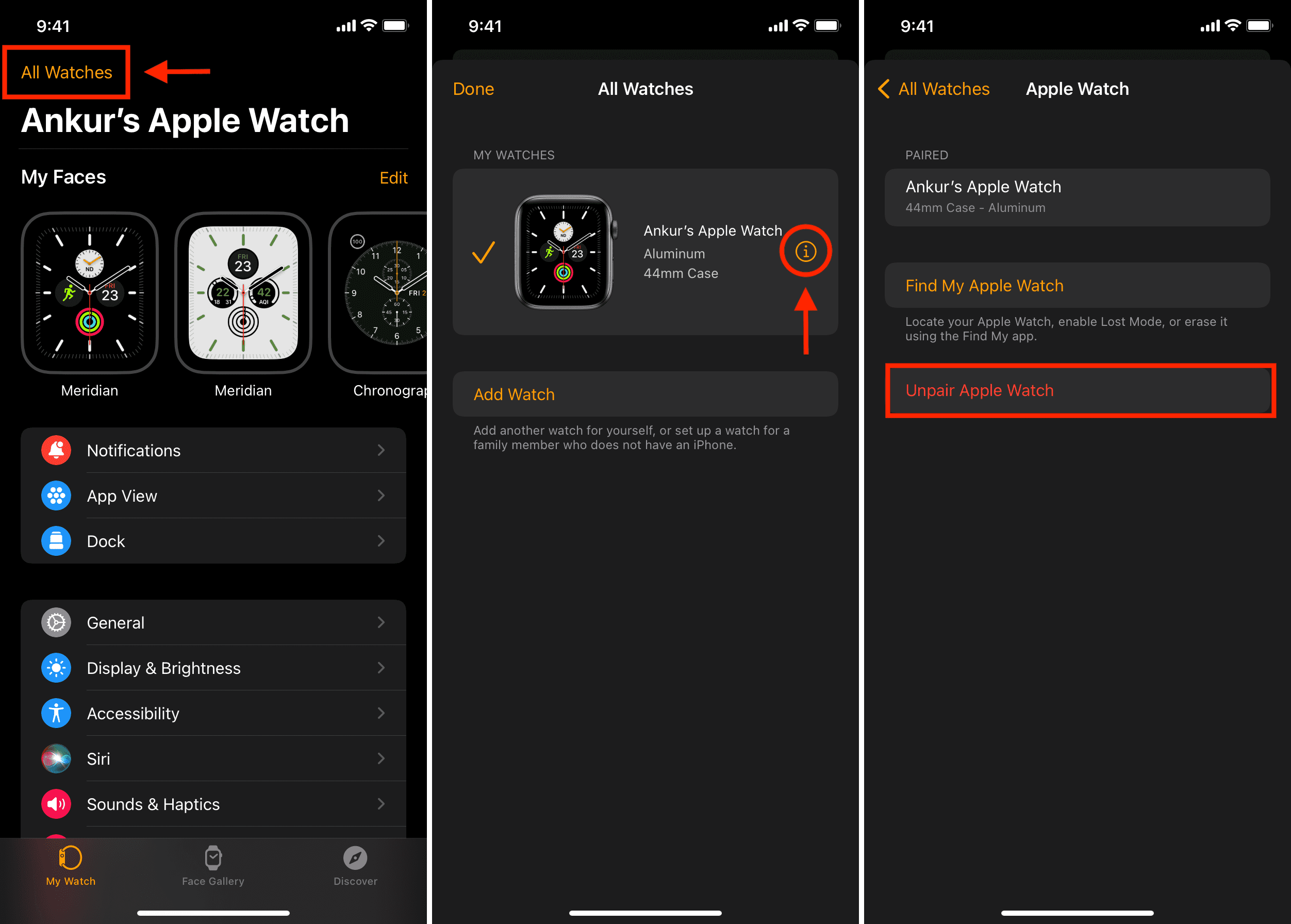
- As last resort: Unpair and re-pair Apple Watch
- Watch app → My Watch → General → Reset → Unpair
- Set up again and retest
⚠️ This erases data, so back up first.
Test Audio Output and Routing
Your alarm might be playing—but not on the device you expect.
Check Audio Output Destination
If AirPods are connected, the alarm may play there instead.
- Swipe up to Control Center
- Tap Audio Output icon (circle with triangle)
- Ensure output is set to Apple Watch, not AirPods
⚠️ Real user case: Alarm played in AirPods left on a nightstand—no sound on wrist.
Disconnect Bluetooth Devices Temporarily
To test:
- Turn off AirPods or hearing aids
- Set a test alarm for 2 minutes ahead
- Confirm sound and haptics on watch
If it works, the issue was audio routing.
✅ Pro Tip: Use Prominent haptics as a backup—even if sound routes away.
Test and Prevent Future Failures
Don’t wait until morning to find out it failed.
Run a Live Alarm Test
- Set an alarm for 2–3 minutes in the future
- Enable Break through Silent Mode
- Turn on Do Not Disturb (to test override)
- Wait for it to trigger
- Confirm:
- Sound plays
- Haptics vibrate (strongly)
- Screen lights up
- iPhone also alerts (if applicable)
✅ Do this weekly, especially after software updates.
Set Multiple Alarms for Critical Wake-Ups
For peace of mind:
- One alarm on Apple Watch
- One via Sleep Schedule
- One on iPhone Clock app
Redundancy ensures at least one will work.
Final Tips to Keep Your Alarm Reliable
- ✅ Set alarms directly on Apple Watch—most reliable method
- ✅ Enable Break through Silent Mode on every alarm
- ✅ Use Prominent haptics for stronger vibration
- ✅ Test alarms regularly—especially after updates
- ✅ Keep both devices charged overnight
- ✅ Restart both devices weekly to clear glitches
If alarms still fail after all steps, contact Apple Support—it may be a hardware issue with the speaker or Taptic Engine.
Final Note: The Apple Watch alarm not working issue is almost always fixable. The key is setting alarms on the watch, enabling Break through Silent Mode, using Prominent haptics, and testing regularly. Avoid relying solely on iPhone alarms or untested Focus modes. With these steps, your Apple Watch will wake you up—every time.