
You’ve just bought a secondhand Apple Watch, need to file an insurance claim, or are preparing for a repair—and suddenly realize you don’t know how to find the Apple Watch serial number. This unique identifier is essential for warranty checks, resale verification, and reporting a lost or stolen device. The good news? Apple provides multiple ways to retrieve it—whether your watch is powered on, dead, or already erased.
But here’s what most guides don’t tell you: newer Apple Watch models hide the serial number inside the band slot, making it nearly invisible without a flashlight or magnifier. And if the device won’t turn on or has been unpaired, your options shrink fast. That’s why it’s critical to know all the methods—not just the obvious ones.
This guide covers every proven way to locate your Apple Watch serial number and IMEI, including step-by-step instructions, model-specific details, and what to do when the watch is unresponsive. By the end, you’ll be able to find the serial number—no matter your situation.
Check Apple Watch Settings (When Device Is On)
If your Apple Watch powers on and you know the passcode, this is the fastest method.
Open the About Menu
- On your Apple Watch, tap the Settings app (gear icon).
- Go to General > About.
- Scroll down to find the Serial Number listed.
- For GPS + Cellular models, you’ll also see IMEI, ICCID, and MEID.
Pro Tip: Take a screenshot now or write it down. If the watch ever dies or gets erased, you won’t be able to access this again.
What If the Watch Is Frozen or Locked?
- Force restart: Press and hold the side button and Digital Crown for 10 seconds until the Apple logo appears.
- Forgotten passcode? You’ll need to erase the watch via your iPhone—this removes access to all data, including the serial number in Settings.
Limitation: This method only works if the watch is functional and unlocked. If it’s dead or stolen, move to alternative options.
Use the Apple Watch App on iPhone
Don’t have the watch nearby? If it’s still paired, your iPhone stores the serial number.
Navigate to Device Info
- Open the Apple Watch app on your iPhone.
- Tap the My Watch tab.
- Go to General > About.
- Scroll to find the Serial Number and (for cellular models) the IMEI.
Warning: Only the currently paired watch appears here. If you’ve unpaired or erased it, this data disappears.
Verify Pairing Status First
- Open the Watch app and check if your watch is listed under “My Watch.”
- If not, it may have been unpaired. In that case, check your Apple ID account online—your device might still be registered.
Best Use Case: Ideal for users who lost their watch but still have the paired iPhone. Act quickly—once unpaired, this info vanishes from the app.
Inspect Inside the Band Slot (Works on Dead Watches)
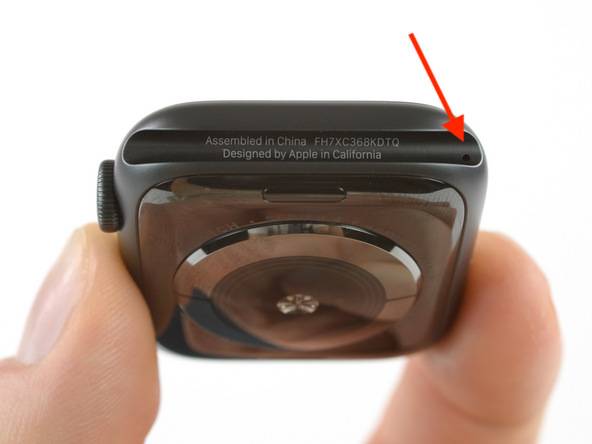
No power? No problem. All Apple Watch models from Series 1 onward have a laser-etched serial number hidden where the band connects.
Remove the Band
- Press the band release button on the side of the watch.
- Slide the band out completely.
- Flip the watch over and look into the narrow slot.
Locate the Tiny Text
- Shine a flashlight at an angle into the slot.
- Look for micro-engraved text facing inward—this includes the serial number, model number (e.g., A2156), and FCC ID.
- Use your phone’s camera zoom or a magnifying glass if needed.
Fact: The text is about 0.5 mm tall—small enough to be invisible under normal lighting. A macro lens or bright LED dramatically improves visibility.
Applies to These Models:
- Apple Watch Series 1 through 9
- Apple Watch SE (1st and 2nd gen)
- Apple Watch Ultra and Ultra 2
- Nike, Hermès, and all aluminum/steel variants
Exception: The 1st generation Apple Watch has the serial number on the back casing, not inside the band slot.
Examine the Back Casing (Check for Dual Engraving)
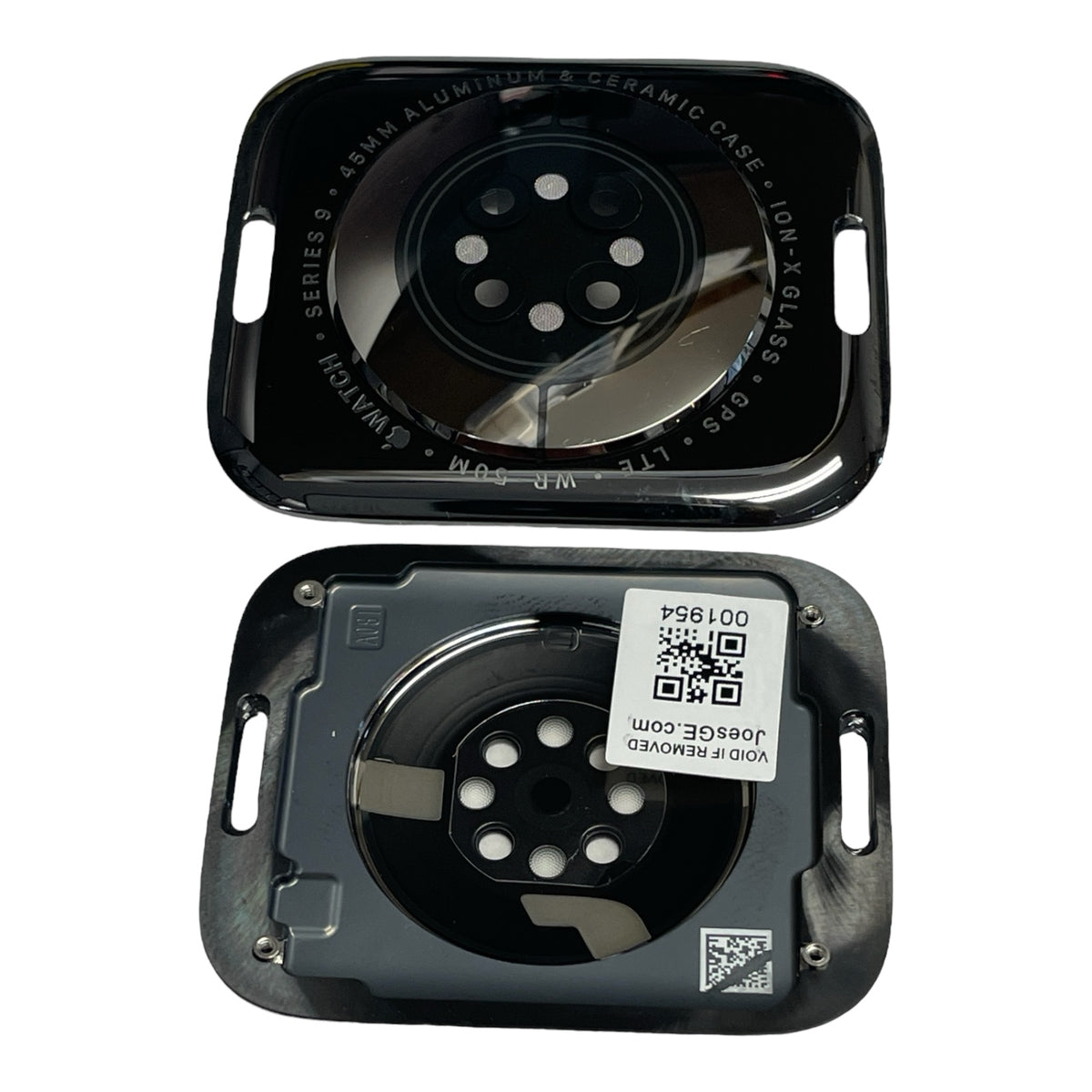
While Apple officially states that newer models etch the serial only in the band slot, user reports and physical inspections confirm that some units also display it on the back.
Flip and Inspect
- Turn the watch face down.
- Look around the sensor cluster and beneath the Apple logo.
- Search for micro-engraved text that may include:
- “Apple Watch”
- Model number
- Serial number
- IMEI (on cellular models)
Why This Matters: Some regional batches or production runs include dual-location etching. Always check both the back and the band slot—especially when buying a used Apple Watch.
Cellular Model Buyers: Double-Check for IMEI
If you’re activating a GPS + Cellular model, verify that the IMEI is visible. Some carriers require physical verification for service activation.
Expert Tip: Never assume one location. If the band slot is unreadable, the back casing might save the day.
Access Apple ID Account Online (Remote Access)

Lost the watch? Battery dead? You can still retrieve the serial number—if it’s linked to your Apple ID.
Sign In to Apple ID
- Go to appleid.apple.com on any browser.
- Sign in with your Apple ID and complete two-factor authentication.
- Click Devices.
- Find your Apple Watch and tap it.
View Full Device Details
- The serial number appears under device specs.
- You may also see model, color, storage, and purchase date.
Requirements:
– The watch must have been signed in with your Apple ID.
– It must not have been erased and removed from the account.
Use for Stolen Device Reporting
- Use this page to confirm the serial number.
- Report it to Apple Support and your carrier (for IMEI blocking).
- Mark it as lost in the Find My app to activate Activation Lock.
Security Benefit: Even if thieves erase the watch, Activation Lock ties it to your Apple ID—making it unusable without your credentials.
Find IMEI on Cellular Models
Only GPS + Cellular Apple Watches have an IMEI—a 15-digit code used by carriers to identify the device on mobile networks.
Confirm It’s a Cellular Model
Look for:
– Red dot on the Digital Crown (Series 4 and earlier)
– Orange ring around the Digital Crown (Series 5 and later)
– “+” icon next to cellular signal indicator
If present, your watch has an IMEI.
Retrieve IMEI via Settings or iPhone App
- On Apple Watch: Settings > General > About > IMEI
- On iPhone: Apple Watch app > My Watch > General > About > IMEI
Physical IMEI Location
- Check inside the band slot—some models etch the IMEI there.
- Inspect the back casing—especially near the sensors—for micro-engraved IMEI.
Why It’s Important:
– Required for carrier activation.
– Used to blacklist stolen devices.
– Needed for insurance claims involving cellular damage.
Check Original Box and Receipt
Never throw away the packaging. Your Apple Watch’s serial number is printed in two offline places.
Find It on the Box
- Look at the label on the bottom or side of the original box.
- Locate the S/N or Serial Number line—usually near the barcode and model number (e.g., A2156).
Review Your Purchase Email
- Search your inbox for “Apple Watch” or the purchase date.
- Apple’s digital receipt includes:
- Serial number
- Model
- Warranty end date
- AppleCare+ status (if purchased)
Pro Tip: Scan and save both the box label and receipt in a secure folder. This backup can save you hours if your watch dies or gets stolen.
When You Can’t Find the Serial Number
Stuck? Here’s how to handle common obstacles.
Watch Is Dead or Unresponsive
- Try the iPhone Watch app or Apple ID account—both work without device power.
- If those fail, physical inspection is your only option.
Engraving Is Too Small or Scratched
- Use a magnifying glass or smartphone macro mode.
- Shine a light sideways to create shadows that enhance contrast.
- Take a photo and zoom in on your phone.
Device Was Unpaired or Erased
- It won’t appear in the Watch app or Apple ID.
- Contact Apple Support with your proof of purchase—they can look up the serial using the receipt.
Rare Case: If the etching is damaged, Apple may still identify the unit during service using internal diagnostics—if it powers on briefly.
Why You Need the Serial Number
This isn’t just a random code. It unlocks real-world actions.
Warranty and Repairs
Apple uses the serial to:
– Confirm if your watch is under limited warranty (1 year).
– Check AppleCare+ coverage (extends to 3 years).
– Qualify for recall programs (e.g., battery replacements for certain Series 2 units).
Check coverage instantly at apple.com/checkcoverage.
Insurance and Resale
- Insurers require the serial for theft, loss, or damage claims.
- Buyers should always verify the serial matches and check iCloud Activation Lock status at iCloud.com/activationlock.
Red Flag: If the serial doesn’t match or the device is locked to another Apple ID, avoid the purchase.
Report Lost or Stolen
File a report with:
– Police (provide serial and IMEI)
– Apple Support (use serial to flag on Find My)
– Carrier (submit IMEI to block cellular service)
Act Fast: Use the Find My app to lock or erase the watch remotely.
Best Practices for Serial Number Security
Your serial number is sensitive—but not a password.
Store It Safely
Keep it in:
– A password manager (1Password, Bitwarden)
– iCloud Drive or Google Drive (with 2FA)
– A locked file cabinet
Avoid: Texts, unsecured email, or sticky notes.
When to Share
Safe to share with:
– Apple Support
– Authorized repair centers
– Trusted buyers (after identity verification)
Never share publicly:
– On social media
– In forums
– With strangers
Risk Note: While the serial can’t unlock your watch, it can be combined with other data in phishing scams. Stay cautious.
Final Note: The fastest way to find your Apple Watch serial number is through Settings > General > About—but always back it up. Use the band slot inspection, Apple ID account, and original box as fail-safes. For cellular models, don’t forget the IMEI. Record everything at purchase, and you’ll be ready for repairs, insurance, or resale—no stress, no delays.




