
Is your Apple Watch frozen on a blank screen, acting sluggish, or refusing to respond to taps? Before you panic or assume hardware failure, try a simple restart. Whether you’re using an Apple Watch Series 1 or the rugged Ultra 2, a quick reboot can resolve most software hiccups—without deleting any data. The how to restart Apple Watch process varies slightly depending on your model and watchOS version, especially with major changes in watchOS 10. This guide covers every method: standard shutdown, force restart, Settings menu, Siri commands, and paired iPhone resets. You’ll also learn when to use each technique, how to avoid accidental siren triggers, and what to do if your watch won’t turn back on.
Standard Restart: Safely Reboot Your Apple Watch
A soft restart is the gentlest way to refresh your Apple Watch. It’s perfect for minor lag, app crashes, or after installing updates. This method preserves all settings, health data, and apps.
Turn Off Using the Side Button
- Press and hold the side button (on the right edge of the watch).
- Wait for the Power Off slider to appear.
- Tap the red power icon, then swipe right to shut down.
- Let the screen go completely black.
- Press and hold the side button again until the Apple logo appears.
- Release and wait for the home screen to load.
⏱️ The full cycle takes about 10–15 seconds. Avoid touching the screen until the watch boots up.
This process works across all Apple Watch models and is ideal for routine maintenance. Unlike a force restart, it doesn’t interrupt background processes unnecessarily.
💡 Pro tip: If the Power Off slider doesn’t appear, your watch may be frozen—switch to a force restart instead.
Force Restart: Fix a Frozen or Unresponsive Apple Watch
When your Apple Watch won’t turn on, is stuck on the Apple logo, or ignores touch input, a force restart (also called a hard reset) is your best bet. This method forces the device to reboot at the hardware level.
Universal Force Restart for Most Models
For Apple Watch Series 1 through Series 9 and SE, follow these steps:
- Press and hold both the Digital Crown and the Side Button at the same time.
- Keep holding for at least 10 seconds.
- Release when you see the Apple logo appear on screen.
✅ No data is lost during this process. It’s safe and effective for recovering from system freezes.
Apple Watch Ultra 1 & Ultra 2: Extended Hold Required
Due to their rugged build and enhanced durability, Ultra models need a longer press:
- Hold Digital Crown + Side Button simultaneously.
- Wait for the screen to go black (5–10 seconds).
- Continue holding for 5 more seconds after the screen turns off.
- Release both buttons.
This extended hold ensures a complete reset, especially useful after heavy workouts, water exposure, or extreme temperatures.
🔄 If the Apple logo doesn’t appear, charge the watch for 10 minutes and try again. A low battery can prevent startup.
Restart via Settings App: Touchscreen Power-Off Option
If you prefer using the interface instead of buttons, you can shut down your Apple Watch through the Settings app.
How to Shut Down from the Menu
- Press the Digital Crown to return to the home screen.
- Open the Settings app (gear icon).
- Tap General, then scroll down to Shut Down.
- Tap the Power button, then swipe to confirm.
Once off, press and hold the side button to restart.
💡 This method is ideal if you want to avoid accidental force restarts or are teaching someone else how to restart Apple Watch safely.
Use Siri to Restart: Hands-Free Reboot Option
On supported models, you can restart your Apple Watch using voice commands—perfect when your hands are busy or the screen is unresponsive.
Activate Siri and Request Restart
- Say “Hey Siri” or press and hold the Digital Crown.
- Say: “Restart my Apple Watch.”
- Confirm by saying “Yes” or tapping Restart on screen.
The watch will power down and reboot automatically.
✅ This works reliably on Series 6, 7, 8, 9, and 10 running watchOS 7 or later.
Fix Siri Not Responding to Restart Command
If Siri replies, “Sorry, I can’t help with that,” check these:
- Go to Settings > Siri on your Apple Watch.
- Ensure:
- “Listen for ‘Hey Siri’” is enabled
- “Press Digital Crown to use Siri” is on
- Make sure you’re speaking directly to the watch, not the iPhone (especially when using AirPods)
⚠️ Some regions or older watchOS versions may not support this feature. Update via Settings > General > Software Update for full compatibility.
WatchOS 10 Power-Off Changes: Avoid Accidental Siren Activation
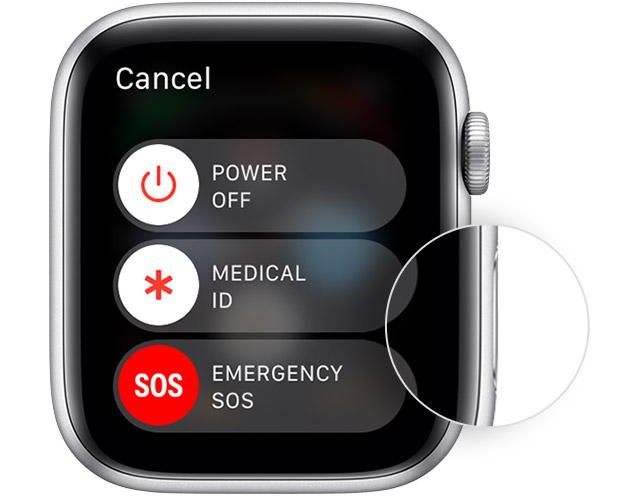
With watchOS 10, Apple redesigned the shutdown menu—and it’s caused confusion. Many users accidentally trigger the Emergency Siren instead of powering off.
Correct Way to Power Off in watchOS 10
- Go to Settings > General > Shut Down.
- Double-tap the Power button (do not long-press).
- The Power Off slider appears in the bottom center.
- Swipe right to turn off.
❌ Long-pressing the Power option may activate the Siren instead—this is now a default action in some cases.
How to Stop the Emergency Siren
If the siren sounds:
– Press any button on the watch
– Or wait 30 seconds—it will stop automatically
💡 Expert note: Apple likely moved the siren here for faster emergency access, but it increases the risk of accidental activation. Be deliberate when navigating this menu.
Restart Paired iPhone to Fix Sync Issues
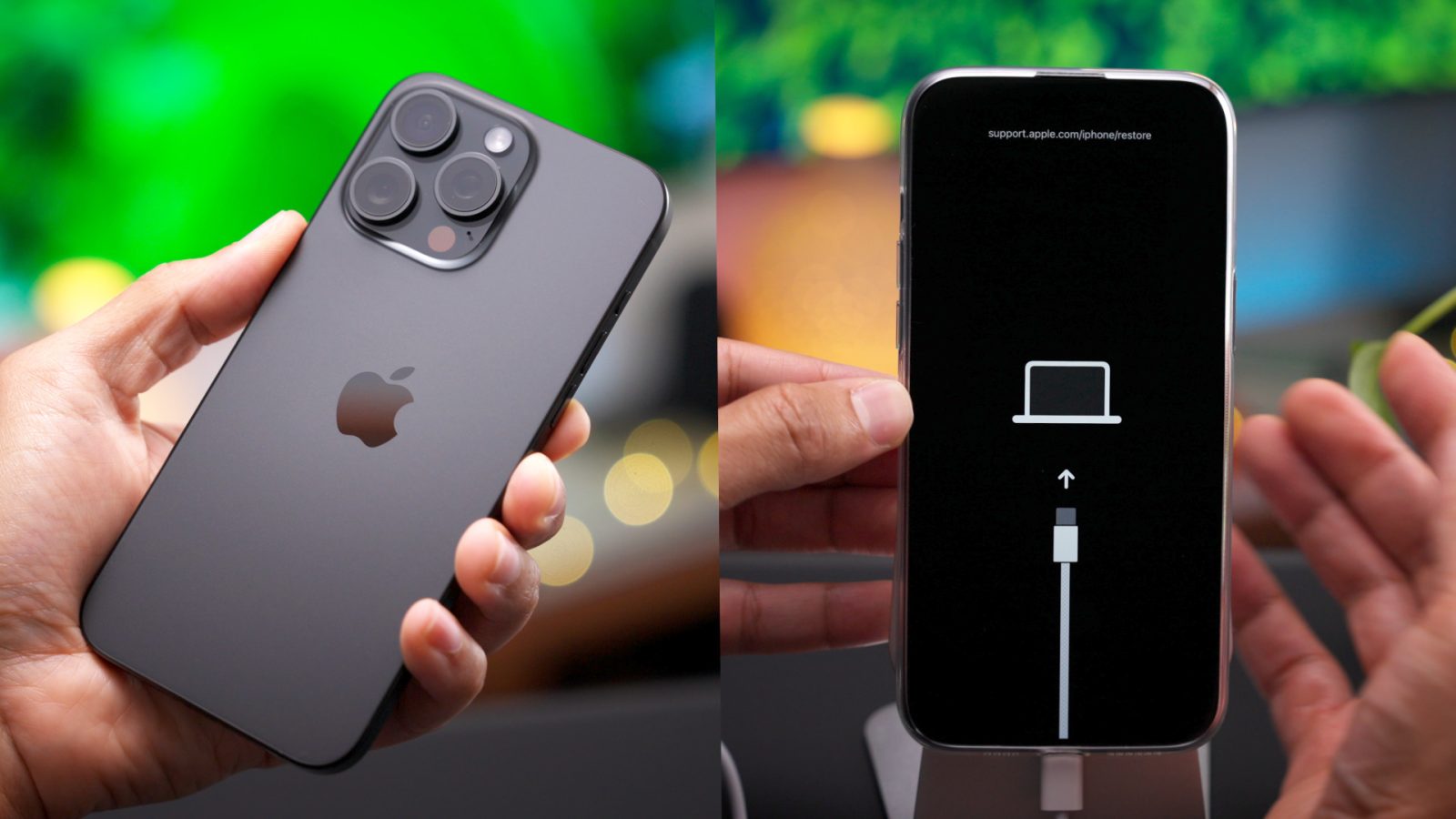
When your Apple Watch won’t connect, fails to sync notifications, or drops Bluetooth, restart both devices together.
How to Restart Your iPhone
- Face ID models: Press and hold side + volume button, then drag the power-off slider.
- Older models: Hold top/side button until slider appears, then swipe.
- Or go to Settings > General > Shut Down
To turn it back on: Press and hold the side button until the Apple logo appears.
🔗 Restarting both devices resets Handoff, Bluetooth, and Wi-Fi connections—often resolving stubborn pairing issues.
When to Restart Apple Watch: Know the Right Time
Not every glitch requires a force restart. Use this guide to choose the right method:
| Issue | Recommended Action |
|---|---|
| App freezes or crashes | Soft restart |
| Screen unresponsive | Force restart |
| Won’t turn on | Charge first, then force restart |
| Battery drains fast after update | Soft restart |
| Sync issues with iPhone | Restart both devices |
| Glitches in watchOS 10 | Force restart |
| Accidental siren triggers | Force restart to reset system state |
🛠️ Always try a soft restart first. Reserve force restarts for when the device is completely frozen.
Troubleshooting Failed Restarts
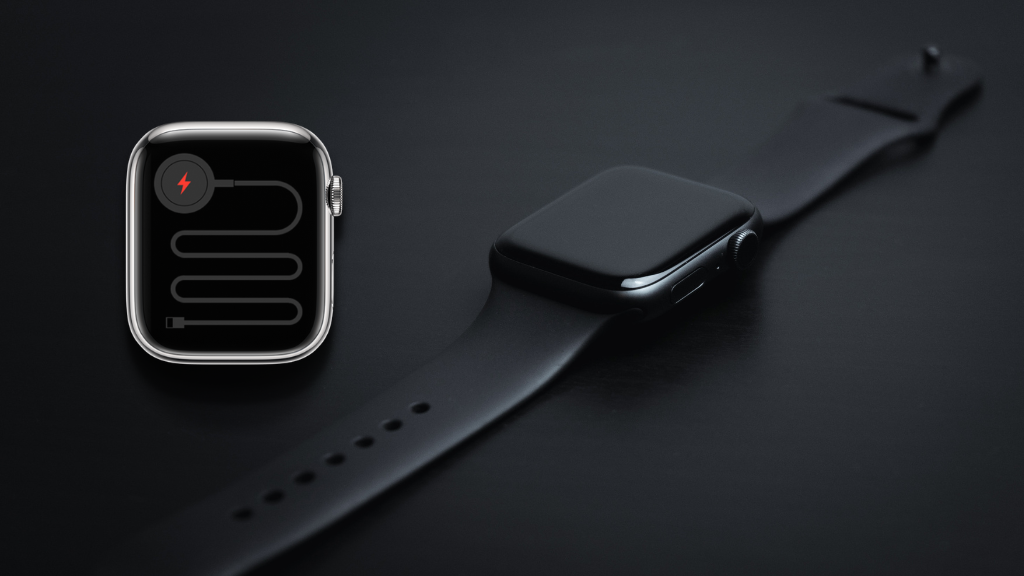
If your Apple Watch still won’t restart, follow these steps:
Charge Before Attempting Restart
- Plug in for 10–15 minutes.
- Low battery can cause the screen to flash briefly but not boot.
Exit Power Reserve Mode
If you see a simple clock face, your watch is in Power Reserve mode:
– Press and hold the side button until the Apple logo appears.
Re-pair with iPhone
If problems persist:
1. Open the Watch app on your iPhone.
2. Go to Bluetooth > My Devices > Apple Watch.
3. Tap the (i) icon and select Forget This Device.
4. Re-pair following on-screen instructions.
✅ Re-pairing often fixes deep software conflicts after failed updates.
Model Compatibility and watchOS Requirements
All restart methods work across:
- Apple Watch Series 1–10
- SE (1st and 2nd gen)
- Ultra 1 and Ultra 2
watchOS Requirements by Method
- Siri restart: Requires watchOS 7 or later (varies by model/region)
- Settings > Shut Down: Available from watchOS 4 onward
- Double-tap shutdown: Exclusive to watchOS 10
🔄 Keep your watch updated via Settings > General > Software Update for best performance.
Maintenance Tips to Prevent Future Issues
Keep your Apple Watch running smoothly with these habits:
Weekly Soft Restart
Perform a reboot once a week if:
– Apps crash frequently
– The watch feels warm at idle
– You notice lag in notifications
💡 Like smartphones, watches benefit from clearing background processes and cached data.
Always Restart After Software Updates
After installing watchOS updates, always restart:
– Ensures all system files reload correctly
– Prevents instability or missing features
Don’t Restart While Charging
You cannot restart while plugged in. The Power Off slider won’t appear until you unplug.
⚠️ This restriction prevents accidental shutdowns during charging sessions.
Final Note: Knowing how to restart Apple Watch is essential for troubleshooting. Start with a soft restart, escalate to a force restart if unresponsive, and restart your iPhone for sync issues. With watchOS 10, remember to double-tap the Power button to avoid triggering the siren. Regular reboots keep your device fast and reliable—so don’t wait for a crash to try it. Whether you use buttons, Settings, or Siri, restarting is safe, quick, and one of the most effective fixes for any Apple Watch issue.




