
If you’ve ever felt your heart skip a beat or noticed an unexplained flutter in your chest, the ECG on Apple Watch could be a game-changer for monitoring your heart health. With just a 30-second scan, your Apple Watch can generate a single-lead electrocardiogram—similar to tests performed in doctors’ offices—to check for signs of atrial fibrillation (AFib), a common but potentially serious heart rhythm condition. But before you can start taking readings, you need to set up the ECG app correctly.
This guide walks you through every step—from checking device compatibility and completing age verification to capturing your first accurate reading and sharing results with your doctor. Whether you’re setting it up for the first time or troubleshooting issues, you’ll learn how to use this advanced health feature safely and effectively.
Confirm Your Apple Watch Model Supports ECG
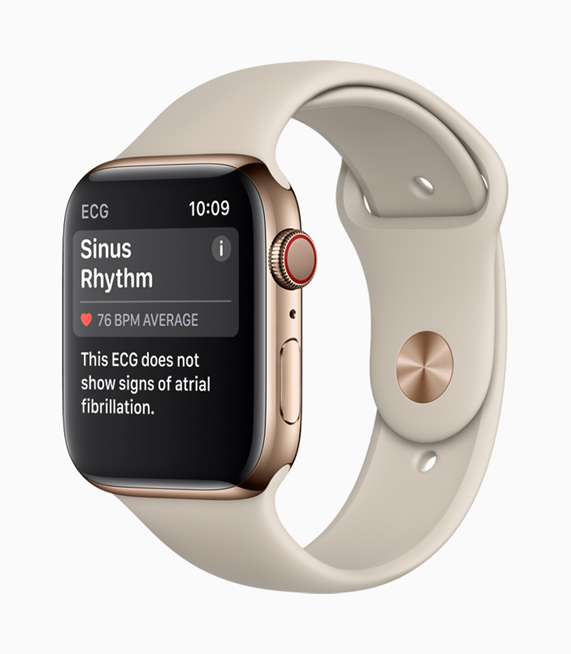
The ECG app isn’t available on all Apple Watches—only models with the built-in electrical heart sensor can run it.
Only Series 4 and Newer Models Are Compatible
You can use the ECG app if you own:
– Apple Watch Series 4, 5, 6, 7, 8, 9
– Apple Watch Ultra (all versions)
It does not work on:
– Apple Watch SE (1st or 2nd generation)
– Apple Watch (1st, 2nd, or 3rd generation)
– Devices set up under “For Your Kids” mode, even if they’re newer models
Even though some older models look similar, only Series 4 and later include the necessary hardware: an electrical sensor in the Digital Crown and a carbon-coated back crystal that completes the circuit when you touch the crown.
✅ Quick Check: Open the Watch app on your iPhone > My Watch tab > scroll to Heart. If you see “ECG” as an option, your watch supports it.
Meet Software, Age, and Location Requirements
Hardware is just one part of the equation—your devices must also meet software, age, and regional criteria.
Update to Required OS Versions
Ensure both devices are updated:
– iPhone: Must run iOS 13.2 or later
– Apple Watch: Must have watchOS 5.1.2 or later
While these are the minimum versions, always install the latest updates for optimal performance, improved accuracy, and access to new features like expanded AFib detection up to 150 BPM in newer app versions.
You Must Be 22 Years or Older
During setup, the Health app will ask for your age. You must be 22 or older to enable ECG. This restriction exists because younger users often have naturally higher heart rates and different rhythm patterns, which could lead to inaccurate interpretations by the algorithm.
If you’re under 22, the setup process will stop, and you won’t be able to proceed.
ECG Availability Varies by Country
The app is only available in regions where Apple has received medical regulatory approval, such as:
– FDA clearance in the U.S.
– CE marking in Europe
– TGA approval in Australia
If you’ve recently moved or are traveling, your location settings may prevent access. Check Apple’s official support page to confirm ECG availability in your current country.
Activate the ECG App Through the Health App
Once eligible, you’ll need to set up the ECG feature via your iPhone’s Health app.
Step-by-Step Setup Process
- Open the Health app (green heart icon) on your iPhone.
- Tap Search at the bottom, then type “ECG.”
- Select Electrocardiogram (ECG) from the results.
- Tap Set Up ECG App.
- Enter your age (must be 22+).
- Review educational content about ECG functionality and limitations.
- Accept the terms and complete setup.
After finishing, the ECG app should appear on your Apple Watch home screen.
🔁 If the app doesn’t show up: Open the Watch app on iPhone > My Watch tab > Heart > tap Install under ECG.
Take Your First Accurate ECG Reading
Proper technique ensures reliable results—follow these steps carefully.
Prepare for a Clean Signal
Before starting:
– Wash and dry your hands and wrist
– Ensure your watch fits snugly—the back must stay in constant contact with your skin
– Sit comfortably, arms resting on a table or in your lap
– Avoid electronic interference—stay away from chargers, microwaves, and high-voltage devices
Wait at least one hour after swimming, showering, or intense exercise, as moisture inside the watch or on your skin can distort the signal.
How to Record a 30-Second ECG
- Press the Digital Crown to open your apps.
- Tap the ECG app icon (a heart with a waveform).
- Place the index finger of your opposite hand on the Digital Crown.
– Don’t press hard—light contact is enough. - Stay still for 30 seconds while the progress bar fills.
- When done, a green checkmark appears along with your heart rate.
You’ll then have the option to log symptoms like dizziness, chest tightness, or fatigue before saving.
✅ Pro Tip: If wearing your watch on the left wrist, use your right index finger—and vice versa.
Interpret Your ECG Results Correctly

The app analyzes your rhythm and provides one of several classifications.
Sinus Rhythm: Normal Heartbeat Detected
- Heart rate between 50 and 100 BPM
- Regular, synchronized beating of heart chambers
- Indicates normal rhythm during that 30-second window
This doesn’t rule out other heart issues or guarantee overall cardiovascular health. Always seek medical advice if you feel unwell, even with a normal result.
Atrial Fibrillation (AFib): Irregular Rhythm Found
- Chaotic, irregular electrical activity
- Increases risk of stroke
- Requires prompt medical follow-up
Detection range depends on app version:
– Version 1: 50–120 BPM
– Version 2: 50–150 BPM
If you receive an AFib result and haven’t been diagnosed, contact your doctor immediately.
Low or High Heart Rate: No AFib Classification
- Below 50 BPM (bradycardia): Common in athletes or those on beta-blockers
- Above 120 BPM (v1) or 150 BPM (v2): Could be due to stress, illness, or arrhythmia
The waveform is still saved, but no AFib analysis is made.
Inconclusive or Poor Recording
- Inconclusive: Rhythm couldn’t be classified (often due to motion or signal issues)
- Poor Recording (v2 only): Signal quality too low
Common fixes:
– Tighten the band
– Dry your skin and watch
– Retake the test while sitting still
View and Share ECG Reports with Your Doctor
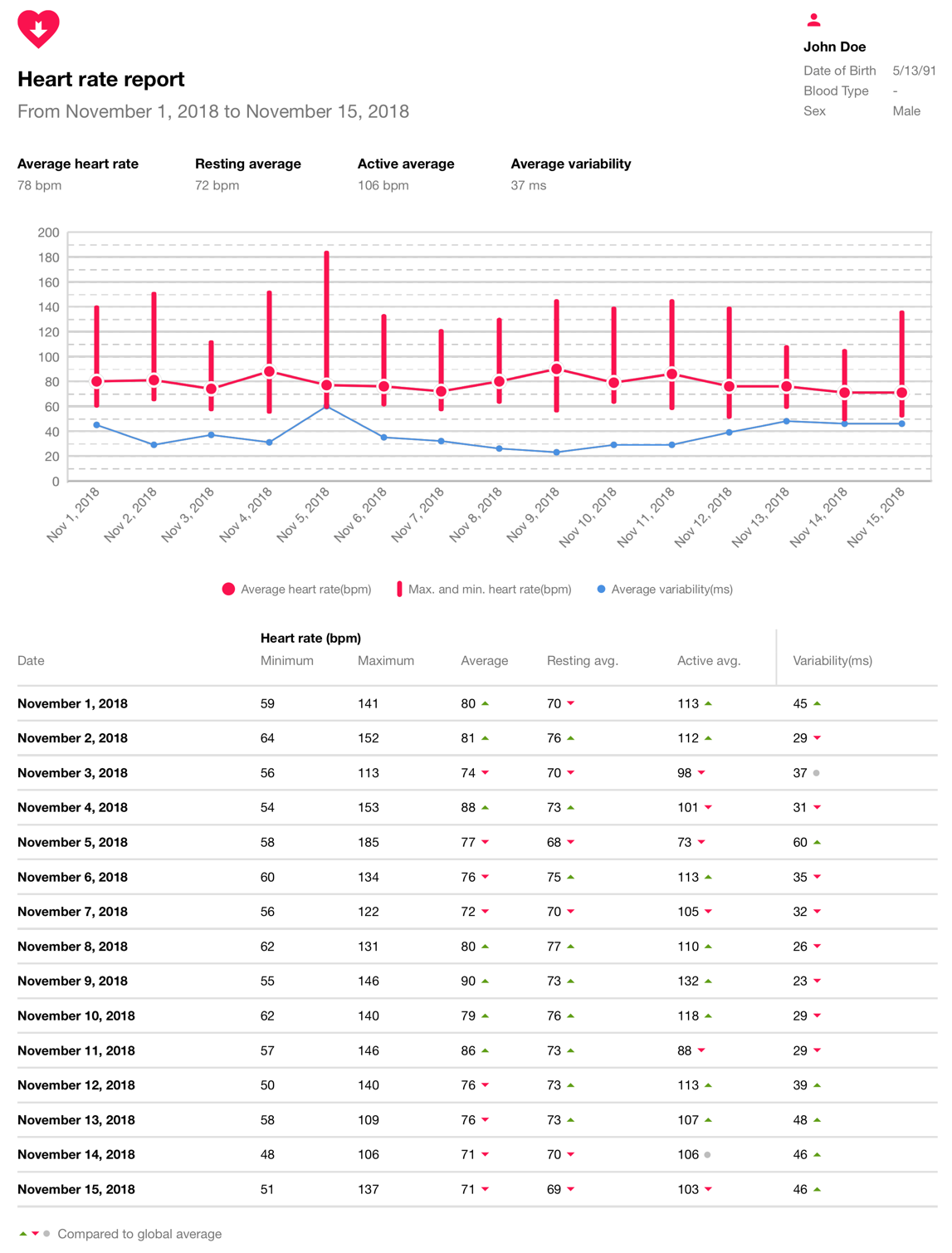
All readings are securely stored and easy to share.
Access Past ECGs in the Health App
- Open Health app > Browse > Heart > Electrocardiograms (ECG)
- Tap any entry to view:
– Full waveform
– Classification
– Heart rate
– Date/time
– Logged symptoms
Export a PDF for Medical Review
To share:
1. In ECG detail view, tap Export a PDF for Your Doctor
2. Tap the Share button
3. Choose to:
– Email it
– Send via Message
– Save to Files or Notes
– Print a copy
The PDF includes the full trace, result, user info (age, sex), timestamp, and symptoms—helpful for remote consultations or follow-ups.
Maximize Accuracy with Best Practices
Small changes improve reliability.
- Wear the watch snugly—use a Sport Band if needed
- Keep skin and sensors dry—wipe the back and Digital Crown
- Rest both arms flat during recording
- Stay still and breathe normally
- Use the correct hand—opposite your watch wrist
- Avoid interference from electronics
Understand the Limitations and Safety Warnings
The ECG app is powerful—but not a medical diagnostic tool.
What It Cannot Detect
- Heart attacks (call emergency services for chest pain)
- Strokes
- Blood clots
- High blood pressure
- High cholesterol
- Heart failure
- Most other arrhythmias (e.g., VTach, PVCs)
It only screens for AFib using a single-lead reading.
Never Delay Medical Care
- A normal ECG doesn’t mean everything’s fine—some conditions occur intermittently.
- An abnormal result needs professional evaluation.
- Never ignore symptoms like chest pain, shortness of breath, fainting, or severe dizziness.
🚨 If you suspect a heart attack, call emergency services immediately—don’t wait for an ECG.
Troubleshoot Common Issues Fast
ECG App Missing?
- Open Watch app > My Watch > Heart > Install ECG
Getting “Poor Recording”?
- Tighten band
- Dry skin and watch
- Retake while resting arms
No Response When Touching Crown?
- Clean the Digital Crown
- Restart your watch
- Reinstall the app via iPhone
Keep iOS and watchOS Updated
Apple improves ECG performance through updates:
– Expanded AFib detection range
– Better noise filtering
– Enhanced classification (e.g., “Poor Recording” label)
Update both devices via:
– iPhone: Settings > General > Software Update
– Apple Watch: Settings > General > Software Update
Final Note: The Apple Watch ECG app empowers you to monitor heart rhythm anytime—but it works best when used wisely. By following these steps, you’ll set it up correctly, take reliable readings, understand what the results mean, and know when to seek real medical help. Use it as a tool for awareness, not a substitute for care. With the right approach, your Apple Watch can play a valuable role in long-term heart health.





