

You’ve just unboxed your new Apple Watch, excited to start tracking workouts, receiving calls, and staying connected—only to hit a wall: the setup screen tells you to bring an iPhone close. If you’re an Android user, helping a child get started, or simply assumed the watch could stand alone, this moment can be frustrating. Thousands search “how to set up Apple Watch without iPhone” every month, hoping for a workaround. Here’s the straight answer: you cannot set up an Apple Watch without an iPhone. Not even cellular models are exempt.
This isn’t a glitch, a temporary limitation, or a problem with your device. It’s by design. Apple requires an iPhone for initial pairing, activation, and configuration—no exceptions. The Apple Watch is built as a companion device, deeply tied to the iPhone for everything from Apple ID sign-in to cellular eSIM activation. While the watch can function independently after setup—making calls, streaming music, and replying to messages—the first-time setup is impossible without an iPhone. In this guide, we’ll break down why, explore what looks like iPhone-free setup (but isn’t), and offer real alternatives if you’re not an iPhone user.
iPhone Required for Initial Setup
No Pairing Without iPhone
Apple Watch setup begins with the Apple Watch app, which exists only on iPhone. You can’t download it on iPad, Mac, or Android. To pair your watch, you must bring it near a compatible iPhone, where Bluetooth and NFC initiate communication. The iPhone then transfers your Apple ID, Wi-Fi settings, health preferences, and more.
Even if your Apple Watch has cellular, this process is unchanged. There’s no web-based setup, no iCloud-only activation, and no way around the iPhone requirement.
Apple’s official stance: “To set up your Apple Watch, you’ll need an iPhone 6s or later with the latest version of iOS.”
Without this app and the secure connection it creates, your Apple Watch remains stuck on the welcome screen. No setup, no customization, no functionality.
Minimum iPhone Requirements
| Requirement | Details |
|---|---|
| iPhone Model | iPhone 6s or newer |
| iOS Version | Must support the latest watchOS |
| Bluetooth & Wi-Fi | Enabled during pairing |
| Apple ID | Signed in with two-factor authentication enabled |
If the iPhone doesn’t meet these criteria, pairing fails. No exceptions. Even using an older iPhone just for setup won’t work if it can’t run the current iOS version required by your watch model.
GPS vs. Cellular Models: Same Setup Rules

Both Need iPhone to Activate
It’s a common misconception that cellular Apple Watches can be set up independently. They can’t. While GPS + Cellular models let you leave your phone at home and still take calls or stream music, initial cellular activation happens through the iPhone.
During setup:
– The iPhone verifies your carrier account.
– It provisions the eSIM.
– It confirms your subscription plan with carriers like AT&T, Verizon, or T-Mobile.
Once done, the watch operates on its own—but only because the iPhone laid the groundwork.
Messaging Still Tied to iPhone
Even with cellular, SMS and MMS messages don’t go directly to your Apple Watch. Instead, they’re relayed through your iPhone. That means your iPhone must be:
– Powered on
– Connected to Wi-Fi or cellular
– Signed into iMessage
Without this, your Apple Watch won’t receive traditional text messages—only iMessages and data-based notifications.
Family Setup: Not iPhone-Free, Just Indirect

Setup by Proxy Using Family Organizer’s iPhone
One reason people believe Apple Watch setup is possible without an iPhone is Family Setup. This feature lets a parent or guardian use their own iPhone to set up and manage an Apple Watch for a child, elderly relative, or anyone without a personal iPhone.
After setup:
– The wearer can make calls to approved contacts.
– Send and receive messages.
– Use Emergency SOS.
– Track activity and location.
But again: an iPhone was used. Just not by the person wearing the watch.
Example: A mom sets up her 10-year-old’s Apple Watch using her iPhone. The child never touches an iPhone—but the setup still required one.
Apple markets this as “giving kids the benefits of Apple Watch without giving them a phone.” That’s true—but it’s not the same as setting up the watch without any iPhone involvement.
Resetting a Used Apple Watch Still Needs iPhone
Repairs, Resale, or Troubleshooting
If you erase your Apple Watch—whether for troubleshooting or selling it—you can’t set it up again without an iPhone. After wiping via Settings > General > Reset > Erase All Content and Settings, the watch restarts in setup mode.
To proceed:
1. Bring a compatible iPhone close.
2. Use the camera to align the watch screen with the iPhone.
3. Enter a pairing code manually if needed.
4. Restore from backup or set up as new—both require the iPhone.
There’s no skip button. No bypass. No alternative path.
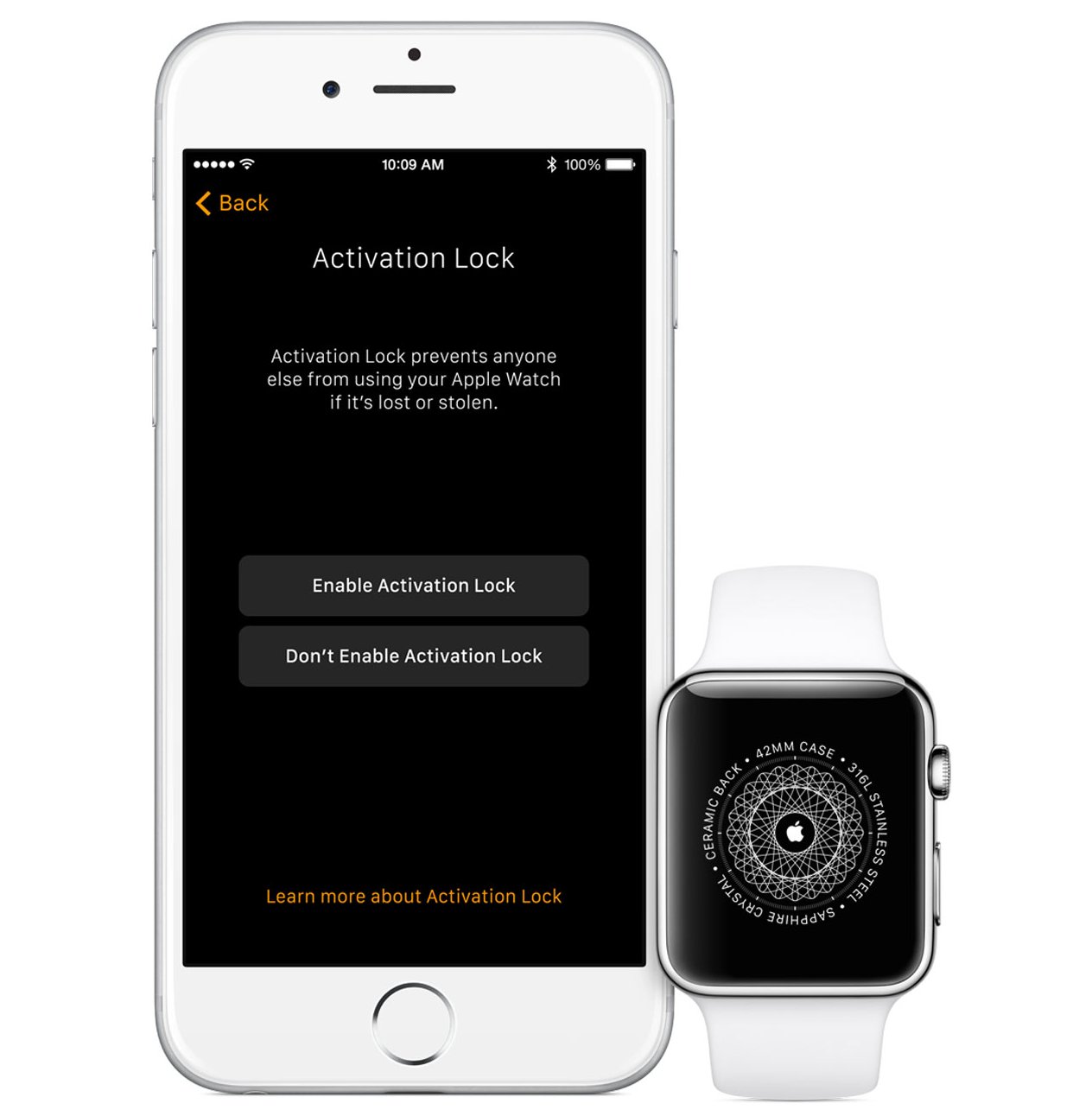
Activation Lock: Can’t Use a Secondhand Watch Without iPhone Help
Previous Owner Must Unpair First
Bought a used Apple Watch online? Great—but unless the seller removed it from their Apple ID, you can’t use it.
Activation Lock ties the device to the original owner’s iCloud account. Even after a factory reset, the watch will prompt for the previous owner’s Apple ID and password.
To remove Activation Lock:
– The seller must:
– Open the Watch app on their iPhone.
– Tap the watch under “My Watch.”
– Select Unpair Apple Watch.
– Or, they can go to iCloud.com, sign in, and remove the device under Find My > Devices.
No third-party tool, hack, or service can bypass this. If the seller won’t cooperate, the watch is a $400 paperweight.
Can iPad or Mac Replace the iPhone?
No Native Watch App on iPad
Some users wonder if iPadOS or macOS can handle Apple Watch setup. The answer is no.
iPad Limitations
- No Apple Watch app available.
- Cannot pair, configure, or restore backups.
- Cannot activate cellular plans.
Mac Limitations
- macOS allows limited post-setup management (e.g., updating watchOS when prompted).
- But it cannot initiate pairing or transfer settings.
- No standalone setup interface exists.
While both run Apple software, only iPhone has the full Watch app ecosystem needed for setup.
Third-Party Tools: Avoid Scams and Risks
No Safe or Supported Workarounds
Search online, and you’ll find apps or websites claiming to let you set up an Apple Watch without an iPhone. These are either:
– Fake
– Malware in disguise
– Experimental hacks that could brick your device
Using them risks:
– Permanent device damage
– Data theft
– Loss of warranty
– Inability to receive future updates
Apple does not support or recognize any alternative setup method. If it sounds too good to be true, it is.
What You Can Do Without iPhone Nearby
Standalone Features After Setup
Once paired, your Apple Watch gains independence—just not full freedom.
Fully Functional Without iPhone Nearby
- Phone calls over Wi-Fi or cellular
- iMessage sending and receiving
- Music playback (stored or streamed via Apple Music)
- Workouts and health tracking (heart rate, ECG, sleep)
- Emergency SOS and Fall Detection
- Third-party apps with offline support (e.g., Strava, WhatsApp)
Still Requires iPhone (Even If Not Nearby)
- SMS/MMS messages — routed through iPhone
- Push notifications from many third-party apps
- Backups — created via iPhone
- Software updates — usually initiated on iPhone
- Find My network — relies on iPhone as anchor
Key point: Your iPhone must stay powered on and online for the Apple Watch to function fully—even if it’s across town.
Real User Confusion: Why People Think It’s Possible
Misunderstanding Marketing and Usage
Apple’s ads often show kids or athletes using Apple Watch without a phone in sight. That’s post-setup usage, not initial configuration.
Common misconceptions:
– “My friend’s kid has an Apple Watch with no iPhone!”
→ Likely used Family Setup with a parent’s iPhone.
– “I answer calls without my phone—so why do I need it?”
→ You needed it once to set up, and it still handles SMS.
– “I saw a YouTube video setting it up without a phone!”
→ Either fake, outdated, or used indirect iPhone access.
Even Apple Support community experts confirm: no iPhone, no setup.
Alternatives for Non-iPhone Users
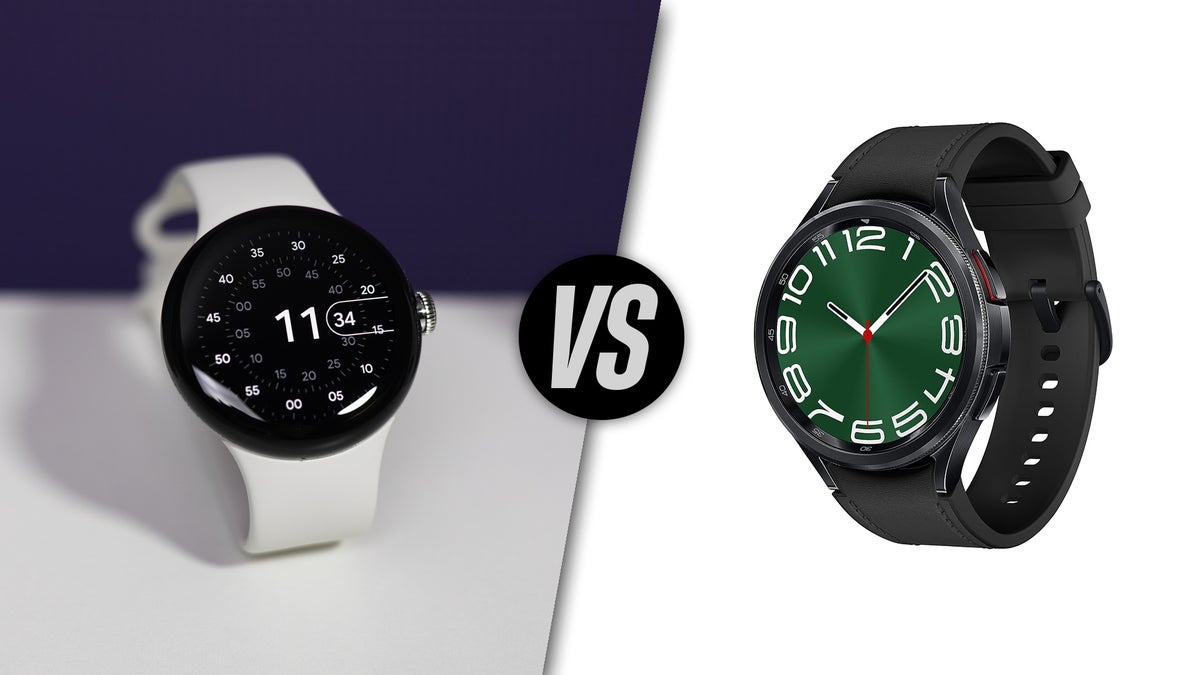
Best Smartwatches That Don’t Need iPhone
If you’re not on iOS, Apple Watch isn’t for you. But other options offer true standalone setup and operation.
| Smartwatch | Compatible With | Standalone Setup? | Key Features |
|---|---|---|---|
| Samsung Galaxy Watch 6 (LTE) | Android | ✅ Yes | Full call/text, Google services, LTE |
| Google Pixel Watch 2 (LTE) | Android | ✅ Yes | Wear OS, Google Assistant, Fitbit |
| Fitbit Sense 2 (LTE) | iOS & Android | ✅ Yes | Health focus, GPS, cellular |
| Garmin Venu 3 (LTE) | iOS & Android | ✅ Yes | Fitness tracking, long battery |
| Amazfit GTS 4 (LTE) | iOS & Android | ✅ Yes | Affordable, 4G calling, apps |
These watches allow full setup via Android or web—no smartphone dependency after pairing.
Why Apple Keeps This Requirement
Ecosystem Lock-In by Design
Apple treats the Apple Watch as an extension of the iPhone, not a standalone device. This strategy:
– Strengthens iPhone loyalty
– Ensures seamless integration
– Controls user experience from end to end
Even as competitors offer full smartwatch independence, Apple maintains tight coupling. As of 2025, there’s no sign this will change.
Final Answer: You Can’t Set Up Apple Watch Without iPhone
Clear, Direct, and Verified
Let’s end the confusion once and for all:
- ❌ No, you cannot set up Apple Watch without iPhone.
- ❌ No, iPad or Mac can’t replace it.
- ❌ No, third-party tools are safe or effective.
- ✅ Yes, Family Setup uses someone else’s iPhone.
- ✅ Yes, the watch works independently after setup.
- ✅ No, secondhand watches require original owner removal.
If you don’t own or plan to own an iPhone, choose a different smartwatch. The Apple Watch is powerful—but only if you’re already in Apple’s ecosystem.
Bottom Line: The question “how to set up Apple Watch without iPhone” has one answer: you can’t. But now you know why—and what to do instead.





