
You’ve just unboxed your new Apple Watch—now it’s time to bring it to life. Whether you’re upgrading from an older model or using your first smartwatch, setting up your Apple Watch is a quick, intuitive process designed to sync seamlessly with your iPhone in minutes. This guide walks you through every step: from powering on and pairing to customizing your watch face, enabling cellular, and avoiding common setup issues.
By the end, you’ll have a fully personalized Apple Watch ready to track your fitness, deliver timely notifications, and keep you connected—no matter where you are.
Charge and Power On Your Apple Watch
Before pairing, ensure your Apple Watch has enough battery to complete setup without interruption.
Start with a Full Charge
- Connect the magnetic charging cable to a USB power adapter
- Attach the back of the watch to the charger until it clicks into place
- Wait at least 30 minutes if the battery is low
Pro Tip: A full charge prevents sync failures. Look for the green lightning bolt on the screen to confirm charging.
Turn On the Device
- Press and hold the side button (below the Digital Crown) until the Apple logo appears
- Release the button once the logo shows
- Wait for the smiling face or pairing animation to appear on the screen
If the watch doesn’t turn on, keep it on the charger for longer—some units ship with minimal battery.
Pair Your Apple Watch with iPhone

The pairing process uses Bluetooth, Wi-Fi, and your iPhone’s camera to securely link the devices.
Open the Apple Watch App
- On your iPhone, open the Apple Watch app (white icon with a watch face)
- Tap “Pair New Watch” at the top of the screen
Or use automatic pairing:
– Hold your iPhone near the powered-on Apple Watch
– Wait for the animated pairing screen to appear on your iPhone
– Tap Continue
If the animation doesn’t appear, check that Bluetooth and Wi-Fi are enabled on your iPhone.
Fix Pairing Screen Not Appearing
Sometimes the visual pairing fails. Try these steps:
- Restart both devices
- Ensure camera permissions are allowed for the Camera app
- Clean the lenses on both iPhone and Apple Watch
- Tap “Pair Apple Watch Manually” at the bottom of the screen
Manual pairing displays a 6-digit code on the watch. Enter it on your iPhone to link the devices.
Complete Visual Pairing Successfully

When automatic pairing works, your iPhone uses the camera to securely connect to the Apple Watch.
Align Devices Correctly
- Hold your iPhone so the Apple Watch appears in the viewfinder on the screen
- Keep both devices steady
- Wait for a confirmation ripple effect and pairing to begin
This process uses encrypted communication—your data stays private during transfer.
What Happens During Pairing?
- Bluetooth and Wi-Fi create a temporary link
- The iPhone verifies the Apple Watch’s identity
- Once confirmed, setup continues on the iPhone
Pairing usually takes under a minute. Avoid moving the devices during this phase.
Choose the Right Setup Method for You
After pairing, decide how to configure your Apple Watch.
First-Time Users: Set Up as New
- Tap “Set Up Apple Watch”
- Follow prompts to sign in, customize settings, and enable features
Returning Users: Transfer Data
If you had a previous Apple Watch, you’ll see “Make This Your New Apple Watch.” Choose:
Express Setup
- Automatically transfers:
- Apps
- Settings
- Watch faces
- Health data
- Fastest method—ideal for most users
Customize Settings
- Select which data to restore from a backup
- Choose specific apps and preferences
- Best if you want to clean up before migrating
Set Up as New
- Starts fresh with default settings
- Recommended if giving the watch to someone else
Express Setup saves time but may carry over unused apps or clutter.
Configure Core Settings and Preferences
Now personalize your Apple Watch with essential preferences.
Select Language and Region
- Choose your preferred language
- Pick country or region (affects date format, keyboard, and app store content)
These can be changed later in Settings > General > Language & Region on the watch.
Sign In With Apple ID
- Required to enable iCloud sync, App Store, and personalized services
- Syncs contacts, calendars, notes, and health data across devices
Use the same Apple ID on both iPhone and Apple Watch for full integration.
Enable Key Features
Turn on critical services during setup:
| Feature | Purpose |
|---|---|
| Apple Pay | Add credit/debit cards for contactless payments |
| Find My | Locate lost watch, play sound remotely |
| Siri | Use voice commands hands-free |
| Emergency SOS | Call emergency services with side button hold |
| Medical ID | Share health info during emergencies |
You can toggle these on or off later in the Apple Watch app.
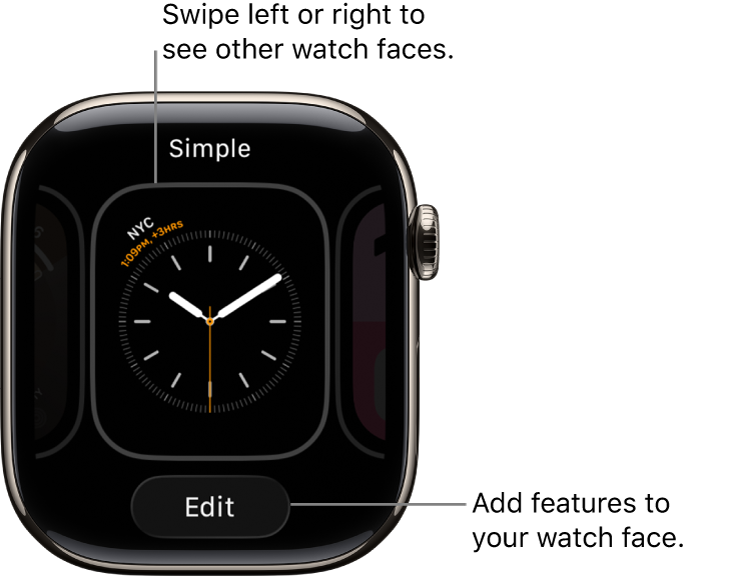
Customize Your Watch Face
Your watch face is your daily interface—make it useful and personal.
Browse Face Styles
- Swipe left/right to preview styles:
- Modular: Large widgets for time, activity, weather
- Infograph: Circular layout with multiple complications
- Activity Analog: Shows Move, Exercise, Stand rings
- Simple: Minimalist design with time and date
Edit Complications
- Press Edit on any face
- Tap each complication (small circle) to change its function
- Choose from:
- Weather
- Calendar
- Heart rate
- Battery level
- Stopwatch
- ECG (on supported models)
Long-press the screen anytime to switch faces or add new ones.
Manage Notifications and Alerts
Control which alerts appear on your wrist to avoid distractions.
Choose App Alerts
- During setup, select which apps can send notifications
- Options include:
- Messages
- Social apps
- Calendar
Set Alert Types
For each app, choose:
– Sound: Play audible alert
– Haptic: Feel a tap on your wrist
– Banner: Show preview on screen
Enable Focus Modes
- Set up Do Not Disturb or Workout mode
- Schedule Focus modes via iPhone Settings app later
Too many alerts? Adjust anytime in My Watch > Notifications.
Set Up Health and Fitness Tracking
Maximize wellness tracking from day one.
Enable Health Monitoring
- Turn on Heart Rate tracking
- Allow access to Health app data
- Opt into sharing across devices
Input Personal Metrics
Enter:
– Height
– Weight
– Age
– Biological sex
Accurate data improves fitness goal calculations and health insights.
Define Activity Goals
Set daily targets for:
– Move: Active calories burned
– Exercise: Minutes of brisk activity
– Stand: Number of hours with movement
Default goals are based on user averages—you can adjust them later.
Connect to Wi-Fi for Standalone Use
Wi-Fi allows updates and functions when your iPhone is away.
Join a Network
- During setup, select a Wi-Fi network
- Enter password using iPhone or on-screen keyboard
- Confirm connection
Required for watchOS updates and syncing without iPhone nearby.
Verify Connection
- On Apple Watch: Open Settings > Wi-Fi
- Look for checkmark next to network name
Wi-Fi does not replace Bluetooth for core syncing—both are used together.
Create a Passcode for Security
Secure your Apple Watch with a passcode.
Set 4- or 6-Digit Code
- Enter a code when prompted
- Re-enter to confirm
The watch locks automatically when removed from your wrist (if passcode is set).
Disable Passcode (Optional)
- Go to Settings > Passcode > Turn Passcode Off
- Not recommended—reduces security and disables Apple Pay
Passcode is required for Apple Pay, Find My, and Health data protection.
Activate Cellular (If Available)
Only available on GPS + Cellular models.
Check Model Type
- On the watch: Swipe up from watch face to Control Center
- Look for cellular icon (radiating bars)
- Or check box/Apple website using serial number
Activate During Setup
- Follow on-screen prompts
- Choose carrier and plan
- Confirm activation
Must have compatible carrier and active service plan.
Activate Later
- Open Apple Watch app > My Watch tab > Cellular > Set Up Cellular
- Follow carrier-specific instructions
Cellular lets you:
– Make calls without iPhone
– Stream music on Apple Watch
– Use GPS and emergency services independently
Sync and Finalize Setup
Once configured, your Apple Watch begins syncing data.
Wait for Sync Completion
- Apps, messages, photos, and health data transfer from iPhone
- Duration depends on data size and connection speed
- Progress bar appears on Apple Watch screen
Keep both devices close and charged during sync.
Explore Get to Know Your Watch
On iPhone, tap “Get to Know Your Watch” to access:
– Interactive tutorials
– Gesture guides (swipe, tap, Digital Crown)
– Feature highlights
Content also available post-setup in the Discover tab of the Apple Watch app.
Troubleshoot Common Setup Issues
Even smooth setups can hit snags. Here’s how to fix them fast.
Watch Shows Face Instead of Setup Screen
Cause: Already paired with another iPhone
Fix:
– On watch: Go to Settings > General > Transfer or Reset Watch
– Tap Erase All Content and Settings
– Wait for restart, then begin pairing
Always erase before selling or gifting.
iPhone Can’t Detect Apple Watch
Causes:
– Bluetooth/Wi-Fi off
– Interference
– Camera blocked
Solutions:
– Enable Bluetooth & Wi-Fi in iPhone Control Center
– Restart both devices
– Try manual pairing with 6-digit code
Ensure no cases or films block the watch screen.
Pairing Stalls or Fails
Try these steps:
1. Restart iPhone and Apple Watch
2. Reset network settings: iPhone Settings > General > Reset > Reset Network Settings
3. Move to a quiet area (reduce Bluetooth/Wi-Fi interference)
4. Reopen Apple Watch app and tap “Pair New Watch”
If all else fails, contact Apple Support or visit an Apple Store.
Optimize After Setup
Now that your Apple Watch is ready, fine-tune it for better performance.
Update watchOS
- On Apple Watch: Open Settings > General > Software Update
- Download and install latest version
- Requires 50% battery or charger connection
Updates include bug fixes, new features, and security patches.
Customize via Apple Watch App
Use the My Watch tab to:
– Install/remove apps
– Rearrange app grid
– Change notification settings
– Manage privacy permissions
Hide unused apps by switching to List View instead of Grid.
Explore Built-in Features
Start using powerful tools:
– Activity Rings: Track daily Move, Exercise, Stand goals
– Workouts: Log runs, swims, cycling, and more
– Sleep Tracking: Set bedtime schedule and monitor sleep stages
– Fall Detection: Auto-calls emergency services if hard fall detected
– Crash Detection: On Series 8, Ultra, and later—triggers after car crash
Enable medical features in Settings > Emergency SOS.
Your Apple Watch is now set up, personalized, and ready to enhance your health, communication, and productivity. From seamless iPhone pairing to cellular independence and advanced health monitoring, taking the time to configure it properly ensures you get the most out of every feature. Keep it updated, explore new watch faces, and revisit settings as your needs evolve.





