
Your Apple Watch Ultra is frozen, unresponsive, or you’re preparing to sell it—no matter the reason, knowing how to reset Apple Watch Ultra correctly is essential. Whether you’re troubleshooting a crash, wiping data before gifting, or stuck on the Apple logo, this guide covers every method with clarity and precision. You’ll learn the differences between a factory reset, unpairing via iPhone, and a hard reset—plus how to avoid Activation Lock traps, failed resets, and buyer’s remorse. By the end, you’ll know exactly which reset path to take based on your situation.
Let’s dive into the three core ways to reset your Apple Watch Ultra—and when to use each.
Factory Reset From the Apple Watch Ultra (No iPhone Needed)

Use this method when you don’t have access to your iPhone but still need to wipe your Apple Watch Ultra completely.
When You Should Use This Method
- Selling or gifting without your iPhone
- iPhone is lost, damaged, or no longer in use
- Experiencing persistent software crashes or glitches
This process erases all content and settings, including apps, messages, health data, music, and Wi-Fi passwords. However, Activation Lock remains active unless previously disabled through your iPhone or iCloud. That means the new user will be blocked from setting up the watch unless they have your Apple ID and password.
Step-by-Step: Erase Apple Watch Ultra Directly
- Charge your watch – Connect it to the magnetic charger to avoid interruption.
- Press and hold the side button until the Power Off slider appears.
- Release the side button.
- Immediately press and hold the Digital Crown.
- Keep holding until “Erase All Content and Settings” appears on screen.
- Tap Reset, then confirm by tapping Reset again.
- Enter your passcode if prompted.
- For GPS + Cellular models: Choose Keep or Remove your cellular plan:
– Keep: Re-pair later with the same carrier
– Remove: Recommended for resale (cancel service separately with your carrier) - Tap Erase All to begin.
⚠️ Do not disconnect from power during the process. It takes 3–5 minutes to complete. A progress bar will appear on screen.
When finished, your Apple Watch Ultra restarts and shows: “Bring your Apple Watch near your iPhone.”
If Activation Lock is still active, the original Apple ID and password will be required to proceed.
Common Issues & Fixes
“Erase All” Option Doesn’t Appear?
- You likely pressed both buttons at the same time, triggering a hard reset instead.
- Make sure you:
- Wait for the Power Off slider to appear first.
- Release the side button before pressing the Digital Crown.
- Try again after performing a hard reset to clear any glitches.
Watch Freezes Mid-Reset?
- Reconnect to the charger.
- Wait 10 minutes—if still unresponsive, perform a hard reset (see below).
Unpair Apple Watch Ultra via iPhone (Best for Selling or Gifting)
This is the gold standard method when transferring ownership—especially before selling your Apple Watch Ultra.
Why Unpairing Beats a Direct Reset
Unlike a factory reset from the watch, unpairing via iPhone:
– Erases all data permanently
– Creates a full backup automatically
– Removes Activation Lock
– Frees up iCloud storage
– Safely disconnects cellular plans
Without this step, even a wiped Apple Watch Ultra remains tied to your Apple ID. The next user won’t be able to activate it—making your device essentially useless.
How to Unpair Apple Watch Ultra from iPhone
- Open the Apple Watch app on your iPhone.
- Go to the My Watch tab.
- Tap “All Watches” in the top-left corner.
- Select your Apple Watch Ultra.
- Tap the (i) Info button next to its name.
- Scroll down and tap Unpair Apple Watch.
- Confirm by tapping Unpair [Watch Name].
- Enter your Apple ID password to disable Activation Lock.
- For cellular models: Choose Keep or Remove your plan.
- Wait while your iPhone backs up and erases the watch.
🕒 This process takes 5–10 minutes. Keep both devices close, charged, and connected to Wi-Fi.
Once complete, your Apple Watch Ultra restarts to a clean state: “Press and hold to begin.”
Now it’s ready to be sold, gifted, or set up fresh—no Apple ID required.
Pro Tips for Success
- No extra backup needed—the unpair process does it automatically.
- Wi-Fi helps—ensures smooth iCloud sync and Activation Lock removal.
- Forgot your passcode? You must enter it during unpairing. If you can’t, use the direct erase method—but Activation Lock stays active.
✅ Best Practice: Always unpair via iPhone when possible—especially before selling.
Hard Reset: Fix a Frozen or Unresponsive Apple Watch Ultra

Is your Apple Watch Ultra stuck on the Apple logo, frozen, or not responding to taps? A hard reset (also called a force restart) is your best bet.
What a Hard Reset Does
- Restarts the operating system
- Clears temporary software glitches
- Fixes app crashes, black screens, or boot loops
- Does NOT delete any data, apps, or settings
It’s like rebooting a computer—safe, fast, and effective.
How to Force Restart Apple Watch Ultra
- Press and hold both:
– The side button
– The Digital Crown - Hold for at least 10 seconds.
- Keep holding until the Apple logo appears.
- Release both buttons.
🔄 The watch vibrates and restarts. Normal operation resumes in about 15 seconds.
When to Use This Method
- Screen is unresponsive
- Stuck on Apple logo or black screen
- App freezes repeatedly
- Watch won’t wake up
If the first attempt fails, wait 5 seconds and try again.
What If It Still Won’t Turn On?
- Charge for 15 minutes—a drained battery often mimics a frozen state.
- Use the original Apple charger—third-party chargers may not deliver enough power.
- Try another charging cable or power source if needed.
Activation Lock: The Hidden Trap After Reset
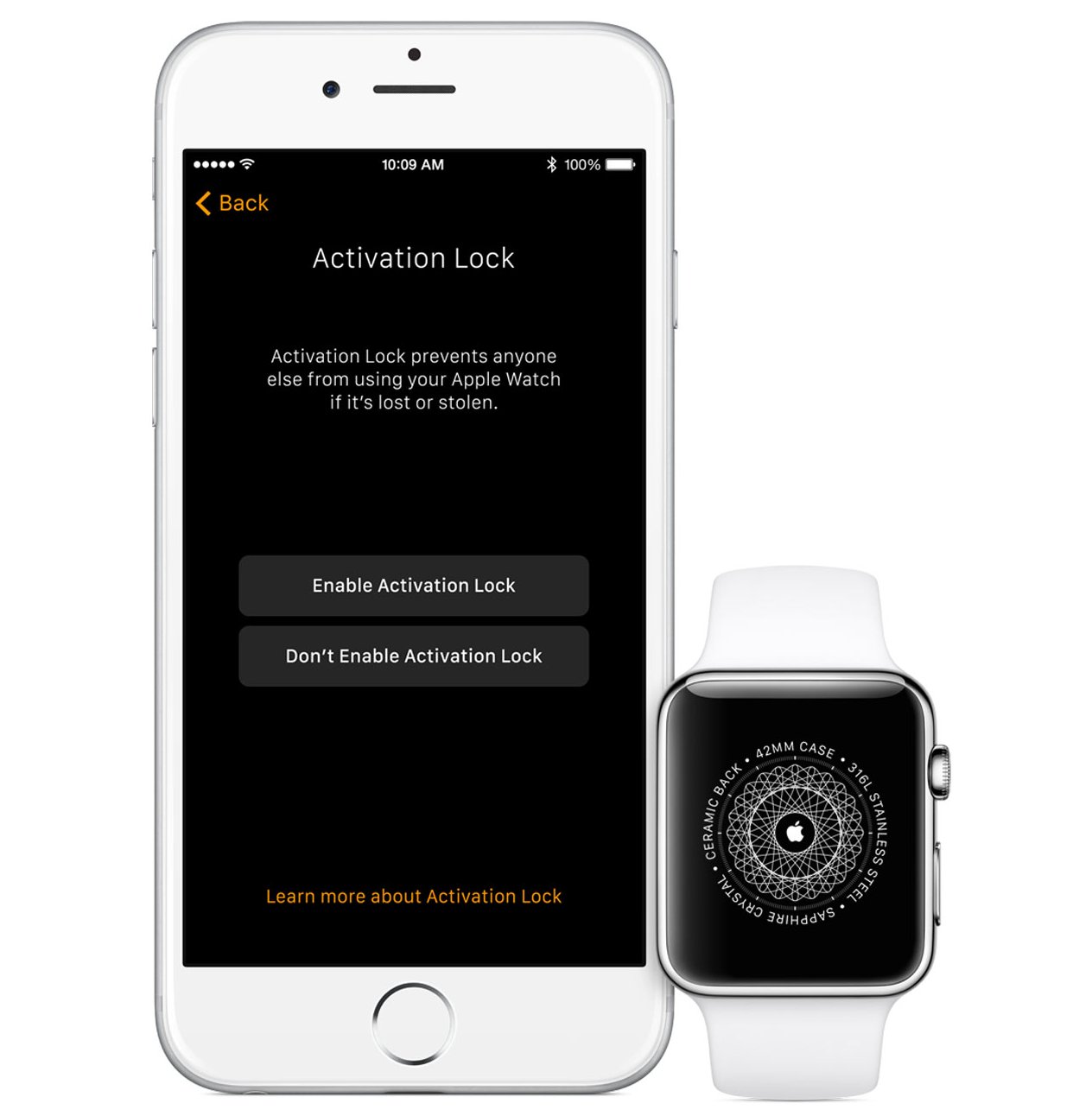
Even after a full factory reset, your Apple Watch Ultra may still be locked—thanks to Apple’s Activation Lock security feature.
How Activation Lock Works
- Automatically enabled when Find My is turned on.
- Prevents unauthorized setup after erasure.
- Requires the original Apple ID and password to activate.
🔒 A factory reset does not remove Activation Lock. Only unpairing via iPhone or removing the device from iCloud does.
Consequences of a Locked Apple Watch
| Scenario | Can Be Used? | Solution |
|---|---|---|
| You reset it yourself | ✅ Yes – just sign in | No issue |
| Bought secondhand, locked | ❌ No – setup blocked | Seller must remove from iCloud |
| Found device | ✅ Erase, but ❌ can’t use | Return or report to Apple |
How to Remove Activation Lock
Only the original owner can unlock it:
- Go to iCloud.com or open the Find My app.
- Sign in with their Apple ID.
- Select Devices > Apple Watch Ultra.
- Click Remove from Account.
🛑 There is no bypass. If the seller won’t cooperate, the watch is unusable.
Warning for Buyers
Never buy a used Apple Watch Ultra without verifying:
– No passcode prompt
– No Activation Lock during setup
– Seller provides proof of removal from iCloud
💬 “I bought one off Facebook Marketplace and can’t pair it. Seller won’t respond.”
— A common user problem. Always check before purchase.
Troubleshooting Failed Resets
Even with clear steps, things can go wrong. Here’s how to fix common issues.
Reset Option Won’t Appear?
Causes:
- Incorrect button sequence
- Low battery
- Software glitch
Fixes:
- Charge to at least 30%.
- Don’t press both buttons together—that triggers a hard reset.
- Follow the correct order:
1. Side button → release → Digital Crown
2. Wait for Power Off slider first - Try a hard reset first, then retry.
Stuck on Apple Logo After Reset?
- Likely caused by a corrupted OS or failed update.
- Solution: Perform a hard reset.
- If it persists, contact Apple Support—the watch may need servicing.
Can’t Unpair? iPhone Says “Not Connected”
Possible Causes:
- Bluetooth off
- Watch out of range
- Software mismatch
Fixes:
- Restart both iPhone and Apple Watch.
- Toggle Bluetooth off/on.
- Update both devices to the latest software.
- Open the Watch app and wait—sync can take time.
✅ Ensure both are on the same Wi-Fi and logged into the same Apple ID.
Reset Method Comparison: Which One Should You Use?
| Feature | Unpair via iPhone | Direct Factory Reset | Hard Reset |
|---|---|---|---|
| Erases Data | ✅ Yes | ✅ Yes | ❌ No |
| Removes Activation Lock | ✅ Yes | ❌ No | ❌ No |
| Creates Backup | ✅ Yes | ❌ No | ❌ No |
| Needs iPhone | ✅ Yes | ❌ No | ❌ No |
| Fixes Freezing | ⚠️ Indirectly | ⚠️ Only if persistent | ✅ Yes |
| Best For | Selling/Gifting | No iPhone access | Frozen screen |
🔄 Rule of Thumb:
– Use Unpair via iPhone for resale.
– Use Direct Reset if no iPhone.
– Use Hard Reset for crashes.
Post-Reset Setup: Getting Started Again
Once reset, setting up your Apple Watch Ultra is simple.
How to Set Up After Reset
- Press and hold the side button to power on.
- Place it near your iPhone.
- Open the Apple Watch app.
- Follow prompts to:
– Set up as new
– Restore from backup (if available) - Sign in with Apple ID.
- Reinstall apps and customize settings.
💾 If you unpaired via iPhone, your last backup is saved—use it to restore everything.
For New Owners
If you received a reset Apple Watch:
– It should show “Press and hold to begin.”
– If it asks for a passcode or Apple ID, it’s still activation locked.
– Contact the seller to remove it from their iCloud.
Final Tips: Best Practices for Resetting Apple Watch Ultra
- ✅ Selling or gifting? Always unpair via iPhone to remove Activation Lock.
- ✅ Troubleshooting? Try a hard reset first, then a factory reset if needed.
- ✅ Buying used? Verify no Activation Lock before paying.
- ✅ Before any reset: Charge both devices, know your Apple ID, and ensure a backup exists.
🔄 The reset Apple Watch Ultra process depends on your goal. Use unpairing for full deactivation, direct reset for emergencies, and hard resets for recovery. With this guide, you’re fully equipped to handle any scenario confidently.





